Signing in
The sign-in screen is your way into EndpointOps. This page covers logging in, two-factor authentication, and what to do when sign-in fails.
How to get here
Open EndpointOps in your browser using the address your administrator gave you (for
example https://your-endpointops-site). If you aren't signed in yet, the app sends
you straight to the sign-in screen.
URL path: /login (e.g. https://your-endpointops-site/login).
The sign-in screen
EndpointOps signs you in to the Trinetri Autonomous Platform. The left panel introduces the platform; you sign in on the right.
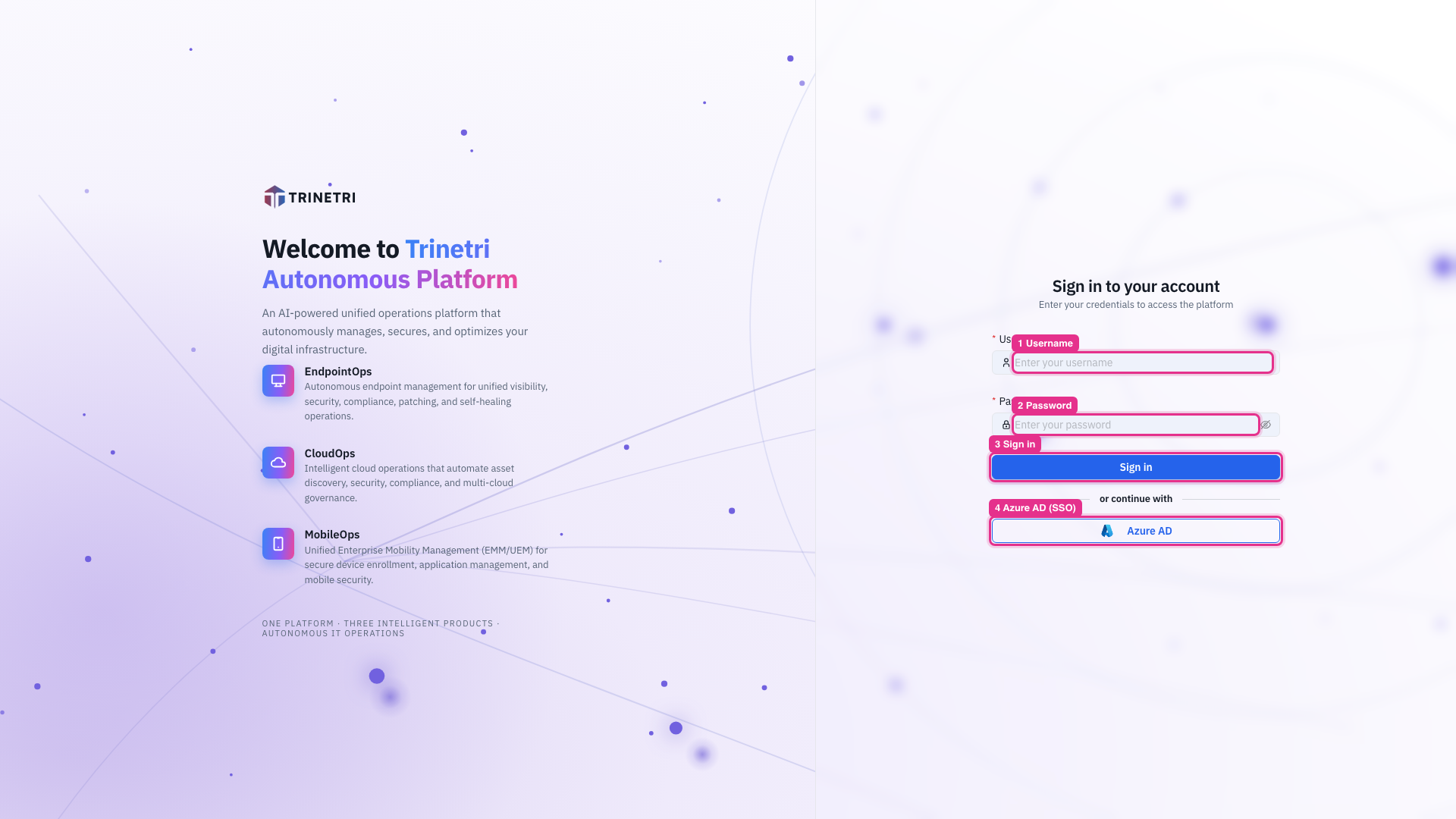
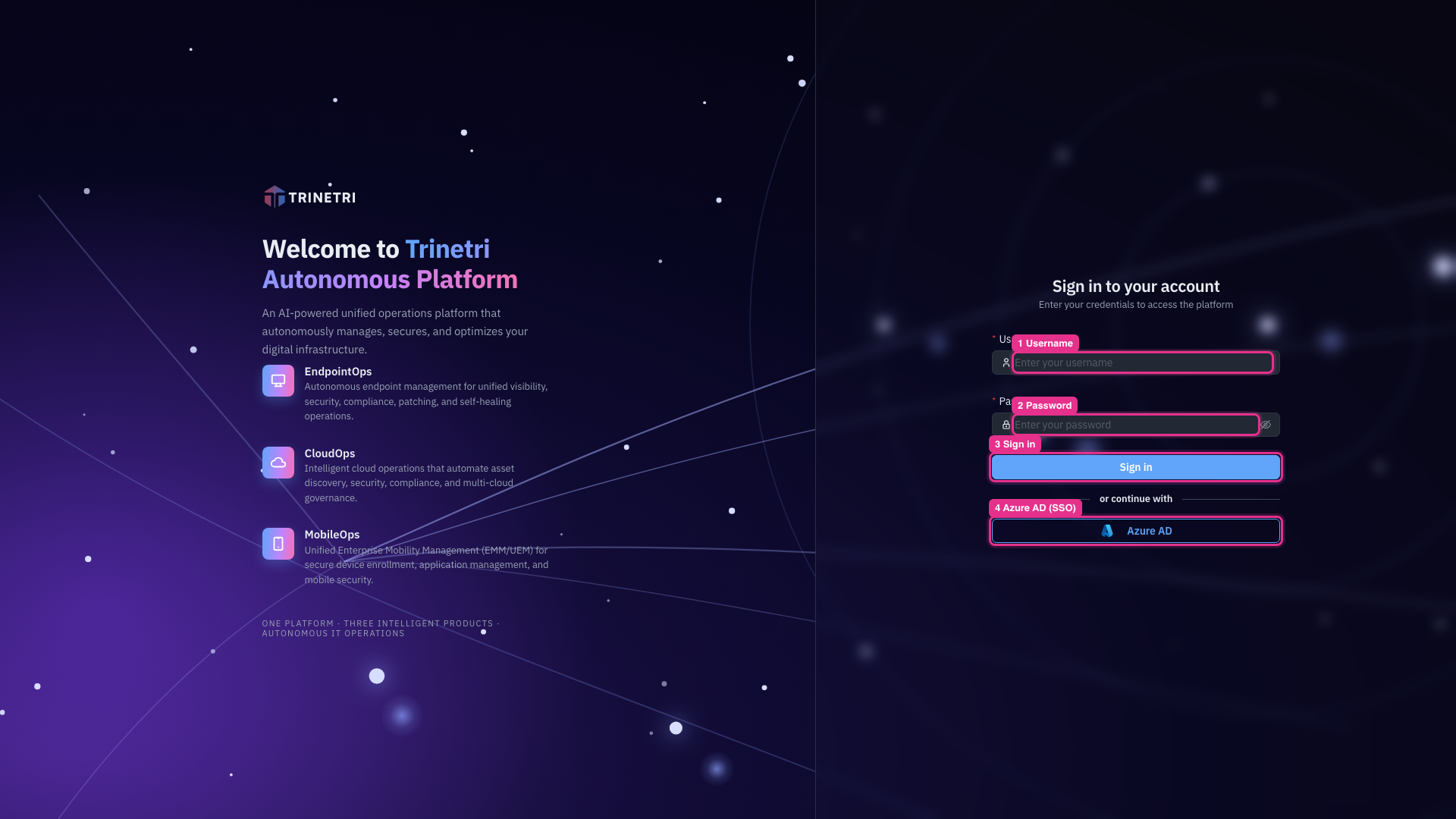
| # | Field | What to enter |
|---|---|---|
| 1 | Username | The username your administrator created for you. |
| 2 | Password | Your password. Click the eye icon to reveal what you typed. |
| 3 | Sign in | Click to sign in with the username and password above. |
| 4 | Azure AD | Sign in with single sign-on instead — see Single sign-on below. |
How do I sign in?
- Enter your Username.
- Enter your Password.
- Click Sign in.
On success you land on the Executive Dashboard, your home screen.
Two-factor authentication (2FA)
If your administrator has enabled 2-Factor Authentication for the account, after entering your username and password you'll be asked for a one-time verification code. Enter the code from your authenticator to finish signing in.
Administrators turn this on under Settings → System Settings → 2-Factor Authentication.
Single sign-on (SSO)
If your organization uses single sign-on, sign in through your identity provider instead of typing a password here. When Azure AD SSO is configured, the sign-in screen shows an Azure AD button under or continue with — click it to sign in with your Microsoft account. SSO is set up under Settings → User Management → SSO Configuration.
Signing out
Open the profile menu (the user icon at the top-right of any screen) and choose sign out.
Troubleshooting
- "Invalid credentials" or sign-in is rejected. Check for typos, confirm Caps Lock is off, and use the eye icon to verify your password. If it still fails, ask your administrator to confirm your account is active and Login Allowed is on.
- You don't have an account. Accounts are created by an administrator under Settings → User Management → Users.
- You're asked for a 2FA code you don't have. Contact your administrator to reset or reconfigure two-factor authentication for your account.