Config Catalog
The Config Catalog is your library of configuration profiles. Each entry is a command (PowerShell, a registry change, or a shell command) or a script file that you can run across endpoints — for example to set a registry value, apply a tweak, or remediate a finding. Configuration Automation works just like Software Automation: build a catalog item, optionally bundle it, then deploy it.
How to get here
You need View Configuration permission.
- In the left sidebar, click Automation → Configuration Automation.
Navigate to: Automation → Configuration Automation → Config Catalog
URL path: /automation/configuration-automation
The Config Catalog screen
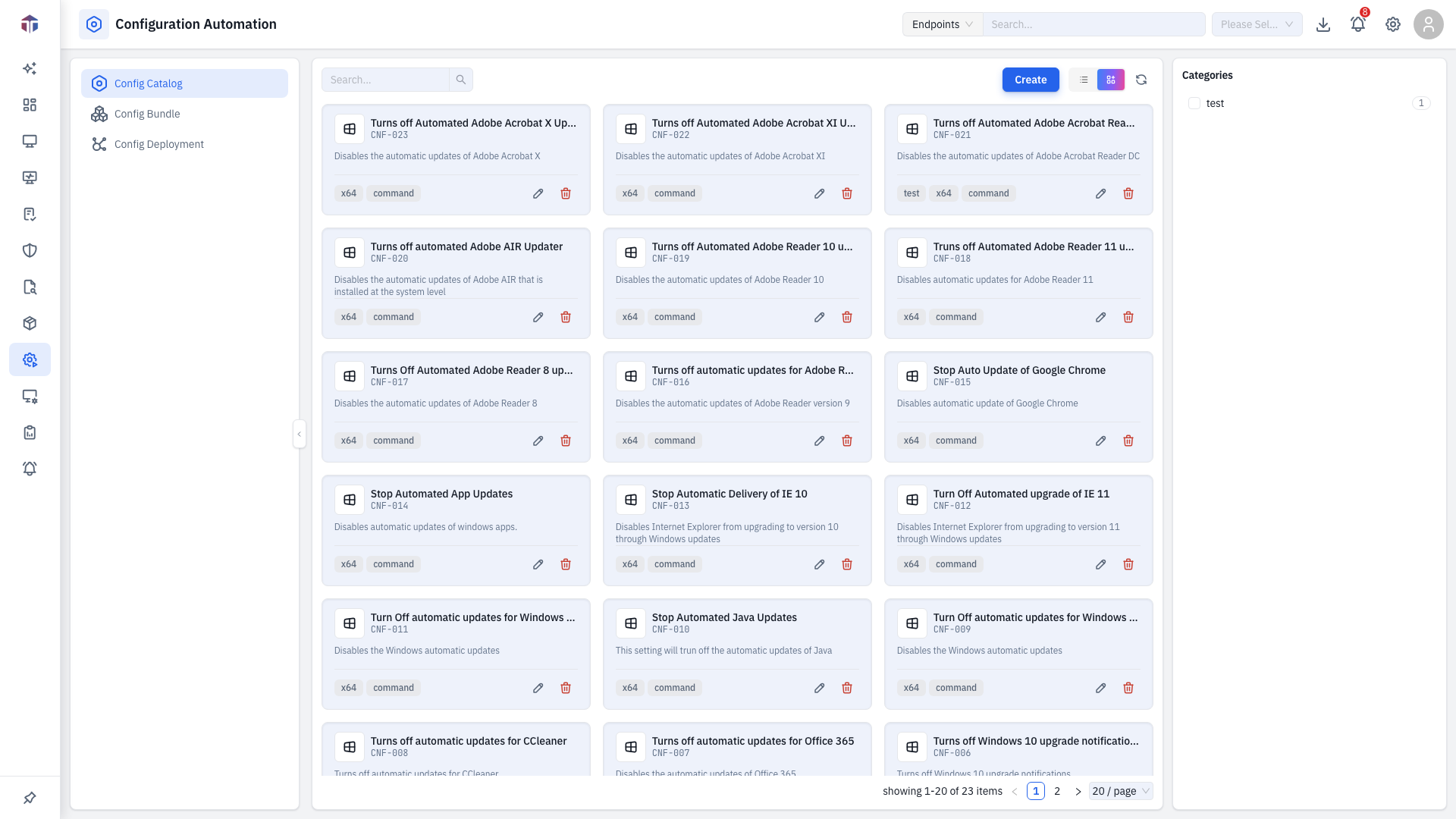
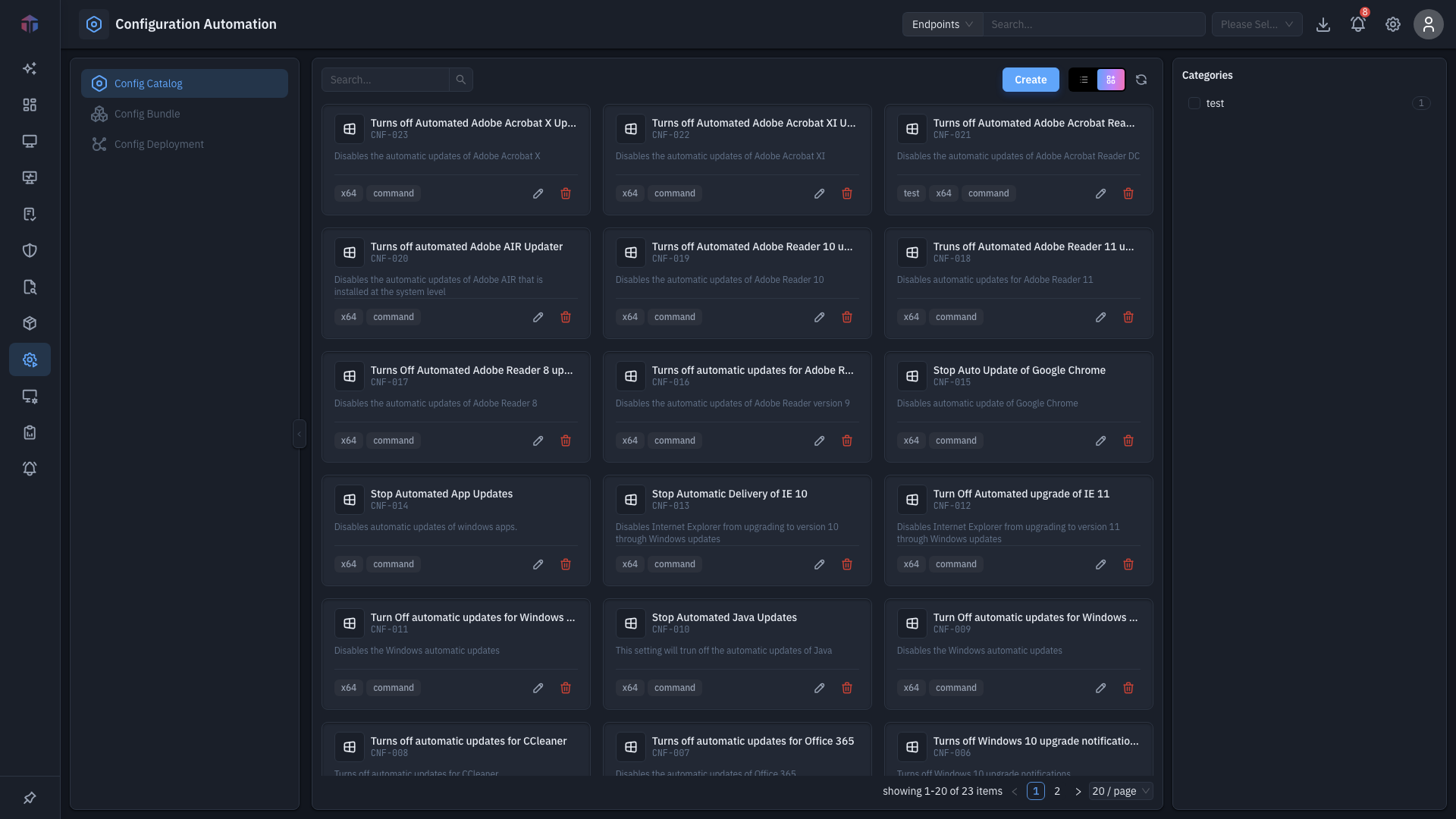
Configurations show as cards by default; switch to a table with the list / card toggle. Search and the tag filter panel narrow the list, and Create adds a new configuration.
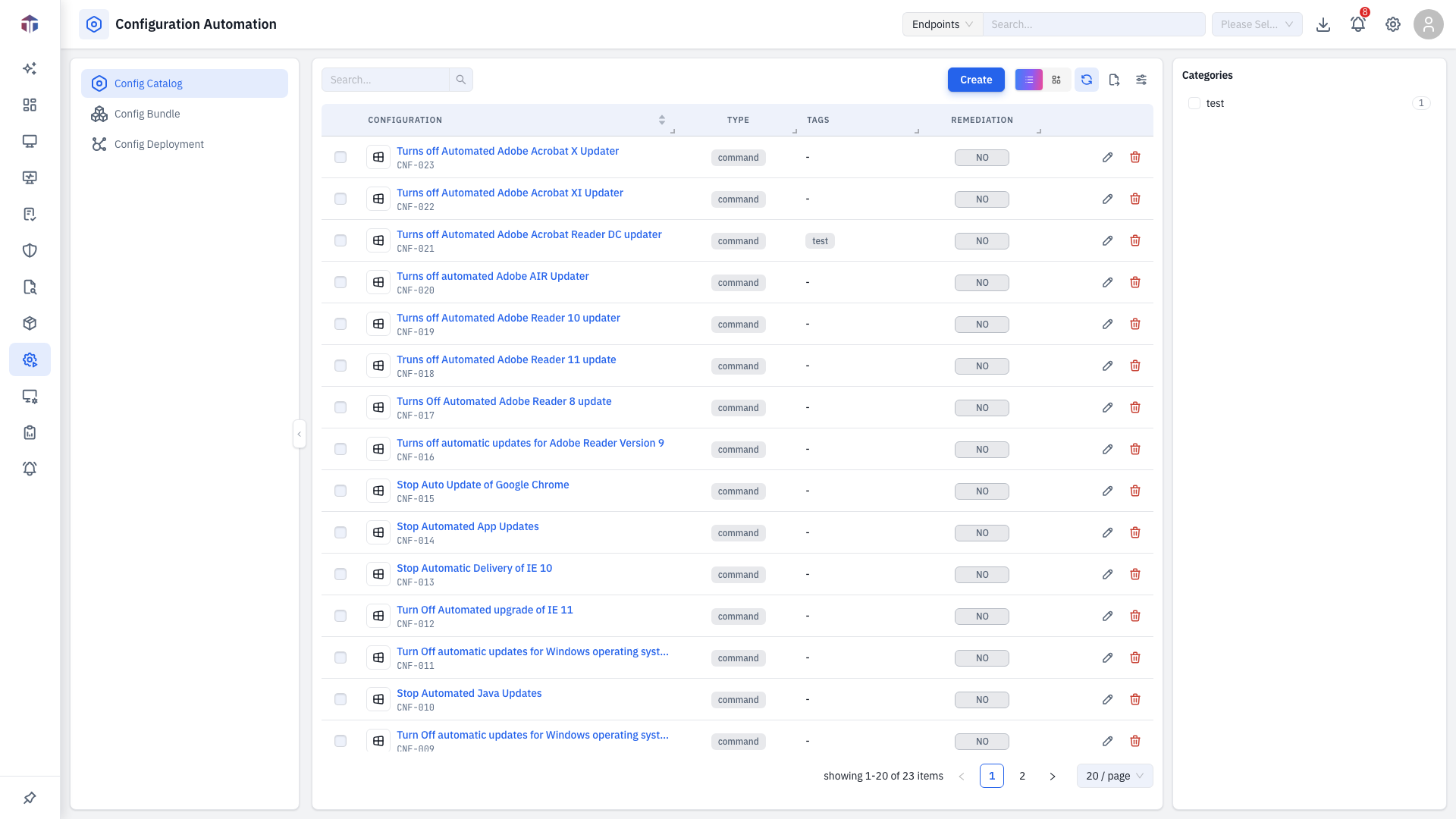
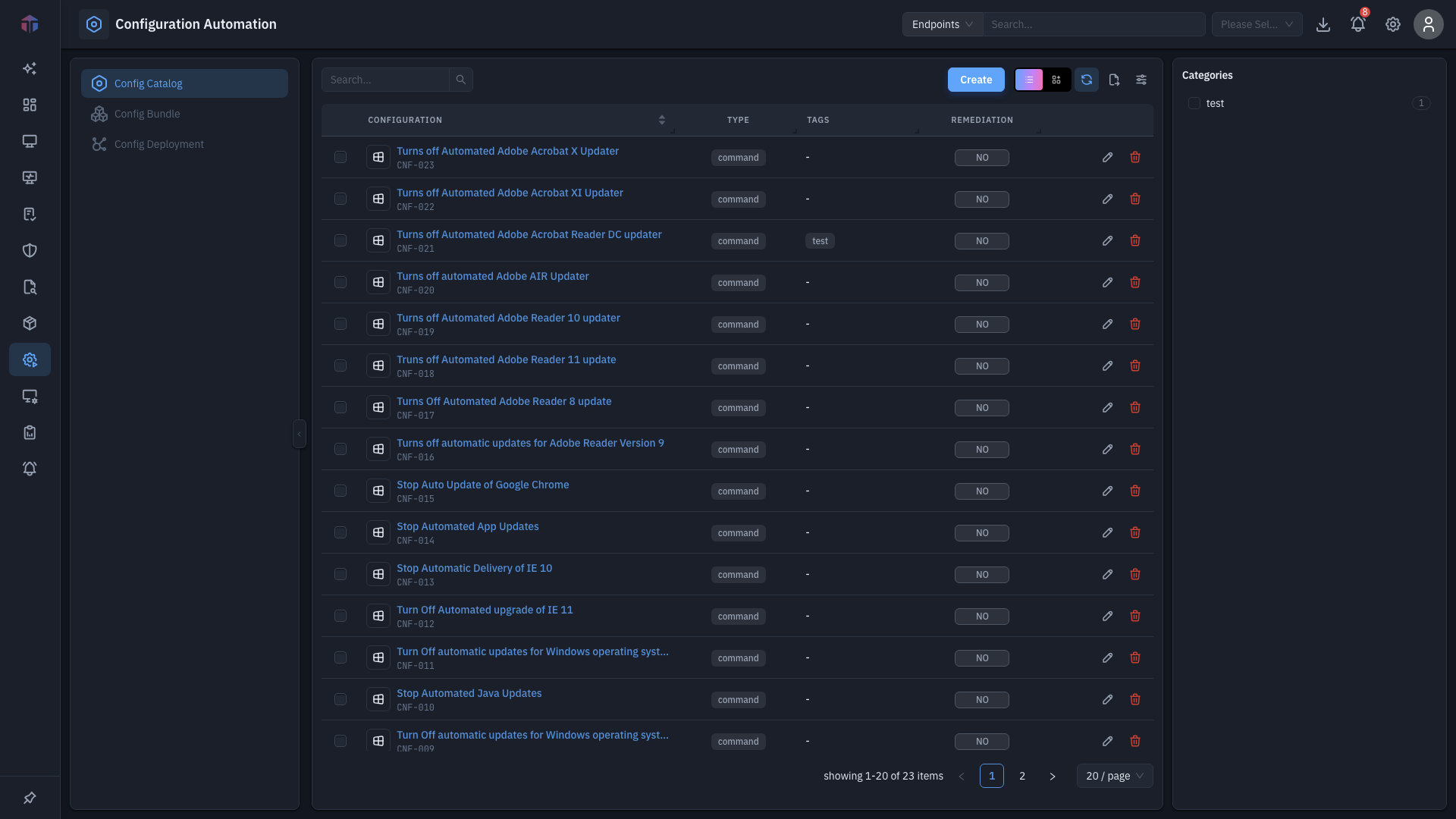
In list view the columns are:
| Column | What it shows |
|---|---|
| ID / Name | The configuration (a link). |
| Description | What it does. |
| OS | Target platform. |
| Type | command or script. |
| Remediation | Whether it's marked as a remediation action. |
| Created By / Created On | Who added it and when. |
How do I add a configuration?
Click Create. The configuration form opens in a drawer.
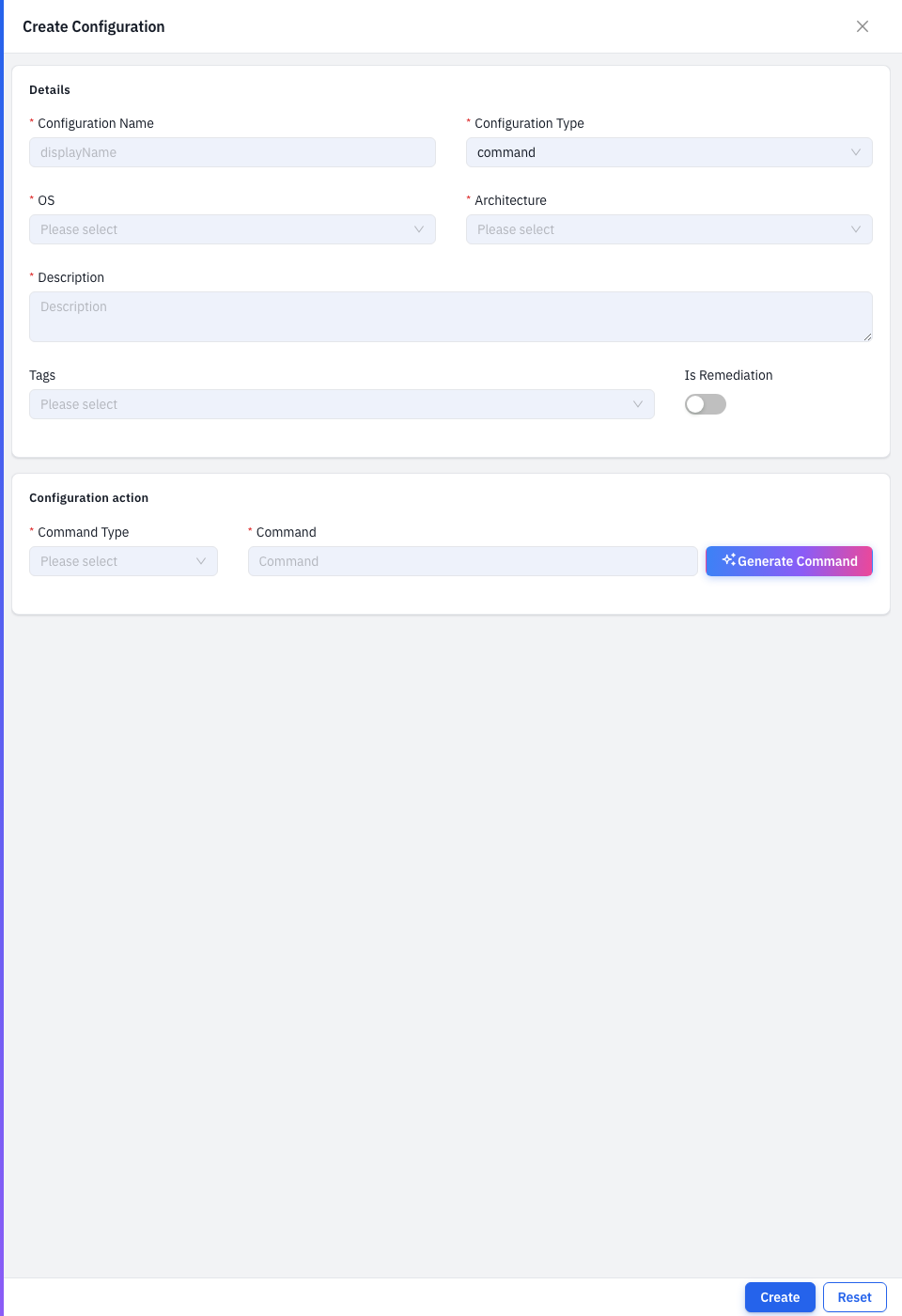
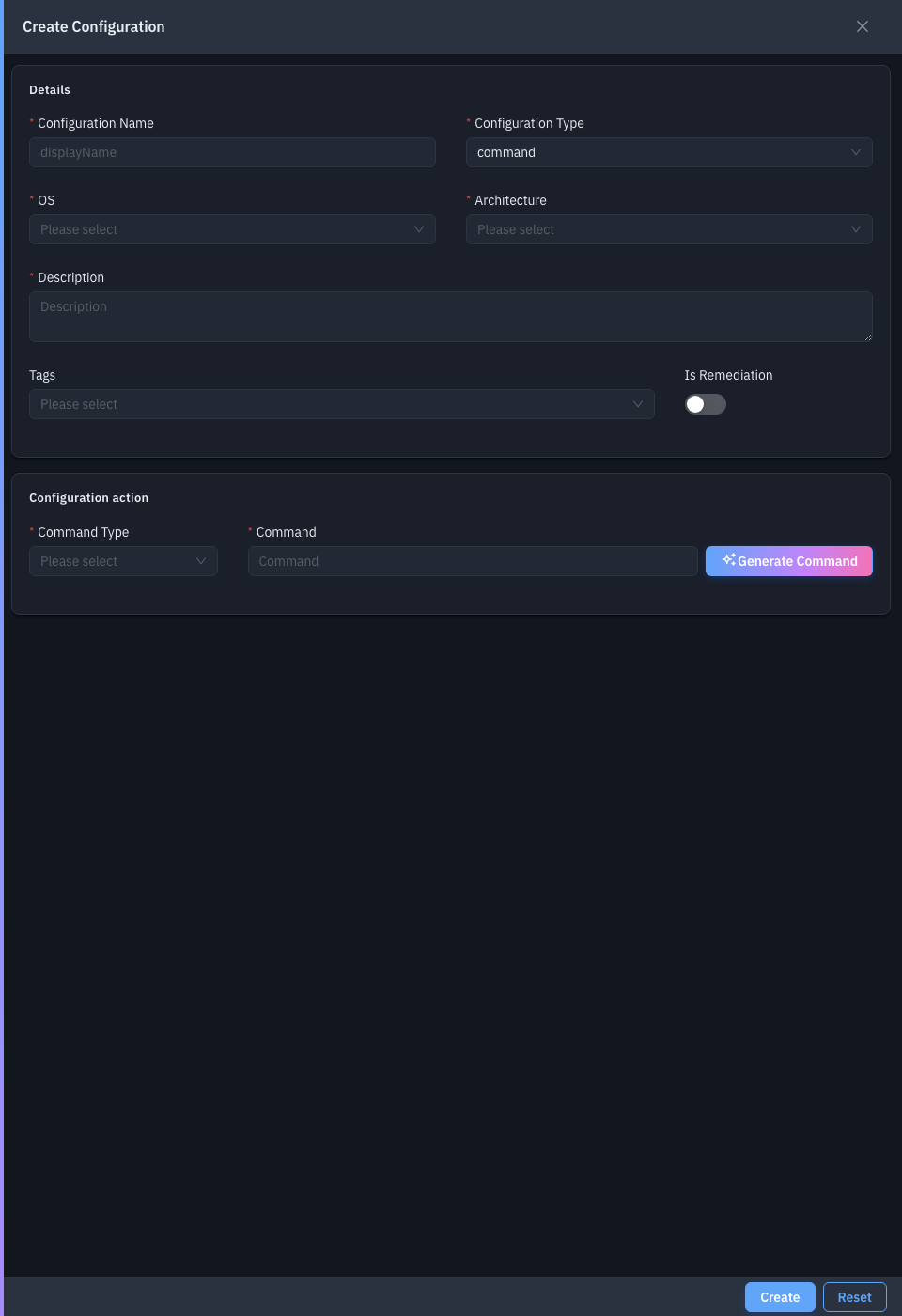
| Field | Required | Notes |
|---|---|---|
| Configuration Name | Yes | The display name. |
| Configuration Type | Yes | Command or Script. Can't change after create. |
| OS | Yes | Windows, Linux, or macOS. Can't change after create. |
| Architecture | Yes | x64, x86, or amd64. |
| Description | Yes | What it does. |
| Tags | No | Category tags. |
| Is Remediation | No | Marks this as a remediation action. |
| Command (command type) | Yes | The command to run. On Windows, pick Command Type — PowerShell, Registry, or Command. |
| Script File (script type) | Yes | Upload the script to run. |
Generate a command or script with AI
Don't want to write the command yourself? Both the Command and Script File fields include a Generate Command / Generate Script button (marked with the AI icon) that drafts it for you from a plain-English description.
- In the configuration form, set the OS and Command Type, then click Generate Command.
- Describe what you want in Command Description — for example: "List all running Windows services and their current status."
- Click Generate. The AI returns a ready-to-use script in the Result pane.
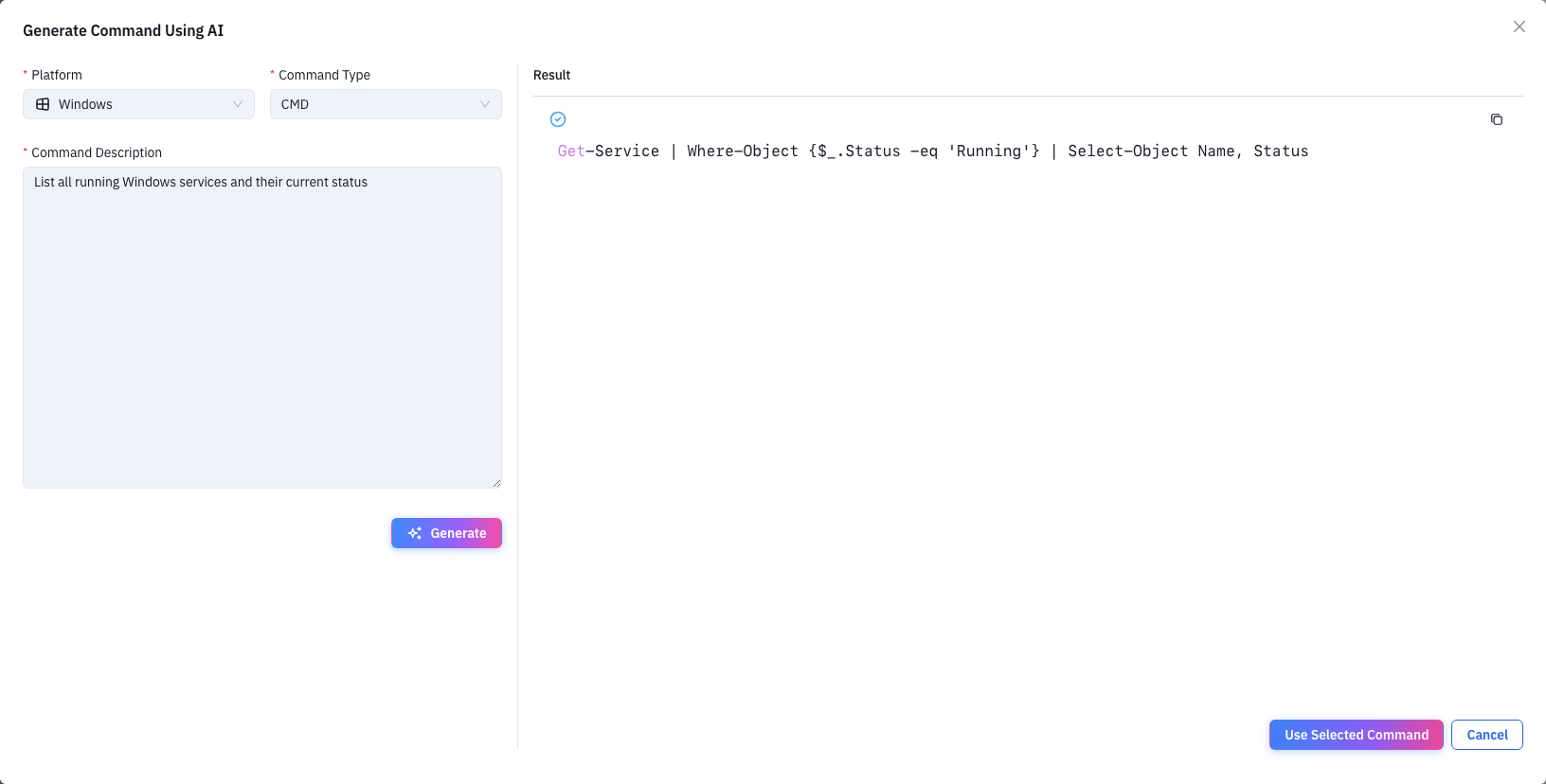
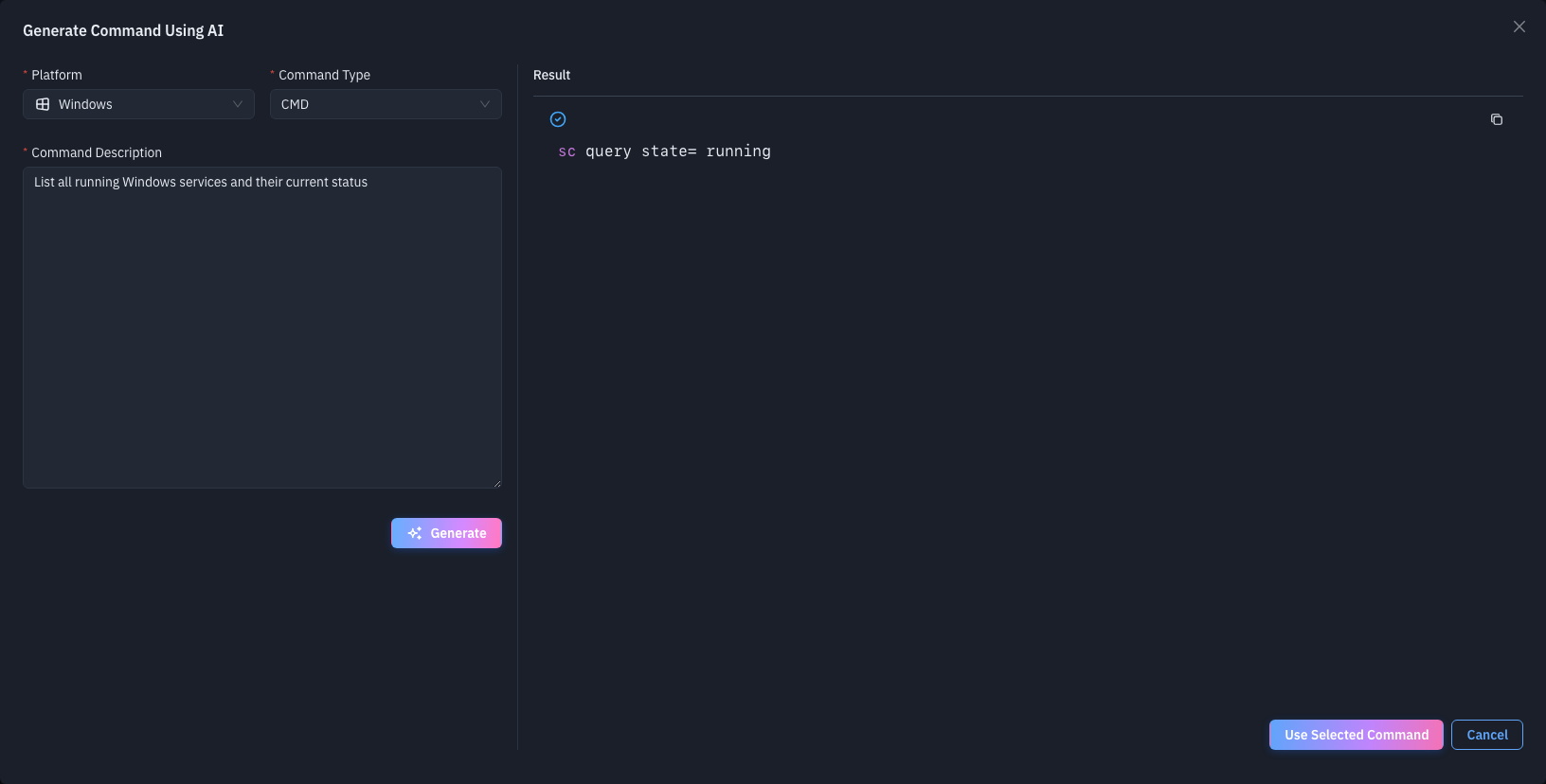
Review the generated script, edit it inline if needed, then click Use Selected Command (or Save Script) to drop it into the form.
The generator uses the platform and command type from the form, so set those first for the best result. It requires the AI service to be enabled for your environment.
Tips & troubleshooting
- Type and OS are locked when editing. They define the configuration's shape — create a new one instead of changing them.
Related
- Config Bundle — group configurations.
- Config Deployment — run configurations on endpoints.
- Software Automation — the same workflow for apps.