App Bundle
An App Bundle groups several catalog packages into one unit so you can deploy them together — for example a "new starter" bundle of the apps every new machine needs. A bundle is tied to one platform, and you deploy it from App Deployment just like a single package.
How to get here
You need View Software permission.
- In the left sidebar, click Automation → Software Automation.
- Open the App Bundle tab.
Navigate to: Automation → Software Automation → App Bundle
URL path: /automation/software-automation/bundles
The App Bundle screen
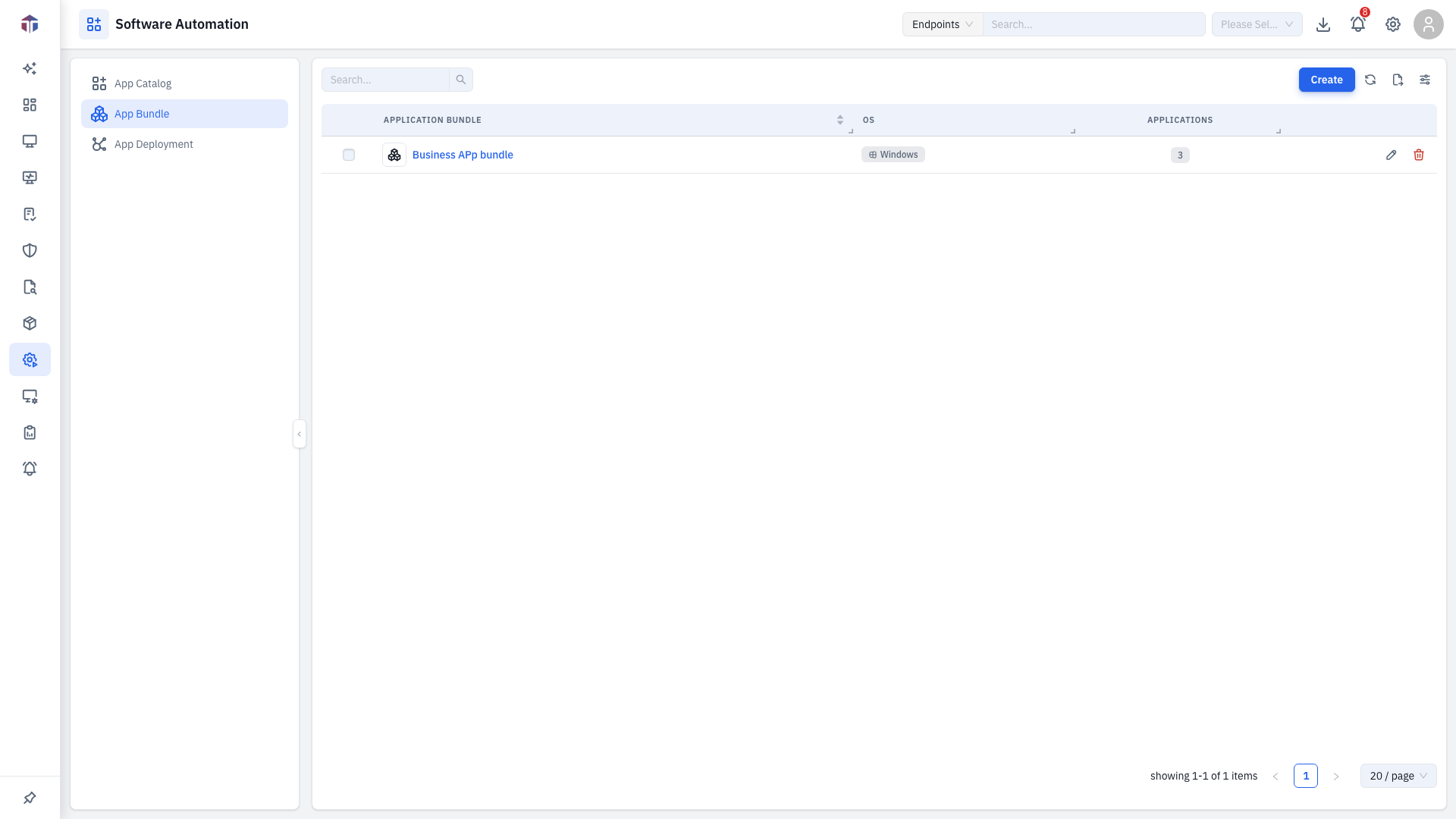
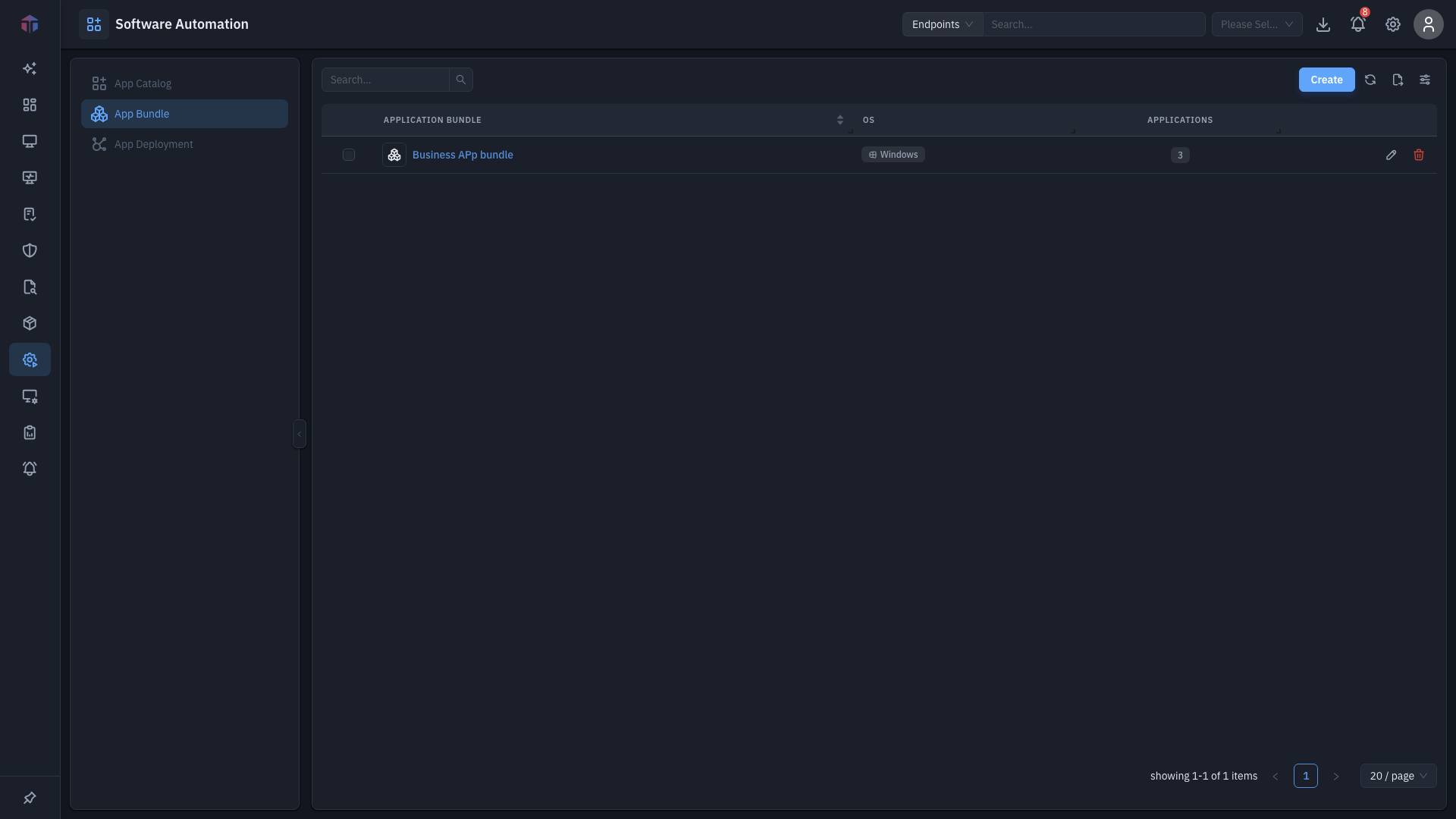
| Column | What it shows |
|---|---|
| Name | The bundle name (a link). |
| Description | What the bundle is for. |
| OS | The platform the bundle targets. |
| Softwares | How many packages are in it — a clickable count. |
| Created By / Created On | Who created it and when. |
Toolbar: Create a bundle, Search, and bulk delete selected rows.
How do I create an App Bundle?
Click Create. The bundle form opens in a drawer.
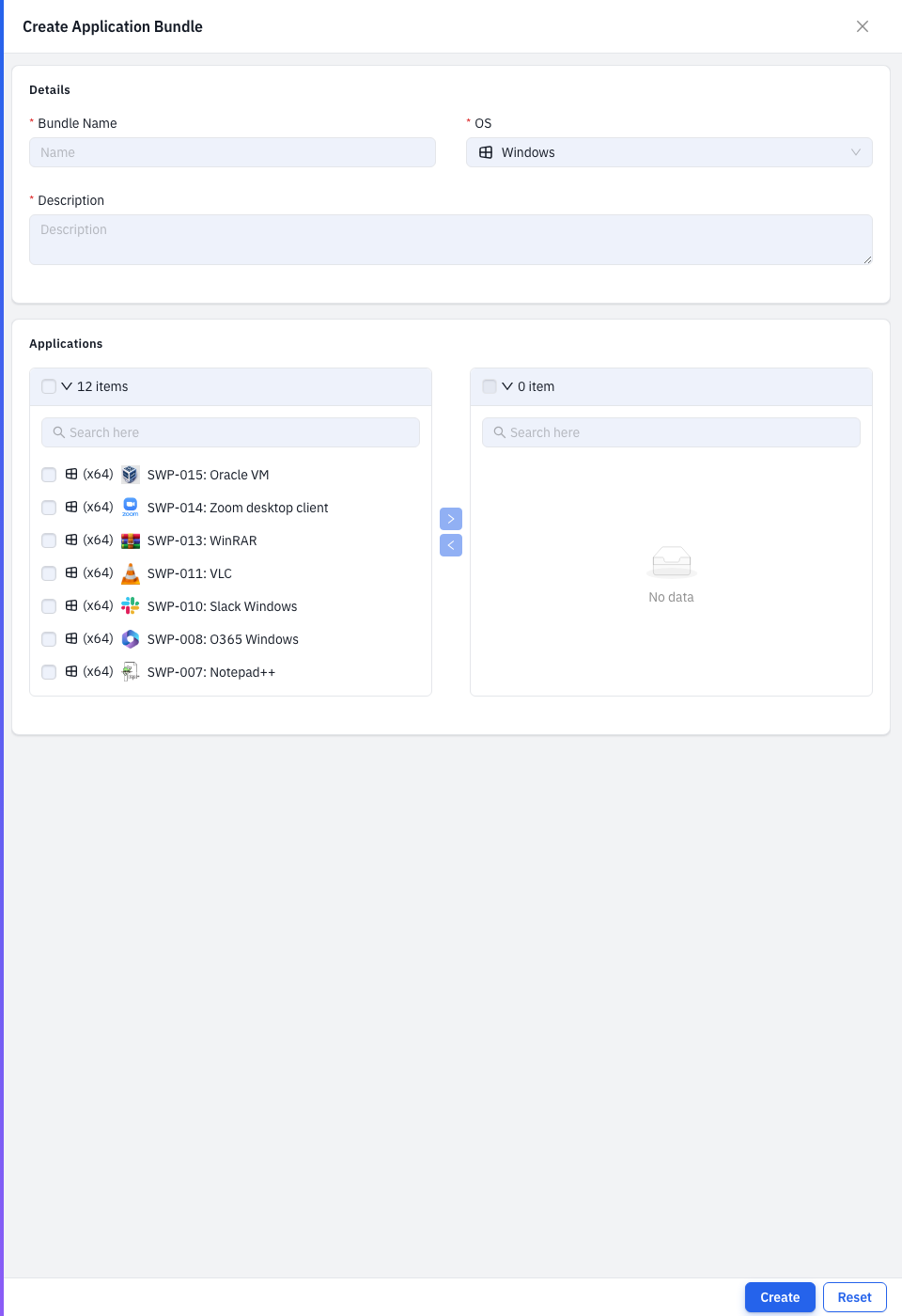
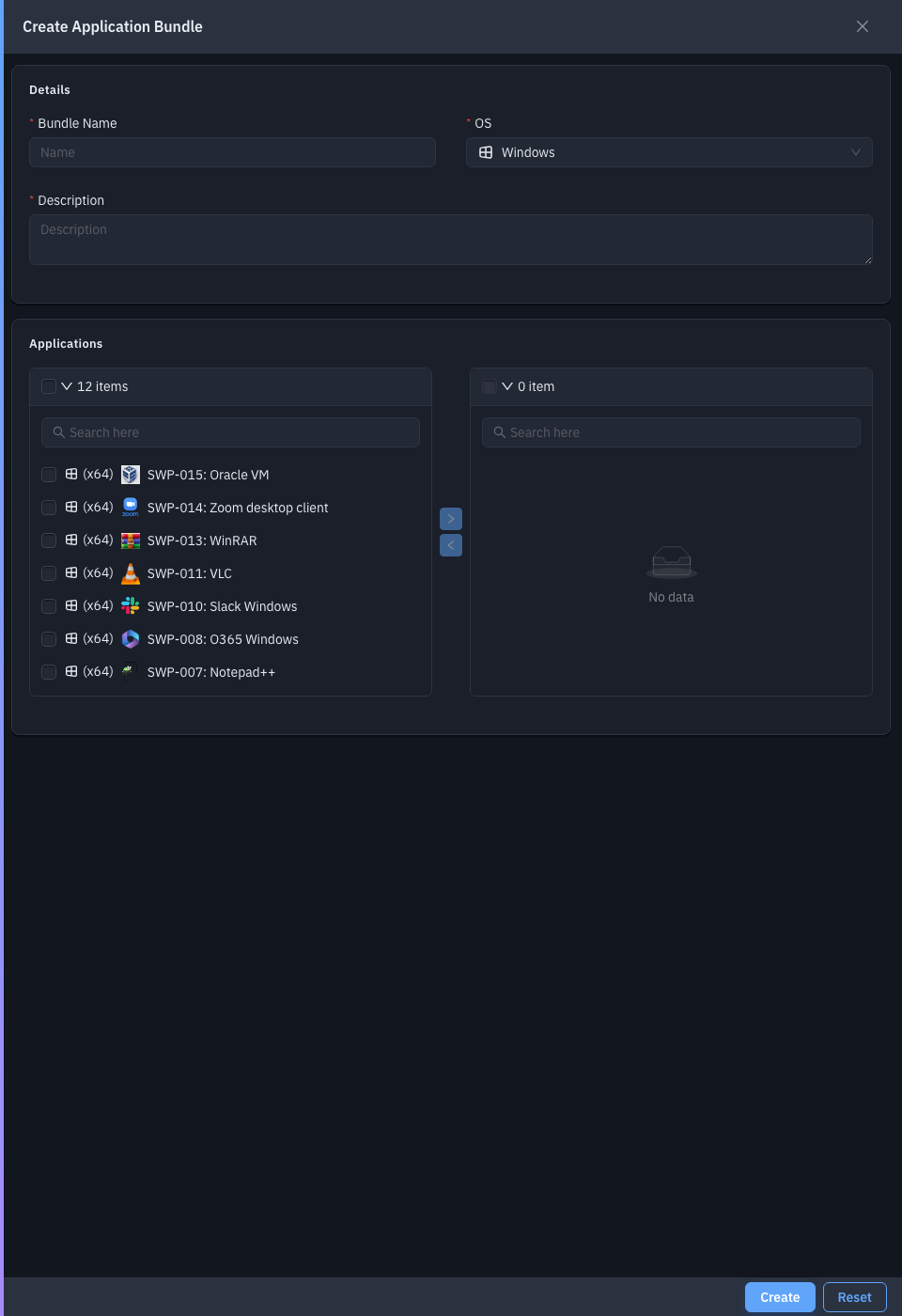
| Field | Required | Notes |
|---|---|---|
| Bundle Name | Yes | The bundle's name. |
| OS | Yes | The platform. The package list is filtered to it. Can't change after create. |
| Applications | Yes | A transfer list — move packages from the catalog into the bundle. |
| Description | Yes | What the bundle is for. |
Save to create the bundle.
Drill-down: packages in a bundle
Click the Softwares count on a bundle row to open a read-only drawer listing every package in that bundle.
Tips & troubleshooting
- The Applications list is empty. It only shows packages for the bundle's OS — add the app to the App Catalog for that platform first.
Related
- App Catalog — the packages a bundle is built from.
- App Deployment — deploy a bundle to endpoints.