App Catalog
The App Catalog is your library of software packages. Each entry describes one application — where its installer lives, which platform and architecture it targets, and the commands to install, upgrade, or uninstall it. Once an app is in the catalog you can deploy it to endpoints from App Deployment, or group it with others in an App Bundle.
How to get here
You need View Software permission.
- In the left sidebar, click Automation → Software Automation.
Navigate to: Automation → Software Automation → App Catalog
URL path: /automation/software-automation
The App Catalog screen
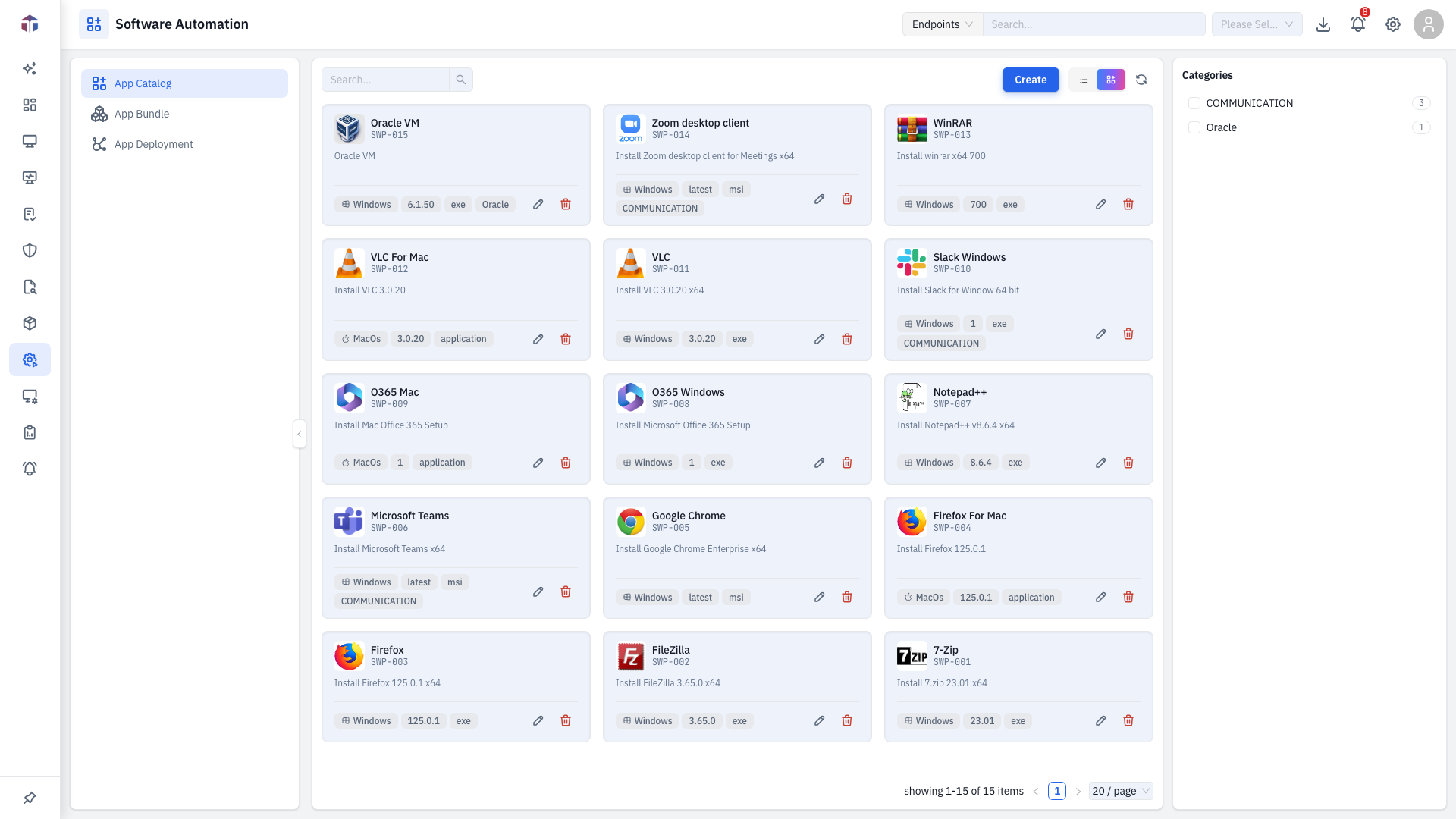
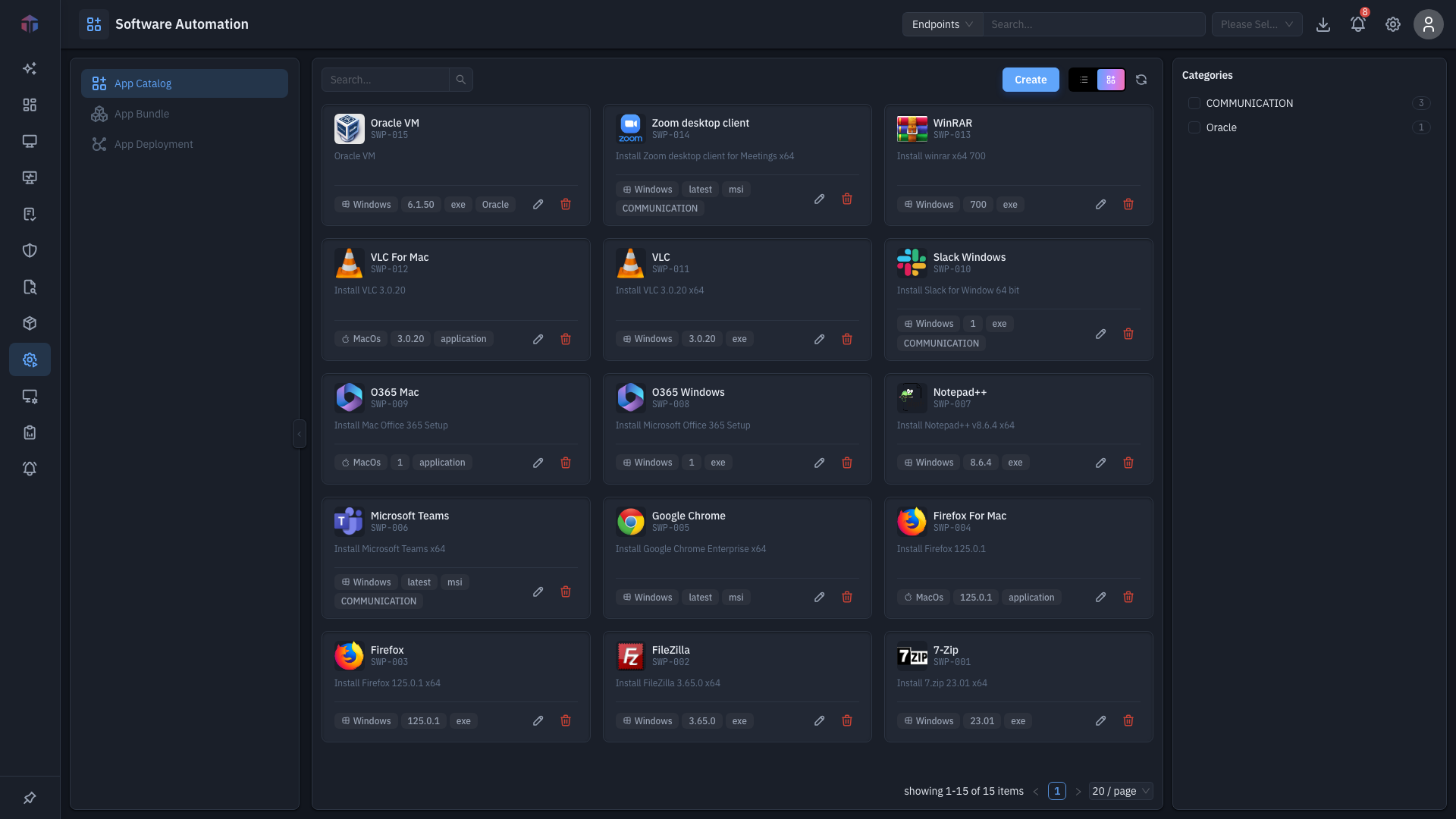
Packages show as cards by default; use the list / card toggle to switch to a table. Each card shows the app icon, name, description, tags, version, package type, and a platform icon.
- Search narrows the list by name.
- The tag filter panel on the right filters by category tag.
- Create adds a new package; select rows (list view) for bulk delete.
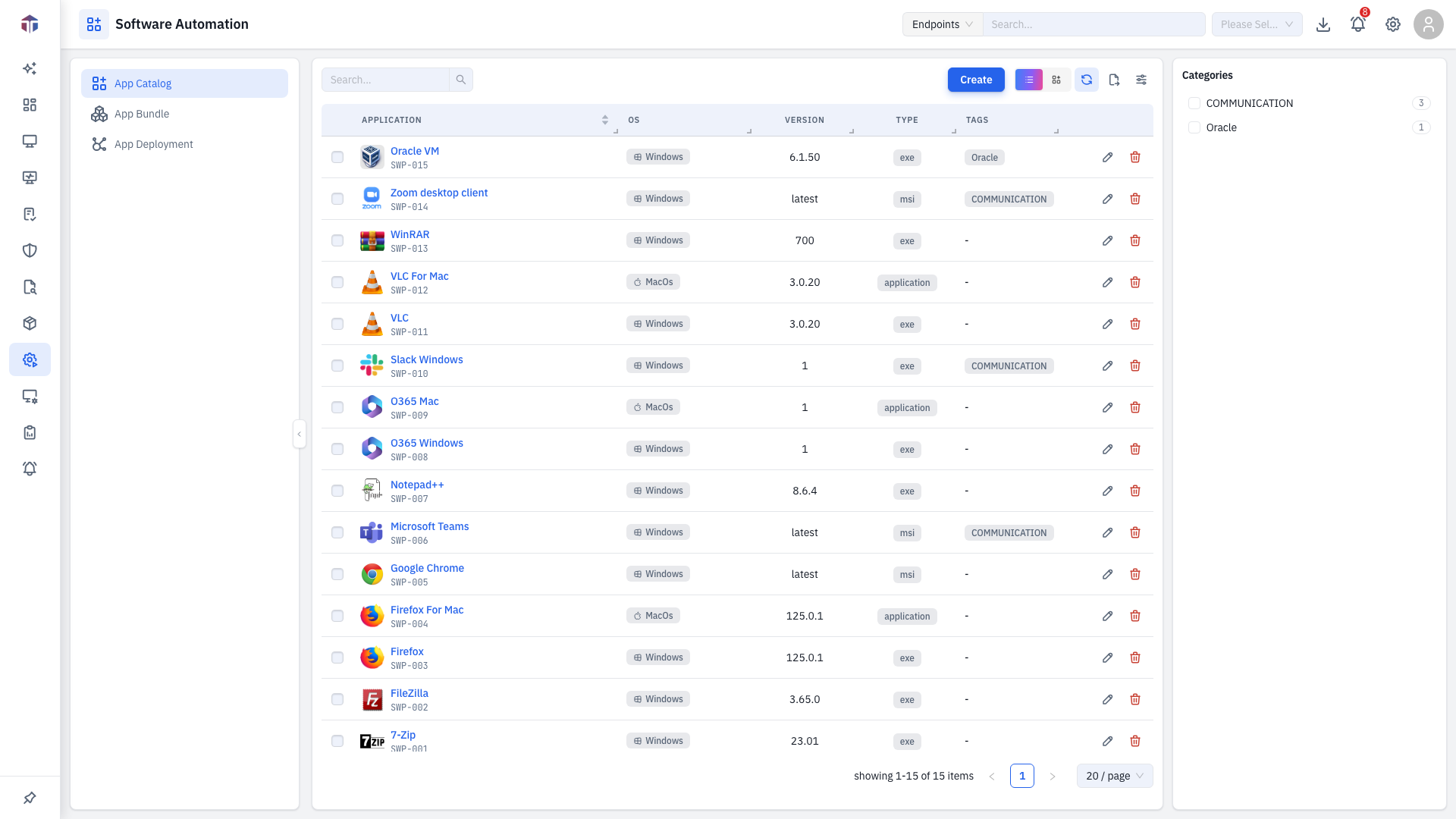
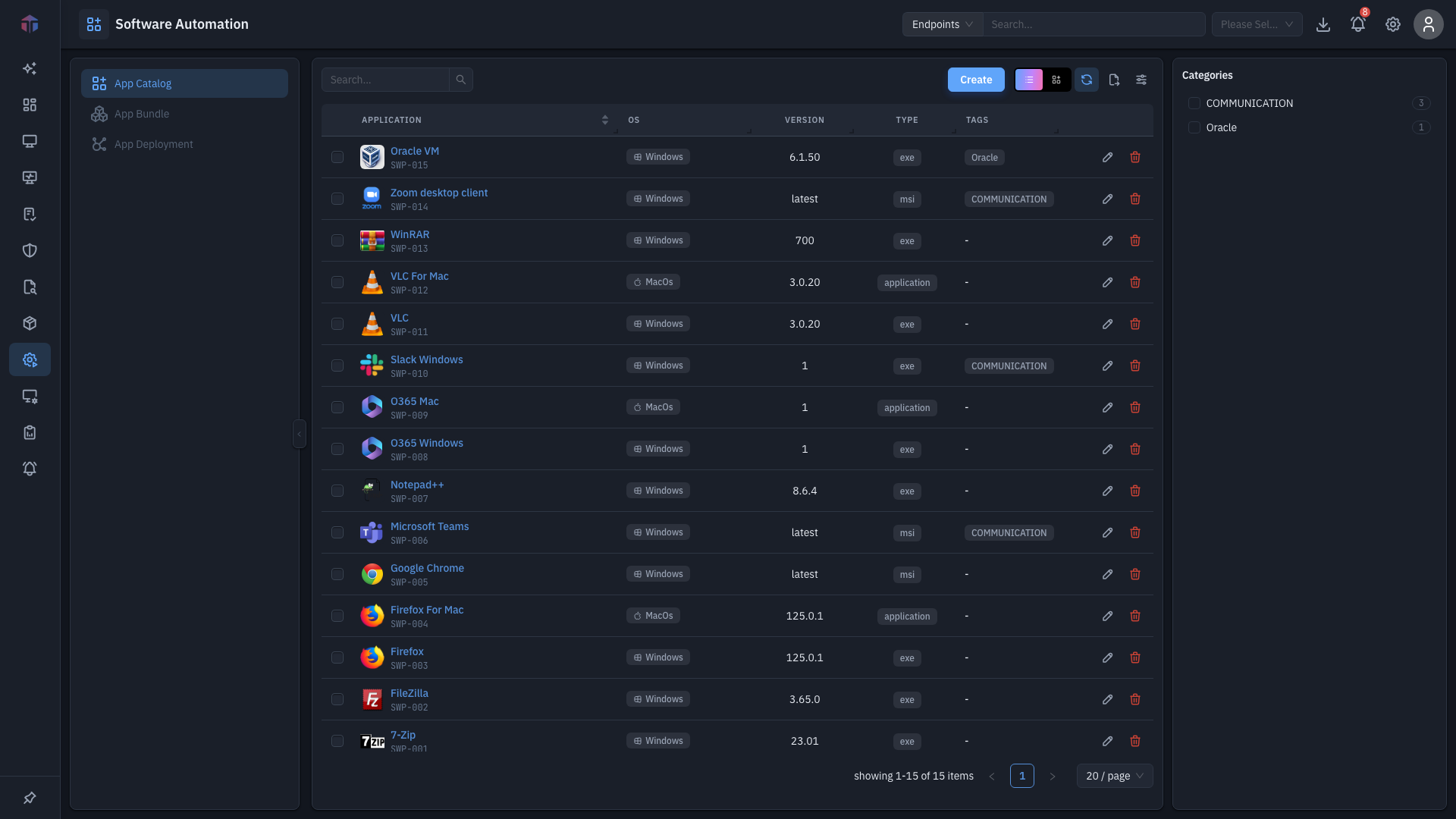
In list view the columns are:
| Column | What it shows |
|---|---|
| ID | Package identifier (a link). |
| Name | Display name with its icon. |
| Description | What the app is. |
| OS | Platform icon (Windows / Linux / macOS). |
| Version | The package version. |
| Type | exe / msi / zip / script. |
| Tags | Category tags. |
| Created By / Created On | Who added it and when. |
How do I add a software package?
Click Create. The package form opens in a drawer.
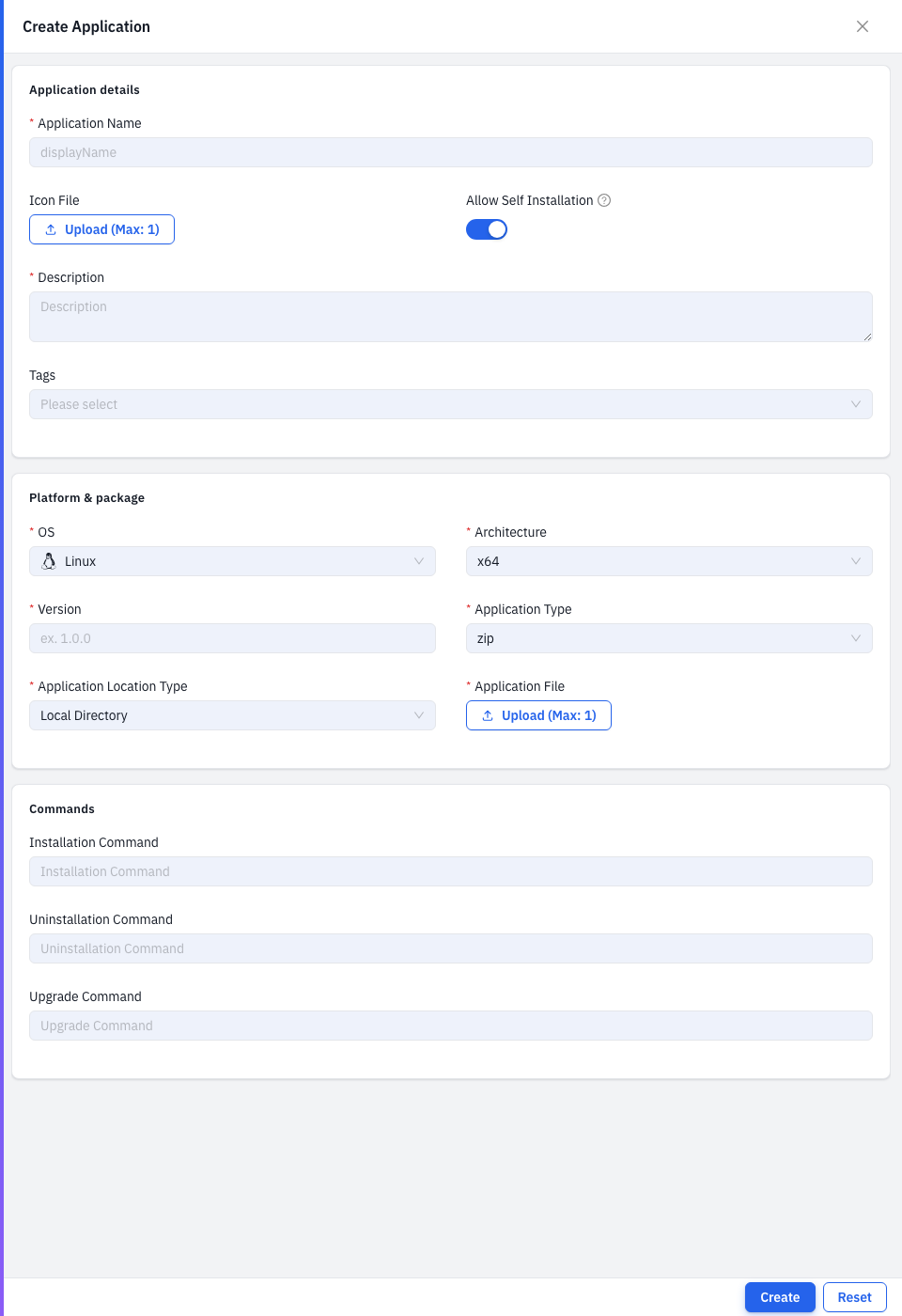
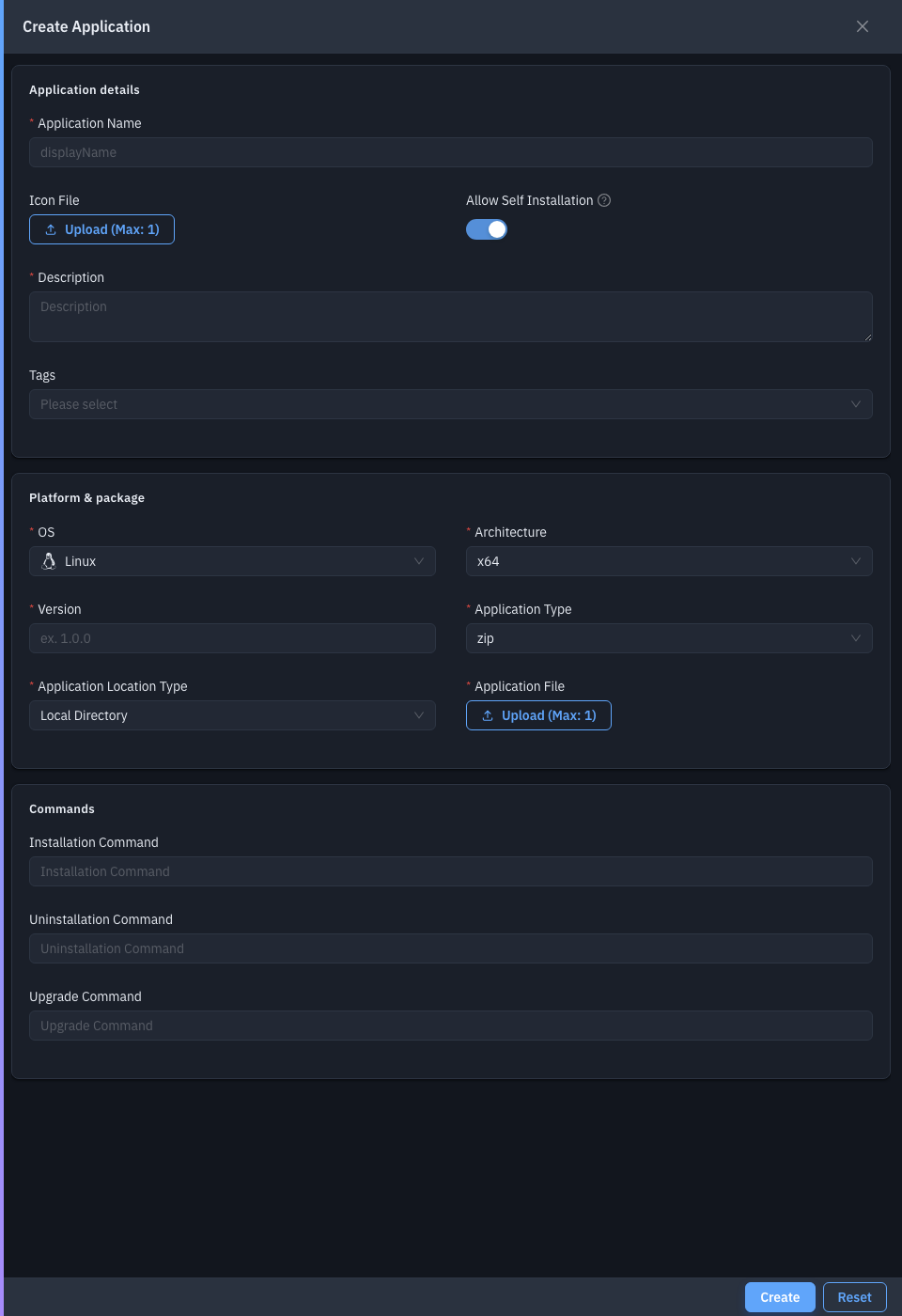
| Field | Required | Notes |
|---|---|---|
| Application Name | Yes | The display name. |
| Icon File | No | An image shown on the card. |
| Self Service | No | Lets users install it on demand. On by default. |
| Description | Yes | What the app is. |
| Tags | No | Category tags; type to create new ones. |
| OS | Yes | Windows, Linux, or macOS. Can't change after create. |
| Architecture | Yes | x64, x86, or amd64. |
| Version | Yes | For example 1.0.0. |
| Application Type | Yes | Depends on OS — Windows: exe / msi / zip / script; Linux/macOS: zip / script / application. |
| Application Location Type | Yes | Local Directory (upload the file), Shared Directory (a network path), or Public URL. Scripts must be uploaded locally. |
| Application File / Address / URL | Yes | The installer — uploaded, or the path/URL, depending on the location type. |
| Installation Command | No | Silent-install switches, etc. |
| Uninstallation Command | No | Command to remove it. |
| Upgrade Command | No | Command to upgrade it. |
Save to add the package to the catalog.
Tips & troubleshooting
- OS and Application Type are locked when editing. They define the package's shape — create a new package instead of changing them.
- Script packages must be uploaded. Only the Local Directory location is
allowed for the
scripttype.
Related
- App Bundle — group packages for deployment.
- App Deployment — send packages to endpoints.
- Configuration Automation — the same workflow for commands and scripts.