App Deployment
An App Deployment is the job that actually sends software to machines. You pick what to deploy (a single package or a bundle), choose Install, Uninstall, or Upgrade, target a scope of endpoints, and publish. The list then tracks how many endpoints succeeded, failed, or are still pending.
How to get here
You need View Software permission.
- In the left sidebar, click Automation → Software Automation.
- Open the App Deployment tab.
Navigate to: Automation → Software Automation → App Deployment
URL path: /automation/software-automation/deployments
The App Deployment screen
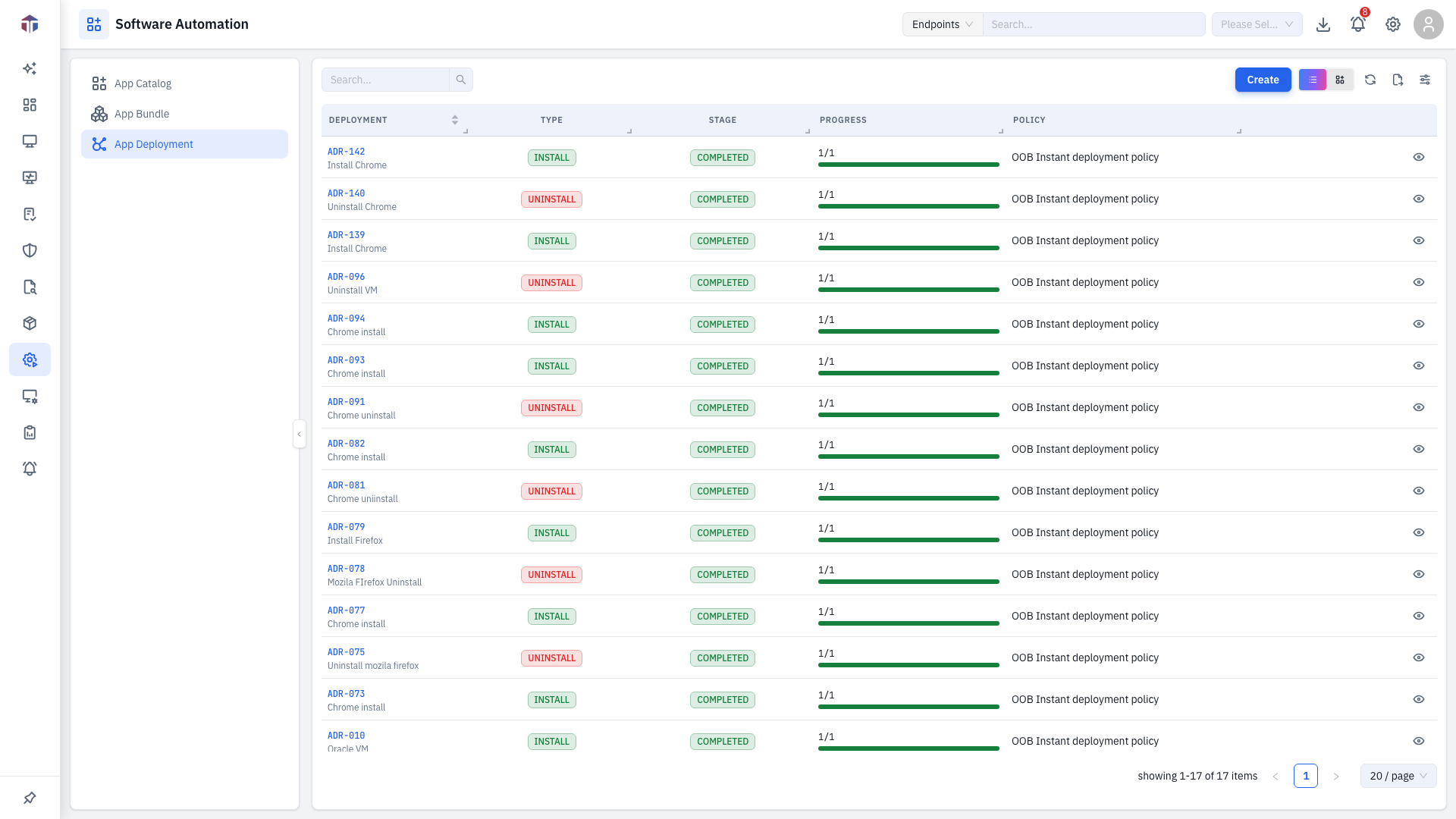
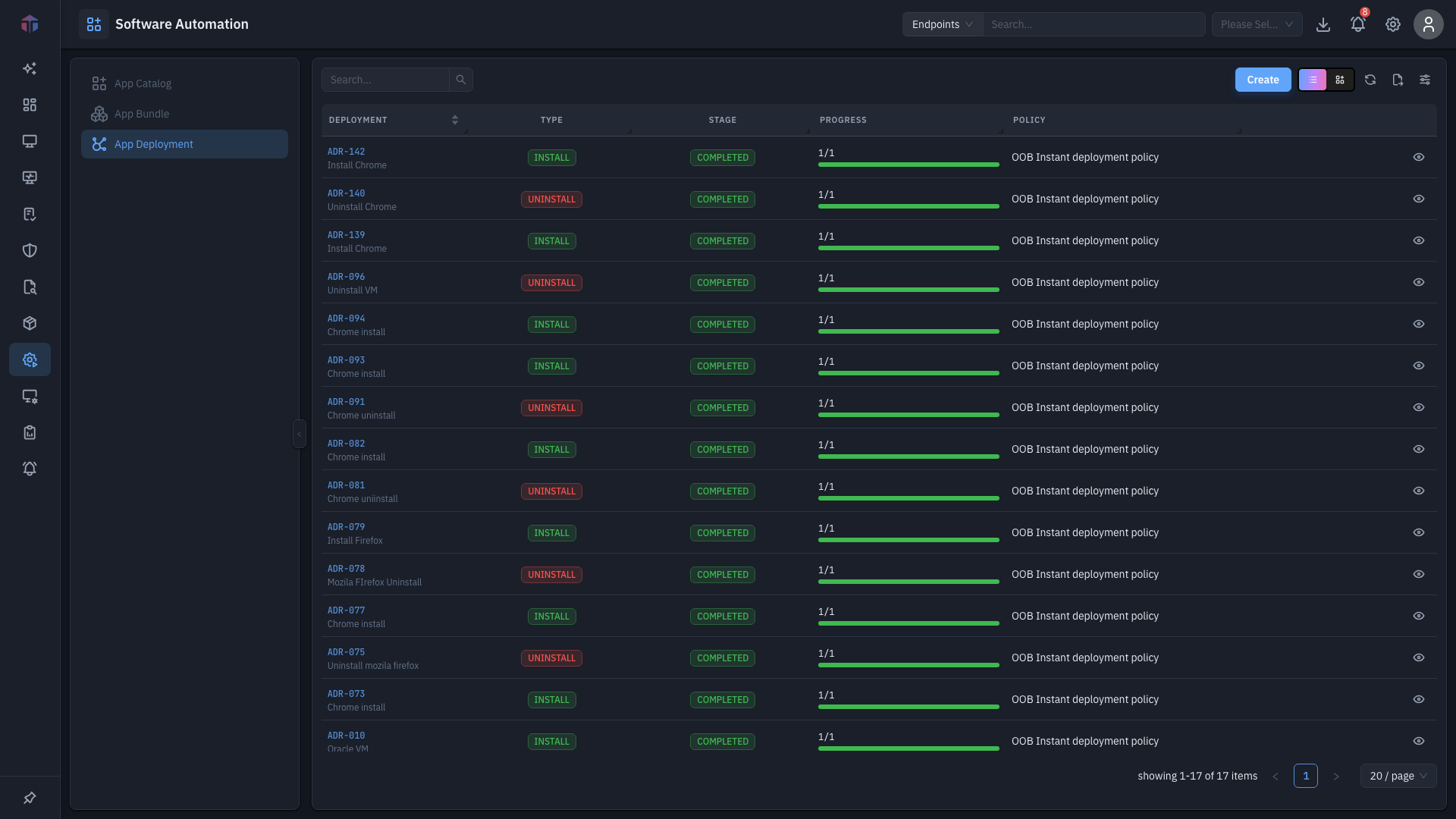
The list refreshes itself periodically so progress stays current.
| Column | What it shows |
|---|---|
| ID / Name | The deployment (a link to open it). |
| Type | Install / Uninstall / Upgrade. |
| Stage | Draft, Initiated, In Progress, Paused, Failed, Cancelled, or Completed. |
| Pending | Endpoints not started yet (pending / total). |
| Succeeded | Endpoints that succeeded (success / total). |
| Failed | Endpoints that failed (failed / total). |
| Created By / Created On | Who created it and when. |
Row actions: View Task (the eye icon, on published deployments) opens the per-endpoint task list; Edit / Delete are available while a deployment is still a draft.
How do I create a deployment?
Click Create. The deployment form opens in a drawer.
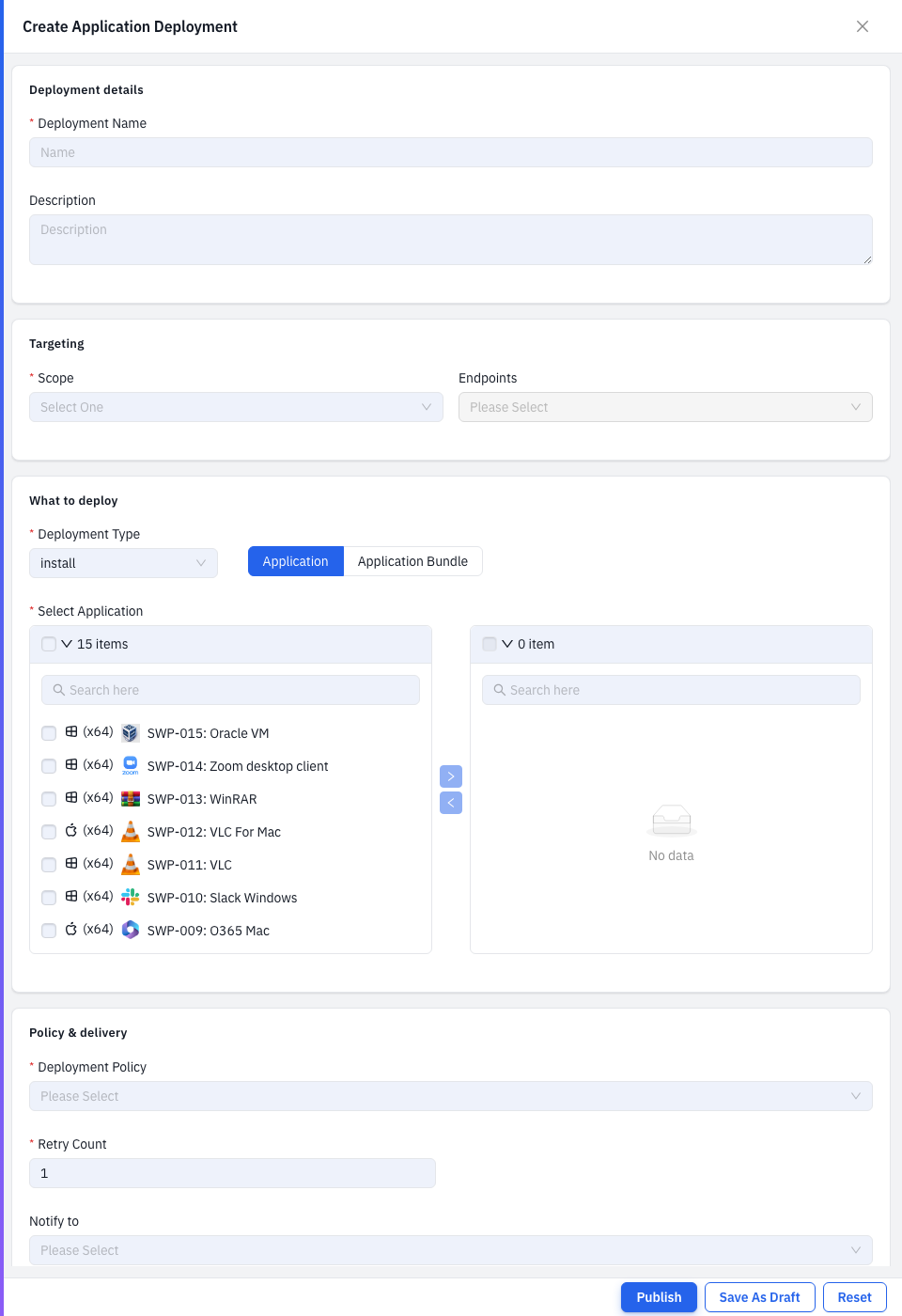
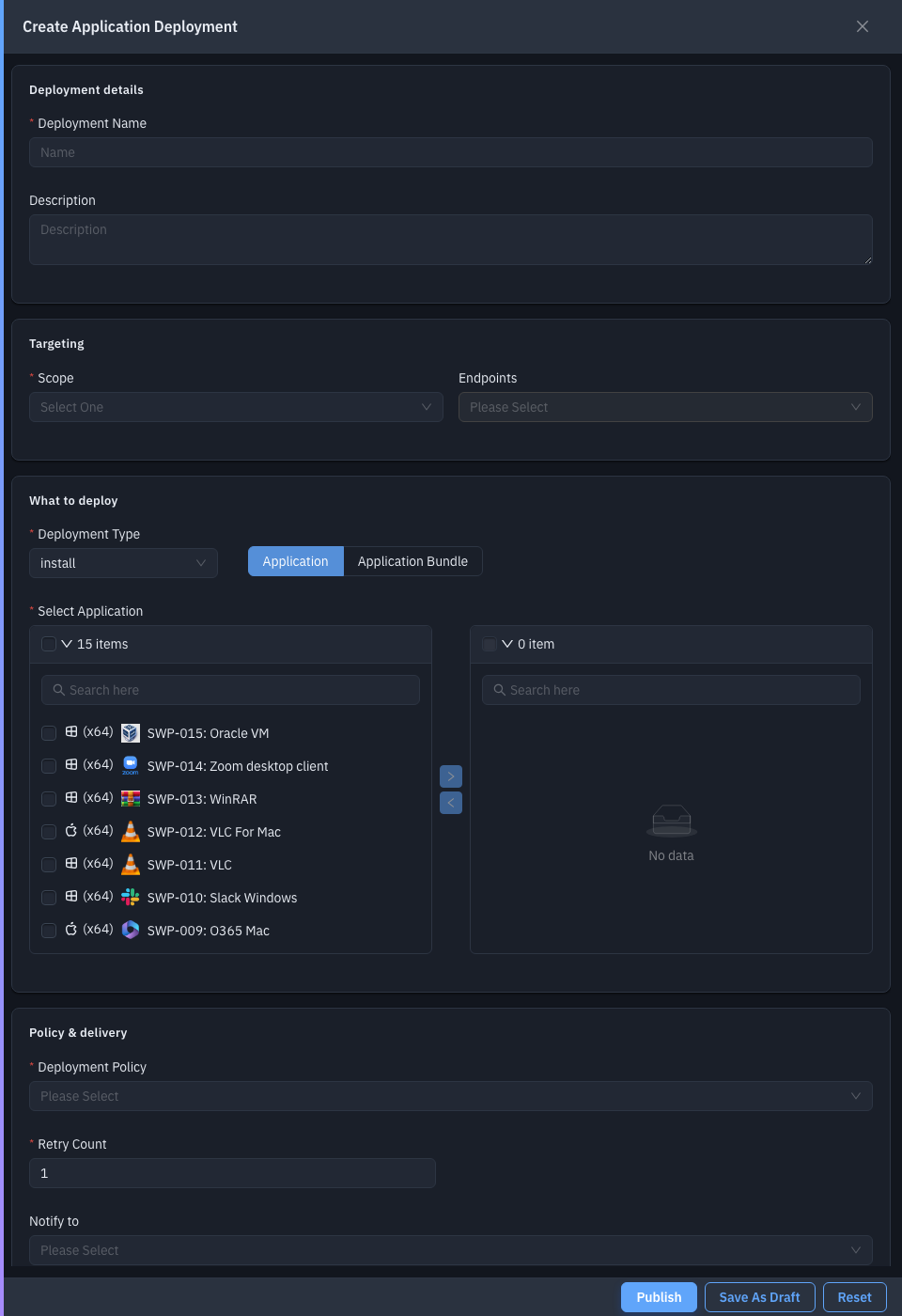
| Field | Required | Notes |
|---|---|---|
| Deployment Name | Yes | A name for the job. |
| Description | Yes | What it does. |
| Deployment Type | Yes | Install, Uninstall, or Upgrade. |
| Resource Type | Yes | Application (a single package) or Application Bundle. |
| Scope | Yes | Which endpoints to target. |
| Select Application / Application Bundle | Yes | The package or bundle to deploy. |
| Deployment Policy | Yes | The schedule/window rules for the rollout. |
| Retry Count | Yes | How many times to retry a failed endpoint. |
| Notify to | Yes | Who to email about the result. |
Finish with Publish to start the deployment now, or Save As Draft to keep editing it later.
Uninstall removes the selected app from every endpoint in Scope, and Upgrade replaces it — both run as soon as you Publish, with no automatic rollback if something breaks. Target a small Scope first and confirm before a fleet-wide run.
Drill-down: per-endpoint tasks
Click View Task on a published deployment to open the Tasks drawer.
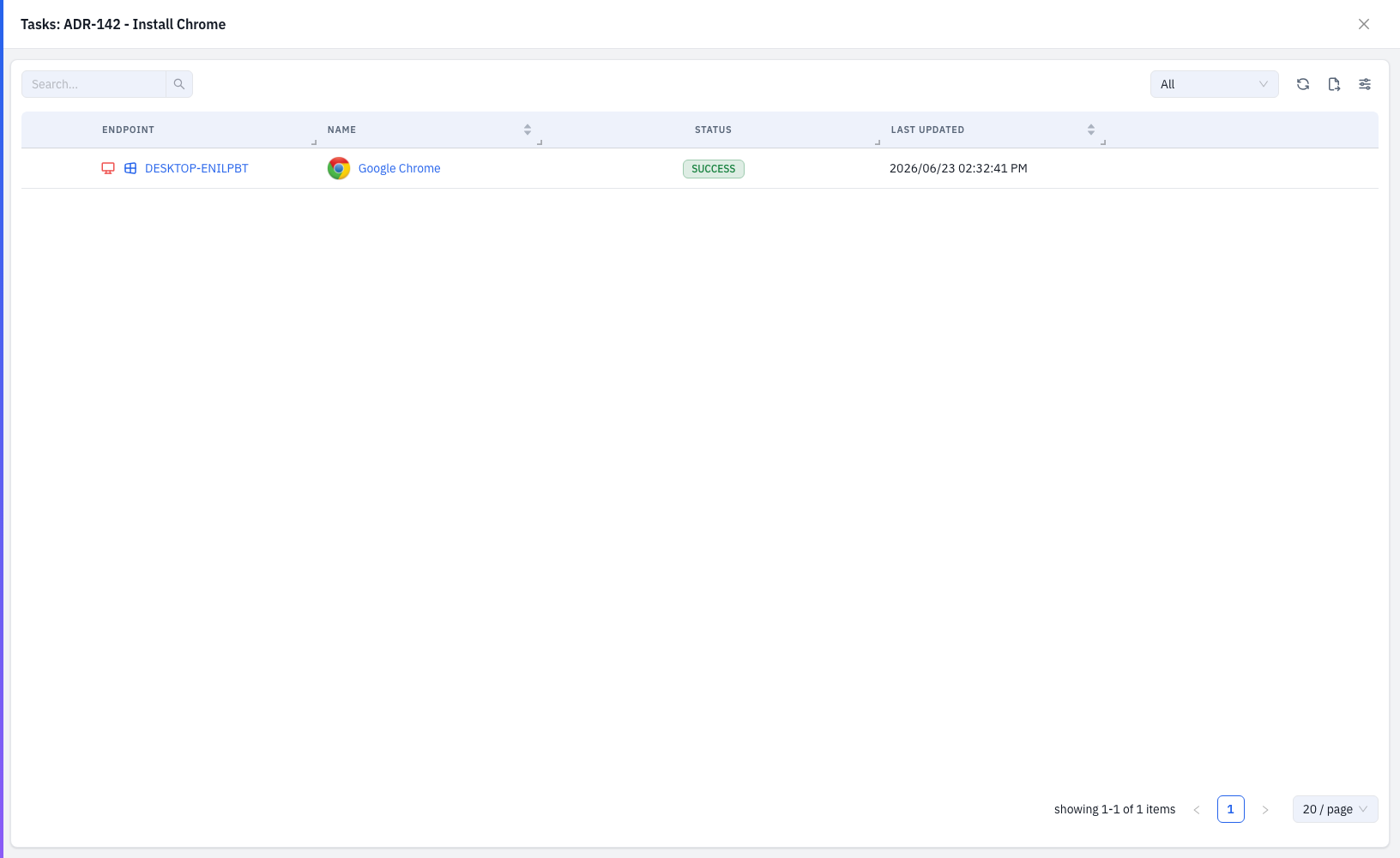
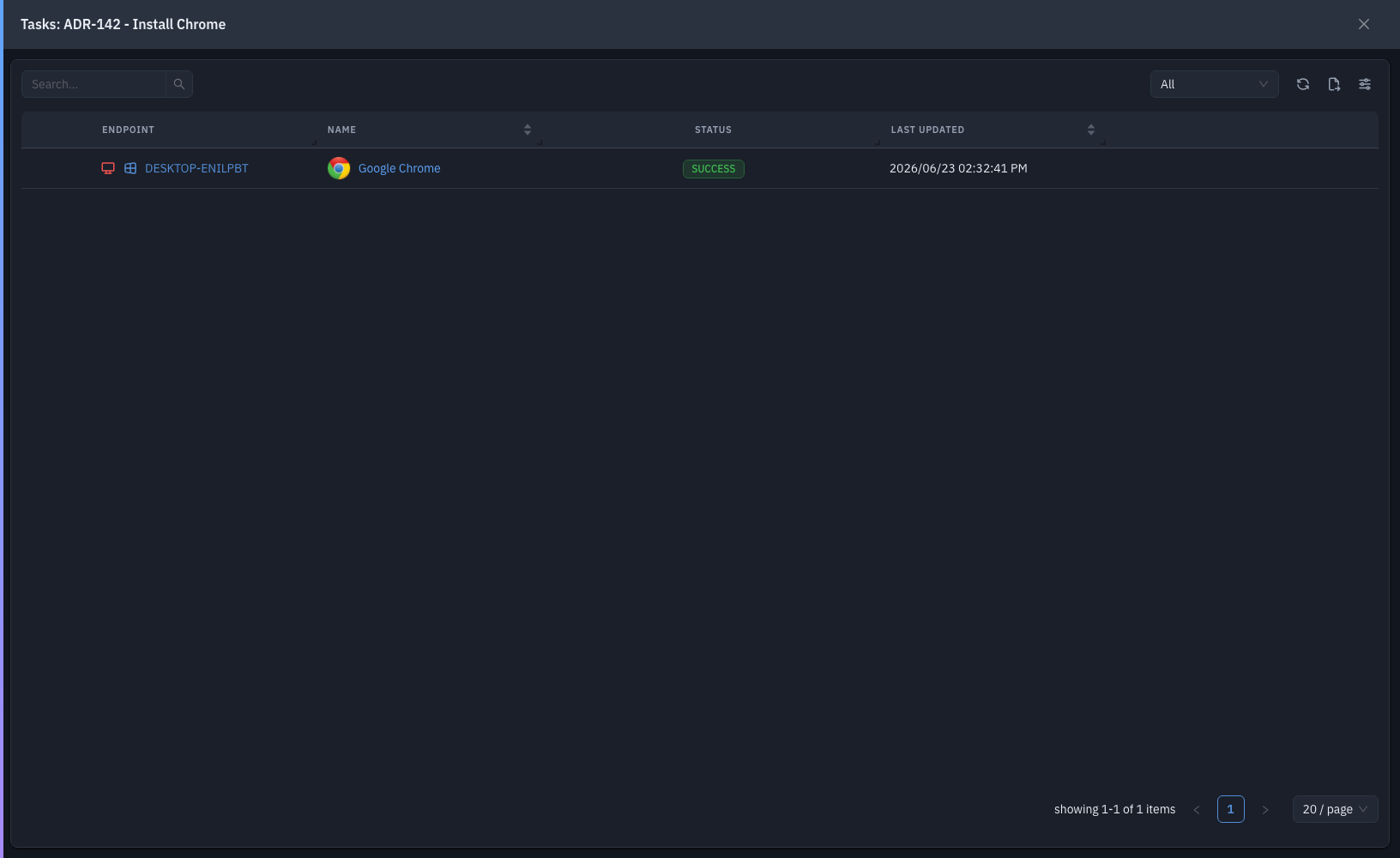
It lists every targeted endpoint with its task Status (Waiting, Initiated, In Progress, Failed, Cancelled, Success, Reboot Required), filterable by status. For a completed deployment you can Retry failed or cancelled endpoints.
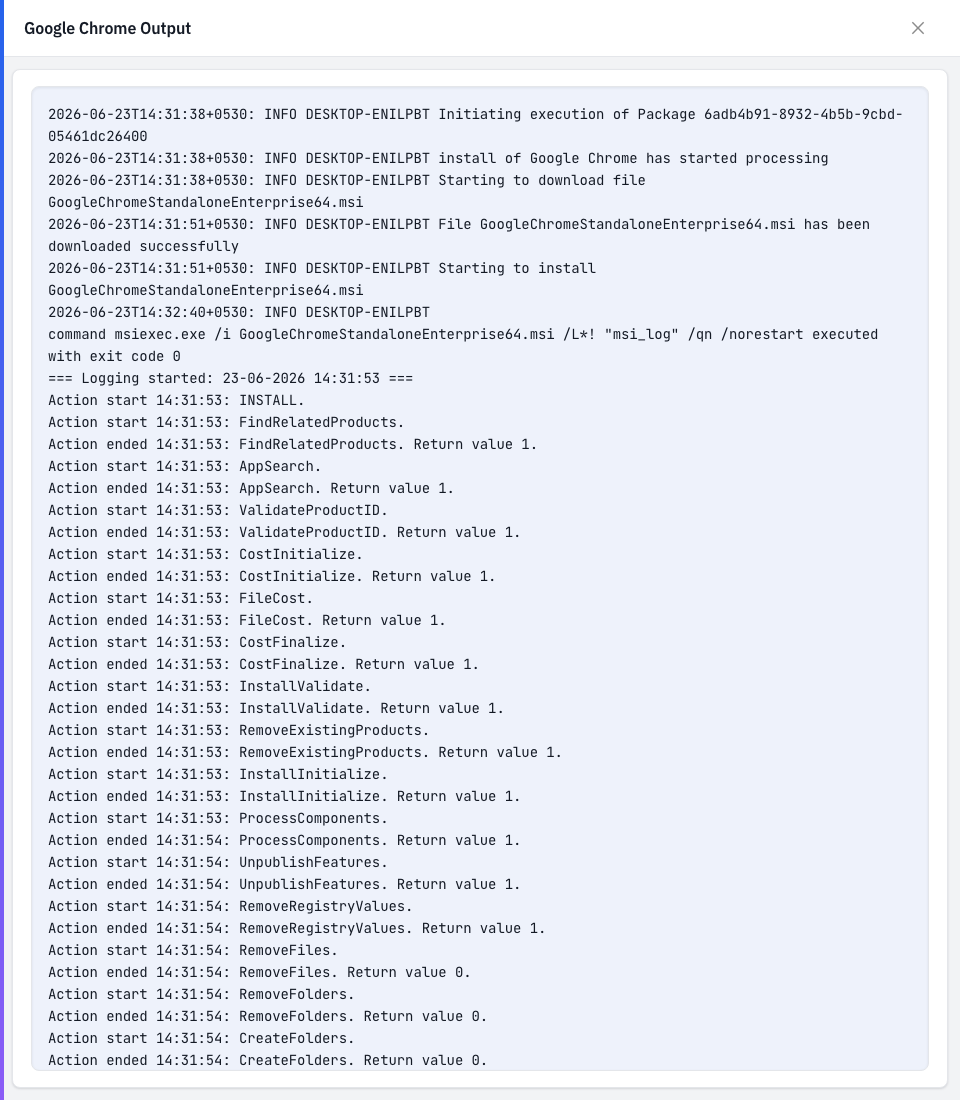
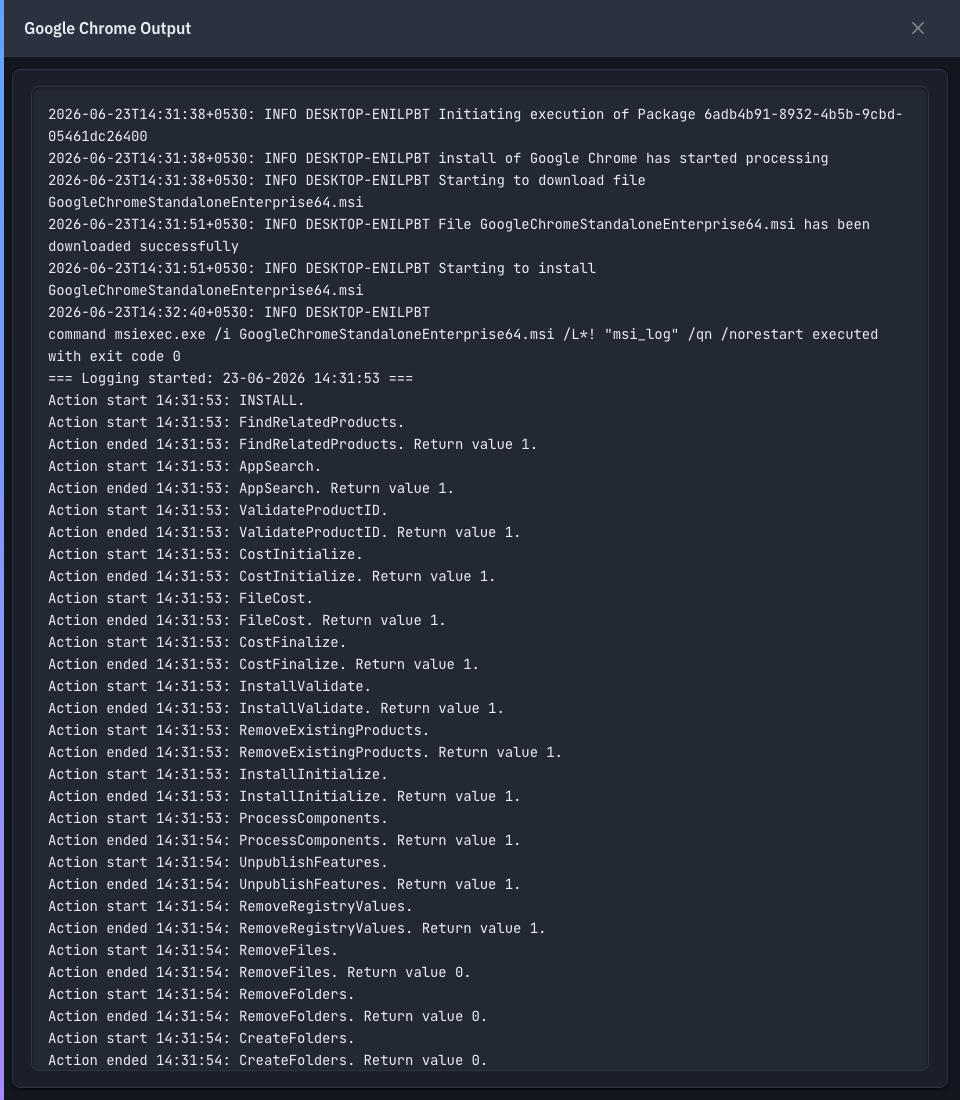
Click a task name (clickable once it reaches a terminal status) to open its output log — the full step-by-step execution output for that endpoint.
Tips & troubleshooting
- I can't edit a deployment. Only draft deployments are editable. Once published, create a new deployment instead.
- Some endpoints stay pending. They may be offline or outside the deployment policy's window — they pick the job up when they next check in.
Related
- App Catalog / App Bundle — what you deploy.
- Config Deployment — the same job for commands and scripts.
- Deployment Policies — the schedule/retry/restart rules the Deployment Policy field points to.