Compliance Frameworks
A compliance framework is a named set of compliance rules for one operating system, such as a CIS benchmark. You run a framework on your endpoints with a Compliance Deployment. EndpointOps ships with built-in frameworks, and you can build your own from your rules.
Compliance needs the ZiroXpose edition or higher (EndpointOps includes it) and the View Compliance permission.
How to get here
You need the View Compliance permission. Creating, editing, and deleting frameworks need Create Compliance, Update Compliance, and Delete Compliance.
- In the left sidebar, click Compliance.
- Click the Compliance Framework tab on the left.
Navigate to: Compliance → Compliance Framework
URL path: /compliance/bundle (the URL says bundle, the tab says Compliance
Framework)
The Compliance Framework screen
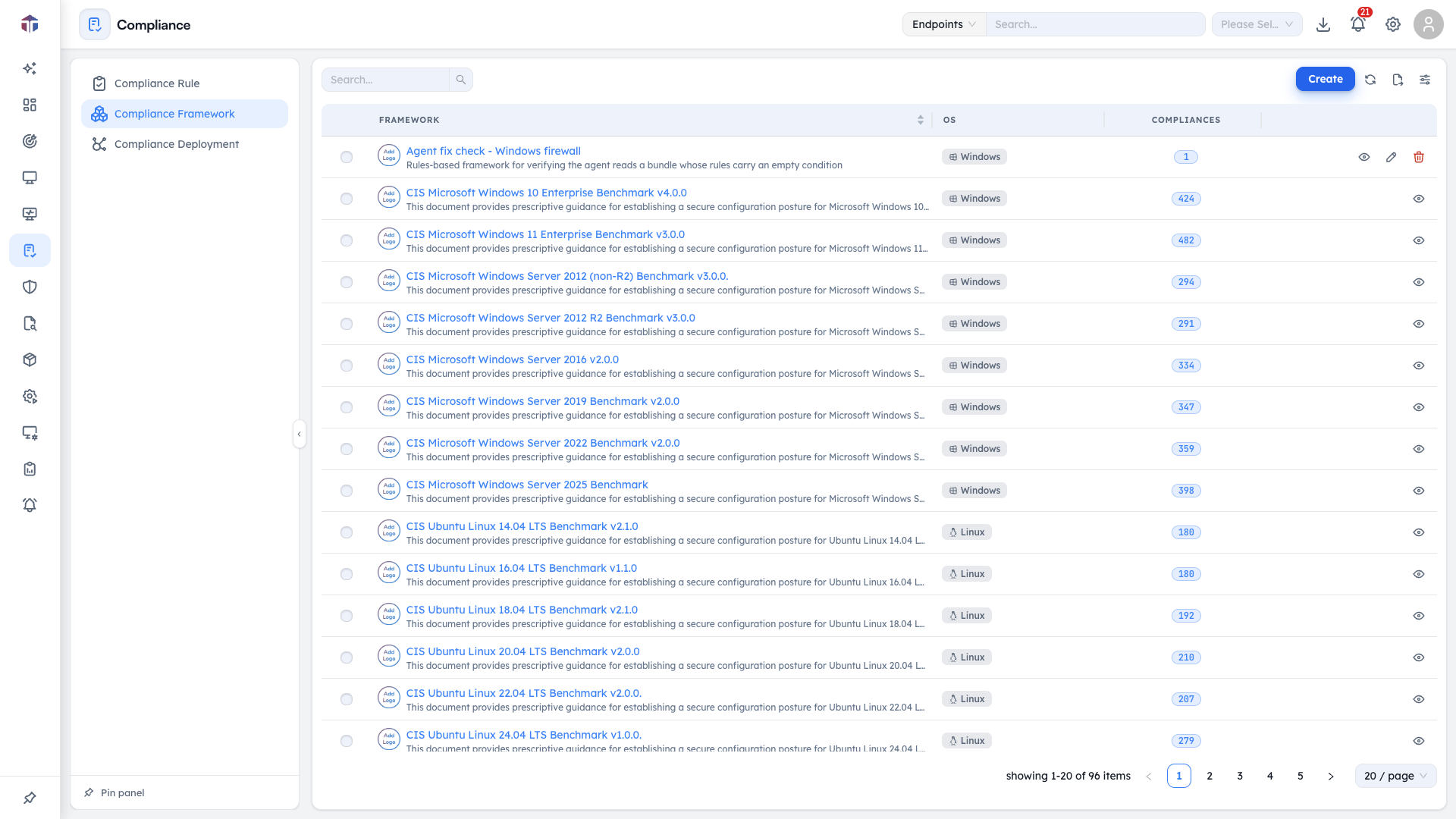
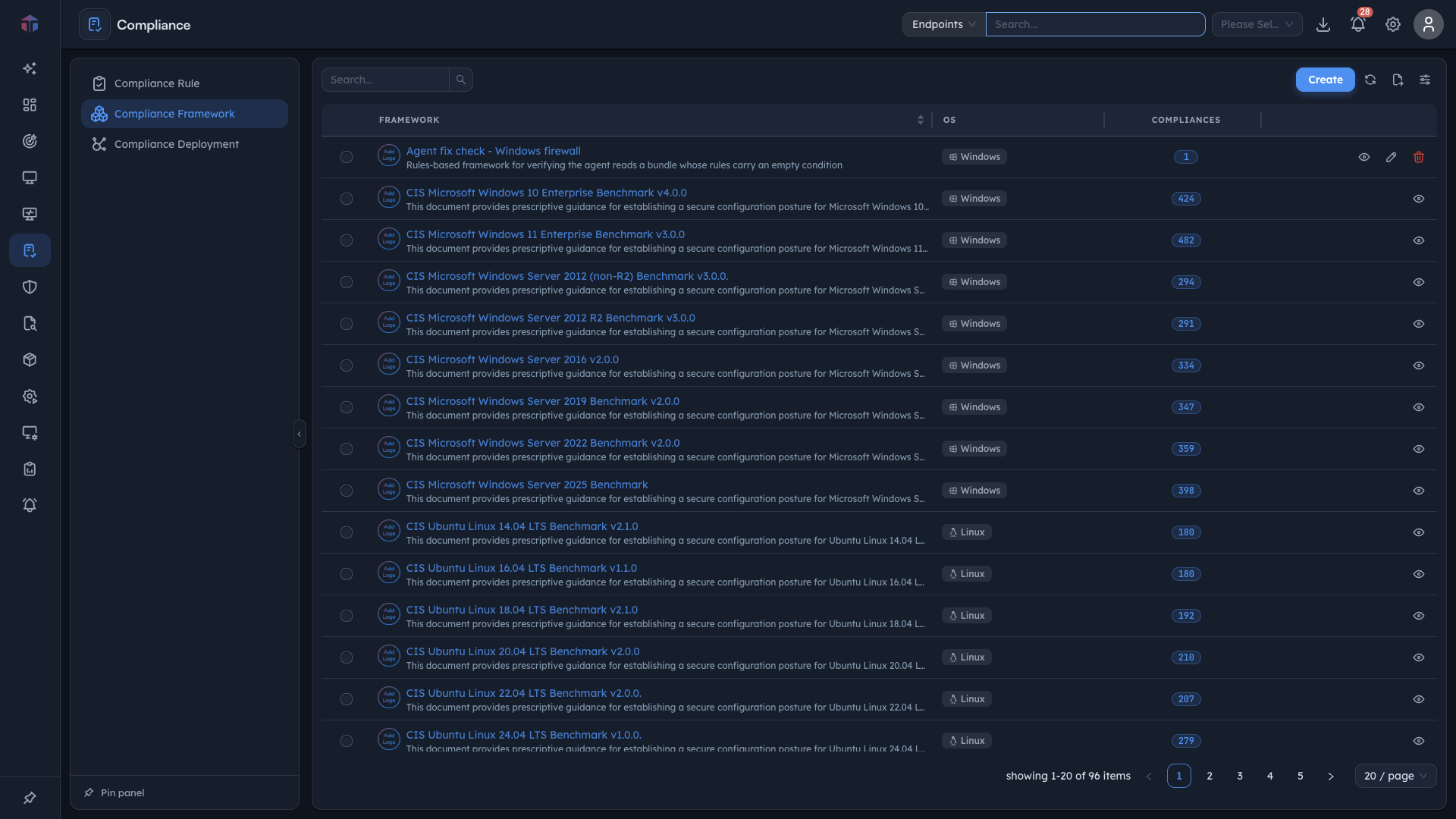
| Column | What it shows |
|---|---|
| Framework | The framework's logo, name, and description. Click the name to see its rules. |
| OS | The operating system the framework is for. |
| Compliances | How many rules the framework holds. Click the count to see them. |
| Created By | Hidden by default. Who created the framework. |
| Created On | Hidden by default. When it was created. |
Each row has a View (eye) action. Frameworks you created also have edit (✏️) and delete (🗑️). Tick rows to show a Delete selected button next to Create.
The frameworks that come with EndpointOps have no edit or delete actions. You can open them and read their rules, and you can deploy them. To change one, build your own framework from your own rules.
The toolbar
Above the list, the same toolbar appears on every list screen:
- Create — add a new item (opens a form panel from the right).
- Refresh — reload the latest data.
- Export — download the current list.
- Columns — choose which columns to show (covered under "Choosing which columns to show" below).
Working with the list
These controls behave the same on every list:
- Search — type in the Search… box above the table to filter rows as you type.
- Sort — click the arrows in a column header to sort by that column.
- View details — click a row's link in the first column to open a read-only view.
- Edit / delete — use the edit (✏️) and delete (🗑️) icons at the end of a row.
- Pagination — when a list runs to more than one page, use the page controls at the bottom-right and the / page selector to change how many rows show.
- Permissions — you only see Create, edit, and delete if your role grants the matching permission; otherwise the screen is read-only.
When you save a new or edited record, a success message appears, the panel closes, and the list refreshes. Required fields are marked with a red asterisk.
How do I see a framework's rules?
Click the framework's name, its Compliances count, or its View (eye) icon. A panel opens, titled with the framework's name, listing its rules. It has its own search box.
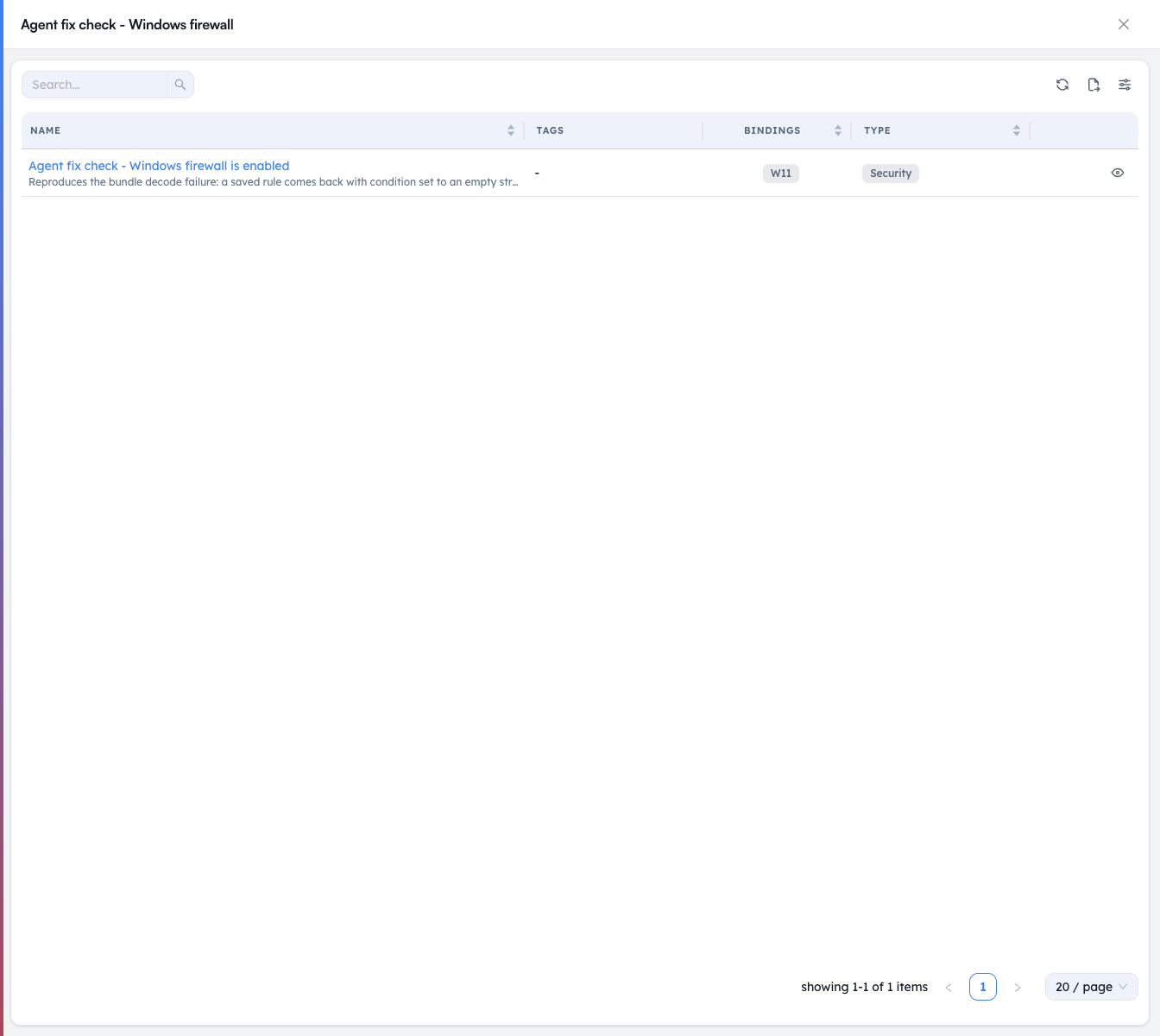
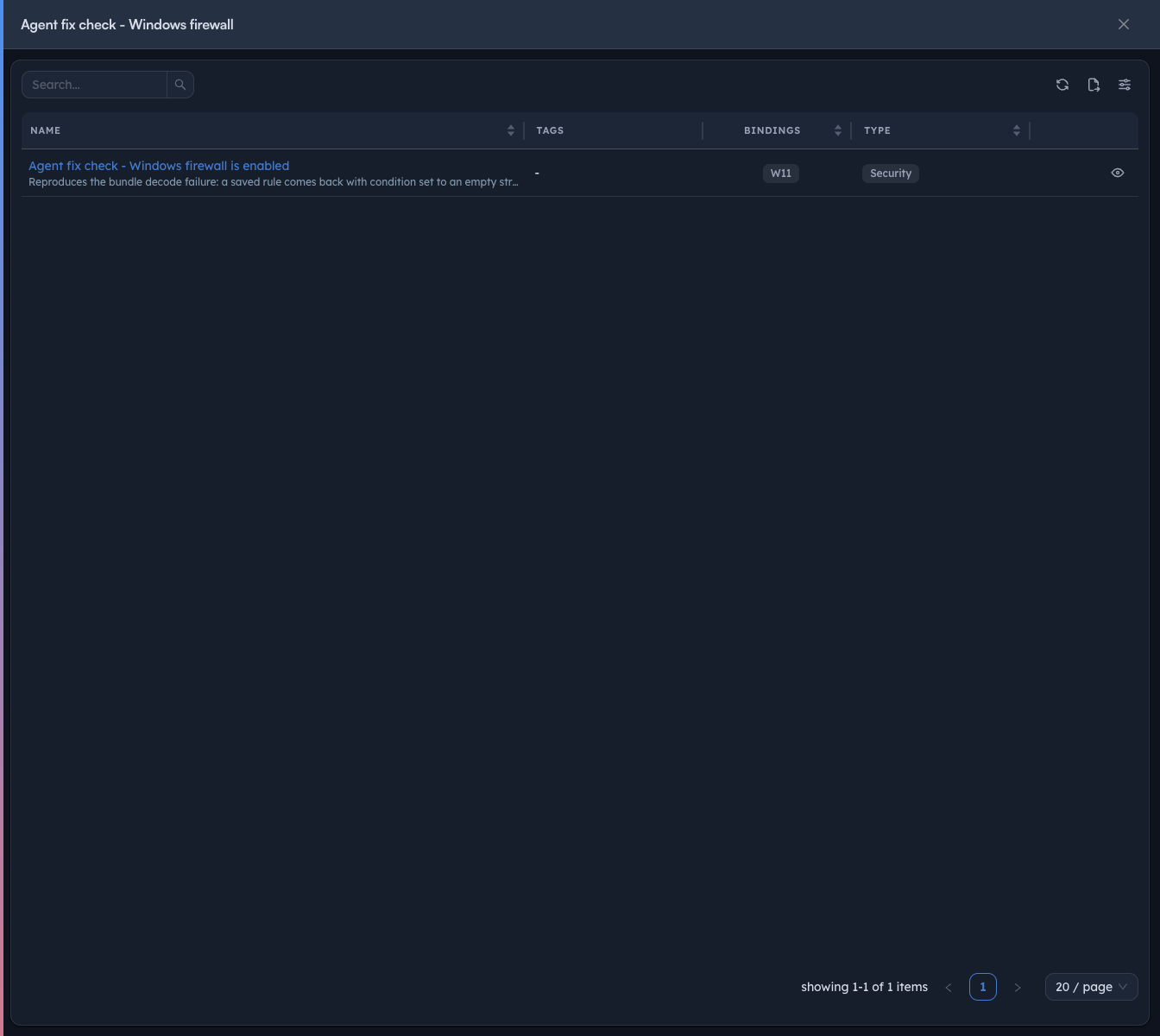
- A built-in framework lists each rule's Name (with its description) and Tags. Impact, Remediation, Rationale, and Description columns are hidden; turn them on with the column picker in the panel.
- A framework you built lists Name, Bindings, Type, and Tags, as on the Compliance Rule screen.
Click a rule's View (eye) icon to read it in full. A built-in rule shows its description, impact, rationale, remediation, references, and the checks it runs.
How do I create a framework?
-
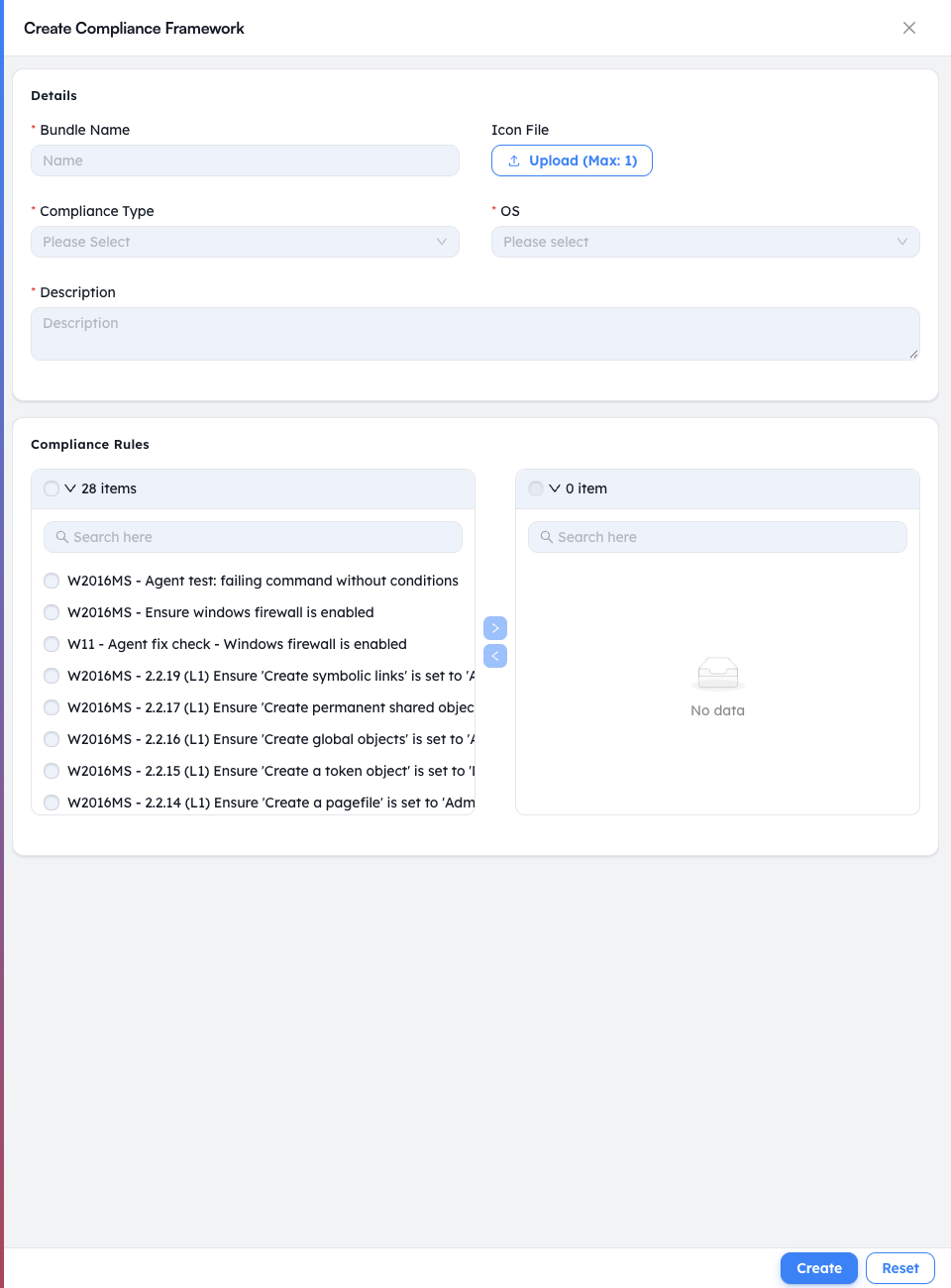
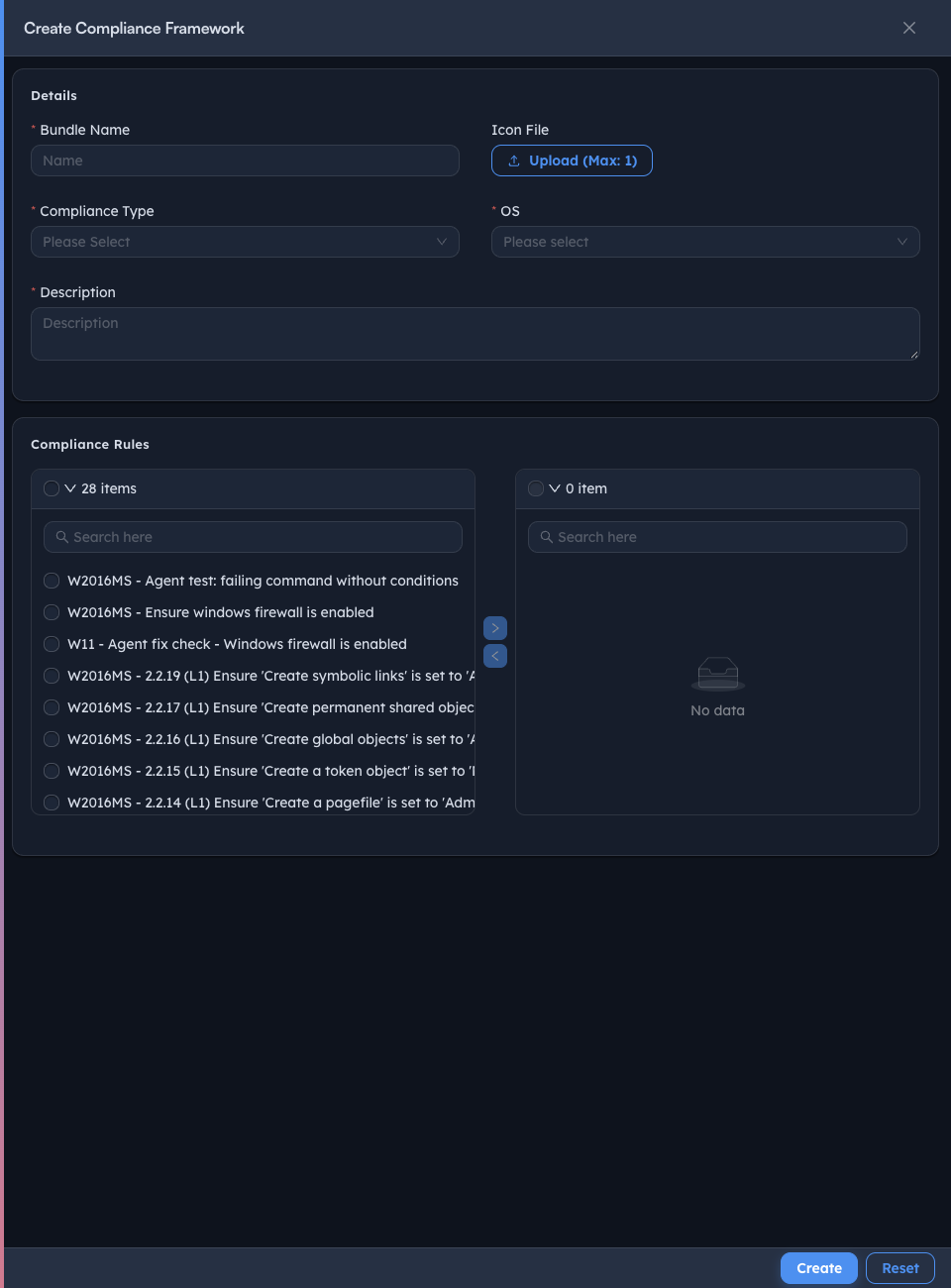
Click Create. The Create Compliance Framework panel opens.
-
Fill in Details:
Field Required Notes Bundle Name Yes The framework's name. Icon File No An image to use as the framework's logo. Compliance Type Yes The standard it follows: CIS, HIPPA, PCI, FIMA, ISO, RBI, or SOC-2. OS Yes Windows, Linux, or macOS. Changing it clears the rules you picked. You can't change it after you save. Description Yes What the framework covers. -
Under Compliance Rules (required), move rules into the framework. The left list holds your rules, each shown as Bindings - Name. Tick rules and click the right arrow to add them, or tick rules on the right and click the left arrow to take them out. Each list has a search box.
-
Click Create.
The Compliance Type list shows HIPPA and FIMA spelled that way. Pick HIPPA for HIPAA.
The OS field is greyed out when you edit a framework. To target another operating system, create a new framework.
How do I add a logo to a framework?
Set Icon File when you create or edit the framework. A framework with no logo also shows an Add Logo image in the Framework column. Click it and pick an image; the logo saves straight away.
Choosing which columns to show
Click the Columns icon on the right of the toolbar to open the column picker. Tick the columns to show, untick to hide, drag to reorder, then click Apply. Created By and Created On are hidden until you turn them on.
Tips & troubleshooting
- There's no edit icon on a framework. It's a built-in framework. Those are view-only.
- A rule I need isn't in the list. Create it first on the Compliance Rule tab.
- My rule picks vanished. Changing OS clears the Compliance Rules list. Pick the OS first.
Related
- Compliance Rules — the checks a framework contains.
- Compliance Deployments — run a framework on endpoints.
- Endpoint › Compliance tab — framework results for one endpoint.