Appearance Management — Policies
Appearance Management enforces how managed desktops look and behave — wallpaper, screensaver, screen resolution, and font DPI. A policy captures those settings; deploy it to standardise the look across endpoints.
Edition & permission
Device Control is EndpointOps edition. You need View Display Management permission.
How to get here
- In the left sidebar, click Device Control.
- Click the Appearance Management card.
Navigate to: Device Control → Appearance Management → Policies
URL path: /device-control/display-management/policies
The Policies screen
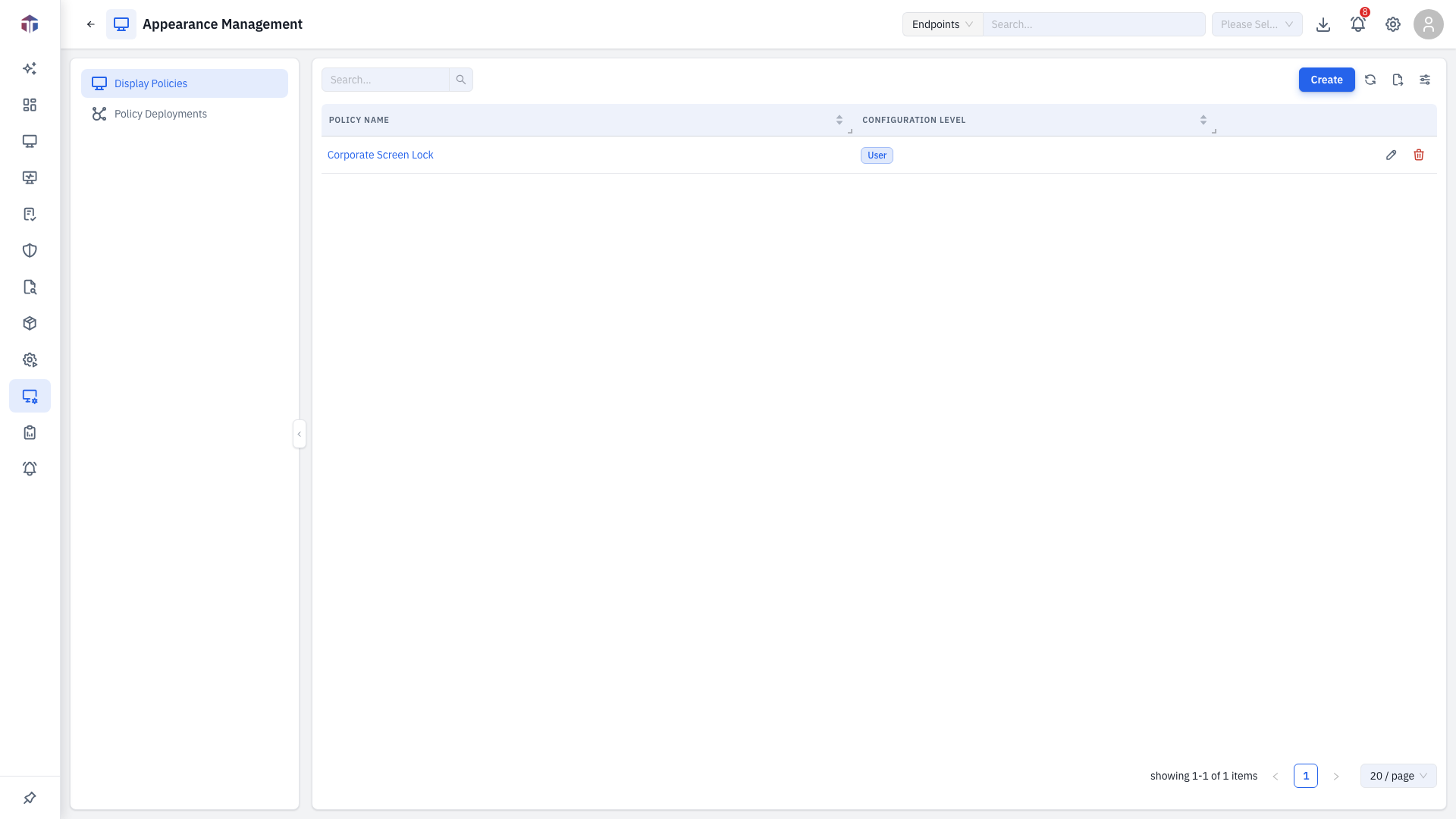
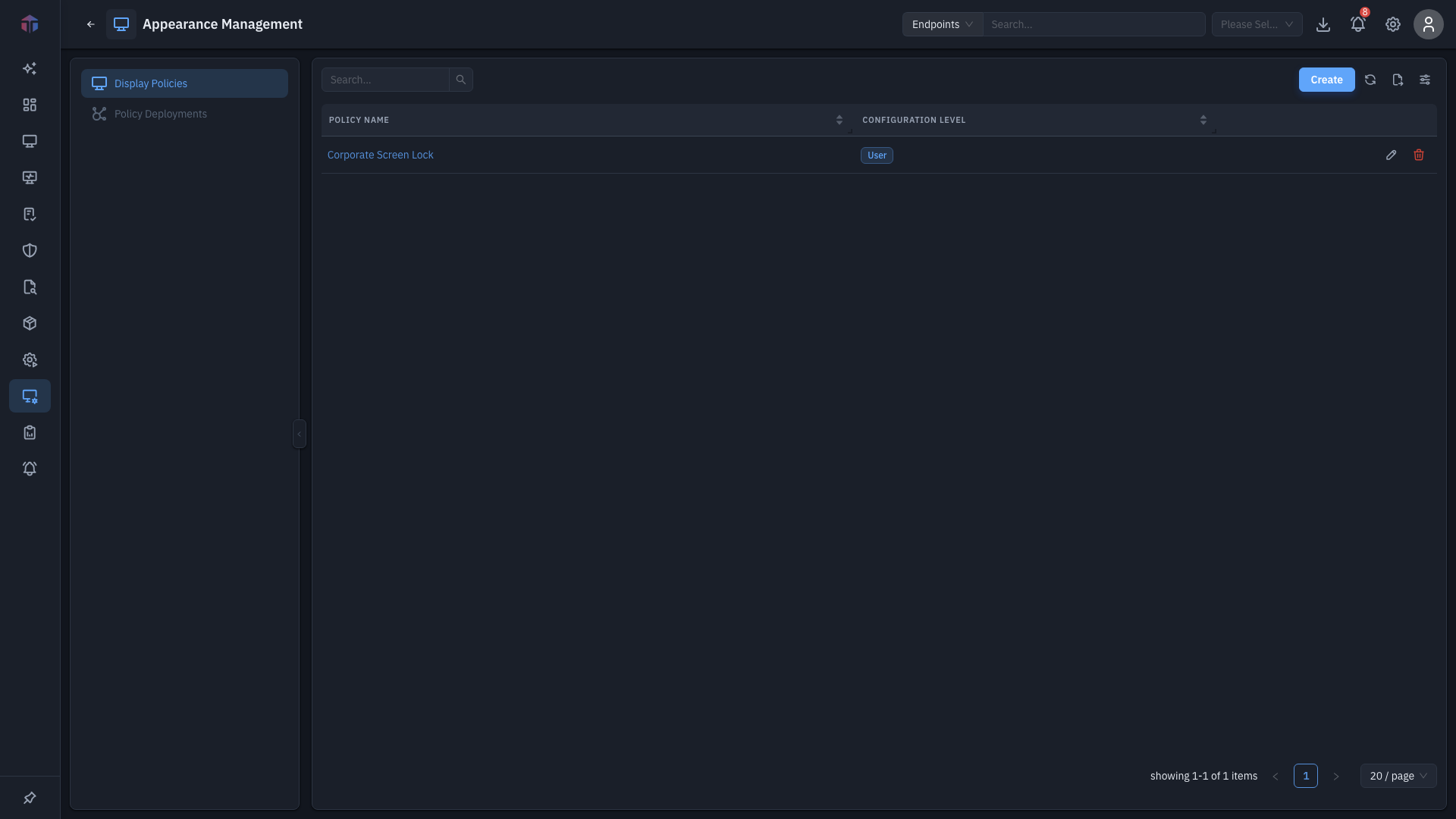
| Column | What it shows |
|---|---|
| Policy Name | The policy name. |
| Description | What it's for. |
| Configuration Level | User or Computer — which settings the policy carries. |
Create adds a policy; rows have Edit and Delete.
How do I create a policy?
Click Create. The form opens in a drawer.
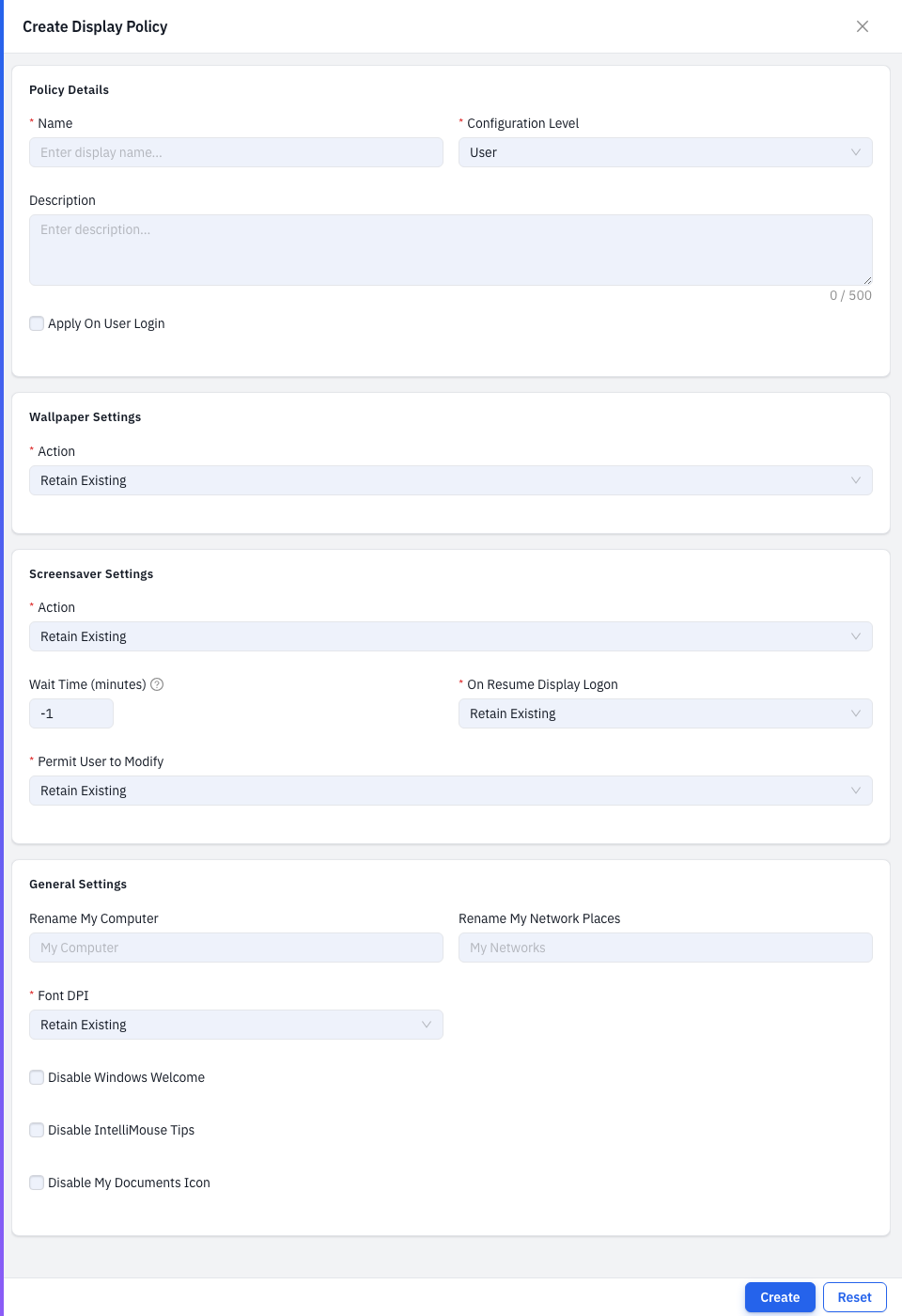
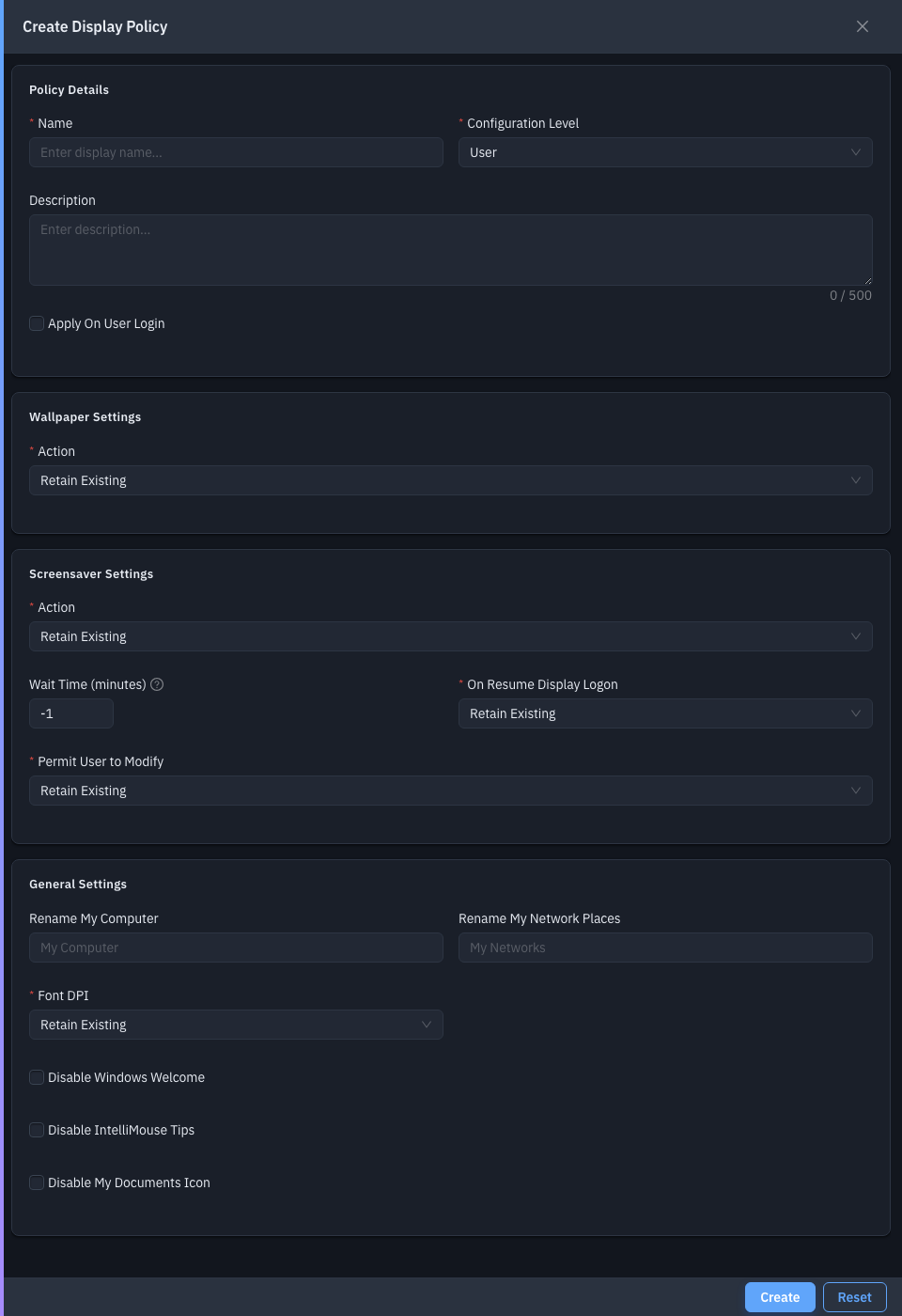
| Field | Required | Notes |
|---|---|---|
| Policy Name | Yes | The policy name. |
| Description | No | What it's for. |
| Configuration Level | Yes | User or Computer. This decides which settings show. |
User-level settings (per user):
- Wallpaper — Retain Existing or Apply (upload an image, choose Center / Tile / Stretch, and whether users may change it).
- Screensaver — Retain Existing, Apply (upload, set wait time, lock on resume), or Disable.
- General — rename My Computer / Network Places, Font DPI (100% / 125% / 150%), and toggles to disable the Windows welcome, IntelliMouse tips, and the My Documents icon.
Computer-level settings (per machine):
- Primary / Secondary Display Resolution — a preset (e.g. 1920×1080) or Custom width × height.
- Font DPI — 100% / 125% / 150%.
Save to add the policy, then deploy it.
Related
- Deployments — push a policy to endpoints.