Application Control — Policies
Application Control blocks unwanted applications from running, identified by their executable name. A policy names one application to block; deploy it, and that app is stopped on the targeted endpoints. Need to let it run briefly? Use Temporary Access.
Edition & permission
Device Control is EndpointOps edition. You need View Application Control permission.
How to get here
- In the left sidebar, click Device Control.
- Click the Application Control card.
Navigate to: Device Control → Application Control → Policies
URL path: /device-control/application-control/policies
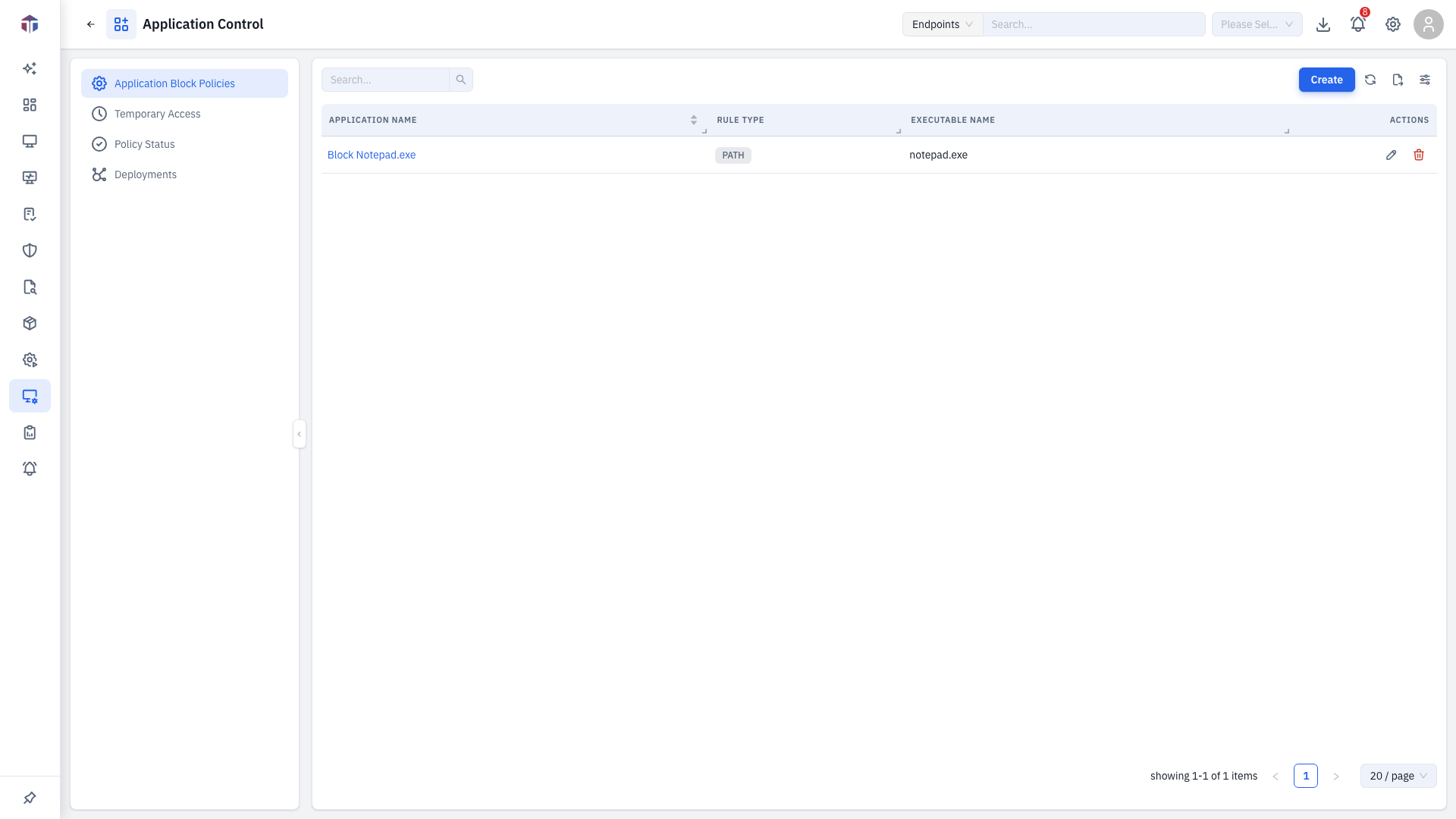
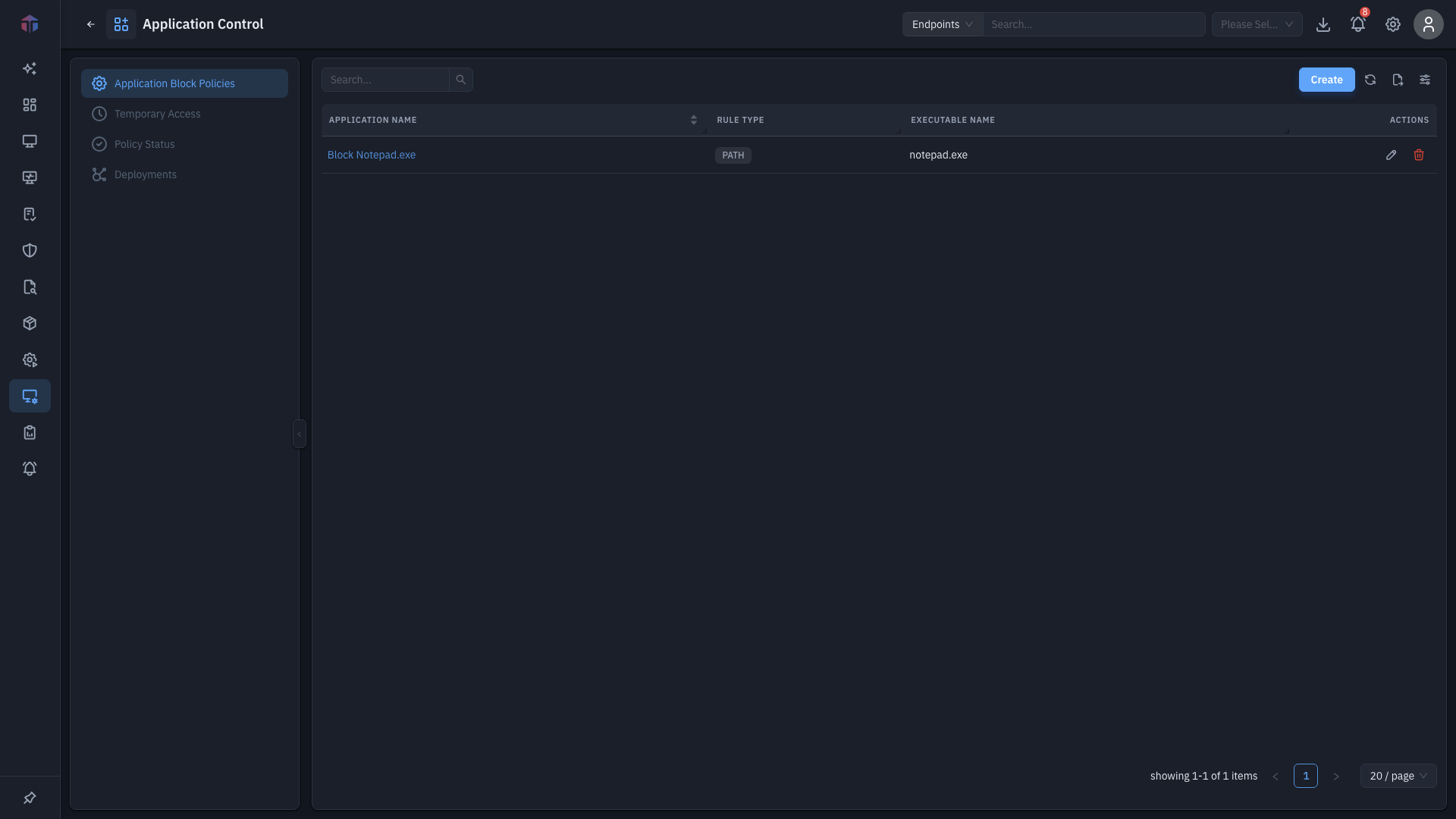
The Policies screen
| Column | What it shows |
|---|---|
| Application Name | A label for the policy. |
| Description | What it's for. |
| Rule Type | How the app is matched (by path/executable). |
| Executable Name | The blocked binary, e.g. notepad++.exe. |
| Created At | When it was created. |
Create adds a policy; rows have Edit and Delete (and bulk delete).
How do I block an application?
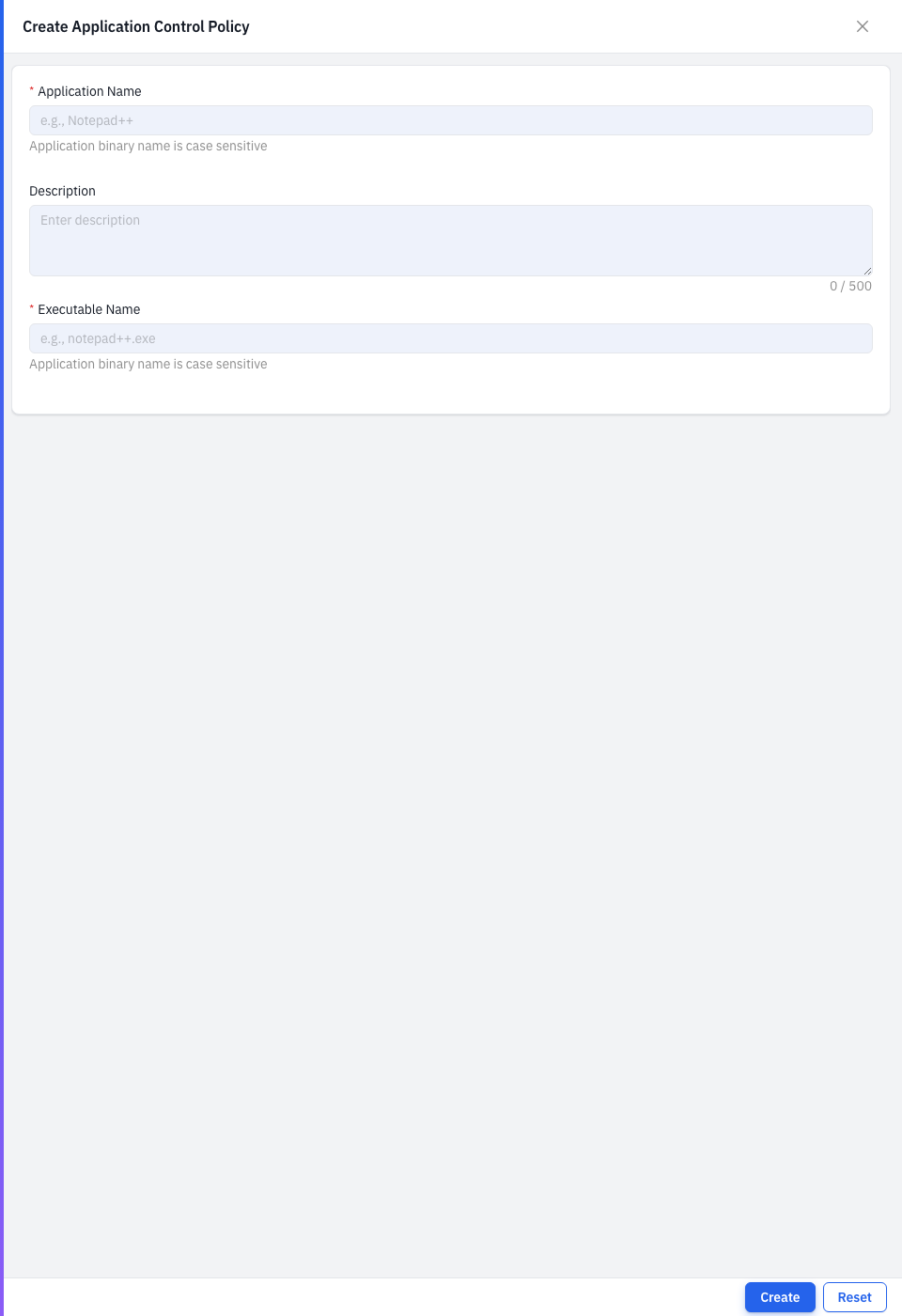
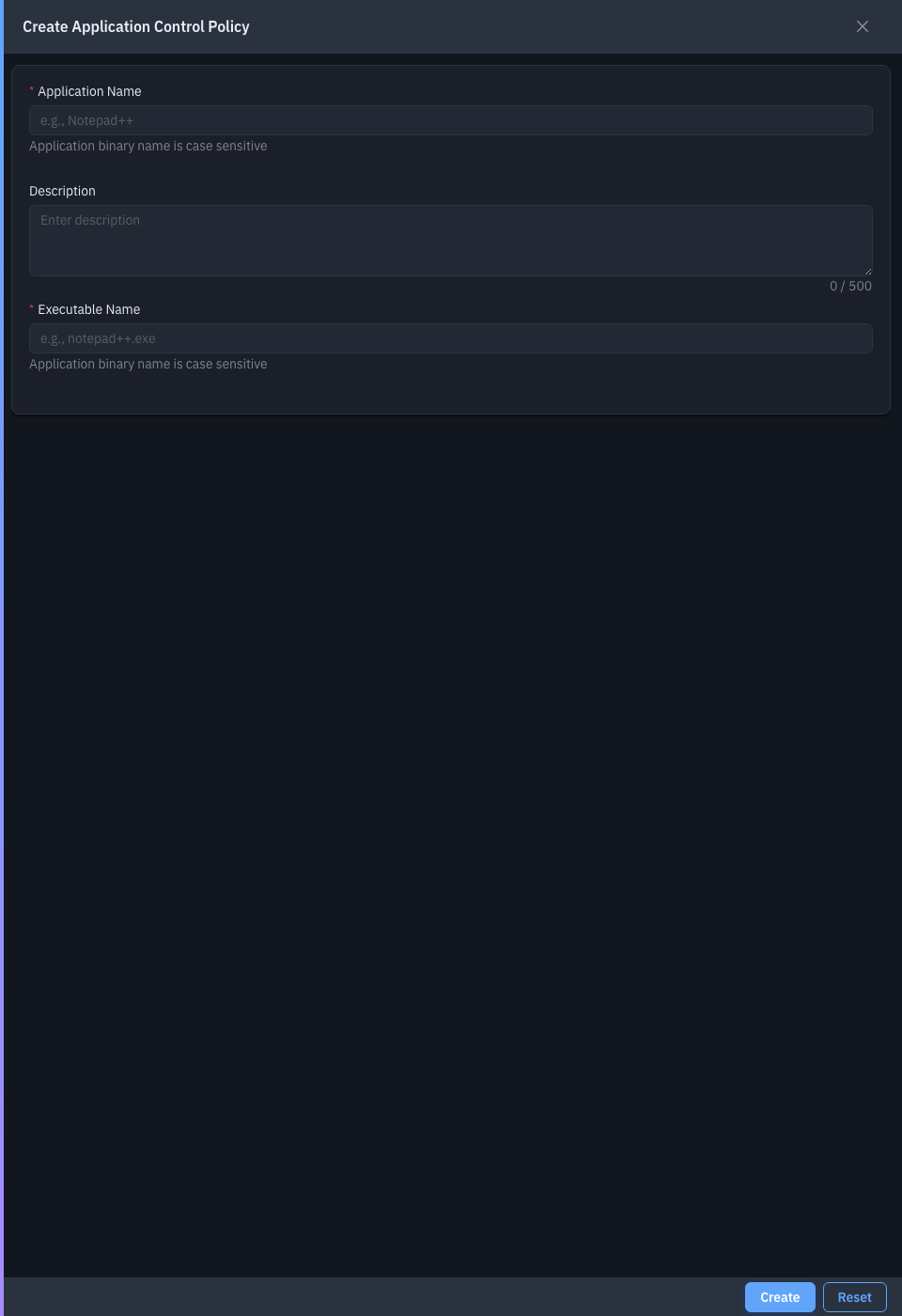
Click Create. The form opens in a drawer.
| Field | Required | Notes |
|---|---|---|
| Application Name | Yes | A label for the policy. |
| Description | No | What it's for. |
| Executable Name | Yes | The binary to block, e.g. notepad++.exe. Case sensitive. |
Save to add the policy, then deploy it.
Tips & troubleshooting
- The app still runs. Check the Executable Name exactly — it's case-sensitive and must match the binary, not the install name.
Related
- Temporary Access — let a blocked app run for a while.
- Deployments — push a policy to endpoints.
- Policy Status — see where it's applied.