Application Control — Temporary Access
Temporary Access lets a blocked application run on a single endpoint for a set period — a fixed duration or a time window — then re-blocks it automatically.
How to get here
- Open Device Control → Application Control.
- Click the Temporary Access tab.
Navigate to: Device Control → Application Control → Temporary Access
URL path: /device-control/application-control/temporary-access
The Temporary Access screen
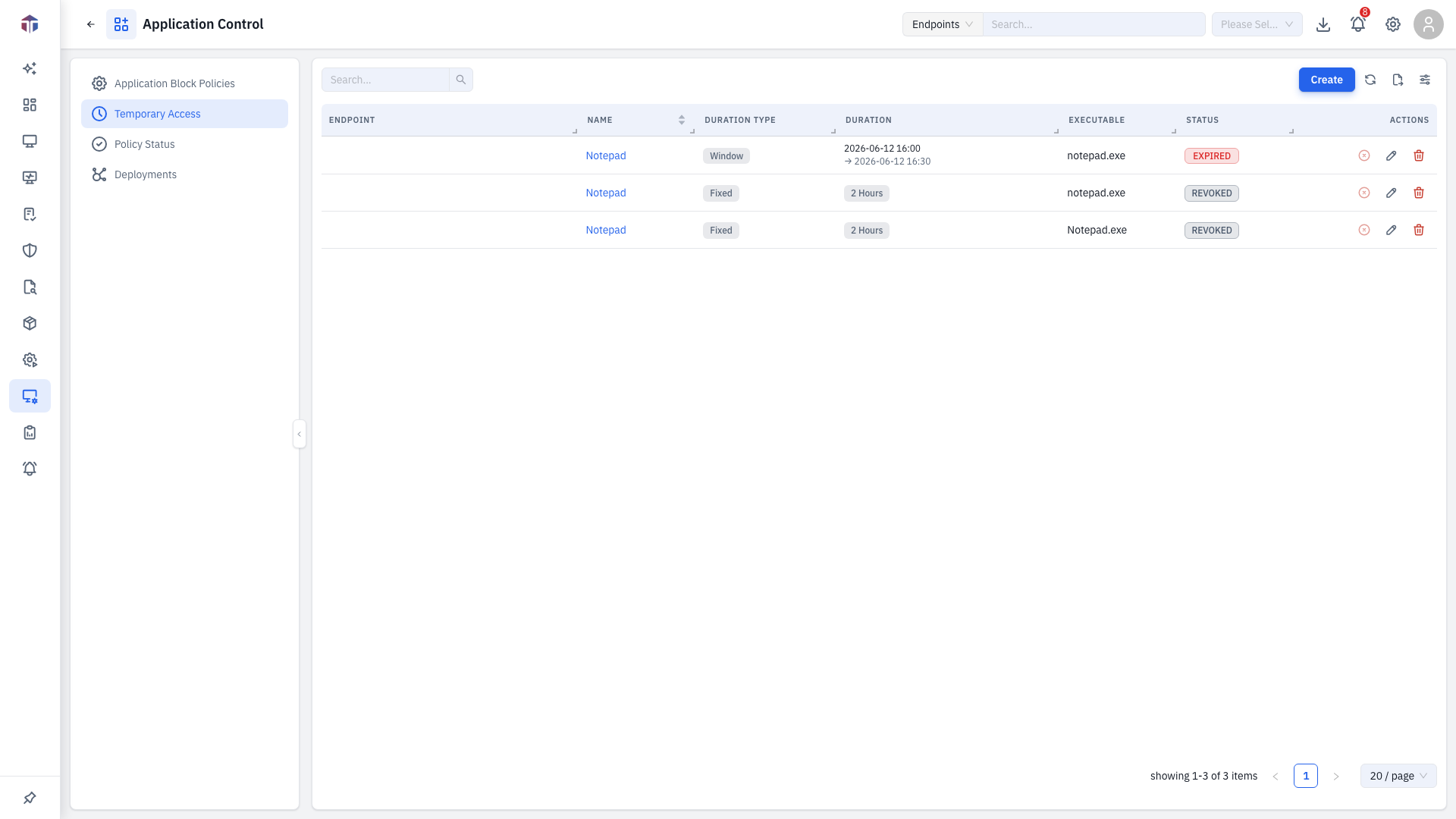
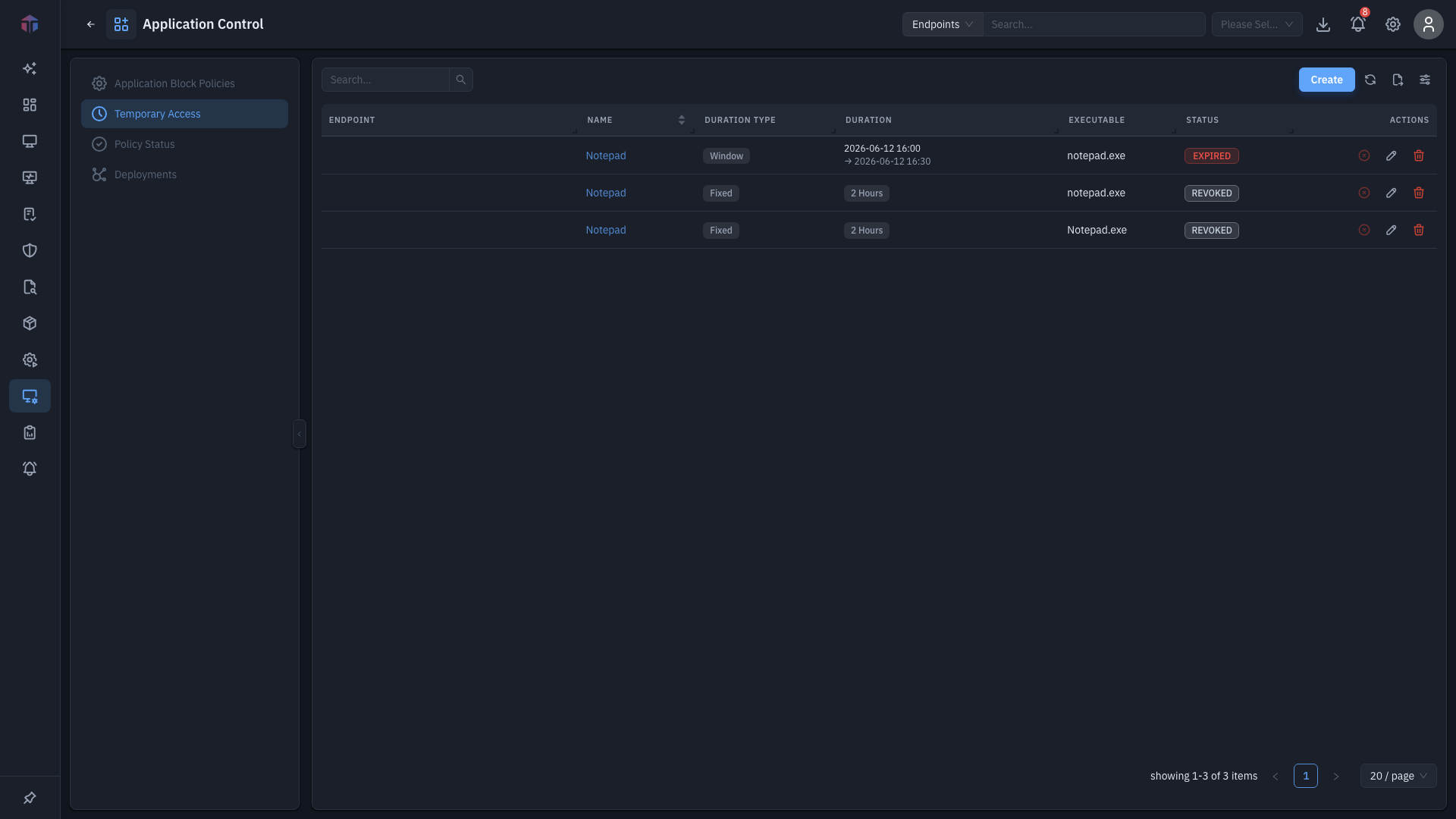
| Column | What it shows |
|---|---|
| Endpoint | The machine the grant applies to. |
| Name | A label for the grant. |
| Duration Type | Fixed or Window. |
| Duration | The length, or the start–end window. |
| Executable | The app being allowed. |
| Status | Active, Pending, Failed, etc. |
Description and Created At are available via the column picker.
How do I grant temporary access?
Click Create. The form opens in a drawer.
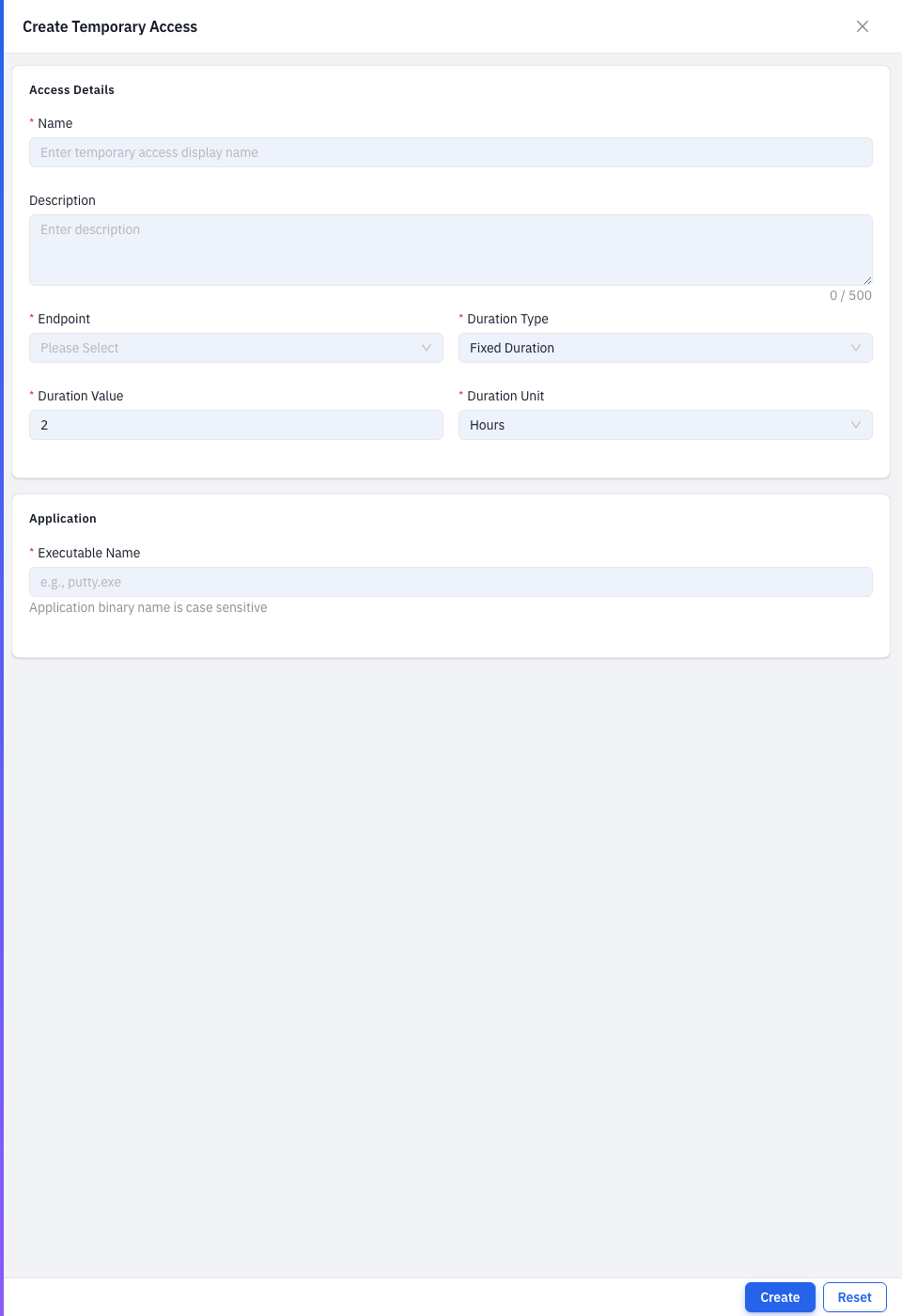
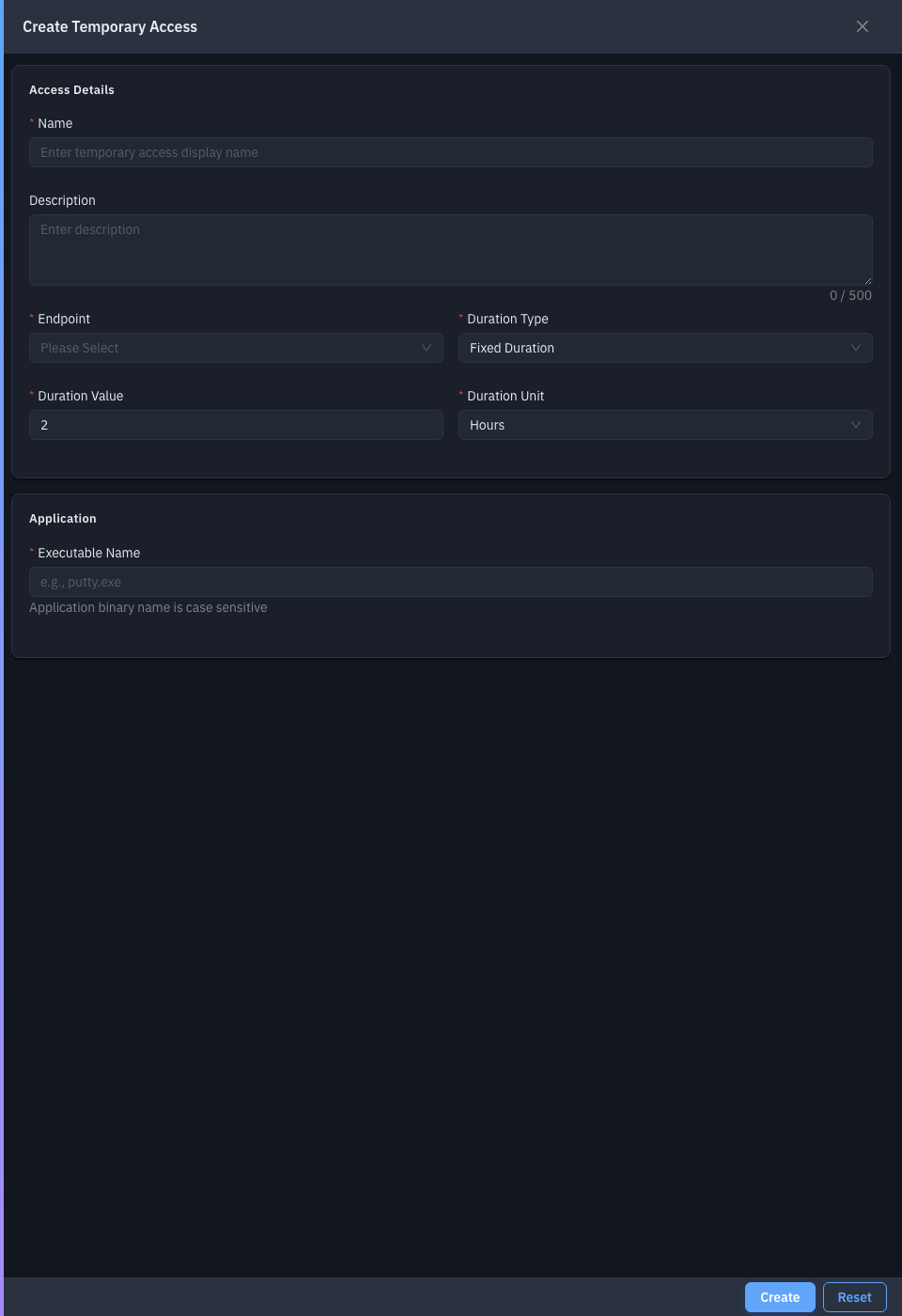
| Field | Required | Notes |
|---|---|---|
| Name | Yes | A label for the grant. |
| Description | No | A note. |
| Endpoint | Yes | The machine to grant access to. |
| Duration Type | Yes | Fixed Duration or Time Window. |
| Duration Value / Unit | Yes* | e.g. 2 Hours / Days / Weeks. *For Fixed. |
| Window Start / End Time | Yes* | The exact window; end must be after start. *For Window. |
| Executable Name | Yes | The app to allow, e.g. putty.exe. Case sensitive. |
How do I end access early?
Click Revoke Access (the red icon) on an Active row and confirm.
Related
- Policies — the block this grant temporarily lifts.