Browser Management — Policies
Browser Management controls what users can do with their browsers — chiefly which extensions and permissions are allowed. A policy targets one browser (Chrome, Edge, or Firefox) and lists what to block or pin.
Edition & permission
Device Control is EndpointOps edition. You need View Browser Management permission.
How to get here
- In the left sidebar, click Device Control.
- Click the Browser Management card.
Navigate to: Device Control → Browser Management → Policies
URL path: /device-control/browser-management-settings/policies
The Policies screen
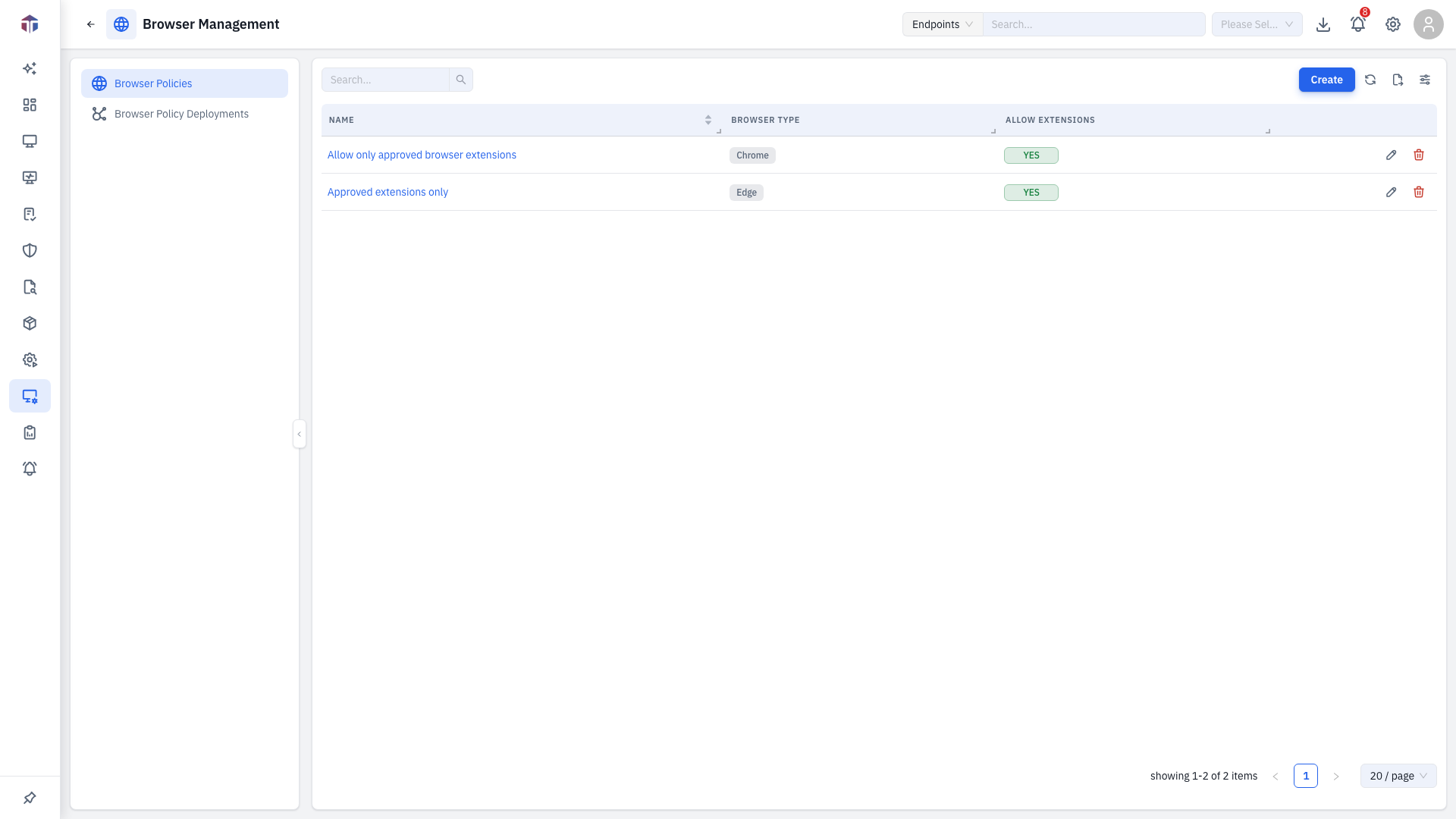
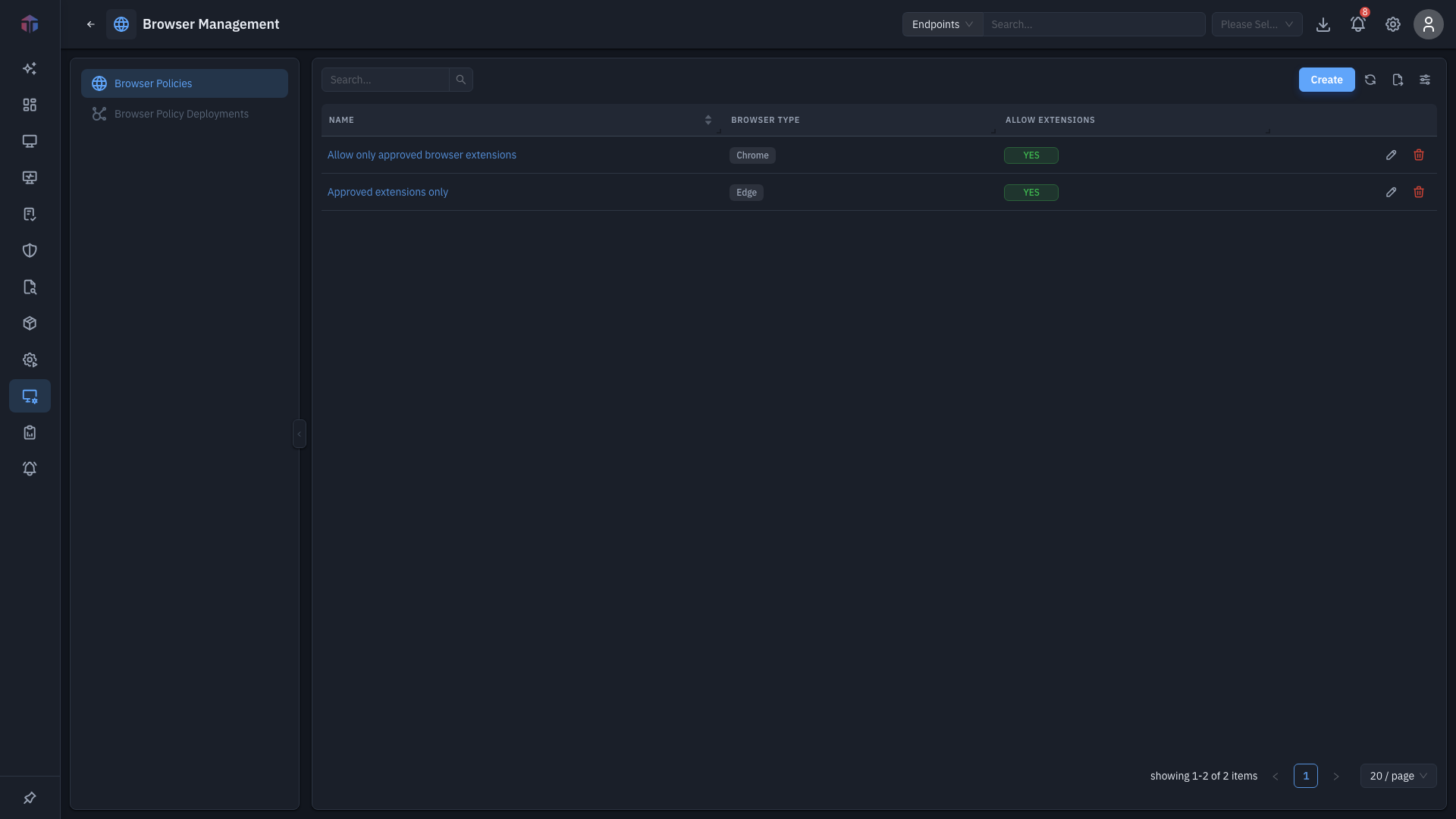
| Column | What it shows |
|---|---|
| Name | The policy name. |
| Description | What it's for. |
| Browser Type | Chrome, Edge, or Firefox. |
| Allow Extensions | Whether users may install extensions. |
| Created Time | When it was created. |
Create adds a policy; rows have Edit and Delete.
How do I create a policy?
Click Create. The form opens in a drawer.
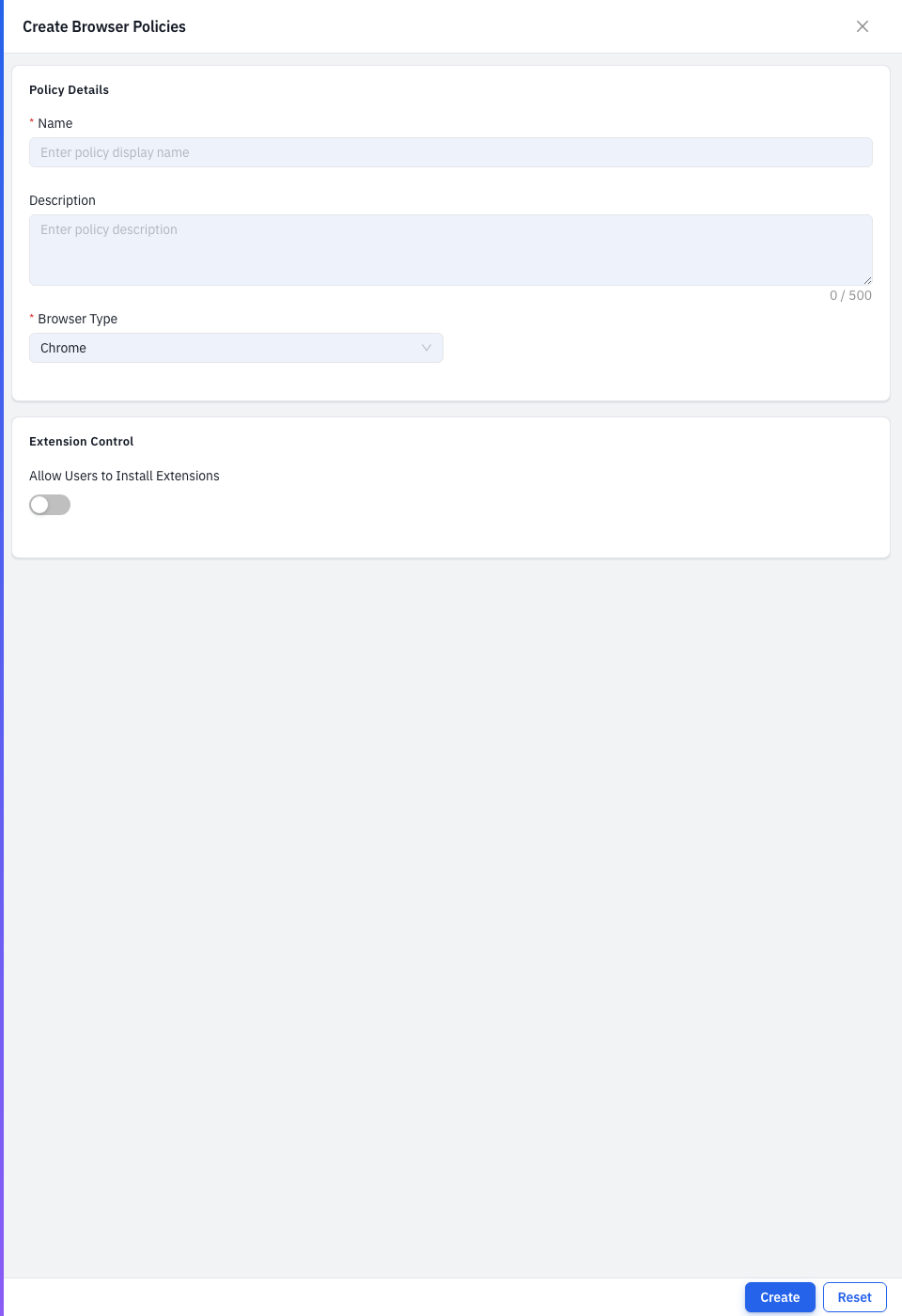
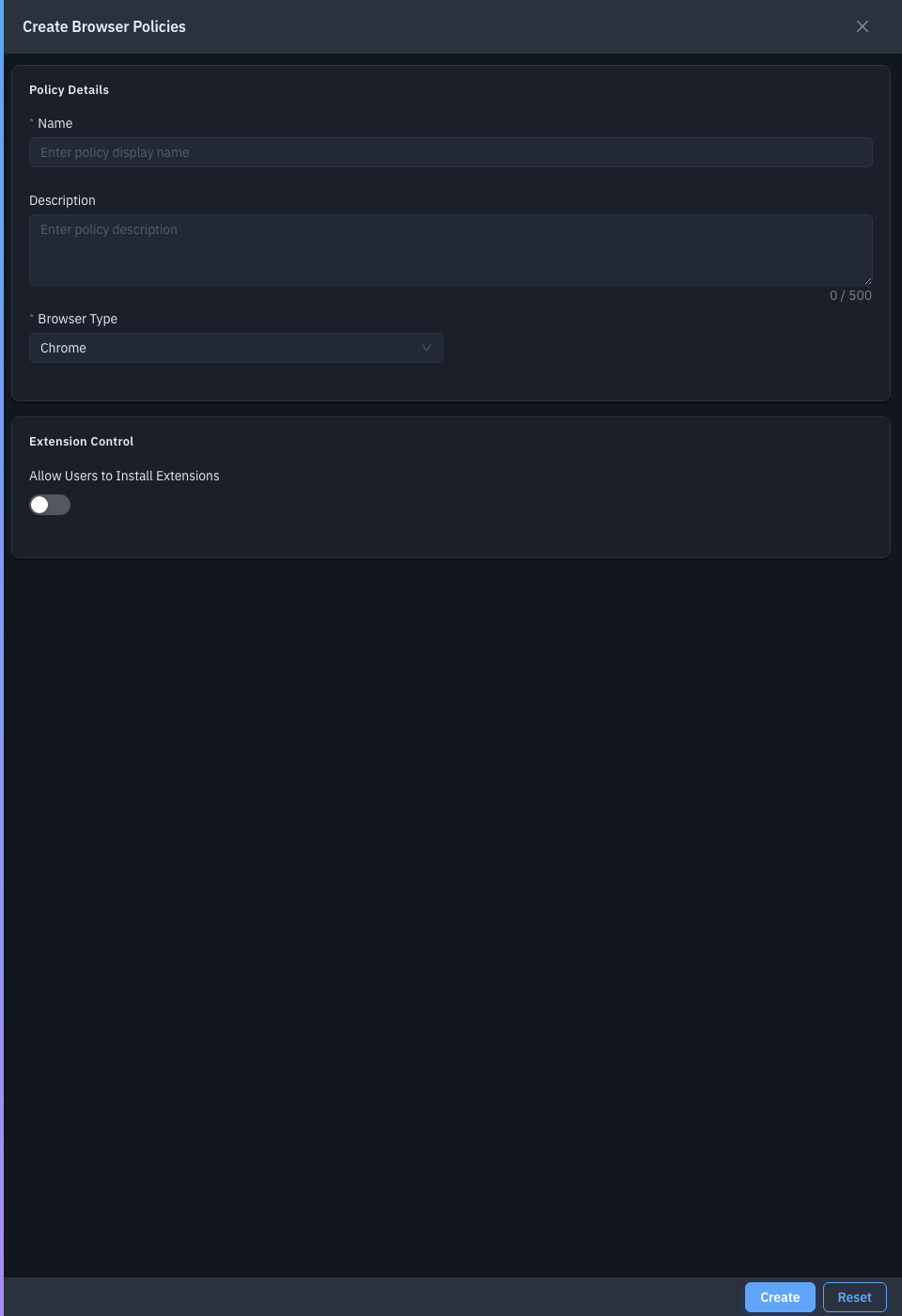
| Field | Required | Notes |
|---|---|---|
| Name | Yes | The policy name. |
| Description | No | What it's for. |
| Browser Type | Yes | Chrome, Edge, or Firefox. Changing it resets the settings. |
| Allow Users to Install Extensions | No | Off by default. Reveals the lists below. |
| Blocked Extensions | No | Extension IDs to block (one per line or comma-separated). |
| Blocked Permissions | No | Extension permissions to block (cookies, downloads, history, proxy, etc.). |
| Pinned Extensions | No | Extensions to force-pin. |
| Native Messaging Action | No | Allow / Block / Not Configured (not shown for Firefox). |
| Native Messaging Hosts | No | The allowed hosts, when the action is Allow. |
Save to add the policy, then deploy it.
Related
- Deployments — push a policy to endpoints.