Certificate Management — Policies
Certificate Management installs or removes digital certificates across your endpoints — for example pushing a trusted root CA to every machine. A policy says which certificate to install (and into which stores) or which to delete.
Edition & permission
Device Control is EndpointOps edition. You need View Certificate Management permission.
How to get here
- In the left sidebar, click Device Control.
- Click the Certificate Management card.
Navigate to: Device Control → Certificate Management → Policies
URL path: /device-control/certificate-management-settings/policies
The Policies screen
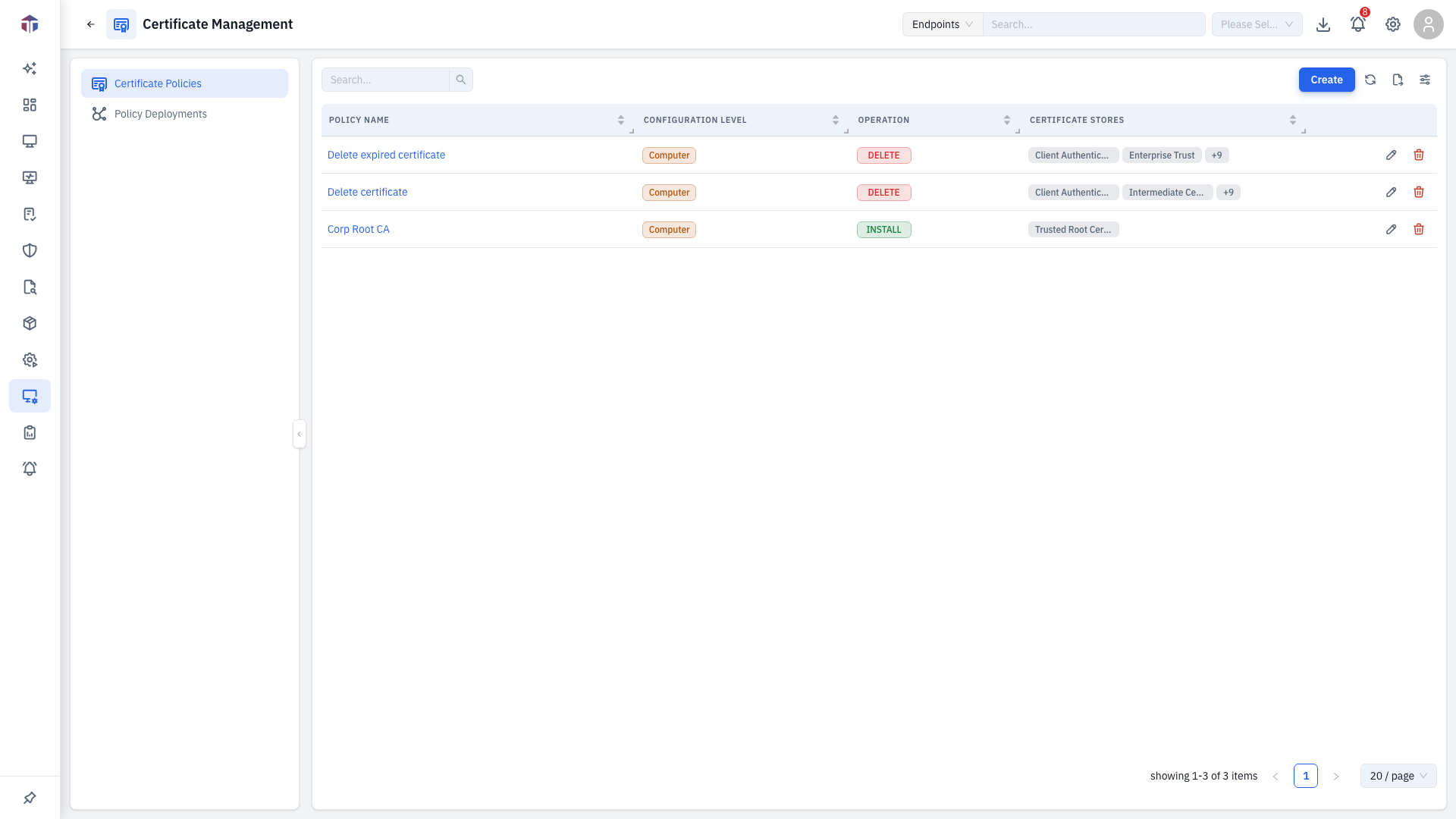
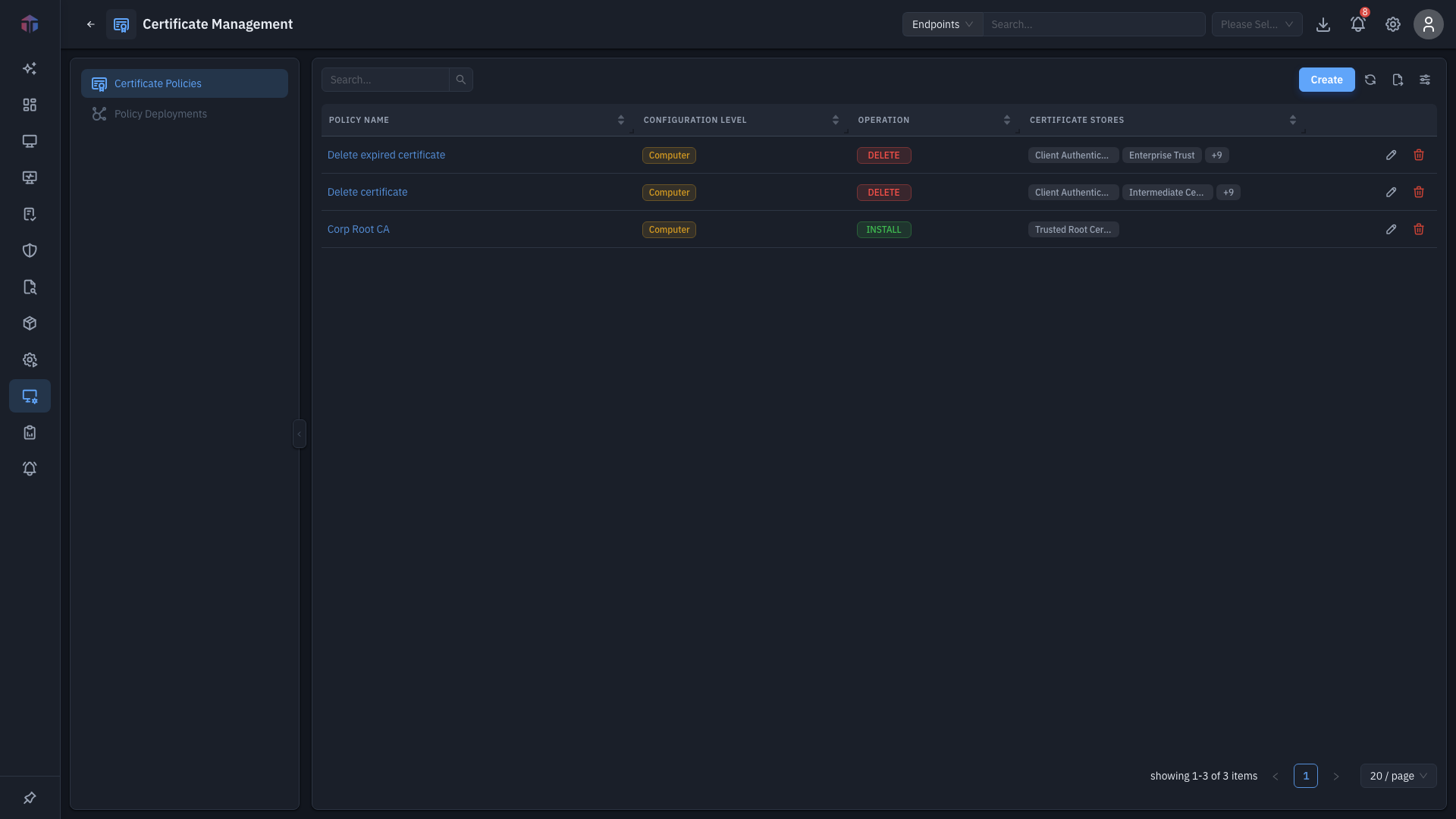
| Column | What it shows |
|---|---|
| Policy Name | The policy name. |
| Description | What it's for. |
| Configuration Level | Computer or User store. |
| Operation | Install or Delete. |
| Certificate Stores | The target stores. |
Create adds a policy; rows have Edit and Delete.
How do I create a policy?
Click Create. The form opens in a drawer.
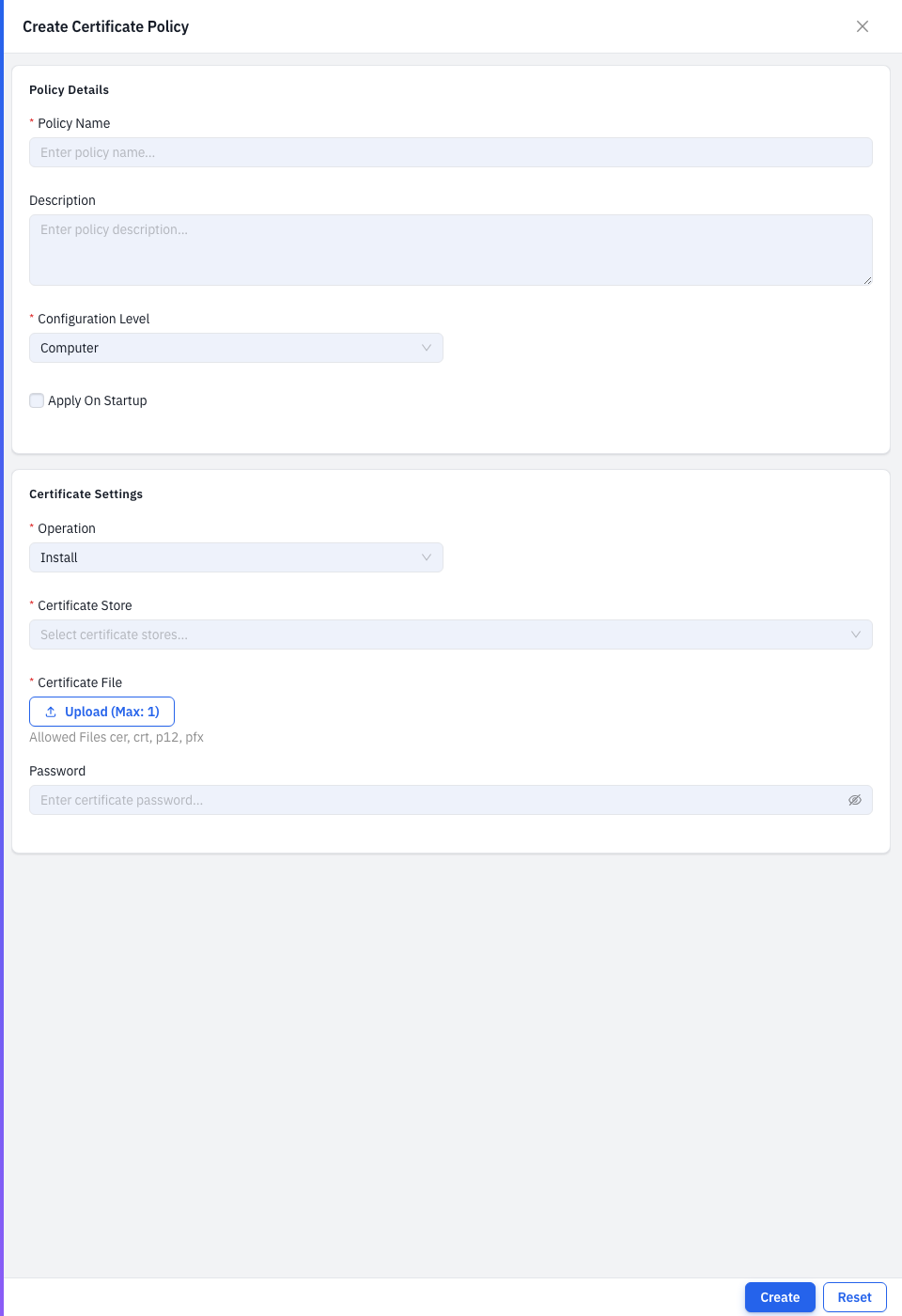
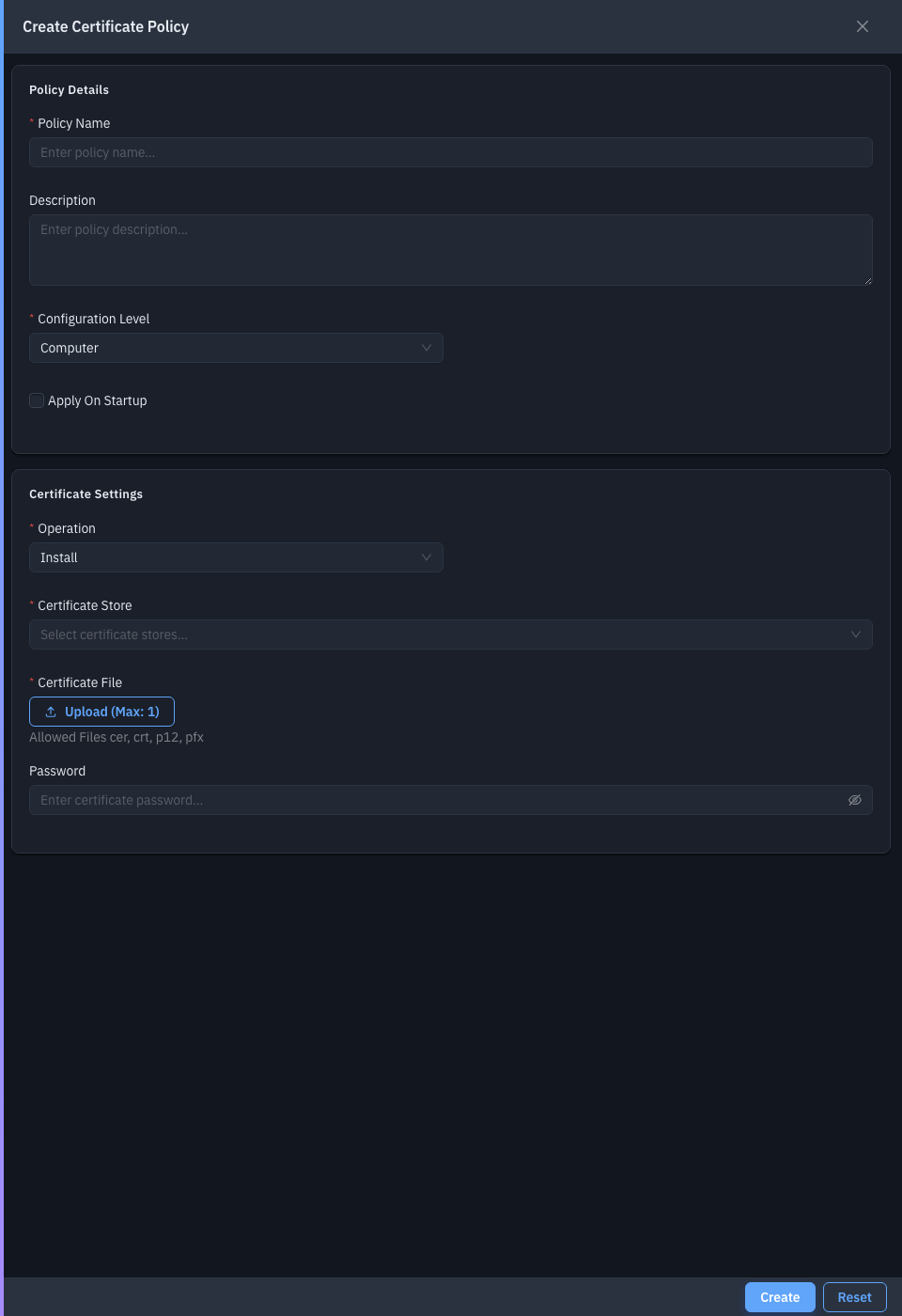
| Field | Required | Notes |
|---|---|---|
| Policy Name | Yes | The policy name. |
| Description | No | What it's for. |
| Configuration Level | Yes | Computer or User — sets which stores are available. |
| Operation | Yes | Install or Delete. |
For an Install operation:
| Field | Required | Notes |
|---|---|---|
| Certificate Store | Yes | One or more target stores (Trusted Root, Personal, Trusted Publisher, etc.). |
| Certificate File | Yes | Upload the certificate (.cer, .pfx, .p7b). |
| Password | No | For an encrypted (.pfx) certificate. |
For a Delete operation, choose Delete All Expired, or Delete Specific and give the certificate's Common Name and/or Serial Number.
Save to add the policy, then deploy it.
Related
- Deployments — push a policy to endpoints.