Disk Encryption — Recovery Keys
The Recovery Keys tab stores the BitLocker recovery passwords for every encrypted drive. If a user is locked out, you retrieve the key here; you can also rotate a key so the old one stops working.
This tab appears only if you have View BitLocker Recovery Key permission. Rotating a key needs Manage BitLocker Recovery Key.
How to get here
- Open Device Control → Disk Encryption.
- Click the Recovery Keys tab.
Navigate to: Device Control → Disk Encryption → Recovery Keys
URL path: /device-control/bitlocker-settings/recovery-keys
The Recovery Keys screen
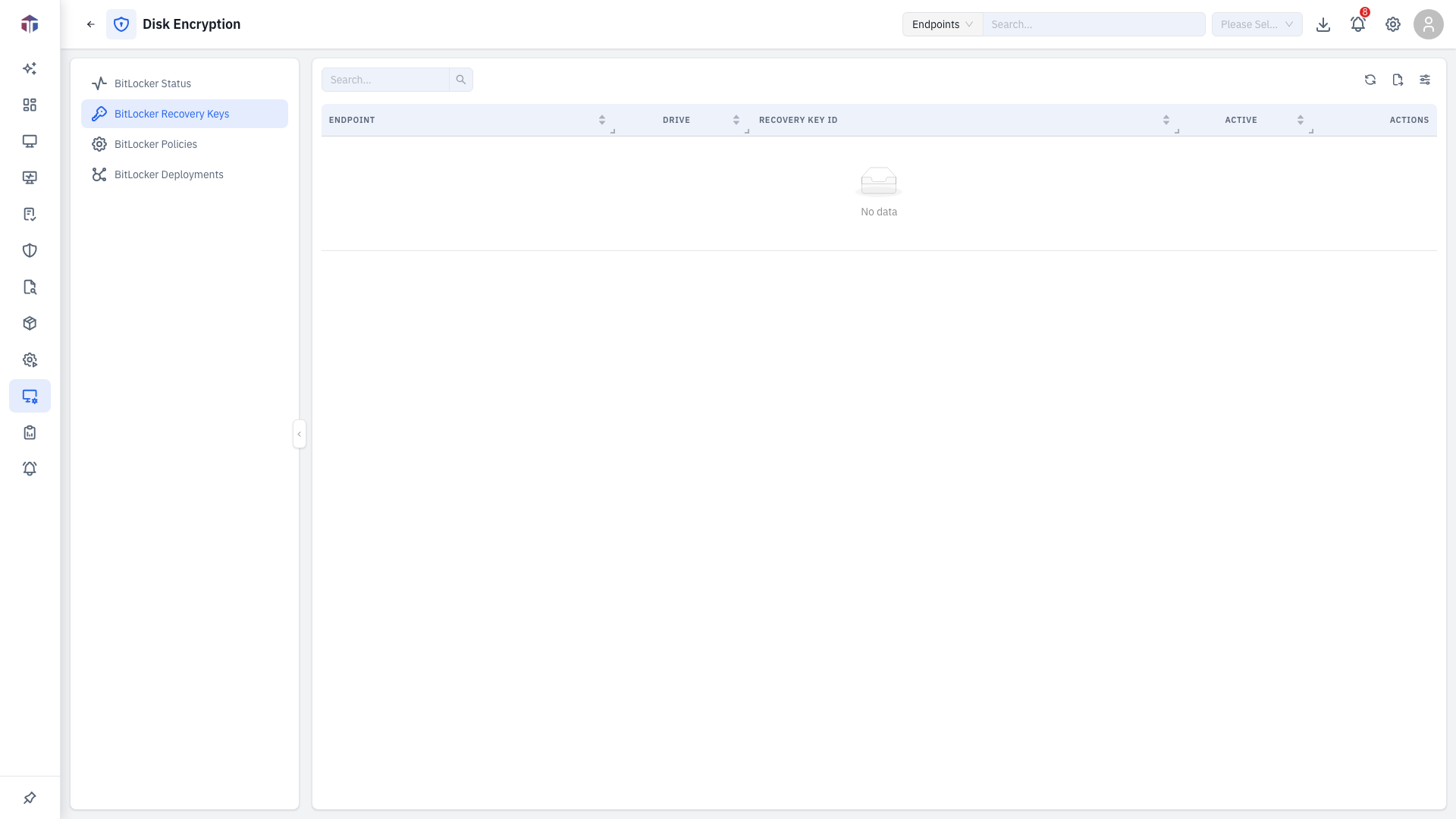
| Column | What it shows |
|---|---|
| Endpoint | The machine (fleet-wide view only). |
| Drive | The drive the key unlocks. |
| Recovery Key ID | The key's identifier (the secret itself is hidden). |
| Active | Whether this key is currently valid. |
| Last Updated At | When the key last changed. |
Volume Name / Volume ID are available via the column picker.
How do I view a recovery key?
- Click the eye icon on a row.
- Confirm your own password when prompted — recovery keys are sensitive, so the app re-verifies you.
- The recovery password appears with a Copy button.
How do I rotate a key?
On an active key, click Rotate Recovery Key (the refresh icon) and confirm. A new key is generated and the old one is retired. On a single endpoint you can also open Recovery Key Rotate History to see past rotations.
Once you rotate, the previous recovery key stops working. If you (or a user) copied the old key somewhere outside EndpointOps — a password manager, a printout, a helpdesk ticket — that copy is now useless. After rotating, make sure the new key is what gets recorded anywhere you keep keys, and confirm the drive still shows an Active key here before you rely on it.
Tips & troubleshooting
- The eye icon asks for my password. That's expected — it's the extra check before a recovery key is revealed.