Disk Encryption — Status
Disk Encryption manages BitLocker on your Windows endpoints. The Status tab is where you land: a live picture of which drives are encrypted, how far along they are, and whether the TPM (the security chip BitLocker relies on) is available.
Device Control is EndpointOps edition. You need View BitLocker permission.
How to get here
- In the left sidebar, click Device Control.
- Click the Disk Encryption card.
Navigate to: Device Control → Disk Encryption → Status
URL path: /device-control/bitlocker-settings/status
The Status screen
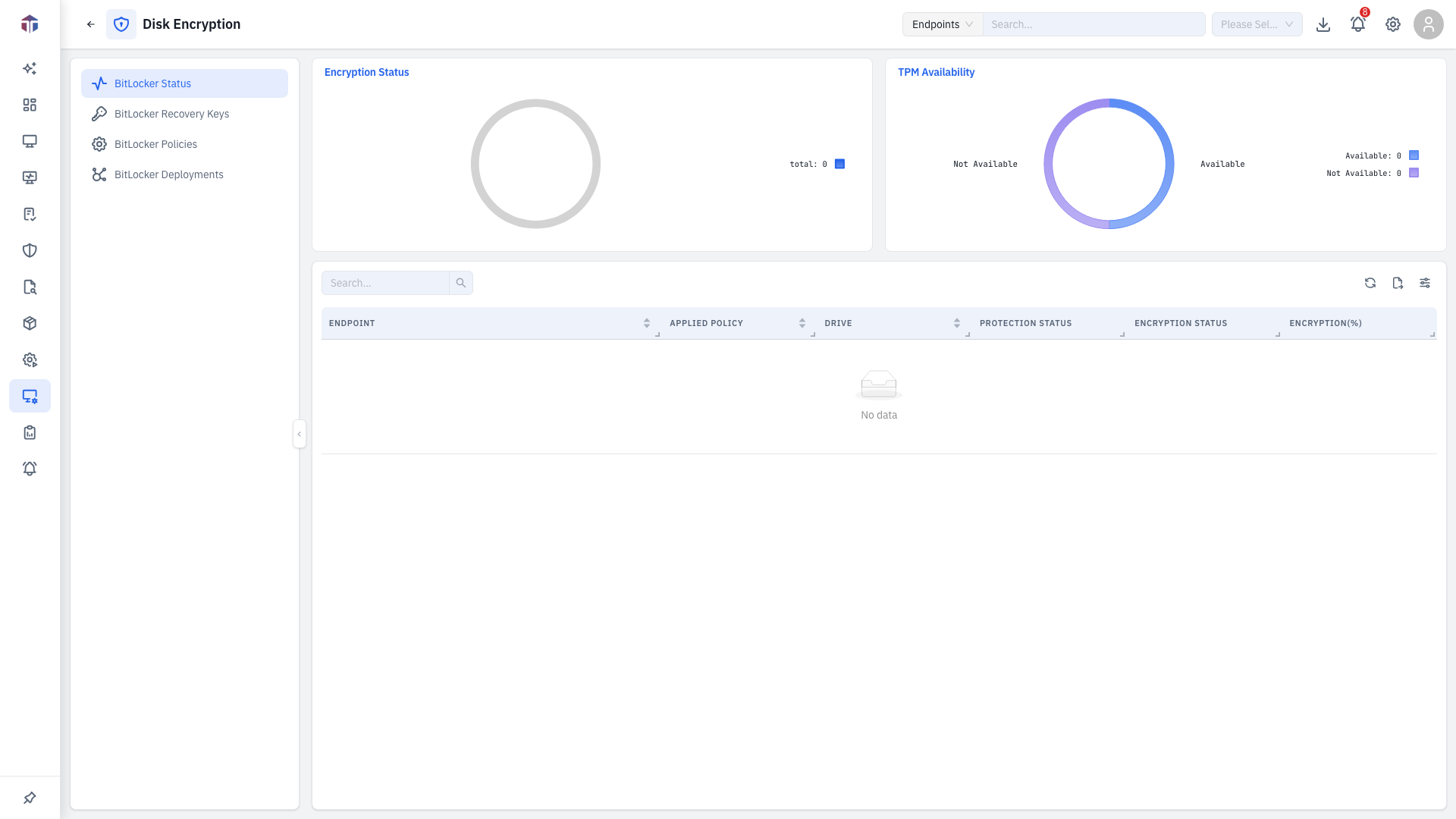
Across the whole fleet, two charts summarise Encryption Status and TPM Availability. The table lists each drive:
| Column | What it shows |
|---|---|
| Endpoint | The machine (fleet-wide view only). |
| Applied Policy | The BitLocker policy in effect. |
| Drive | Drive letter with a protection-status lock. |
| Encryption Status | Fully Encrypted, Encryption in Progress, Decryption in Progress, Fully Decrypted. |
| Protection Status | Protected / Unprotected / Partially Protected. |
| Lock Status | Locked / Unlocked. |
| Encryption (%) | How far encryption has progressed. |
| Volume Size | Drive size. |
| Last Updated At | When the status last refreshed. |
The column picker adds volume and TPM detail — Volume Name / ID, Encryption Method, Volume Type, and the TPM fields (Available, Enabled, Activated, Owned, Manufacturer, Version).
On a single endpoint's view you also get Scan Drive Status (trigger a live scan) and Drive Scan History (a drawer of past scans).
Tips & troubleshooting
- A drive shows Unprotected at 100%. Encryption can be complete while protection is suspended — check the Protection Status and the applied policy.
- No TPM. Some policies allow encryption without a TPM; see the policy options.
Related
- Policies — define the encryption settings.
- Deployments — push a policy to endpoints.
- Recovery Keys — retrieve or rotate recovery keys.