Power Management — Policies
Power Management standardises Windows power plans across your fleet — when displays dim, when machines sleep or hibernate, and what the power button and lid do. A policy carries one or more power-scheme actions; deploy it to apply them.
Device Control is EndpointOps edition. You need View Power Management permission.
How to get here
- In the left sidebar, click Device Control.
- Click the Power Management card.
Navigate to: Device Control → Power Management → Policies
URL path: /device-control/power-management-settings/policies
The Policies screen
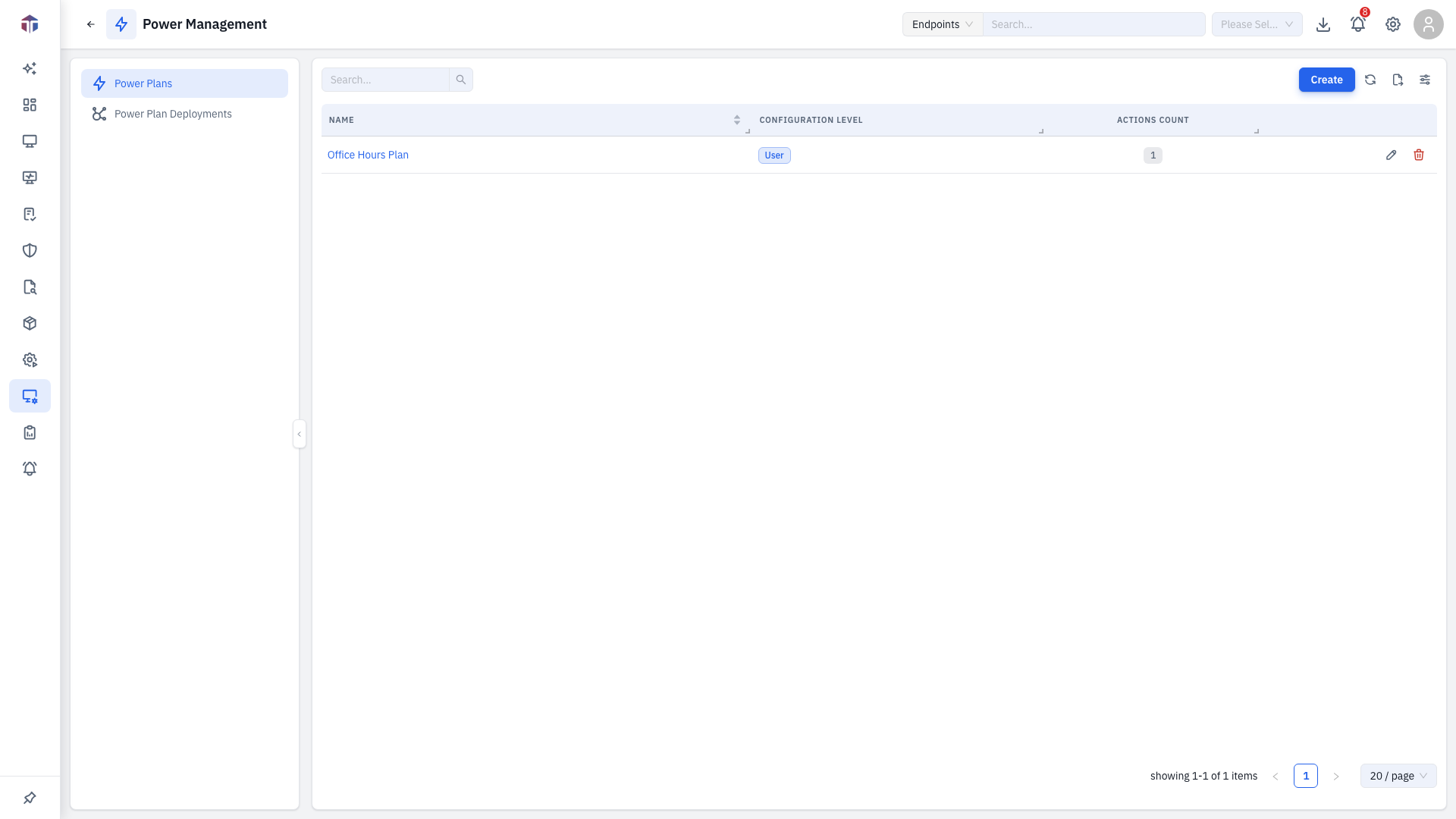
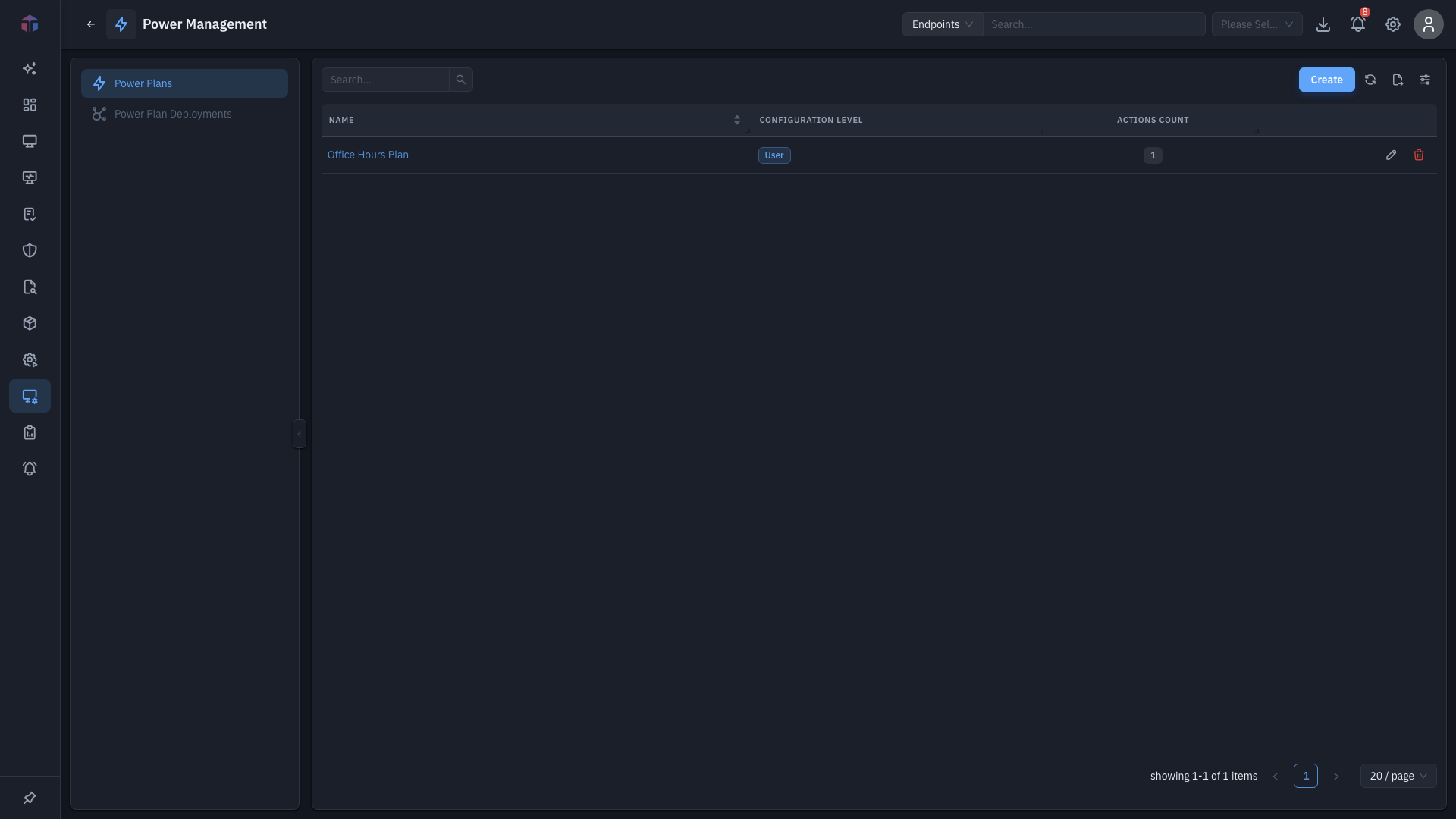
| Column | What it shows |
|---|---|
| Name | The policy name. |
| Description | What it's for. |
| Configuration Level | Computer or User. |
| Actions Count | How many power-scheme actions the policy carries. |
| Created Time | When it was created. |
Create adds a policy; rows have Edit and Delete.
How do I create a policy?
Click Create. The form opens in a drawer.
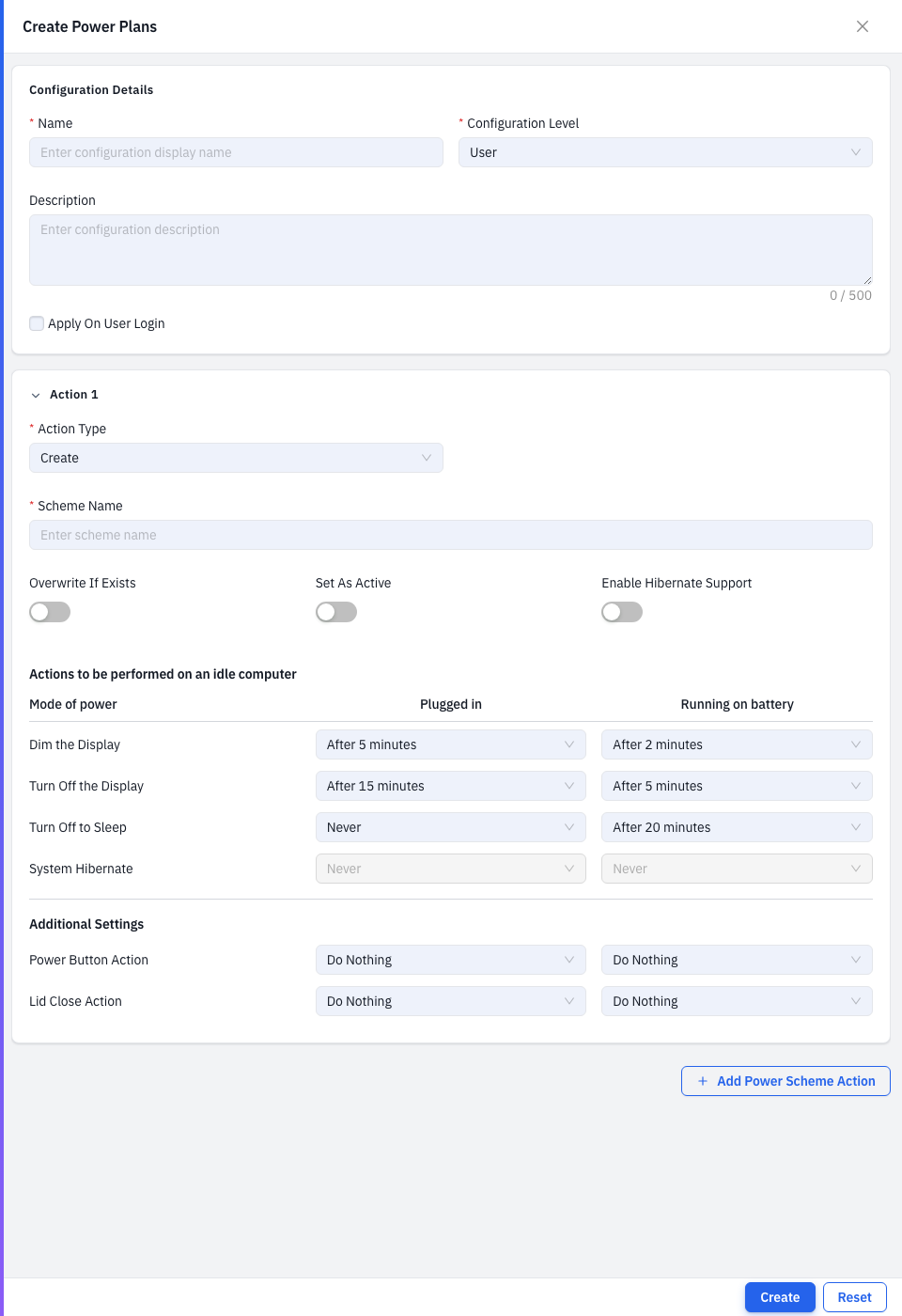
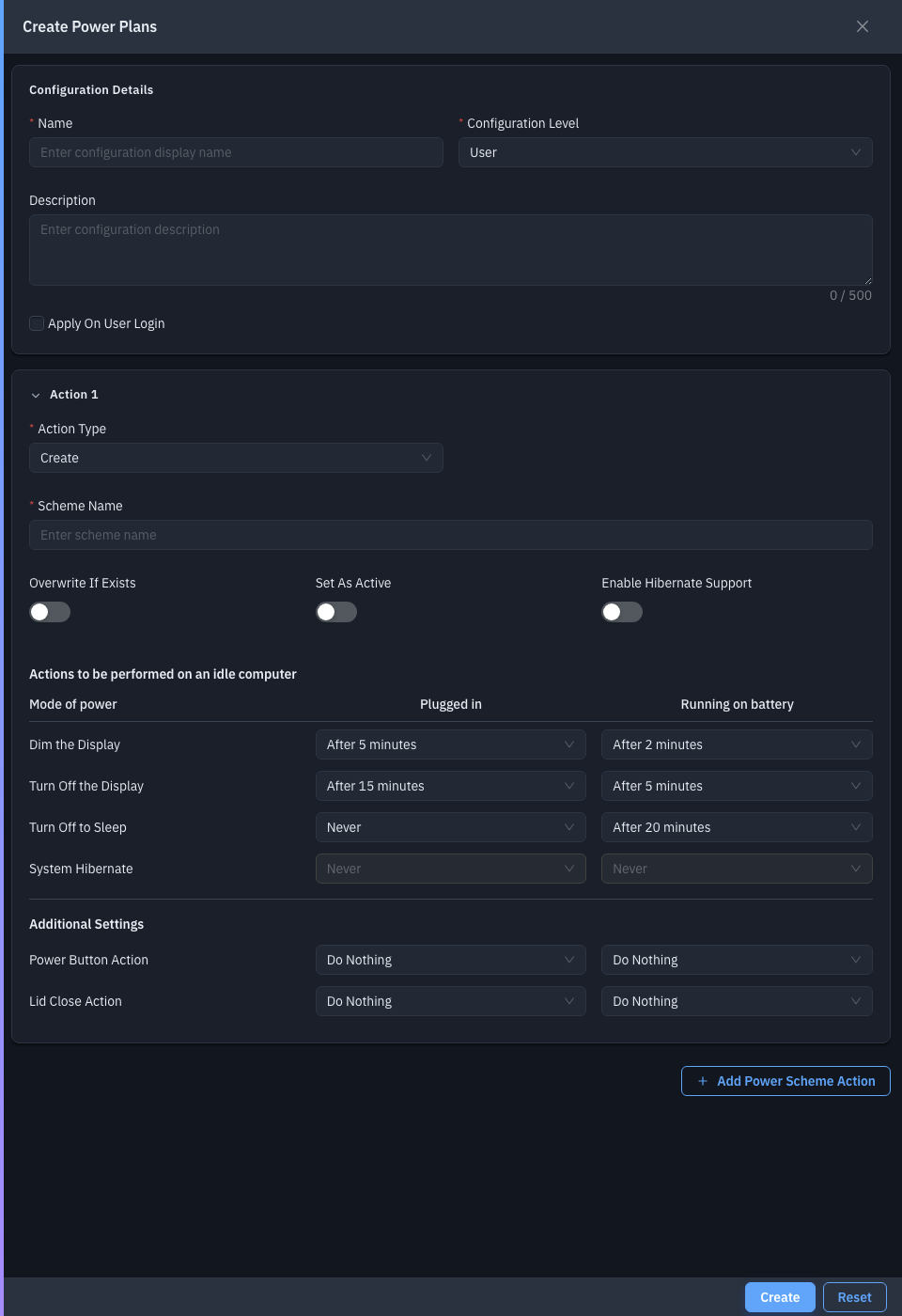
| Field | Required | Notes |
|---|---|---|
| Name | Yes | The policy name. |
| Configuration Level | Yes | Computer or User. |
| Description | No | What it's for. |
| Actions | Yes | One or more power-scheme actions — click Add Power Scheme Action. |
| Apply On Startup / User Login | No | When the policy takes effect (label follows the level). |
Each action chooses an Action Type (Create / Modify / Delete) and a Scheme (Balanced, High Performance, Power Saver, and the user-level schemes). A Create action exposes the full settings table — dim / turn-off display, sleep, hibernate, and hard-disk timeouts (on battery and plugged in), plus power-button and lid-close actions, hibernate/hybrid-sleep support, and prompt-for-password-on-resume.
Save to add the policy, then deploy it.
Related
- Deployments — push a policy to endpoints.