Security Policies
Security Policies apply Windows GPO-style hardening controls to your endpoints — desktop and Explorer restrictions, Internet Explorer settings, network and system controls, taskbar and Start-menu lockdowns, and many more. A policy is a named bundle of those controls, each set to Enable, Disable, or Not Configured.
Device Control is EndpointOps edition. You need View Security Policies permission.
How to get here
- In the left sidebar, click Device Control.
- Click the Security Policies card.
Navigate to: Device Control → Security Policies → Policies
URL path: /device-control/security-policy-settings/policies
The Policies screen
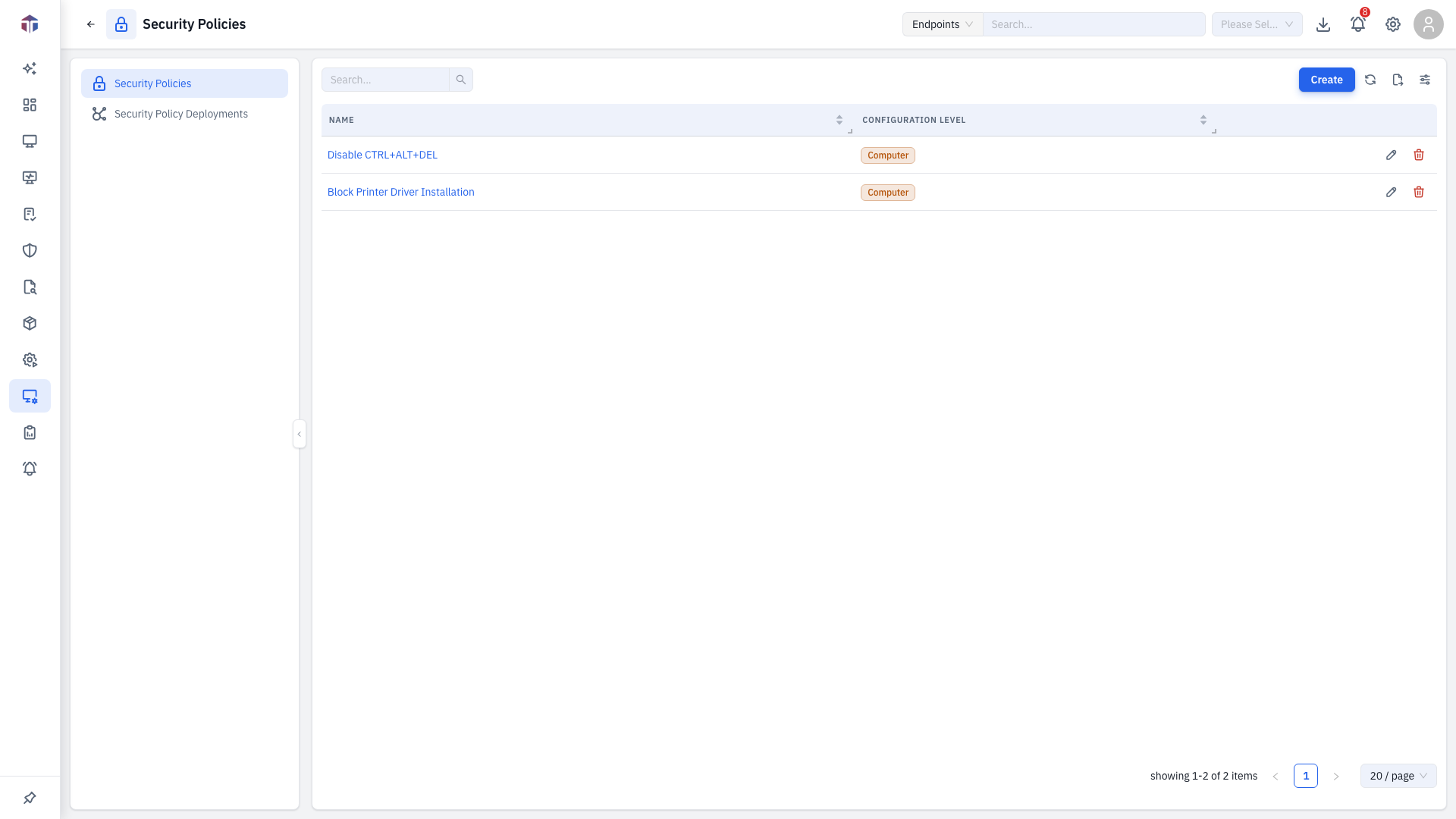
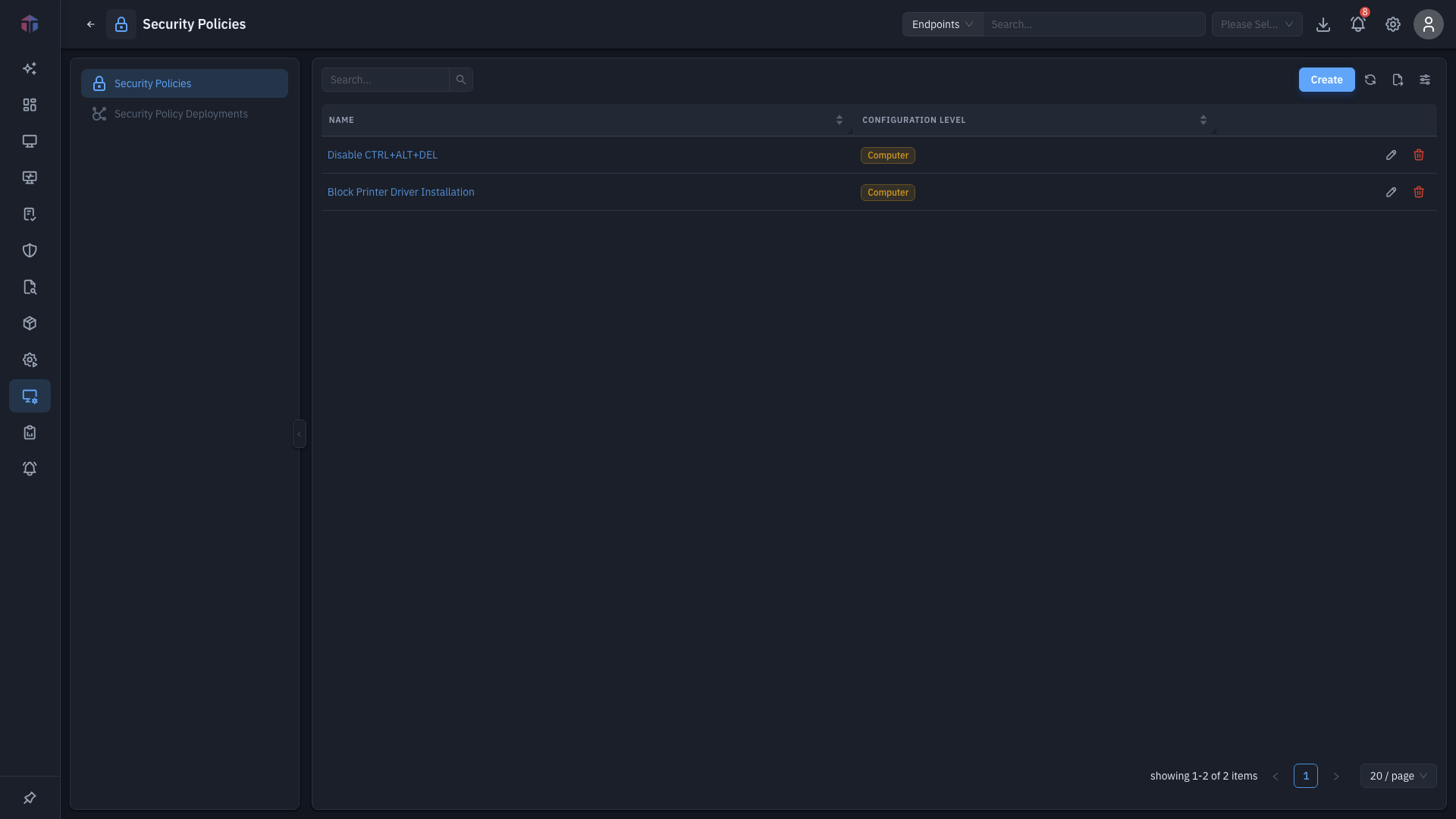
| Column | What it shows |
|---|---|
| Name | The policy name. |
| Description | What it's for. |
| Configuration Level | Computer or User. |
| Created Time | When it was created. |
Create adds a policy; rows have Edit and Delete.
How do I create a policy?
Click Create. The form opens in a wide drawer.
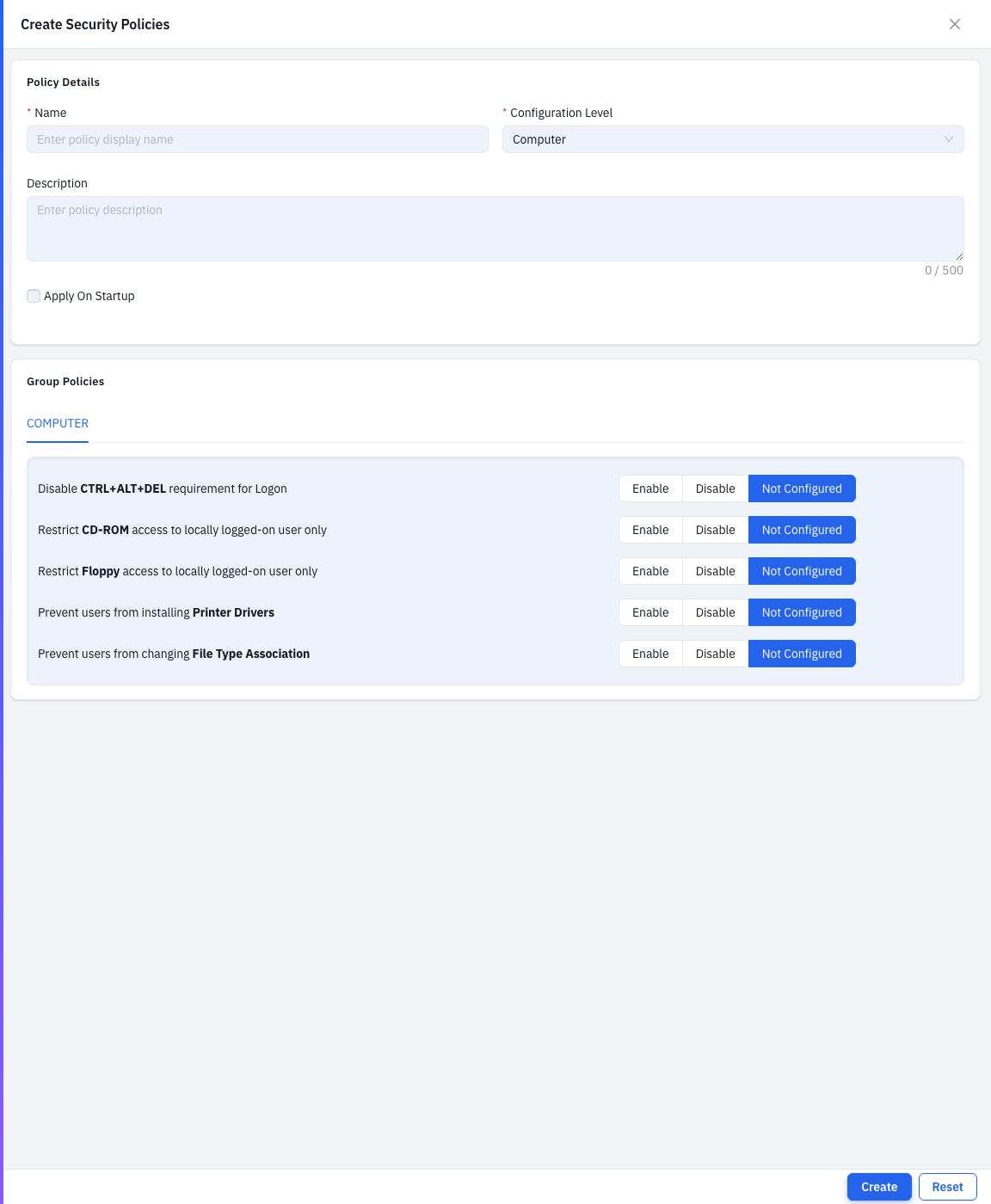
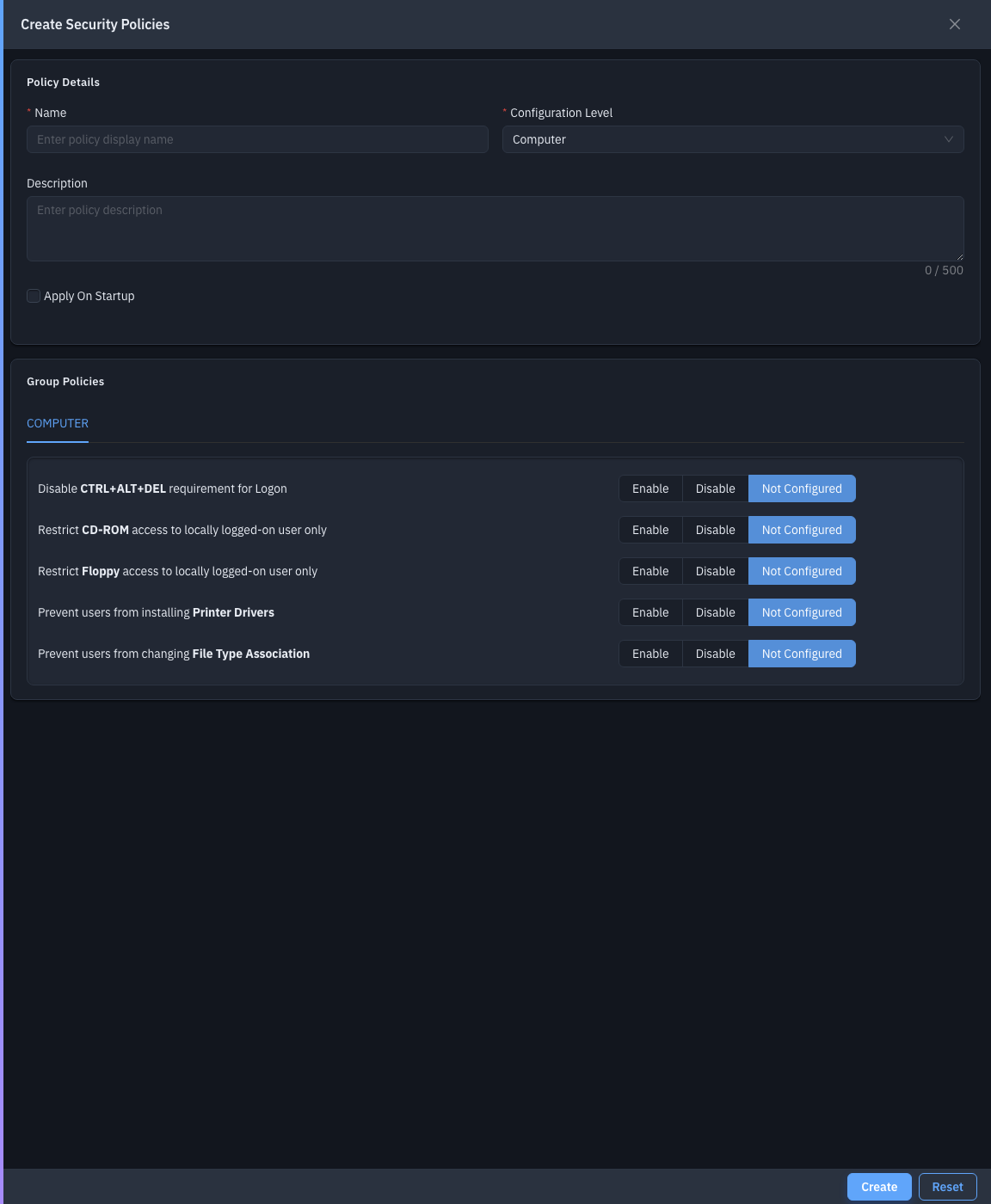
| Field | Required | Notes |
|---|---|---|
| Name | Yes | The policy name. |
| Description | No | What it's for. |
| Configuration Level | Yes | Computer or User. |
| Policies | No | The individual controls, grouped into tabs. |
The controls are organised into tabbed groups (Desktop, Explorer, Internet Explorer, Network, System, Taskbar / Start Menu, and more). Each control — for example "Hide and disable all items on the desktop" or "Remove My Computer icon on the desktop" — is set to Enable, Disable, or Not Configured.
Save to add the policy, then deploy it.
Tips & troubleshooting
- Not Configured leaves a setting alone. Only Enable / Disable controls change the endpoint; Not Configured means "don't touch it".
Related
- Deployments — push a policy to endpoints.