URL Filtering — Profiles
A URL Filter Profile combines one or more URL Categories with restrictions — either a data usage limit or a time-based schedule. Profiles are what you deploy to endpoints.
How to get here
- Open Device Control → URL Filtering.
- Click the Profiles tab.
Navigate to: Device Control → URL Filtering → Profiles
URL path: /device-control/web-filter-settings/profiles
The Profiles screen
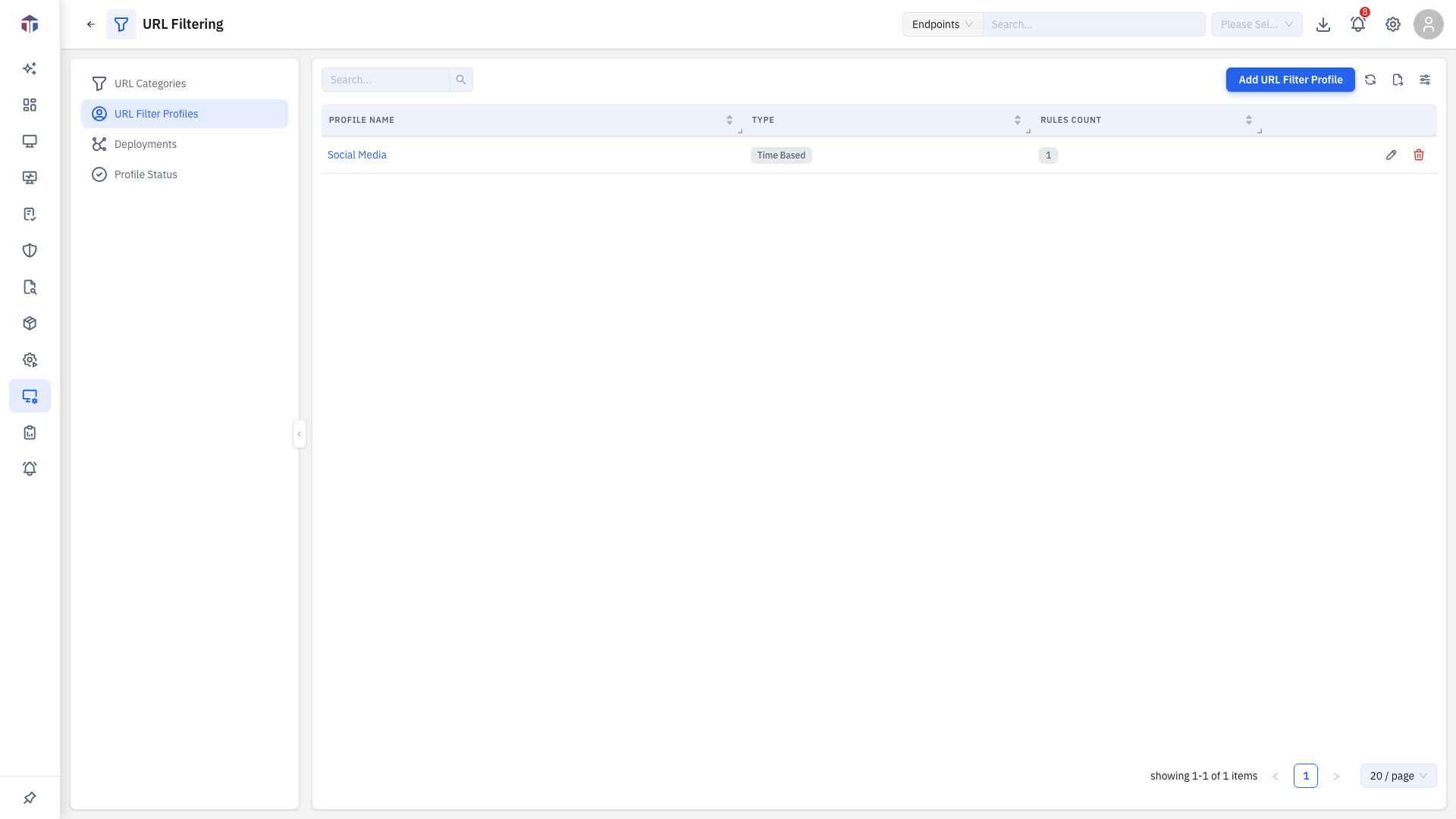
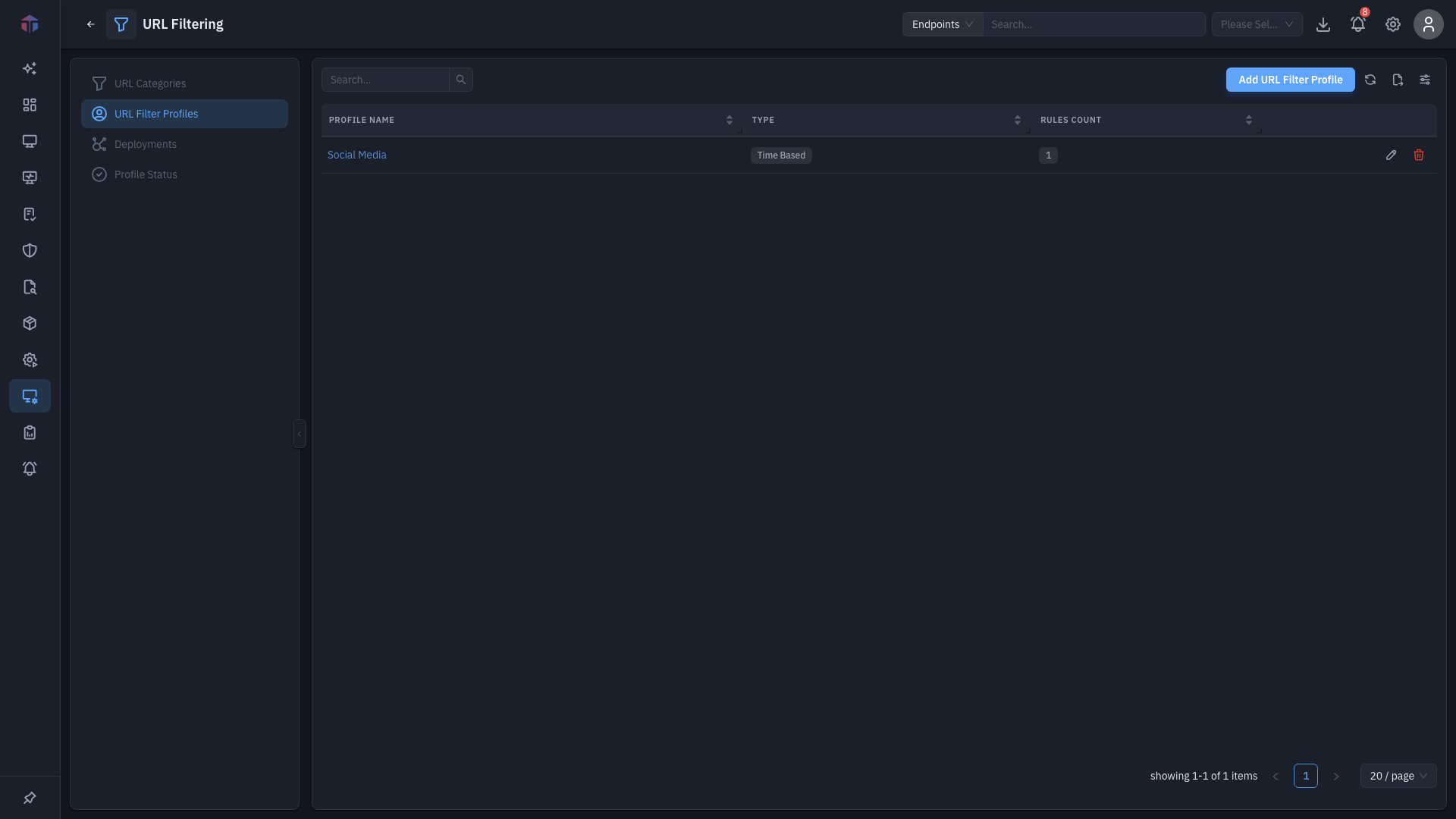
| Column | What it shows |
|---|---|
| Profile Name | The profile's name. |
| Description | What it's for. |
| Type | Usage Based or Time Based. |
| Rules Count | How many category rules the profile has. |
Add URL Filter Profile creates one; rows have Edit and Delete.
How do I create a profile?
Click Add URL Filter Profile. The form opens in a drawer.
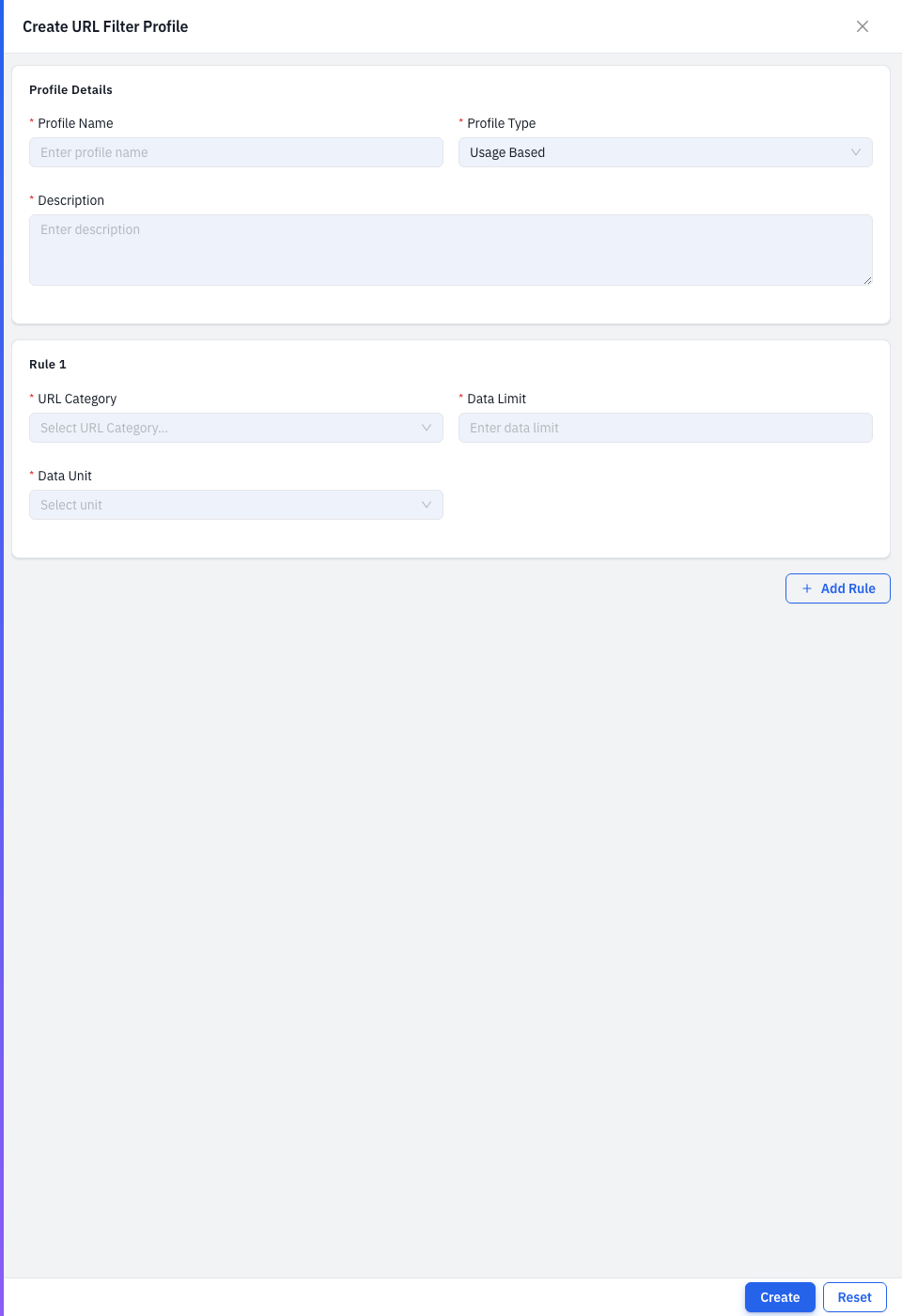
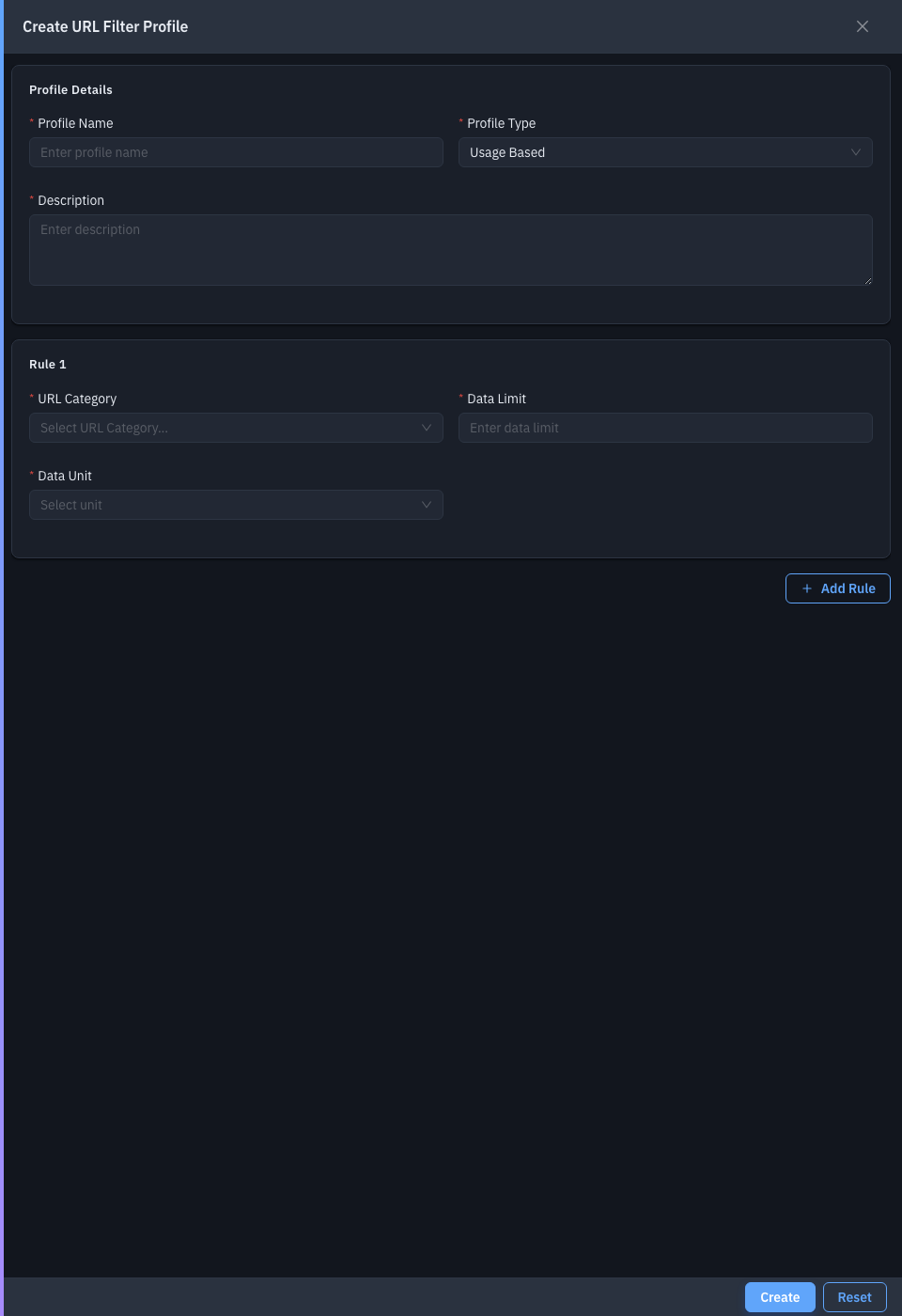
| Field | Required | Notes |
|---|---|---|
| Profile Name | Yes | The profile's name. |
| Profile Type | Yes | Usage Based or Time Based — changing it resets the rules. |
| Description | Yes | What it's for. |
| Rules | Yes | One or more rules — click Add Rule. |
Each rule picks a URL Category, then:
- Usage Based — a Data Limit and Unit (MB / GB).
- Time Based — Schedule Days plus a Start and End time.
Save to add the profile, then deploy it.
Related
- URL Categories — the block lists a profile uses.
- Deployments — push profiles to endpoints.