URL Filtering — URL Categories
URL Filtering blocks or restricts the websites your endpoints can reach. The building block is a URL Category — a named list of blocked URLs (with optional allow-list exceptions and a redirect page). Categories feed into Profiles, which are what you deploy.
Edition & permission
Device Control is EndpointOps edition. You need View Web Filter permission.
How to get here
- In the left sidebar, click Device Control.
- Click the URL Filtering card.
Navigate to: Device Control → URL Filtering → URL Categories
URL path: /device-control/web-filter-settings/url-categories
The URL Categories screen
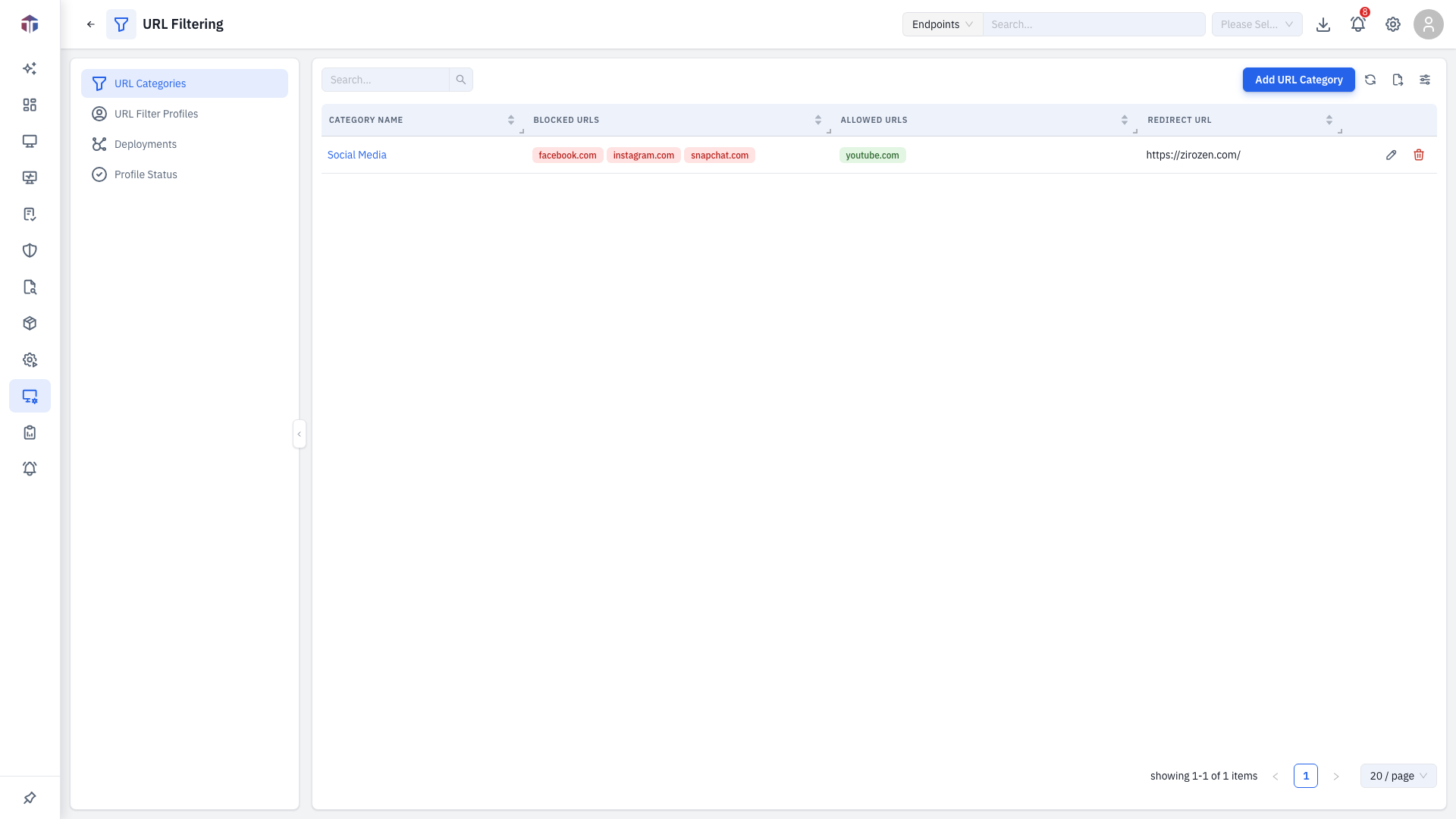
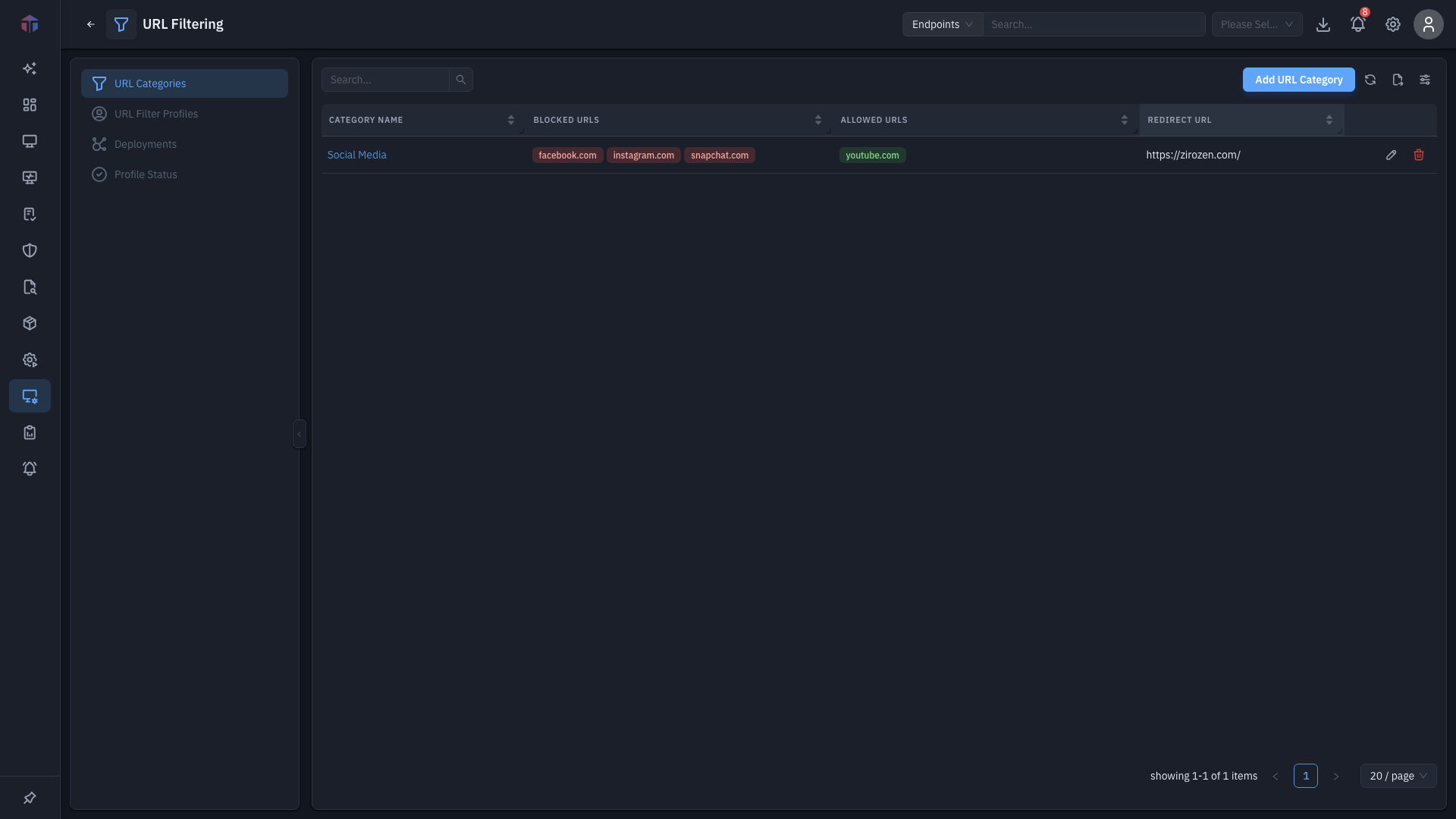
| Column | What it shows |
|---|---|
| Category Name | The category's name. |
| Blocked URLs | The URLs it blocks. |
| Allowed URLs | Allow-list exceptions. |
| Redirect URL | Where blocked requests are sent. |
Add URL Category creates one; rows have Edit and Delete.
How do I create a category?
Click Add URL Category. The form opens in a drawer.
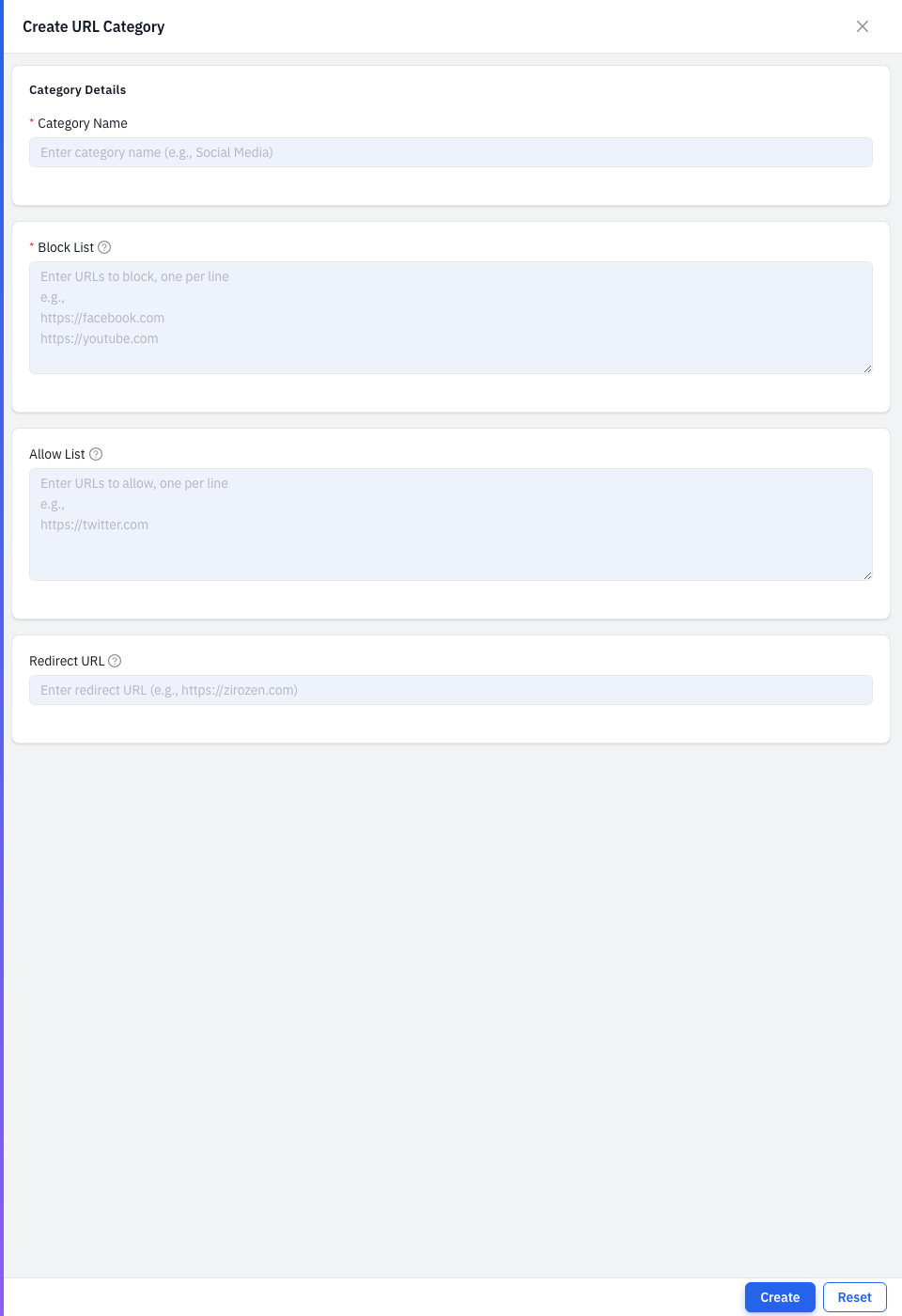
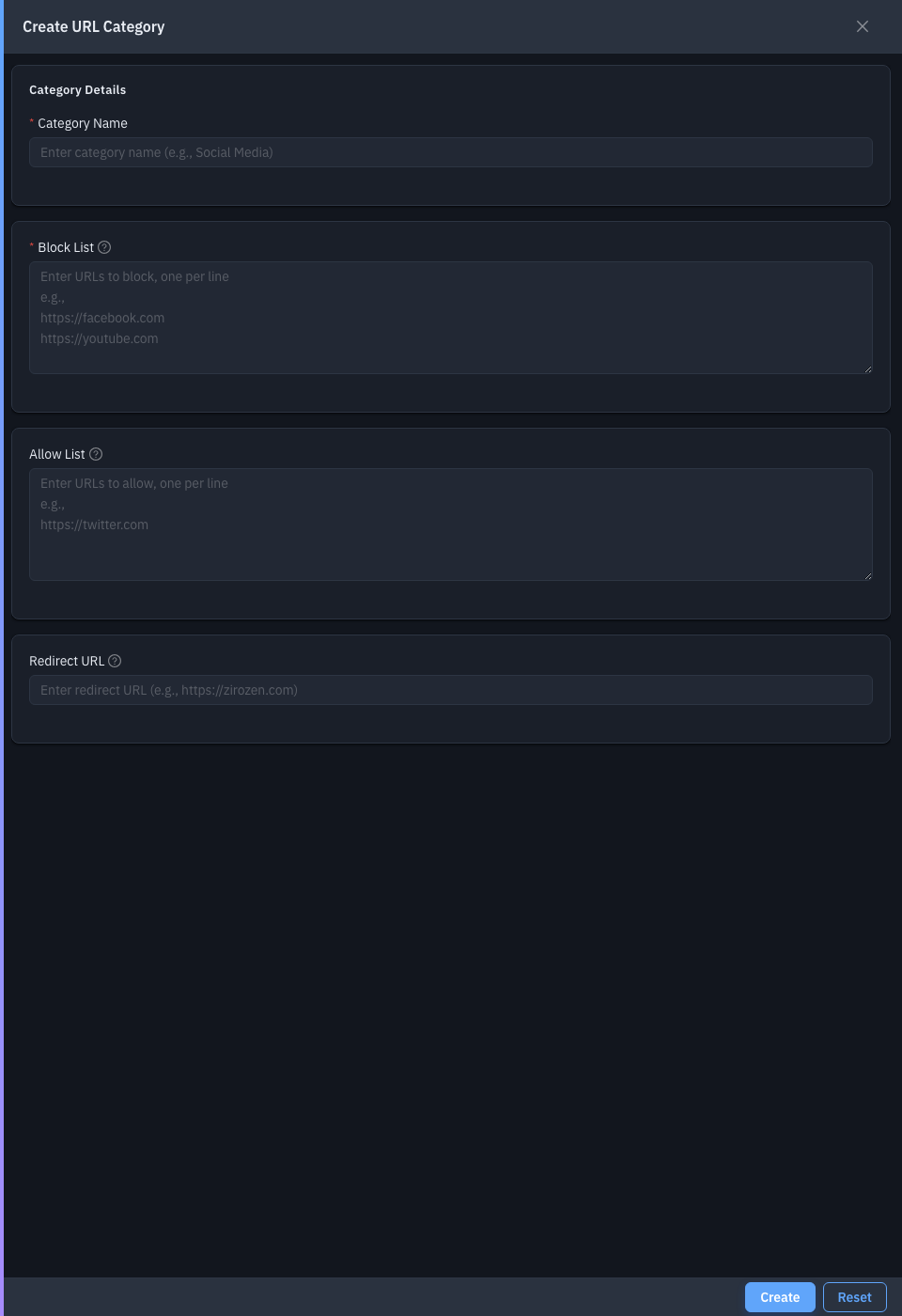
| Field | Required | Notes |
|---|---|---|
| Category Name | Yes | e.g. "Social Media". |
| Block List | Yes | URLs to block, one per line. |
| Allow List | No | Exceptions to the block list, one per line. |
| Redirect URL | No | Where to send users who hit a blocked site. |
Save to add the category, then use it in a Profile.
Related
- Profiles — combine categories into a deployable profile.