Configuration
A FIM configuration defines what to watch — which files, configuration files, or registry keys, on which endpoints. Changes to those targets then show up on the Events feed.
How to get here
You need View FIM permission (ZiroXpose edition); creating/editing needs the matching FIM permissions.
- Open FIM (see Events), then click the Configuration tab.
Navigate to: FIM → Configuration
URL path: /fim/configuration
The Configuration screen
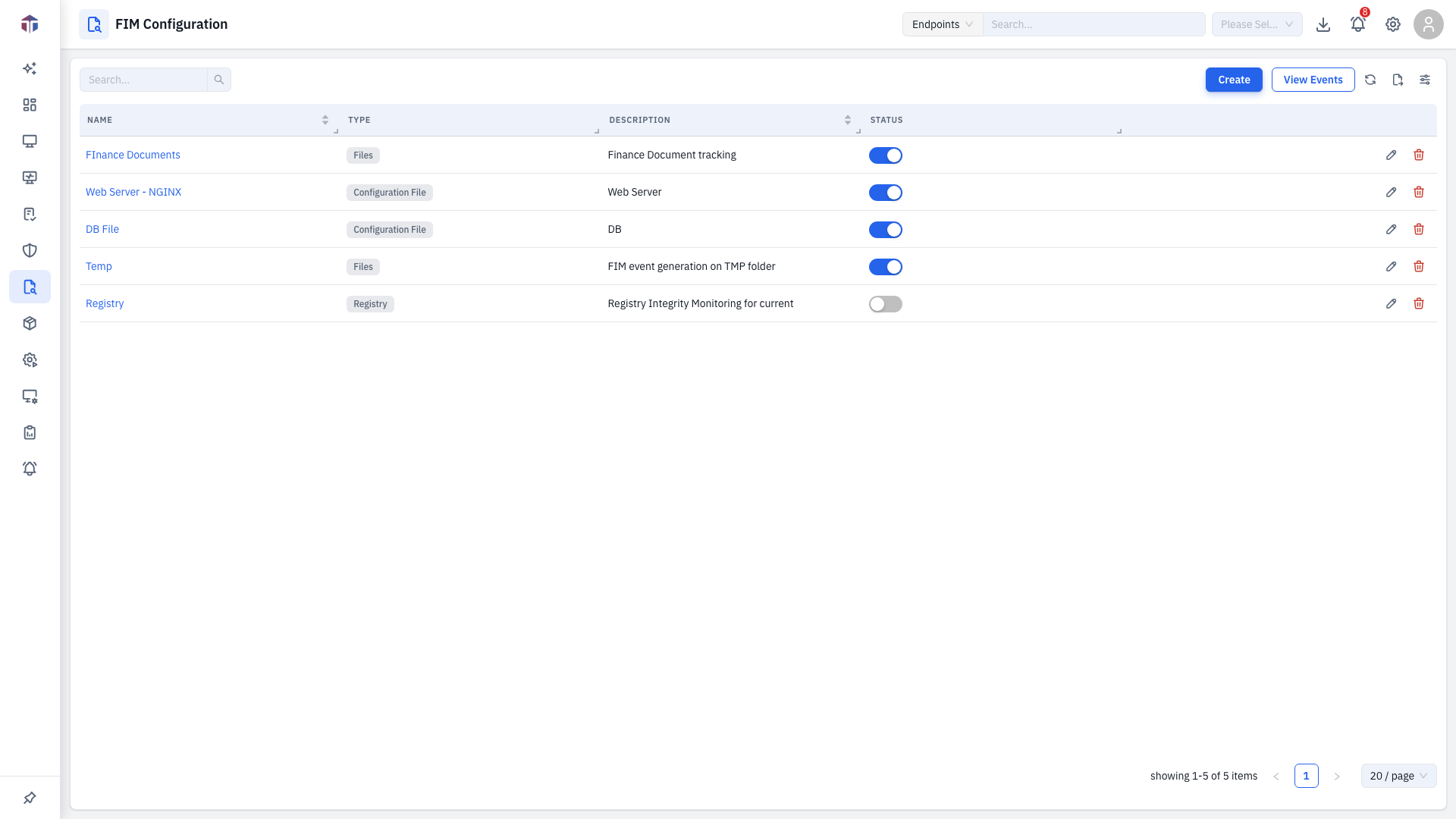
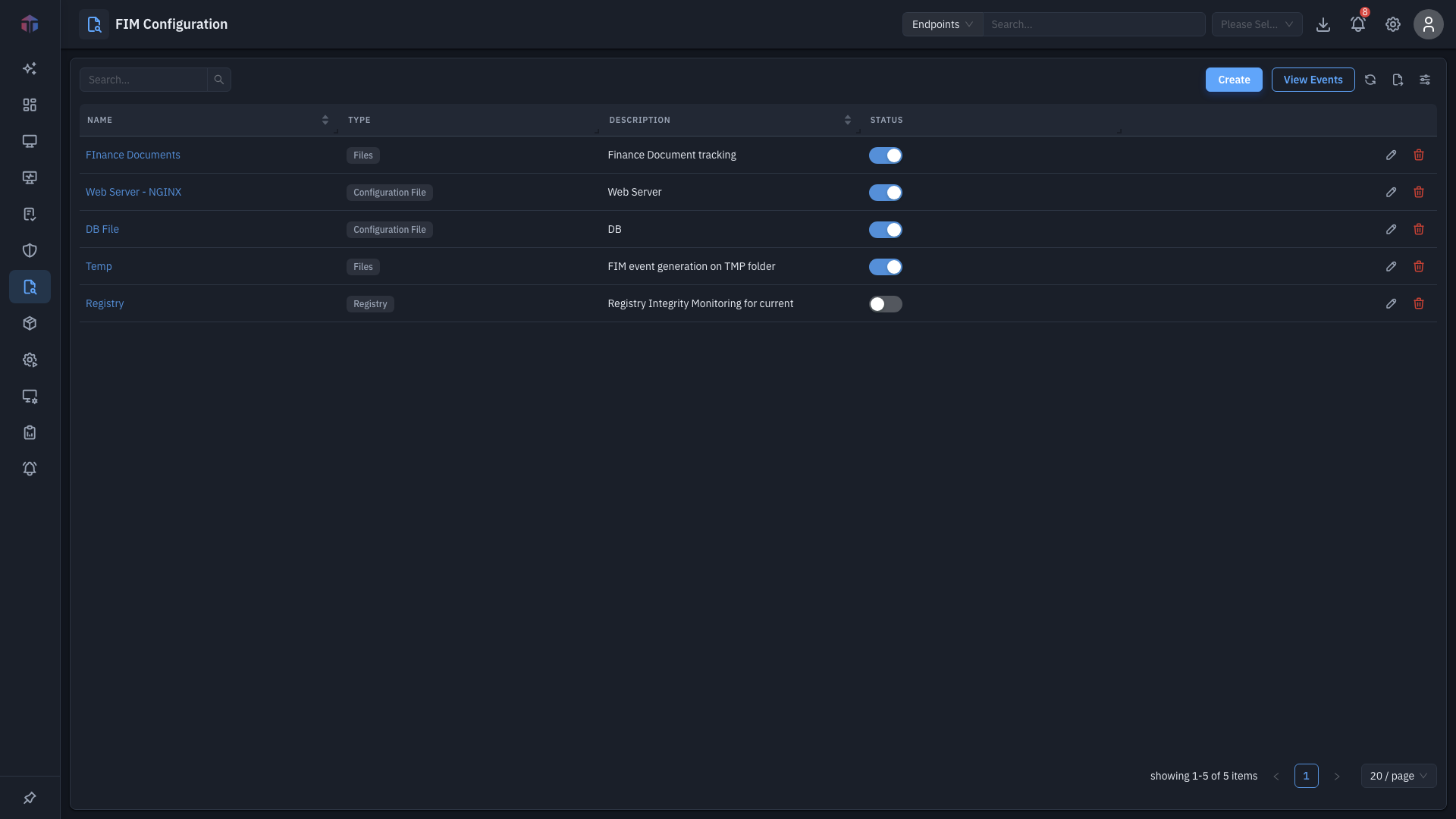
| Column | What it shows |
|---|---|
| Name | The configuration's name (links to it). |
| Description | What it watches. |
| Status | An on/off toggle — enable/disable monitoring. |
| Created By | Who created it. |
| Created At | When. |
| Actions | Edit and Delete (permission-gated). |
Create adds a configuration; View Events jumps to the Events feed.
How do I create a configuration?
-
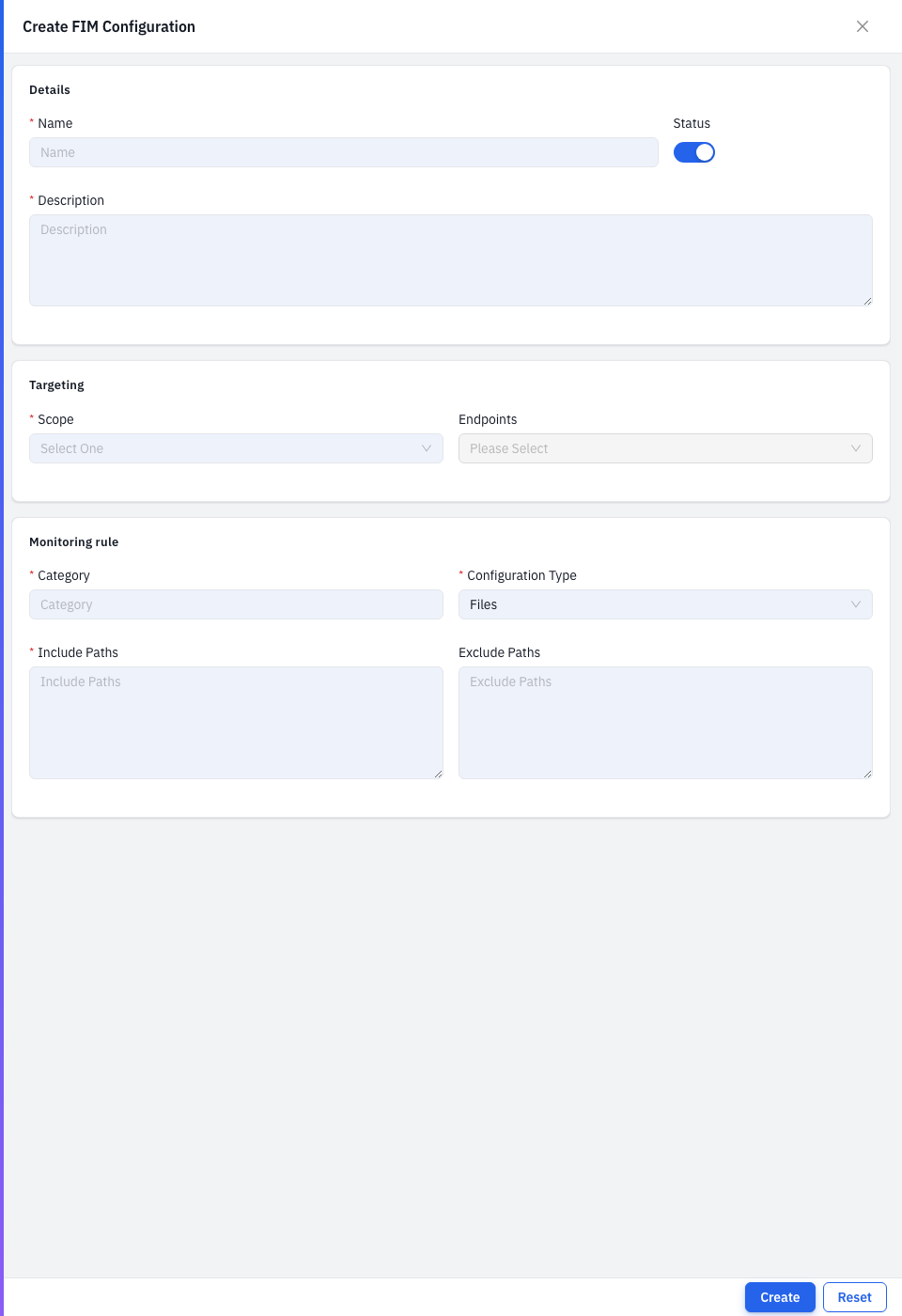
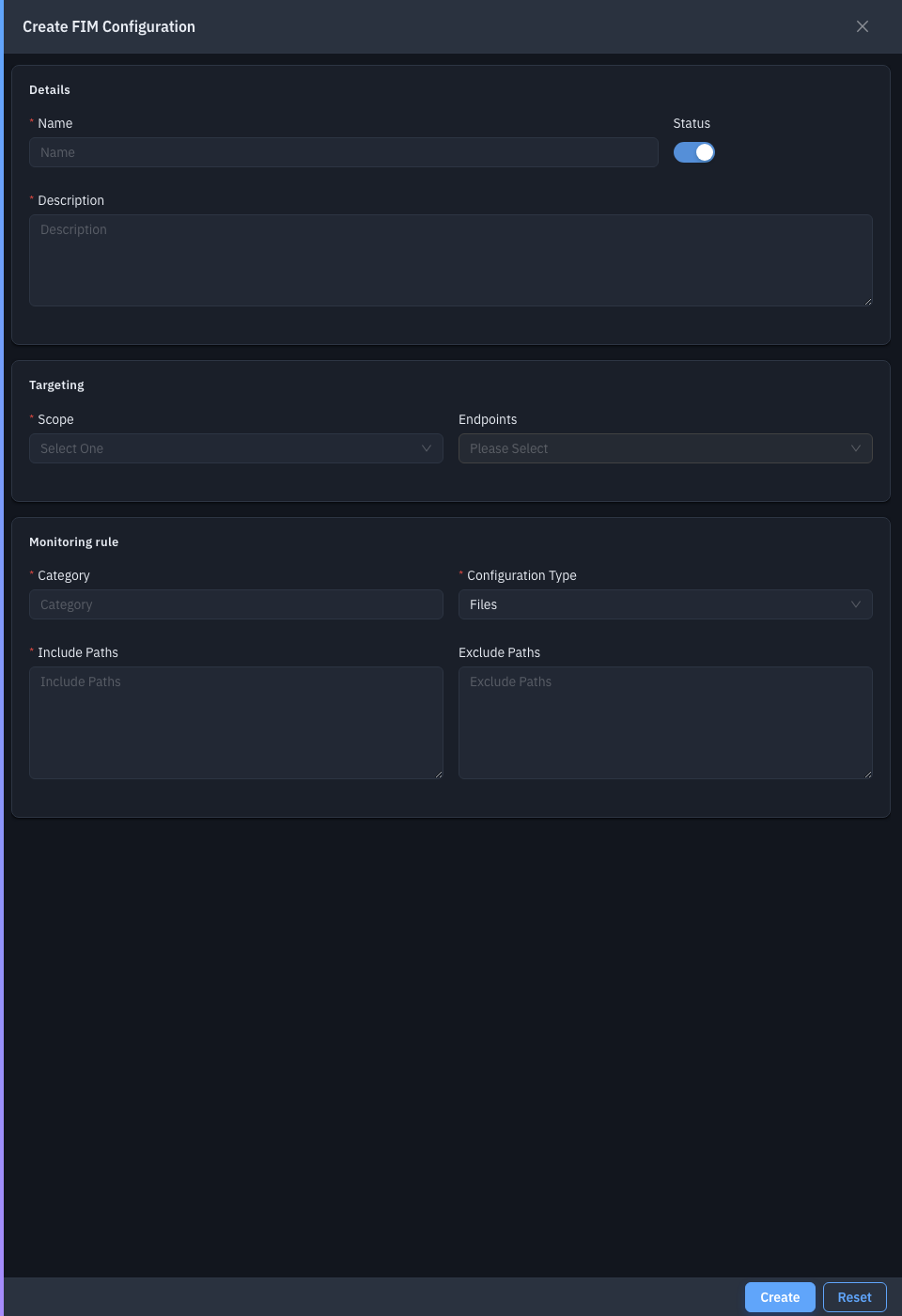
Click Create. The configuration form opens.
-
Fill in the fields (red asterisk = required):
Field Required Notes Name Yes The configuration's name. Status — On/off; defaults to on. Scope — Which endpoints (departments / locations / assets) it applies to. Description Yes What it monitors. Category Yes A label for grouping the watched target. Configuration Type Yes Files, Configuration File, or Registry. Include Paths Yes Paths/keys to watch (a list for Files/Registry; a single path for Configuration File). Exclude Paths — Paths to ignore (Files / Registry only). -
Save. EndpointOps starts watching; changes appear on the Events tab.
Paths and patterns
How you fill Include Paths (and Exclude Paths) depends on the Configuration Type:
- Files — a list of filesystem paths, one per line. Watch folders or files:
- Windows:
C:\Program Files\MyApp\orC:\Windows\System32\drivers\etc\hosts - Linux / macOS:
/etc/or/etc/ssh/sshd_config
- Windows:
- Registry — a list of registry key paths, one per line, starting with a hive:
HKEY_LOCAL_MACHINE\SOFTWARE\Microsoft\Windows\CurrentVersion\RunHKEY_CURRENT_USER\Software\...- (Hive short forms like
HKLM\.../HKCU\...are also understood.)
- Configuration File — a single file path (the file whose versions you compare
on the Events tab), e.g.
C:\inetpub\wwwroot\web.config.
Exclude Paths uses the same format and is available for Files and Registry — list anything inside an included path that you don't want to watch.
Glob patterns
Both Files and Registry include/exclude paths support glob wildcards, so one line can match many paths:
| Pattern | Matches |
|---|---|
* | Any characters within a single segment (not across \ or /). |
** | Any depth of sub-folders/keys (recursive). |
? | A single character. |
Examples:
C:\Logs\*.log— every.logfile directly inC:\Logs.C:\inetpub\**\web.config— everyweb.configunderC:\inetpub, at any depth./etc/**/*.conf— every.conffile anywhere under/etc.HKEY_LOCAL_MACHINE\SOFTWARE\**\Run— everyRunkey underSOFTWARE.
Use Exclude Paths with the same globs to carve out noisy sub-paths (for example,
include C:\App\** but exclude C:\App\cache\**).
Tips & troubleshooting
- No events from a configuration. Confirm Status is on, the Scope includes the right machines, and the Include Paths match what's actually on disk; then Scan Endpoints from the Events tab.
Related
- Events — the change feed your configurations produce.