OKR Progress
OKR Progress tracks your security and patching objectives and key results (OKRs). Each objective states an outcome (for example Close exploitable risk faster) and has two to five key results that measure it. Key results can be linked to live SLA and patch metrics, so progress updates without manual reporting.
- Goals → OKR Progress shows for the same users as SLA Tracking: you need View Vulnerability or View Patch.
- Creating and editing objectives and cycles needs Update Settings and a user who sees every department (the built-in admin, or a user in the default department). Without that, the page is read-only and the Manage cycles, Add objective and OKR policy buttons are hidden.
- Checking in is open to the owner of an objective or key result. Users with Update Settings can check in on every key result.
How to get here
You need View Vulnerability or View Patch permission.
- In the left menu, click Goals to expand it.
- Click OKR Progress.
Navigate to: Goals → OKR Progress
URL path: /analytics/okrs (the URL says analytics, the menu says Goals).
The chosen cycle is kept in the URL, e.g. /analytics/okrs?cycle=3. A new objective
opens at /analytics/okrs/new, and a saved one at /analytics/okrs/{id}.
The OKR Progress screen
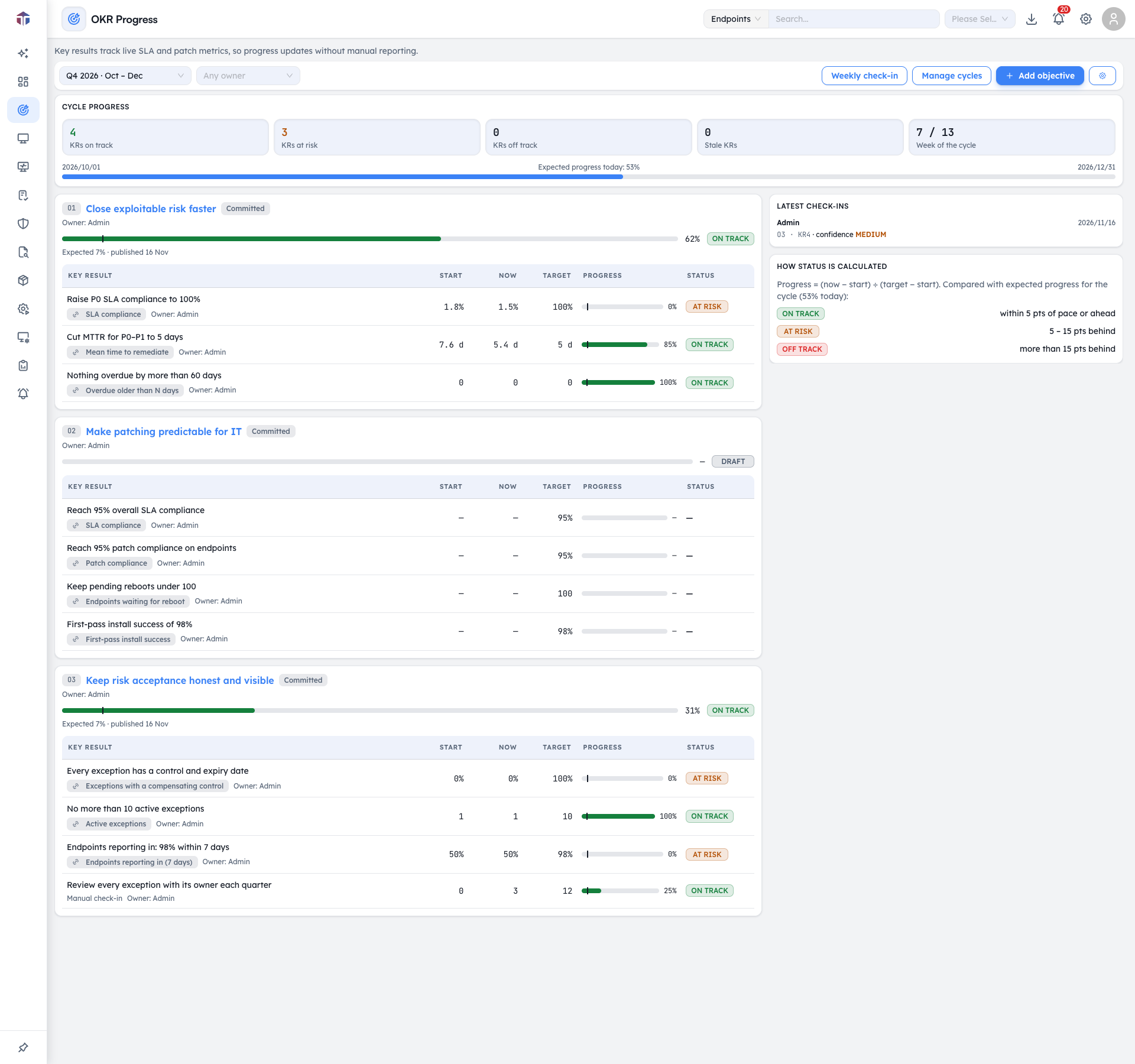
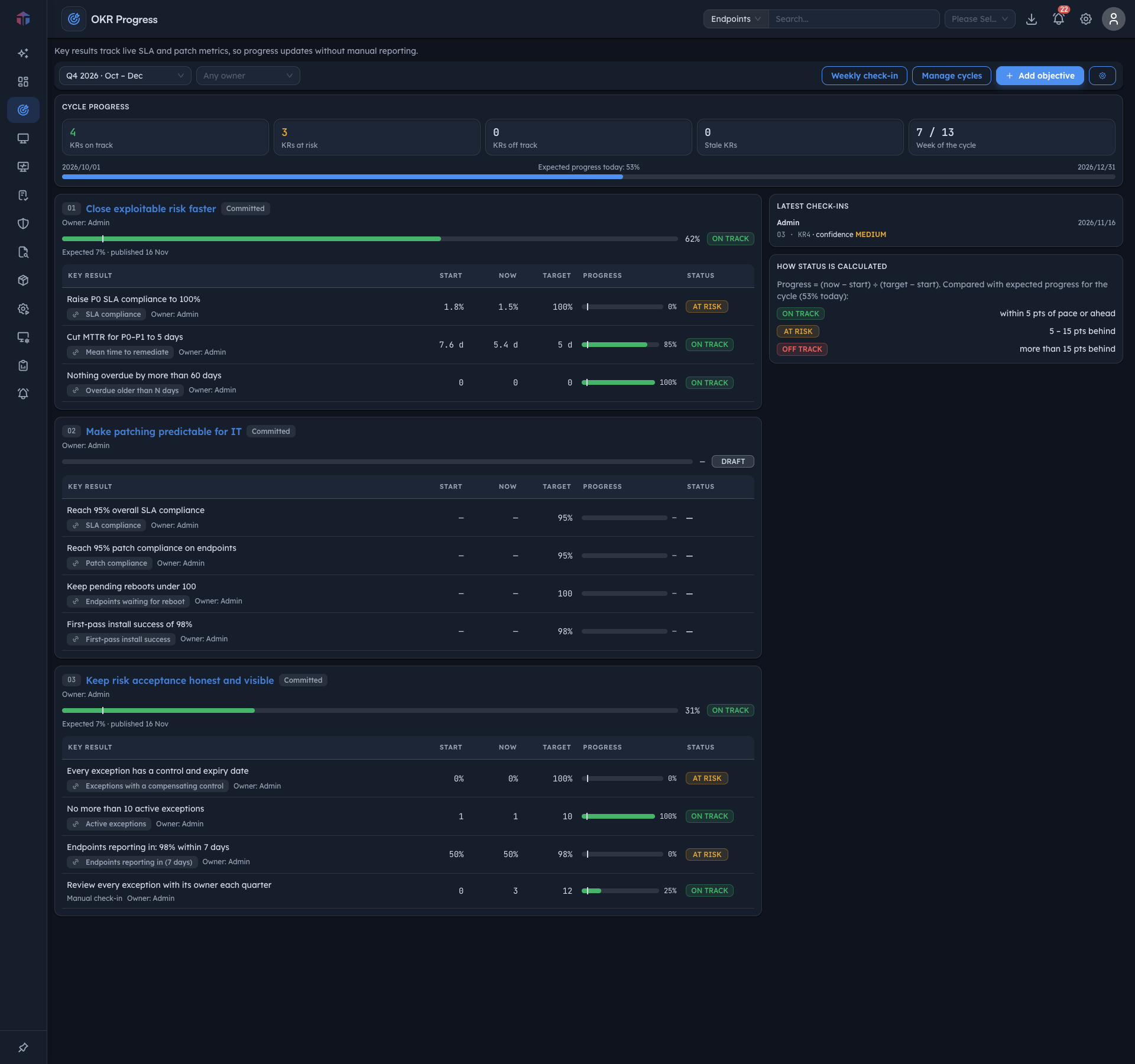
Under the page title, a line reminds you that key results track live SLA and patch metrics. A strip that stays in place while you scroll holds:
- Cycle: the OKR period to show, e.g. Q4 2026 · Oct – Dec. The page opens on the cycle that contains today (the latest-starting one if several overlap); otherwise the latest that has started; otherwise the nearest upcoming one.
- Any owner: show only objectives that a person owns, or owns a key result in.
- Weekly check-in: opens the check-in dialog.
- Manage cycles, + Add objective and the OKR policy (gear) button: only for users who can manage OKRs.
If objectives are waiting for you to approve them, a yellow Waiting for your approval (N) banner lists them as links.
Cycle progress
| Tile | Meaning |
|---|---|
| KRs on track / KRs at risk / KRs off track | Key results in each status. |
| Stale KRs | Manual key results that missed their check-in cadence. |
| Week of the cycle | e.g. 7 / 13. |
Under the tiles, the cycle's start and end dates frame a bar with Expected progress today: N%, the progress an objective should have reached by today.
Objective cards
Each objective is a card:
- Code (e.g. O1), title (click to open the objective) and type: Committed or Aspirational.
- Owner and, when set, Contributing departments.
- A progress bar with a tick at the expected pace, the progress % and a status tag.
- A key results table:
| Column | Shows |
|---|---|
| Key result | Its name; under it, the linked metric (a tag) or Manual check-in, and the Owner. |
| Start / Now / Target | Values in the metric's unit (%, days or a count). Now links to SLA Tracking's Items tab for an "overdue items" key result. A kind you aren't allowed to view reads Hidden. |
| Progress | A bar (with the expected-pace tick) and its %. |
| Status | On track, At risk, Off track or No data, plus Stale when a manual check-in is overdue. |
Child objectives (ones that align to this one) appear nested inside the card.
Objective status tags: an active objective shows its health (On track, At risk, Off track, No data). A draft shows DRAFT and one waiting for approval PENDING (their progress is only a preview). A closed one shows its result, ACHIEVED or MISSED.
Side panels
- Latest check-ins: who checked in, when, on which key result (e.g. O3 · KR4), their confidence (LOW / MEDIUM / HIGH) and note.
- How status is calculated: Progress = (now − start) ÷ (target − start), compared with the expected progress for the cycle, and the point thresholds for On track, At risk and Off track (from the OKR Policy, or the objective's own when only one objective is listed).
An Aspirational objective is a stretch goal: reaching 70% counts as success, so its expected pace runs to 70% instead of 100%.
How do I manage cycles?
A cycle is the period objectives run in (a quarter, a half-year).
-
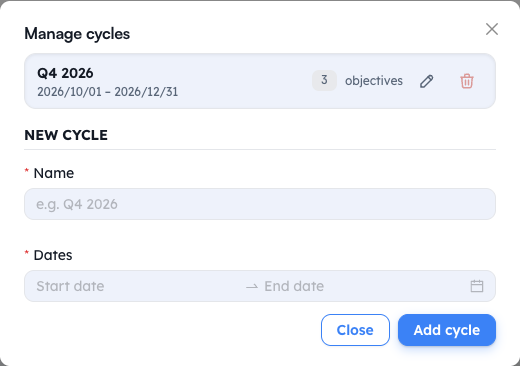
Click Manage cycles.
-
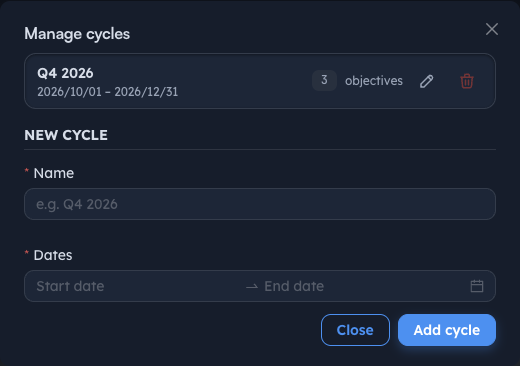
The dialog lists each cycle with its dates, its number of objectives, and Edit cycle / Delete cycle icons.
-
Under New cycle, fill in:
Field Required Notes Name Yes Up to 60 characters, e.g. Q4 2026. Dates Yes First and last day. A cycle can run at most 2 years. -
Click Add cycle. To change one, click Edit cycle, edit, and click Save cycle (Stop editing cancels). Close shuts the dialog.
If you move a cycle's end date to before today while it has objectives, EndpointOps asks first: its active objectives close at the next OKR run and can't be reopened.
Delete cycle is disabled while the cycle has objectives.
How do I check in?
Linked key results update themselves. Manual key results need their owner to check in at the cadence set by the objective (weekly or fortnightly), or they show as Stale.
-
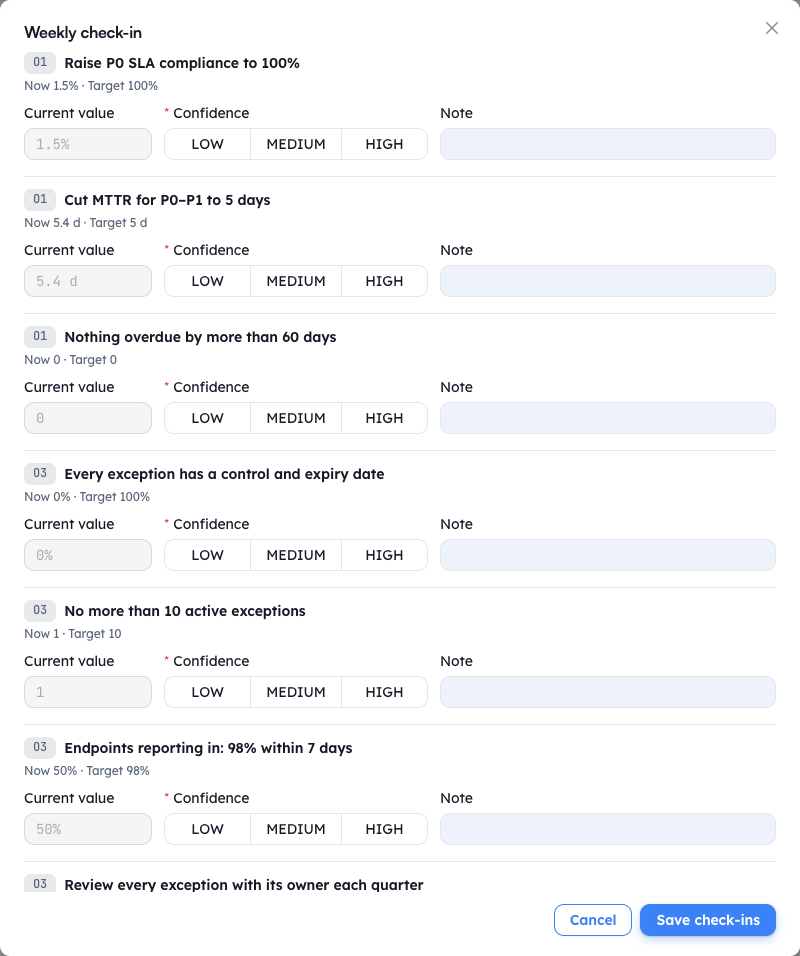
Click Weekly check-in.
-
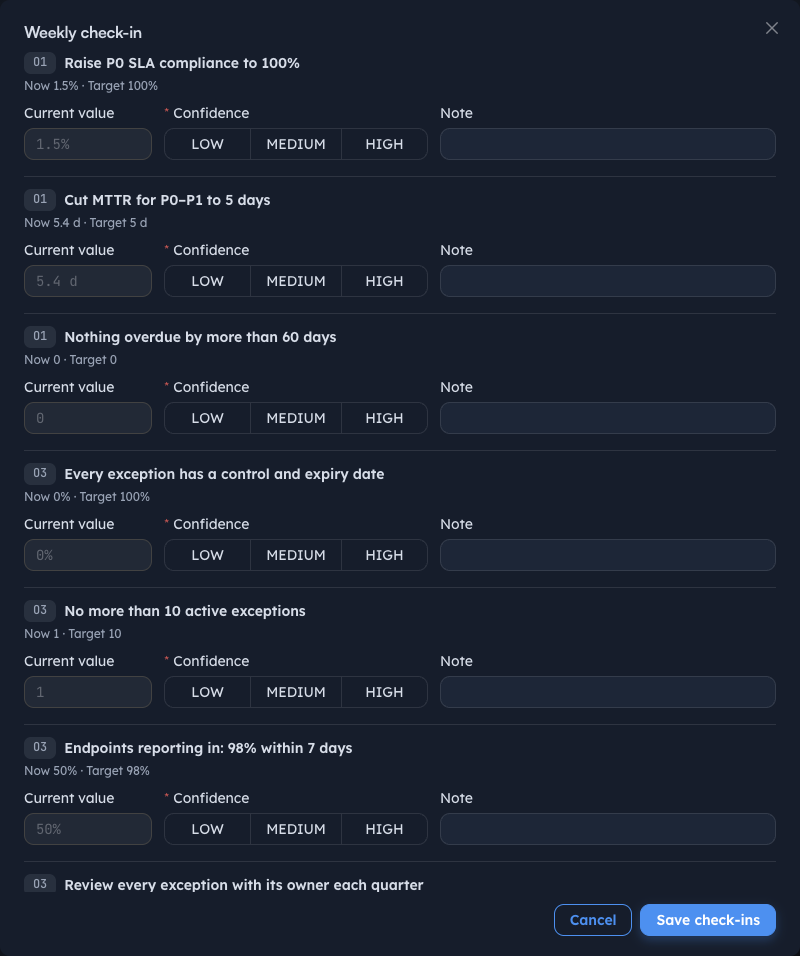
Each of your key results in an active objective has a block showing Now and Target. Fill in the ones you want:
Field Required Notes Current value Yes, for a manual key result A linked key result shows its live value read-only. Confidence Yes LOW, MEDIUM or HIGH. Note No Up to 1000 characters. -
Click Save check-ins. Only the blocks you filled in are saved, each as its own check-in.
If you have nothing to check in on, the dialog says "You have no key results to check in on in this cycle."
How do I add an objective?
-
Click + Add objective (or go to
/analytics/okrs/new). The New objective page opens: the form on the left, a live Preview and Quality check on the right.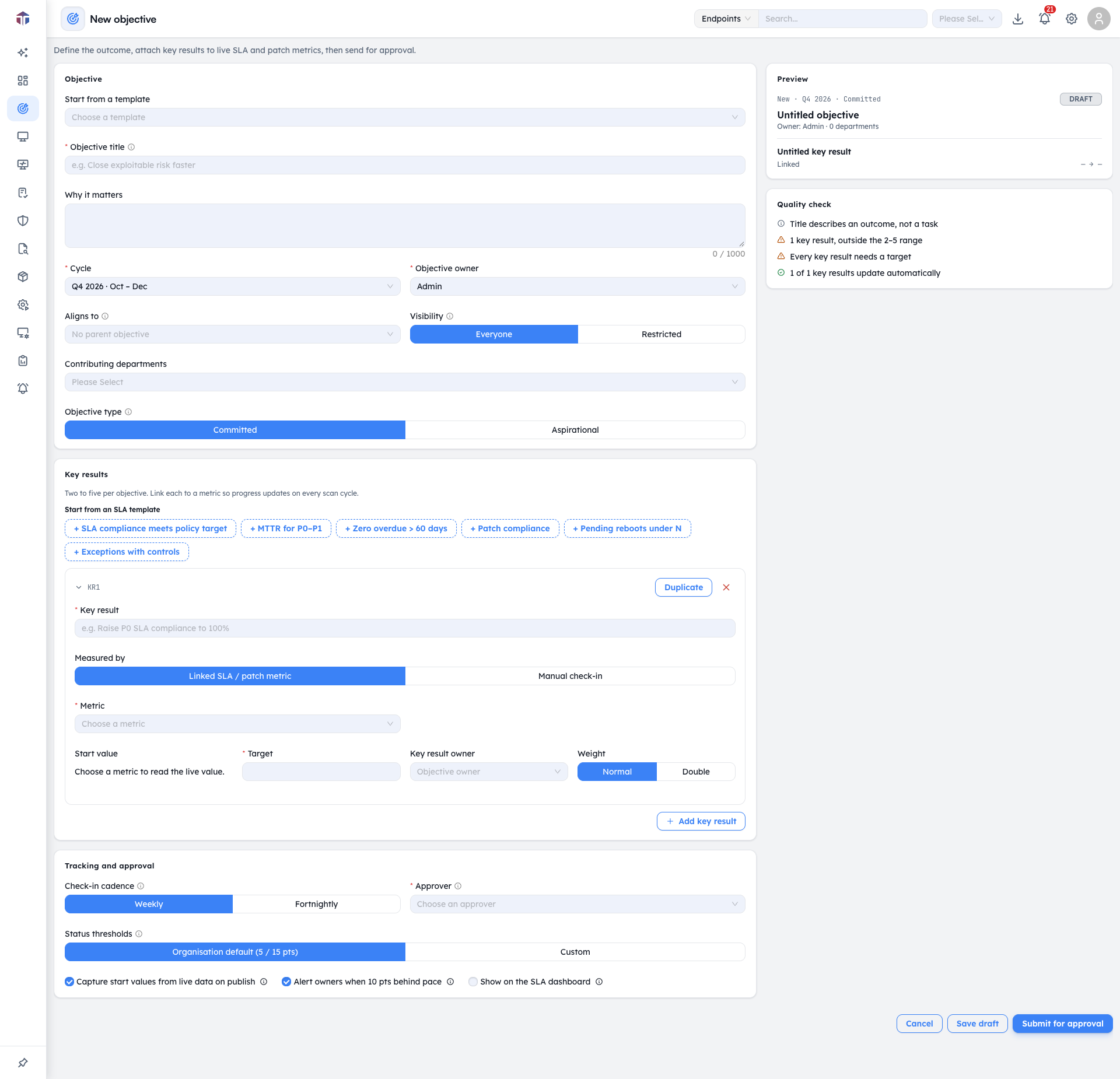
-
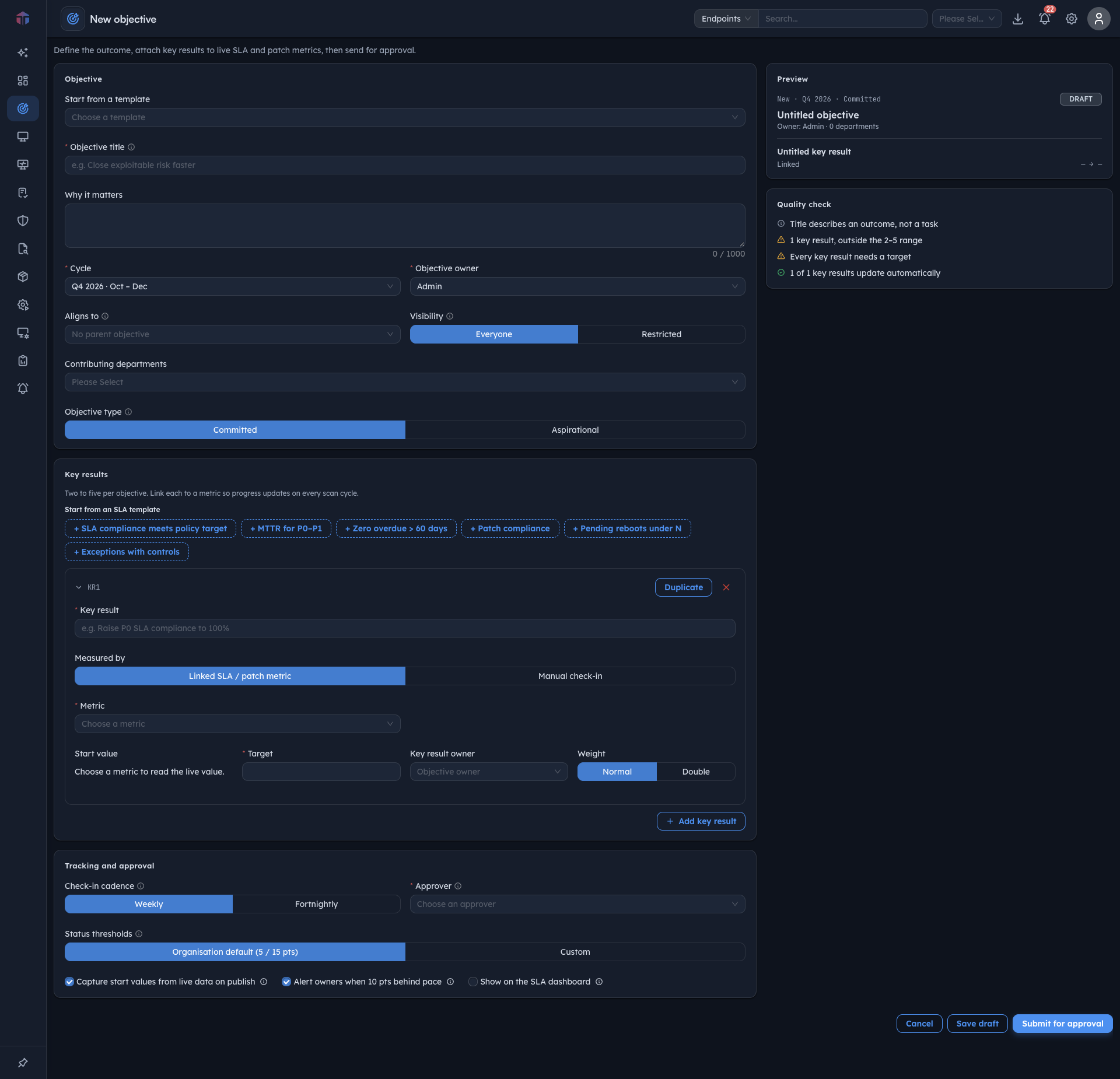
Fill in the three sections below.
-
Click Save draft to keep working later, or Submit for approval (when approval is on) / Publish (when it's off).
Objective section
| Field | Required | Notes |
|---|---|---|
| Start from a template | No | New objectives only. Fills the title and key results from a built-in template: Close exploitable risk faster, Make patching predictable for IT, Keep risk acceptance honest and visible (only templates your licence and permissions support). |
| Objective title | Yes | An outcome, not a task. Up to 60 characters. |
| Why it matters | No | Up to 1000 characters. |
| Cycle | Yes | Defaults to the cycle you came from. A new objective can only go into a cycle that hasn't ended. Can't be changed after the first save. |
| Objective owner | Yes | Defaults to you. |
| Aligns to | No | A top-level objective of the same cycle, making this a child objective. An objective that has its own sub-objectives can't align to another. |
| Visibility | — | Everyone (default) or Restricted: only the owner, the key result owners, the approver, people in a contributing department and Update Settings users can see it. |
| Contributing departments | No | One or more departments. |
| Objective type | — | Committed (default; expected to reach 100%) or Aspirational (a stretch goal; 70% counts as success). |
Key results section
"Two to five per objective. Link each to a metric so progress updates on every scan cycle." An objective needs at least one key result (the quality check warns below two) and can have up to five.
- Start from an SLA template adds a ready-made key result: SLA compliance meets policy target, MTTR for P0–P1, Zero overdue > 60 days, Patch compliance, Pending reboots under N, Exceptions with controls.
- Add key result adds a blank one. Each card has Duplicate and Remove key result (×), and collapses to a one-line summary (click its header).
| Field | Required | Notes |
|---|---|---|
| Key result | Yes | The name, up to 120 characters. |
| Measured by | — | Linked SLA / patch metric (default) or Manual check-in. |
| Metric | Yes, if linked | A metric from the catalog (only those your permissions allow). Its Direction (Increase to / Decrease to) is shown and fixed by the metric. |
| Kind | — | Vulnerabilities, Patches or Both, when the metric offers more than one. |
| Priorities, Department, Locations, Overdue longer than | No | Filters, shown only when the chosen metric takes them. |
| Direction | Yes, if manual | Increase to or Decrease to. |
| Start value | Yes, if manual | For a linked key result with capture on, this shows the value that will be captured from live data instead of a box. |
| Target | Yes | An increase needs a target above the start, a decrease one below it. Percent metrics take 0–100. |
| Use the SLA policy target | No | For metrics with a policy target: copies the SLA Policy's current target into Target. It does not follow later policy changes. |
| Key result owner | No | Defaults to the objective owner. |
| Weight | — | Normal (default) or Double: how much it counts in the objective's progress. |
If the live value already meets the target, the card warns that the key result will start at 100%. Raise the target, or pick a different metric.
Tracking and approval section
| Field | Required | Notes |
|---|---|---|
| Check-in cadence | — | Weekly or Fortnightly, defaulting to the OKR Policy's. How often a manual key result needs a check-in before it shows as stale. |
| Approver | Yes, when approval is on | Approves the objective before it goes live. It can't be someone who edited it (the built-in admin is the exception). Optional when approval is off. |
| Status thresholds | — | Organisation default (X / Y pts) or Custom. Custom adds At risk after and Off track after (both required, 1–50 points behind). |
| Capture start values from live data on publish | — | On by default. Each linked key result's start becomes its live value when the objective is published. Turn it off to type the starts. |
| Alert owners when 10 pts behind pace | — | On by default. Emails the objective owner and the key result owner when a key result falls 10 points behind its pace. |
| Show on the SLA dashboard | — | Off by default. Lists the objective, with its progress, under Pinned objectives on SLA Tracking's Overview. |
Preview and Quality check
The Preview shows the objective as it will look (code, cycle, type, status, owner, departments, and each key result's start → target). Quality check ticks off good practice: the title describes an outcome, 2–5 key results, a target on each, how many update automatically, and a warning for each manual key result that needs check-ins.
The approval flow
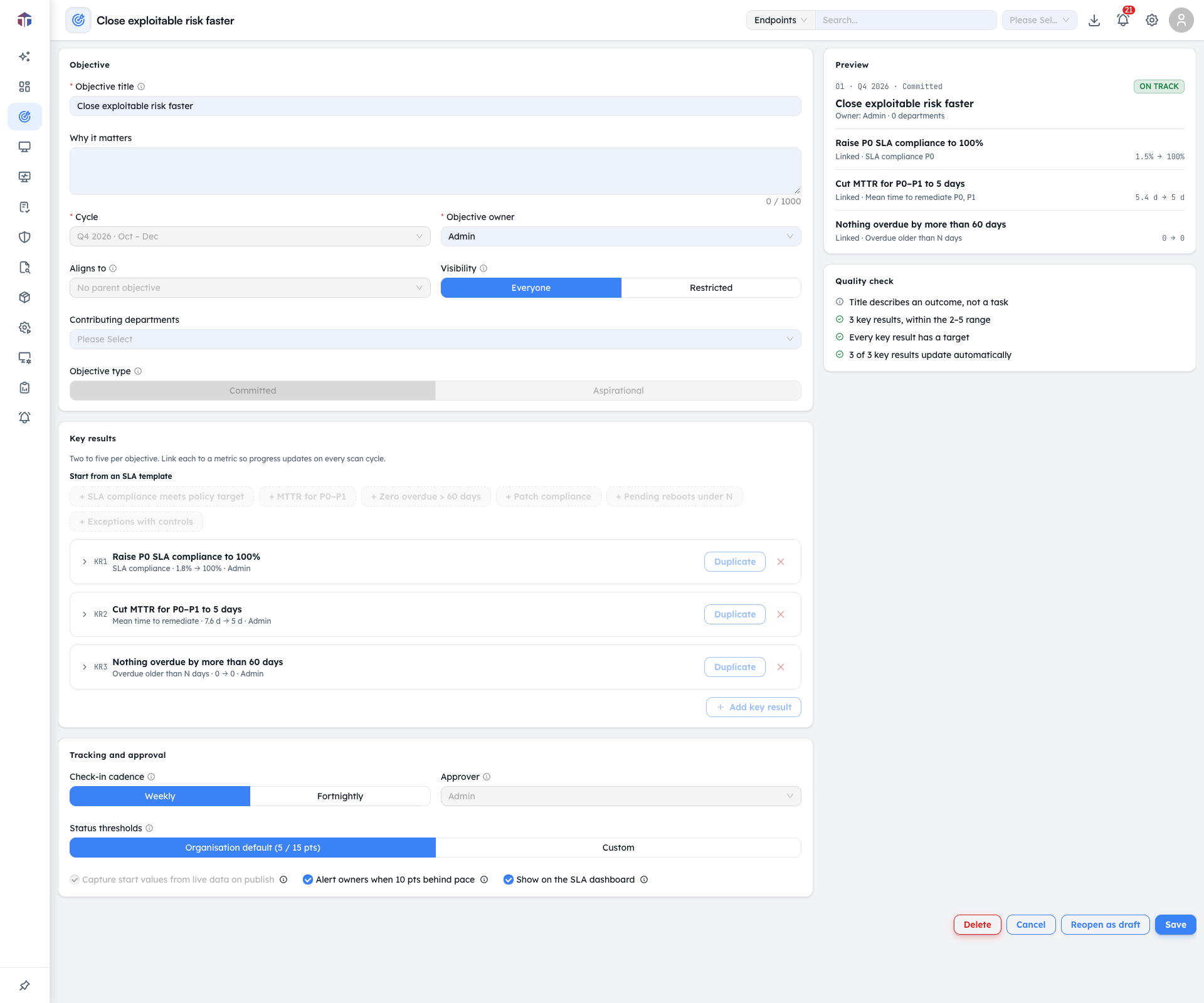
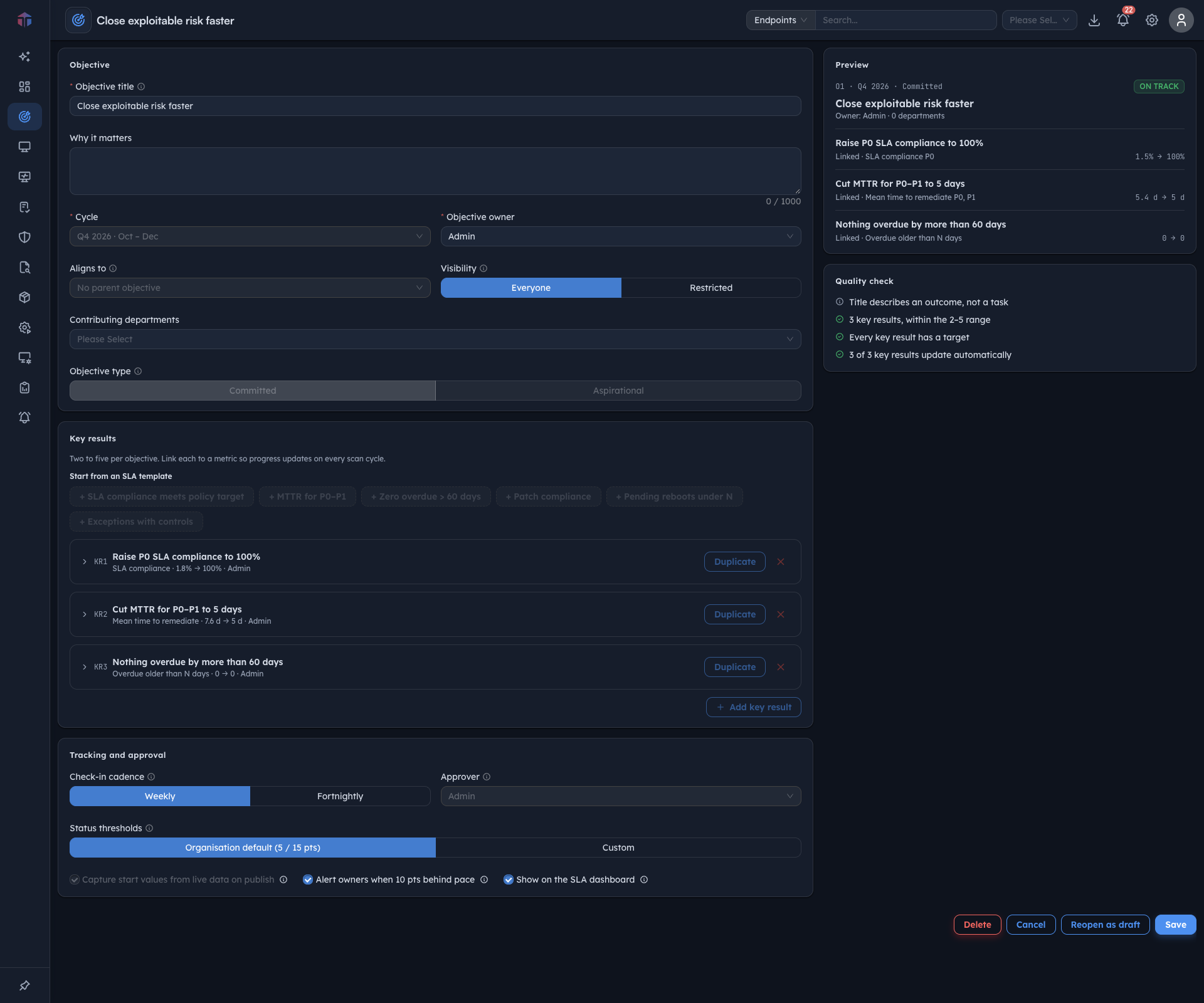
An objective moves through Draft → (Pending) → Active → Closed. The buttons at the bottom of the objective page depend on its status and your role:
| Button | What it does |
|---|---|
| Save draft | Saves a draft without publishing it. |
| Submit for approval | (Approval on.) Saves and sends the draft to its Approver; the objective becomes PENDING. |
| Publish | (Approval off.) Saves and makes the objective active straight away. |
| Approve | (For the user who may approve it.) Makes a pending objective active. |
| Reject | (For the user who may approve it.) Opens Reject objective: enter a Reason (required, up to 1000 characters). The objective goes back to draft, and the reason shows on it in a Rejected banner. |
| Reopen as draft | Turns an active objective back into a draft so you can change what it measures. You're asked to confirm: tracking stops until the objective is published again. |
| Save | Saves an active objective. What its key results measure (measure, metric, filters, start, target, weight), the objective type, Aligns to, the approver and capture are locked until you reopen it as a draft. |
| Delete | Deletes the objective, after a confirmation. |
| Cancel / Back | Returns to OKR Progress without saving. |
Whether approval is needed, and the default thresholds and cadence, come from Settings → Policy Management → OKR Policy.
Link key results to metrics wherever you can. Linked key results update on every scan cycle; manual ones need a check-in every week or fortnight or they show as stale.
Tips & troubleshooting
- No Add objective or Manage cycles button. You need Update Settings and must see every department.
- "Create a cycle to start". There are no cycles yet. A user who can manage OKRs clicks Create a cycle.
- A value reads "Hidden". The key result measures a kind (vulnerabilities or patches) you aren't allowed to view.
- A key result shows Stale. It's manual and its owner hasn't checked in within the cadence. Use Weekly check-in.
- Submitted but not sent. If the save worked but the submit was refused, the draft stays as saved and the reason shows at the bottom of the page.
Related
- SLA Tracking: the live SLA figures linked key results measure, and where pinned objectives appear.
- OKR Policy: approval, default status thresholds and check-in cadence.
- SLA Policy: the targets key results can copy.
- Patch Catalog: the patches behind patch key results.