SLA Tracking
SLA Tracking shows whether vulnerabilities and missing patches are being fixed within the deadlines your SLA Policy sets: how compliant you are, what is overdue or due soon, who is responsible, and which exception requests are waiting for a decision.
Goals appears in the left menu when you can see at least one kind of SLA item:
- Vulnerabilities need View Vulnerability and a licence that includes vulnerability data.
- Patches need View Patch.
If you can see neither, the page says "You cannot view vulnerability or patch SLA items." Everything on the page is limited to the kinds you can see.
How to get here
You need View Vulnerability or View Patch permission.
- In the left menu, click Goals to expand it.
- Click SLA Tracking.
Navigate to: Goals → SLA Tracking
URL path: /analytics/sla (the URL says analytics, the menu says Goals).
The open tab and every filter are kept in the URL (for example
/analytics/sla?tab=items&states=overdue), so you can bookmark or share exactly what
you're looking at.
The SLA Tracking screen
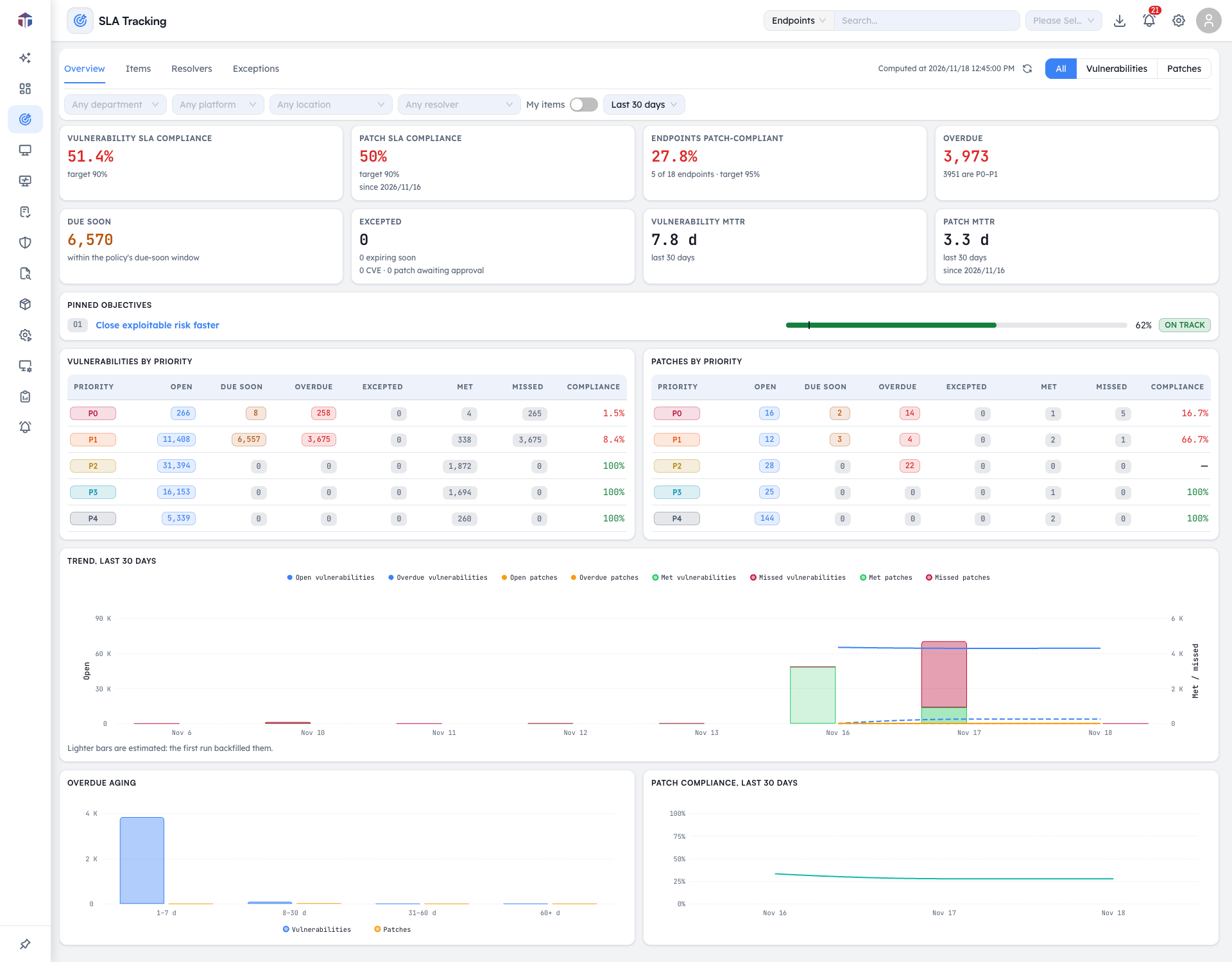
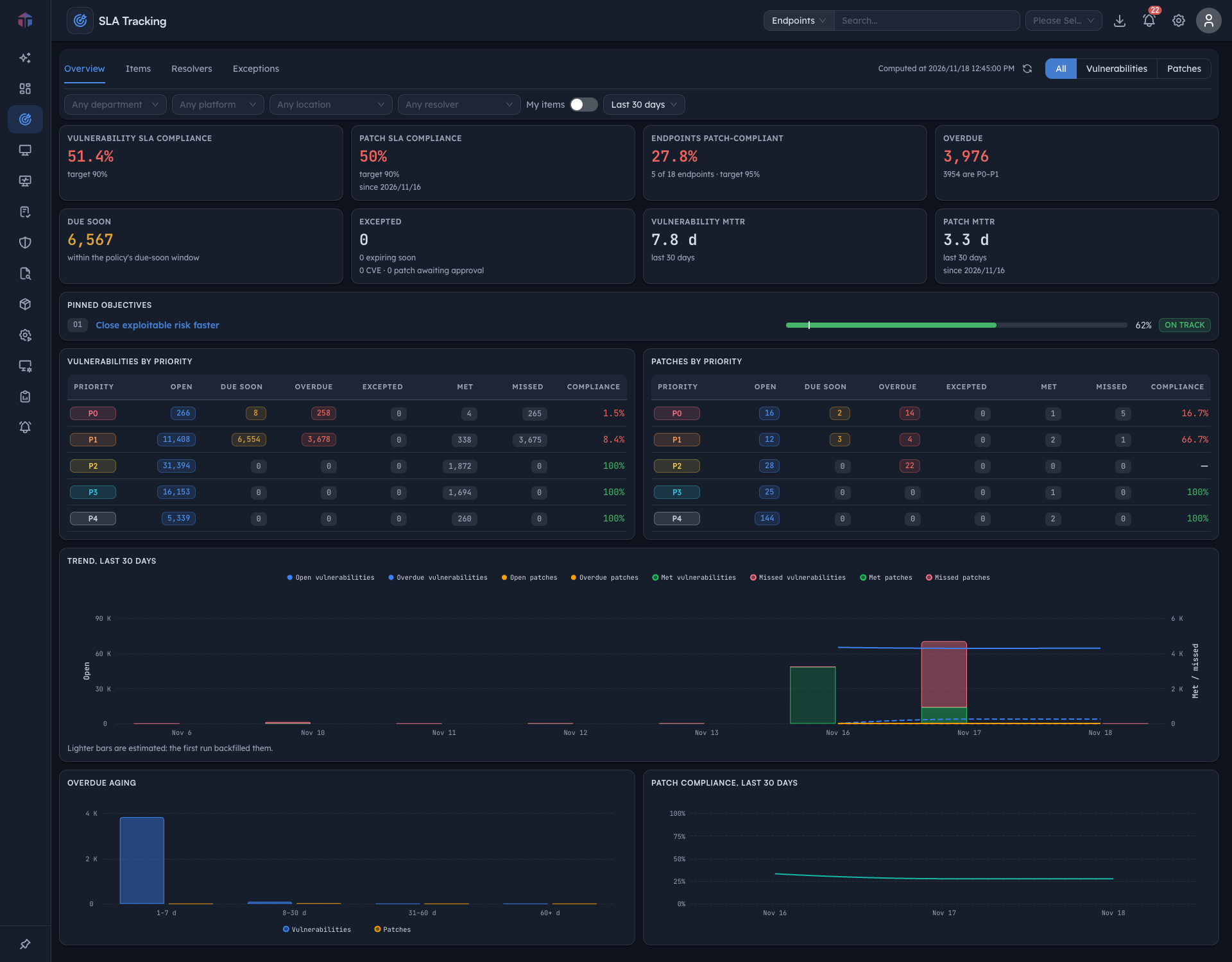
A strip at the top stays in place while you scroll. It holds:
- The tabs: Overview, Items, Resolvers, Exceptions.
- The kind switch (far right): All, Vulnerabilities, Patches. It decides what the whole page counts. It only appears if you can see both kinds (and not on the Exceptions tab).
- The filter bar (second line; not on the Exceptions tab):
| Filter | Notes |
|---|---|
| Any department | Only for users who see every department and have View Settings or View Inventory. |
| Any platform | Windows, Mac or Linux. |
| Any location | One or more locations. Needs View Settings or View Inventory. |
| Any resolver | One or more resolvers (people responsible for fixing). The list loads when you open it. |
| My items | A switch: only the items you are the resolver for. |
| Period | Last 30 days (default), Last 90 days, Last 180 days or Last 365 days. Sets the window for met/missed, compliance, time to fix and the trend charts. |
Clear a filter (the × in it) to go back to "any".
Overview tab
The Overview gives the headline numbers. At the right of the strip it says Computed at (time), with a Refresh button that fetches the figures again.
Tiles (only the ones for the kinds you can see):
| Tile | What it shows |
|---|---|
| Vulnerability SLA compliance / Patch SLA compliance | SLA compliance for the period, coloured against the policy's SLA compliance target (target N%). If nothing fell due in the period, it says so. |
| Endpoints patch-compliant | The percentage and X of Y endpoints, against the patch compliance target. |
| Overdue | Items past their deadline, and how many of them are P0–P1. |
| Due soon | Items due within the policy's due-soon window. |
| Excepted | Items covered by an exception, how many are expiring soon, and how many CVE and patch requests are awaiting approval. Click an awaiting count to open those requests on the Exceptions tab. |
| Vulnerability MTTR / Patch MTTR | Mean time to remediate, in days, for the period. |
A tile footer that reads since (date) means the figure only counts from the day SLA tracking started.
Pinned objectives lists active OKR objectives that are set to show on the SLA dashboard, with their progress and status. Click a title to open the objective (see OKR Progress).
Vulnerabilities by priority and Patches by priority are tables with one row per priority (P0–P4):
| Column | Meaning |
|---|---|
| Priority | P0 to P4. |
| Open | Items not yet fixed (on track, due soon or overdue). |
| Due soon / Overdue / Excepted | Open items in each state. |
| Met / Missed | Items that were fixed on time / late in the period. |
| Compliance | SLA compliance for that priority in the period, coloured against the target. |
Click any non-zero count to open the Items tab filtered to that priority and state. A priority your SLA Policy doesn't track shows Not tracked across the row.
Under the tables:
- Trend, last N days: open and overdue items per day, with bars for met and missed vulnerabilities and patches. Lighter bars are estimated: the first run backfilled them.
- Overdue aging: overdue items by how long they have been overdue.
- Patch compliance, last N days: the endpoints' patch compliance over time.
The trend and the patch compliance chart can't follow a location, resolver or My items filter. With one of those set, they say "not available with a location or resolver filter". The tiles and tables still follow every filter. The awaiting approval counts also hide when you filter by department, platform, location or resolver.
Until SLA tracking has run once, the Overview says "The SLA has not been computed yet; the next run fills it." Click Refresh later.
Items tab
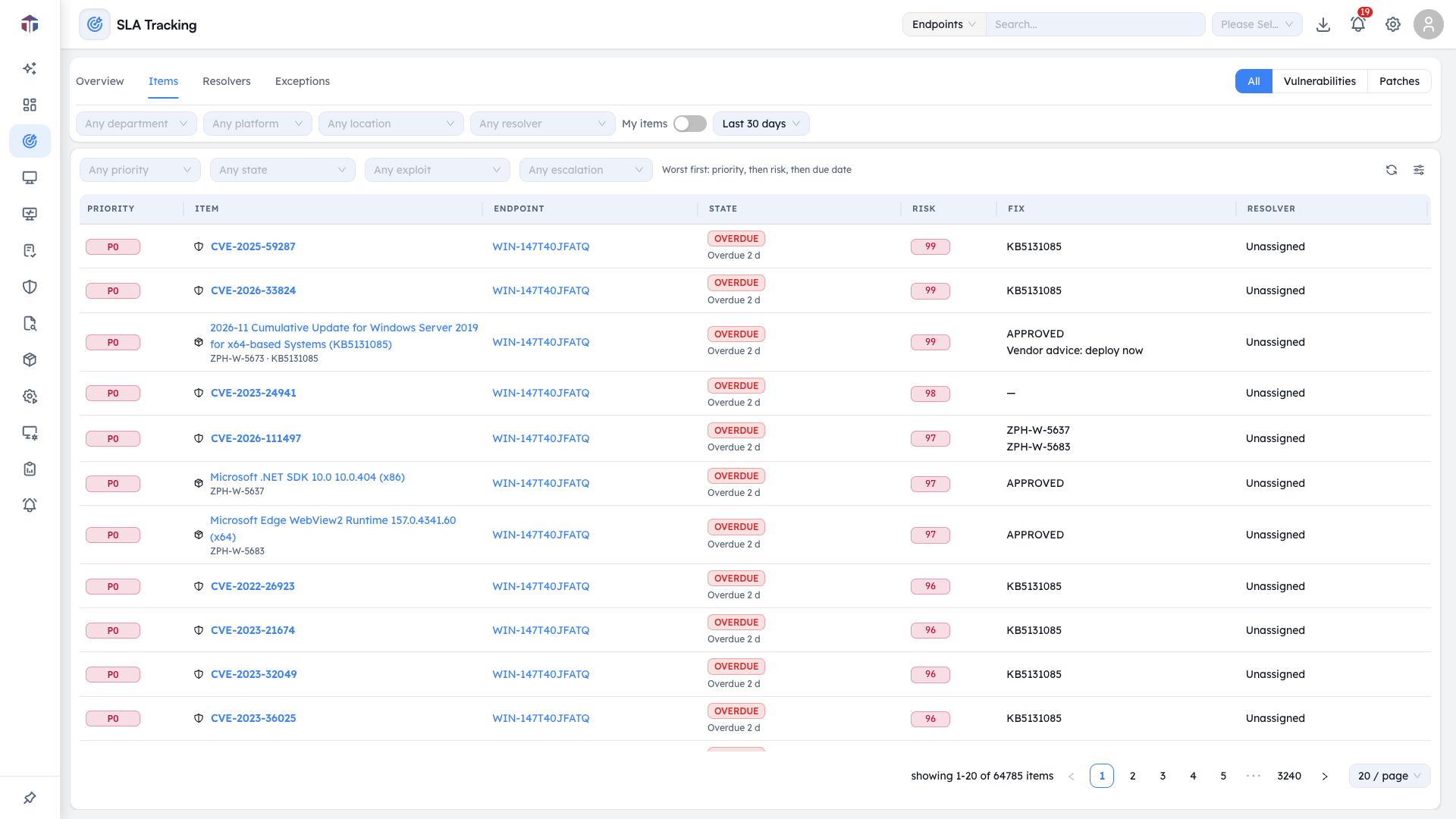
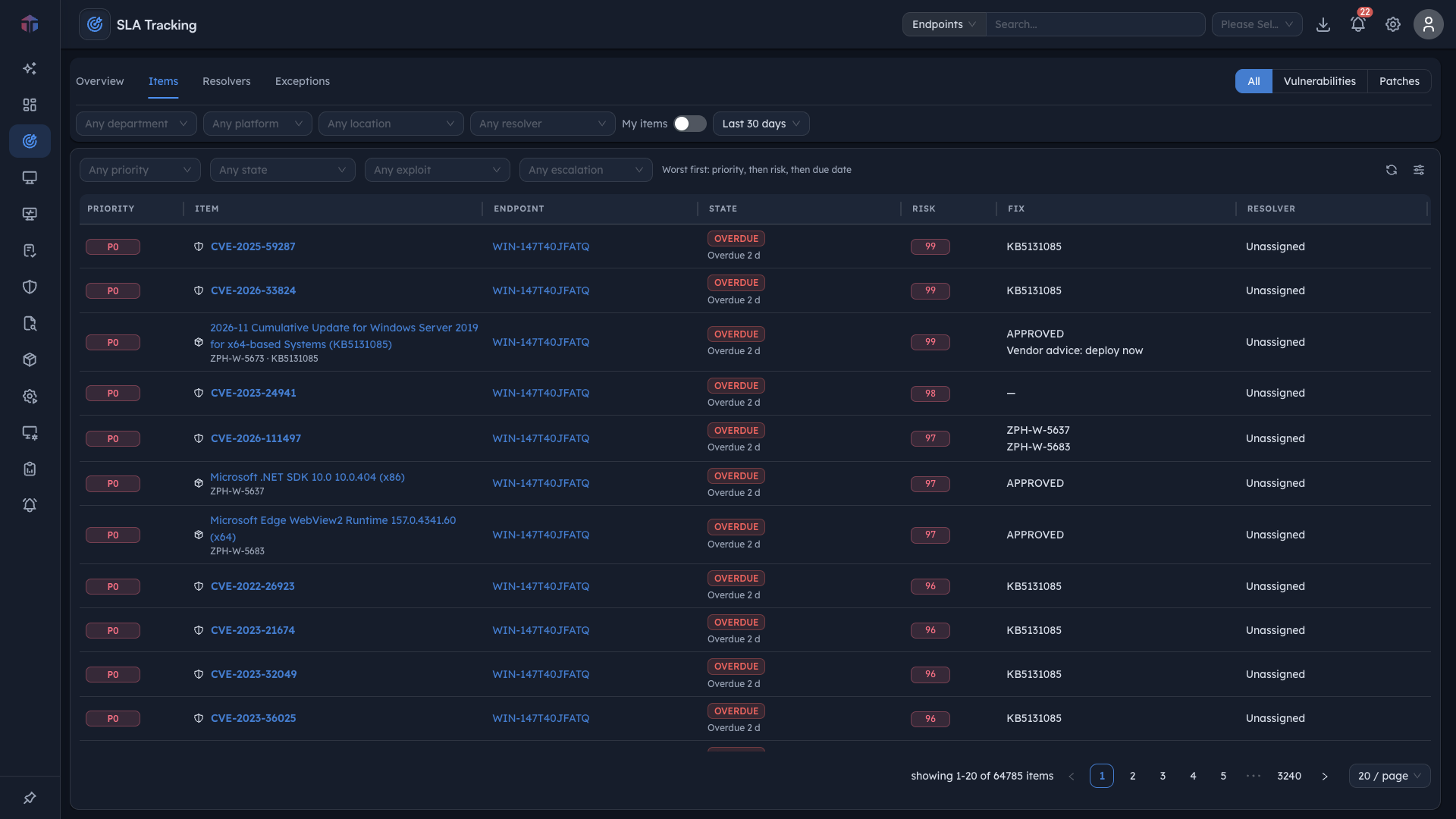
Items lists every SLA item (one vulnerability or one missing patch on one endpoint), worst first: priority, then risk, then due date. The order is fixed: columns don't sort, and the list can't be exported.
Next to the search box are filters for this tab only:
| Filter | Choices |
|---|---|
| Any priority | P0–P4. A priority the policy doesn't track reads P2 · not tracked. |
| Any state | On track, Due soon, Overdue, Excepted. |
| Any exploit | CISA KEV, Exploited, PoC public, None known. |
| Any escalation | The stage names from the policy's escalation matrix. |
| Any rule | No rule, then the policy's custom rules. Hidden when the policy has no custom rules. |
Columns shown by default:
| Column | Shows |
|---|---|
| Priority | P0–P4. Hover it to see why: CVSS, EPSS, exploit, exposure, endpoint criticality, vendor advice, dev/test, custom rule, compensating control. |
| Item | A CVE (click it to open the vulnerability's details) or a patch (click it to open the patch), with its catalog name and KB. |
| Endpoint | The host. A link to the endpoint if you have View Inventory. |
| State | On track, Due soon, Overdue or Excepted, with the due text under it, e.g. Due in 3 d, Overdue 12 d, On track · due (date). paused means the clock was paused; grace means a policy change gave extra time. |
| Risk | The item's risk score. |
| Fix | For a CVE, the missing patches that fix it. For a patch, APPROVED / NOT APPROVED and the vendor's advice. |
| Resolver | Who must fix it and how they were found (primary, backup or policy default), or Unassigned. |
Hidden until you pick them in the column picker: Escalation (the stage reached), Exploit, Exposure, Rule, Started, Clock started and Due.
Resolvers tab
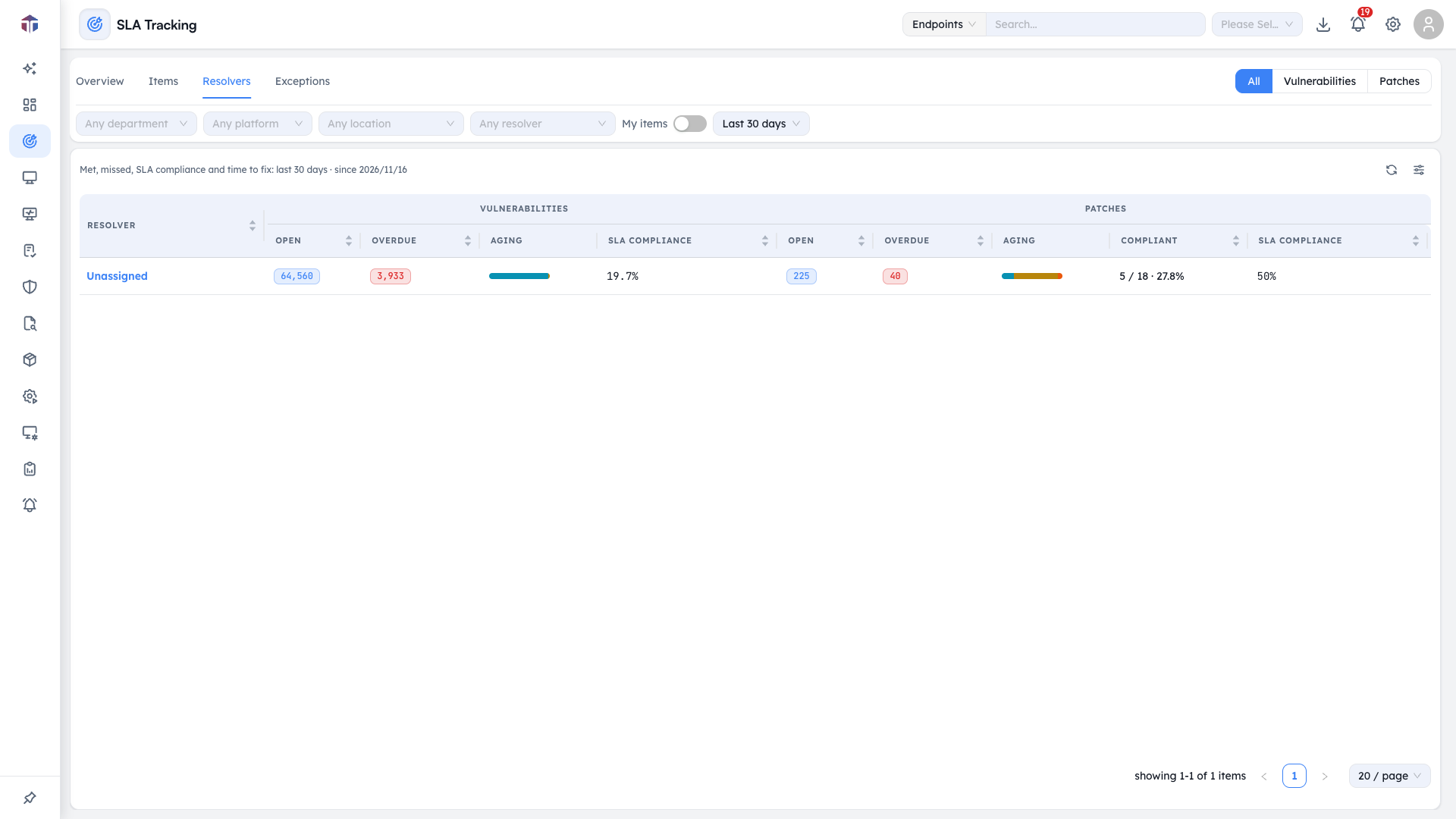
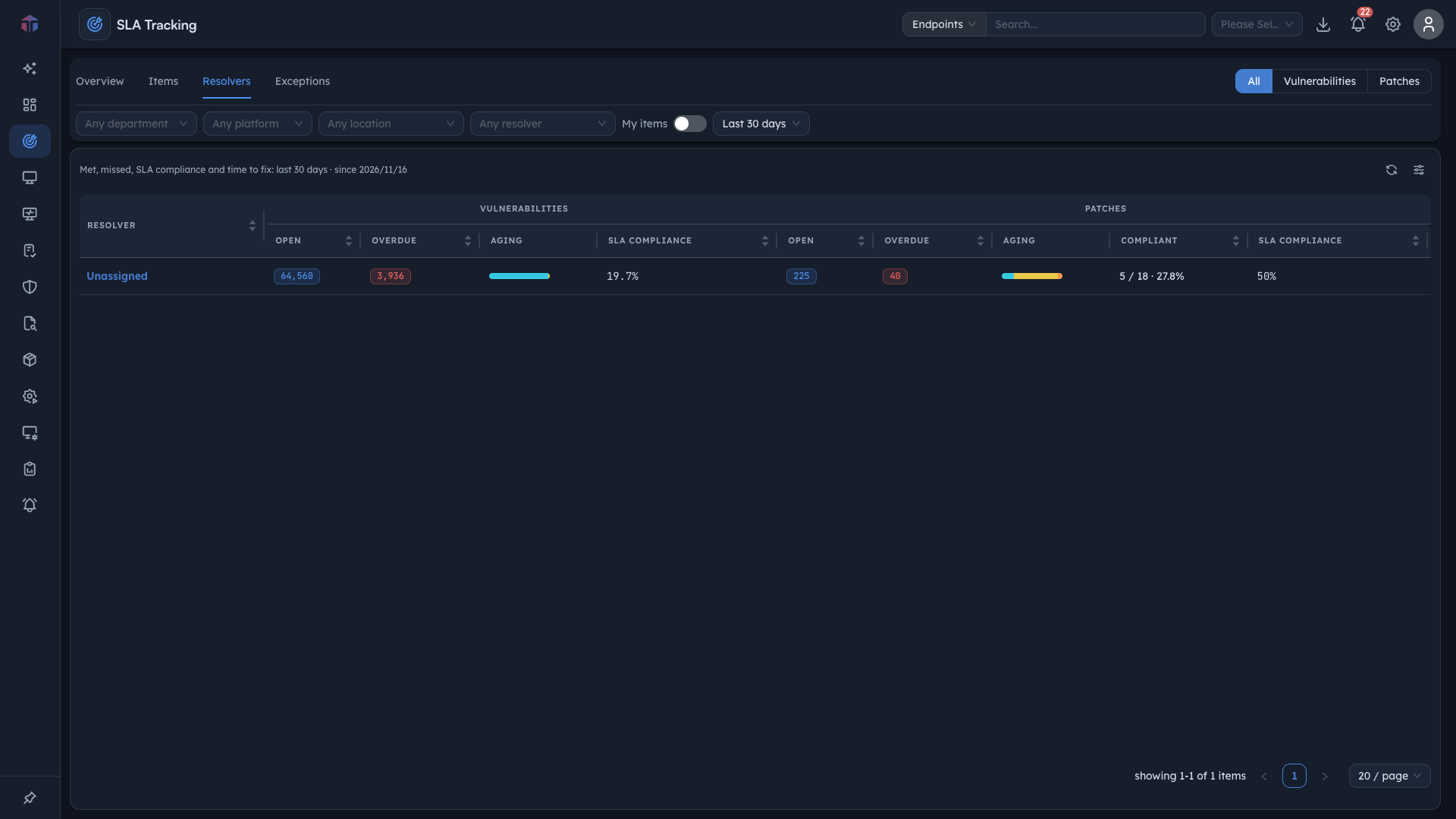
Resolvers is a scorecard: one row per resolver (plus Unassigned), with columns grouped under Vulnerabilities and Patches (only the kinds shown). The toolbar says which period the figures cover, e.g. Met, missed, SLA compliance and time to fix: last 30 days.
- Resolver: click a name to open the Items tab filtered to that resolver.
- Per kind, by default: Open, Overdue, Aging (a bar of overdue items by age, 1–7 d, 8–30 d, 31–60 d, 60+ d; hover for the counts), Compliant (patches only) and SLA compliance.
- Hidden until picked: Endpoints, Due soon, Excepted, Met, Missed and Time to fix.
Click a column header to sort; the table can't be exported.
Exceptions tab
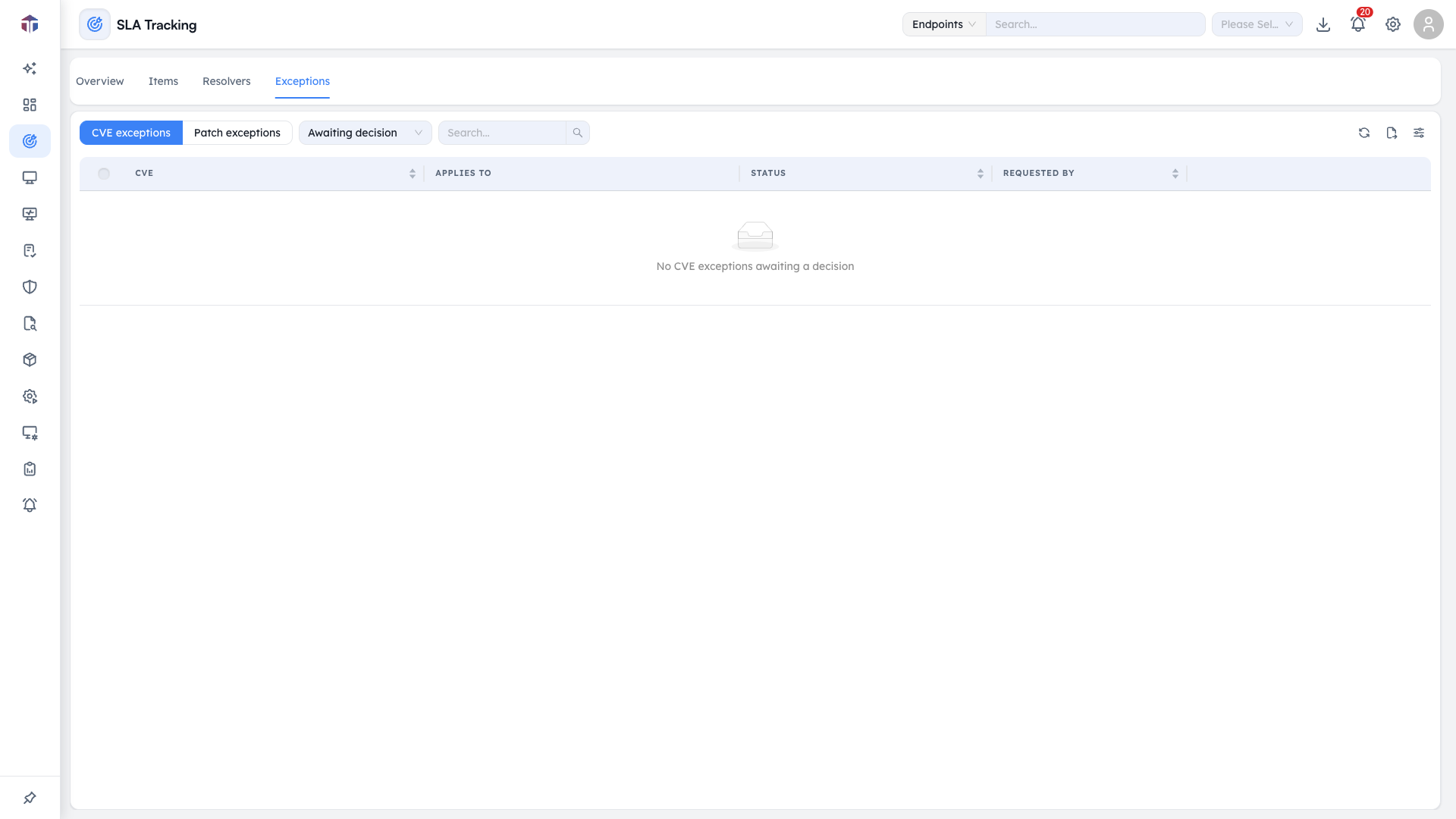
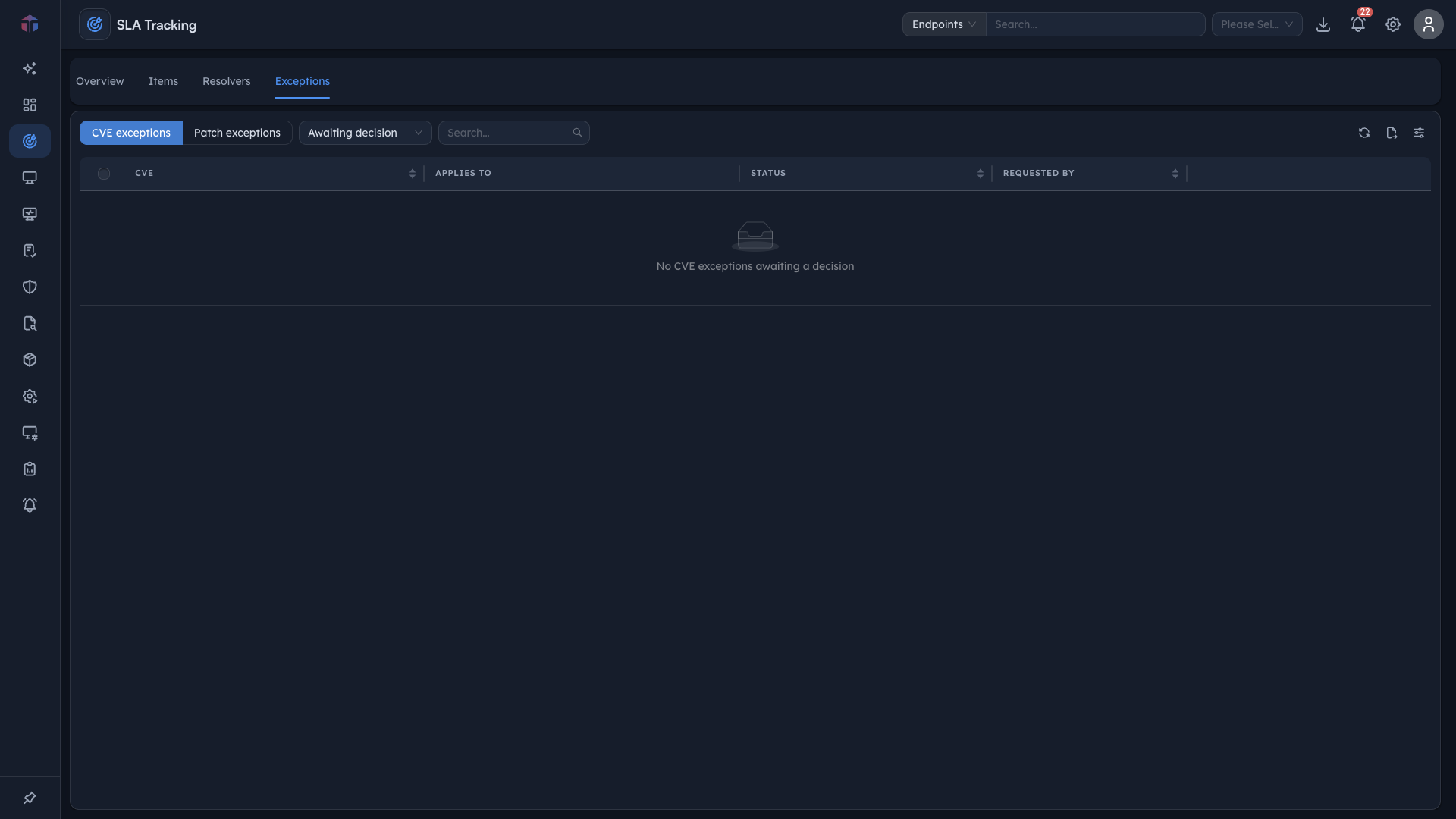
Exceptions is where exception requests are decided. The filter bar and the kind switch are hidden here; the tab has its own controls next to the search box:
- CVE exceptions / Patch exceptions: which kind to list (the switch appears only if you can see both).
- Status: Awaiting decision (default), In force, Expiring soon, Ended, All.
CVE exceptions columns: CVE (with the exception type under it), Applies to, Status, Requested By. Patch exceptions columns: Patch (with the type under it), Endpoint, Status, Requested By. Both can also show Type, Reason, Ends, Requested On, Decided By and Decided On from the column picker.
Unlike the Items and Resolvers tables, these tables have the standard Export button.
Status reads Awaiting approval, Renewal waiting, In force, Expiring soon, Rejected, Expired, Revoked or Closed, with the end date under it (ends …, asks …, or renewal to …).
Row actions:
| Action | When it shows |
|---|---|
| View | Always: opens the request's details. |
| Approve / Reject | On a request awaiting a decision. |
| Renew | On an exception in force: asks for a New end. |
| Revoke | On a request awaiting a decision or an exception in force. |
On the Awaiting decision filter you can also decide in bulk: tick rows and use Approve selected / Reject selected, or Approve all N matching / Reject all N matching.
Approve and Reject are disabled on a request you made (or a renewal you asked for), with the tooltip "You asked for this; another user decides." Another user must decide it. The built-in admin can decide any request.
- CVE exceptions: approving, rejecting, renewing and revoking need View Manage Exceptions.
- Patch exceptions: approving, rejecting and renewing need Manage Patch; revoking needs View Patch.
Whether a request needs approval at all, and the longest an exception may last, are set on the SLA Policy's Exceptions tab.
How do I…
See everything that is overdue for my team?
- Open Goals → SLA Tracking.
- Pick your people in Any resolver (or turn on My items for just yours).
- On the Overview, click the Overdue count in the priority table, or open the Items tab and choose Overdue in Any state.
Find out why an item has its priority?
On the Items tab, hover over the item's Priority badge. The tooltip lists each input the SLA engine used, including any custom rule.
Approve waiting exception requests?
- On the Overview, click the awaiting approval count on the Excepted tile, or open the Exceptions tab.
- Choose CVE exceptions or Patch exceptions.
- Click Approve or Reject on a row, or tick rows and use the bulk buttons.
Choosing which columns to show
The Items, Resolvers and Exceptions tables have the standard column picker: click the Columns icon at the right of the toolbar, tick or untick columns, drag to reorder, then click Apply. Your choice is saved for you.
Tips & troubleshooting
- The kind switch is missing. You can see only vulnerabilities or only patches, so there's nothing to switch.
- The department or location filter is missing. It needs View Settings or View Inventory (and, for department, a user who sees every department).
- A shared link shows fewer filters. Filters you don't have a control for (a hidden kind, department or location) are dropped when the link opens.
- Figures didn't change after a policy edit. Items recompute in the background after an SLA Policy save; click Refresh on the Overview after a minute.
Related
- SLA Policy: the deadlines, adjustments, targets and escalation behind these figures.
- OKR Progress: objectives whose key results track these SLA metrics.
- Manage Exceptions: CVE exceptions from the Vulnerability module.
- Patch Catalog: patches, their approval and patch exceptions.