Endpoints
Endpoints is your fleet list — every machine that has the EndpointOps agent installed. From here you see each endpoint's health and hardware, assign owners, filter by platform or location, and open a single endpoint for the full detail.
How to get here
You need View Inventory permission.
- Sign in to EndpointOps.
- In the left sidebar, click Inventory, then Endpoints. (Inventory opens on Endpoints by default.)
Navigate to: Inventory → Endpoints
URL path: /inventory/endpoints (for example,
https://your-endpointops-site/inventory/endpoints).
The Endpoints screen
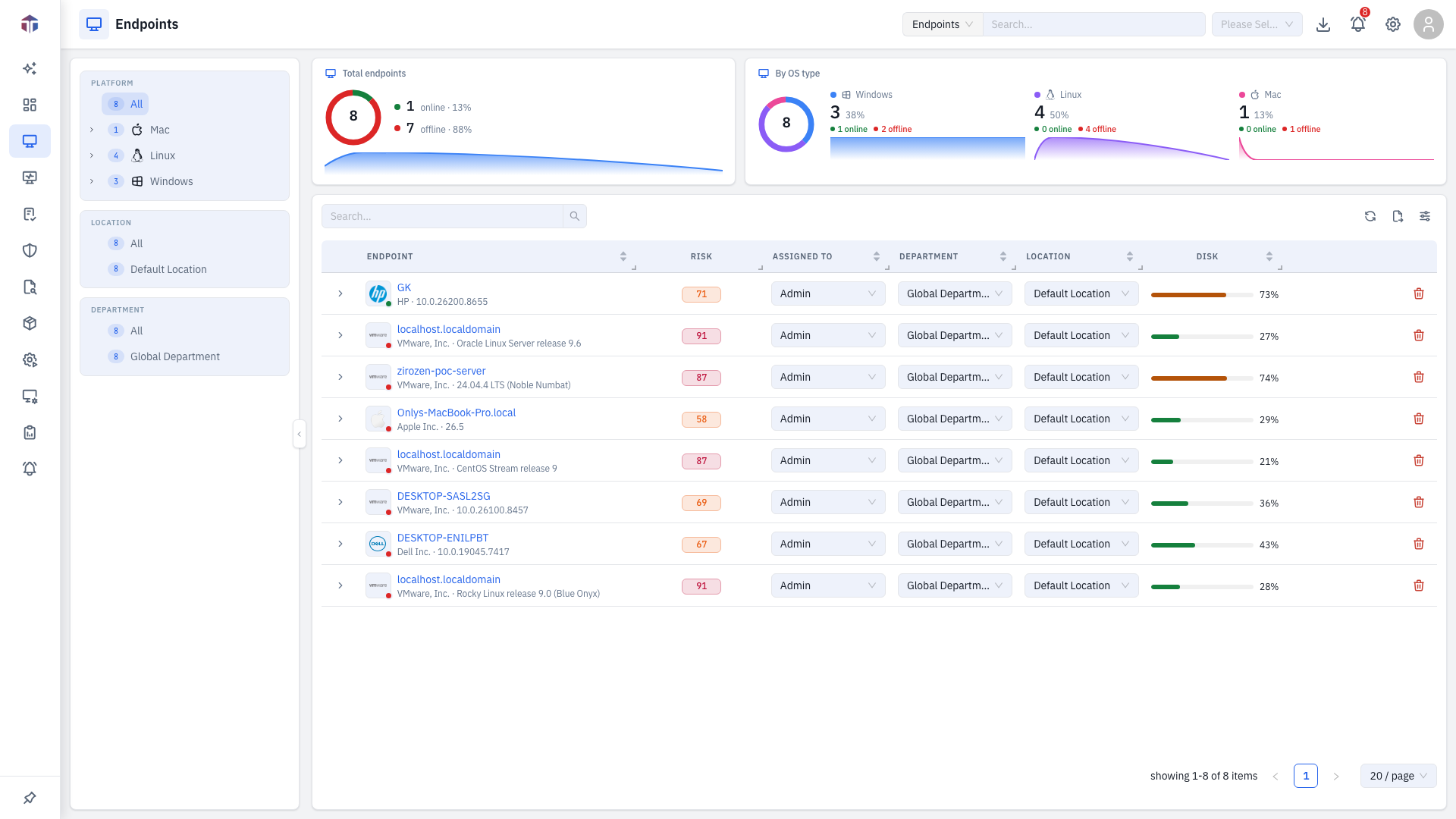
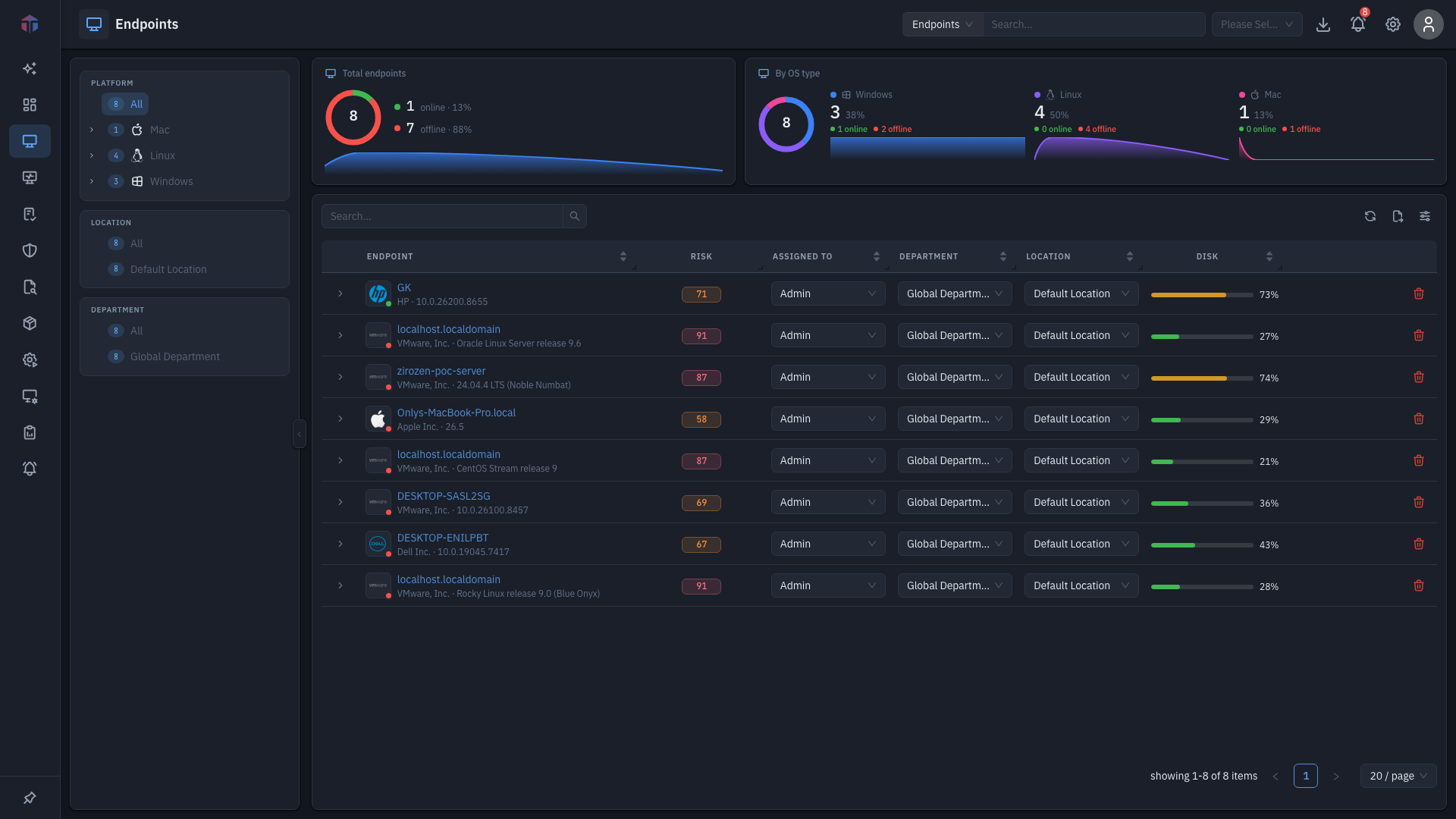
The screen has two parts: a filter pane on the left and the endpoint table on the right. A statistics strip above the table summarises the fleet, and a banner appears at the top when agent approvals are pending.
Filter pane (left)
The left pane narrows the table. Each entry shows a count badge:
- Platform / OS — filter by operating system (Windows, Linux, macOS, …). Select All to clear it.
- Location — filter by the location an endpoint is assigned to.
- Department — filter by department.
Click any entry to filter; the table updates immediately.
Endpoint table (right)
Columns shown by default: Endpoint, Risk, Assigned To, Department, Location, Disk.
| Column | What it shows |
|---|---|
| Endpoint | The machine's identity — a vendor logo (Dell, HP, Apple, …) or platform glyph with a live status corner badge (green online / red offline), the host name, and a vendor · OS version subtitle. Click it to open the endpoint's detail page. |
| Risk | The endpoint's risk score, as a value-coloured tag (higher = more risk). |
| Assigned To | The owner. Pick a user inline to (re)assign it. |
| Department | The endpoint's department. Editable inline. |
| Location | The endpoint's location. Editable inline. |
| Disk | Disk usage as a bar — green under 60%, orange 60–80%, red above 80%. |
Many more columns are hidden by default — Vendor (logo), Memory, Hardware Model, Version, OS Version, Arch, Build, Code Name, CPU Brand, CPU Logical Cores, CPU Cores, CPU Type, Kernel Version, and Created On. Turn them on with the column picker (below).
On each row you can also:
- Expand (▶) — open the row to see extra detail inline.
- Select — tick the checkbox to select endpoints.
- Edit owner/department/location — change them in place (needs Update Inventory).
- Delete (🗑️) — remove an endpoint (needs Delete Inventory).
Working with the list: use Search (top-right, searches by host name), sort by clicking a column header, export the list, and page through results with the controls at the bottom. You only see actions your role permits.
If endpoints are waiting for approval, a yellow banner shows the count. Click it to go to Agent Approvals and approve them.
How do I open a single endpoint?
Click an endpoint's Endpoint cell. The detail page opens with the host name as its title, a tabbed view of everything known about the machine (Summary, Hardware, SBOM, Network, Vulnerabilities, Patch, Alert, and more), and an actions menu for remote operations.
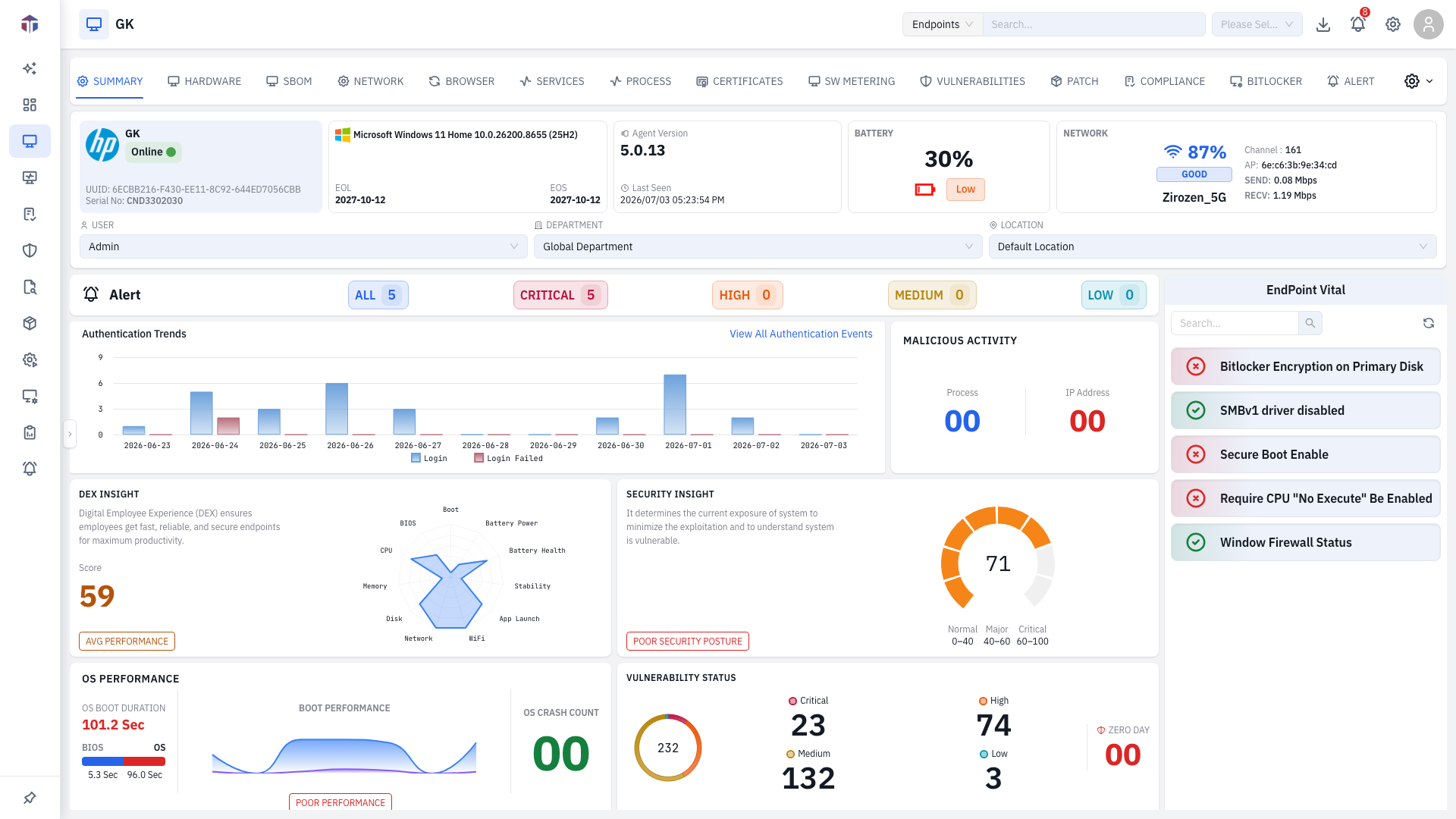
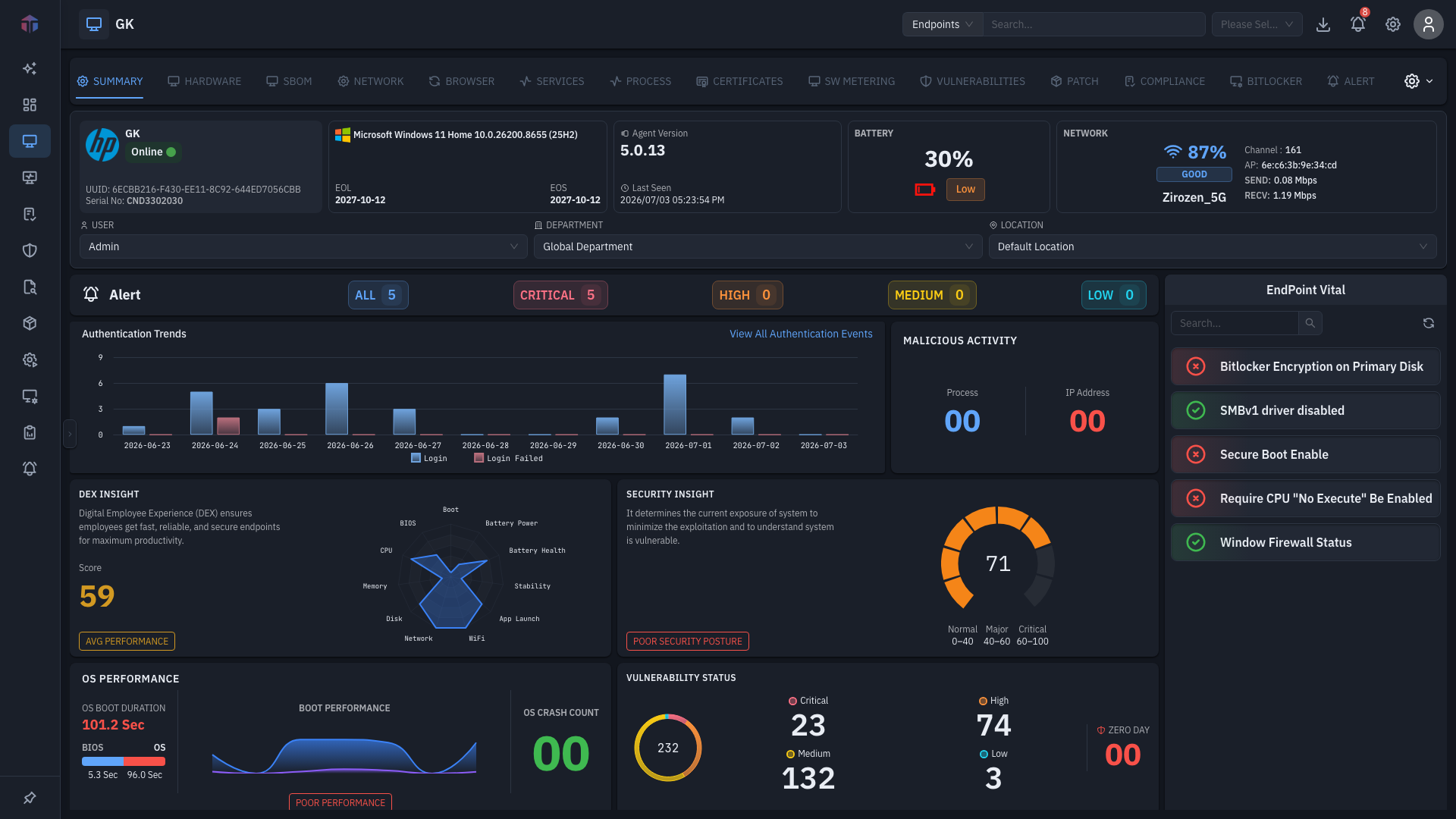
For a full tour of every tab and remote action, see Summary.
Choosing which columns to show
Click the Columns icon on the right of the toolbar to open the column picker.
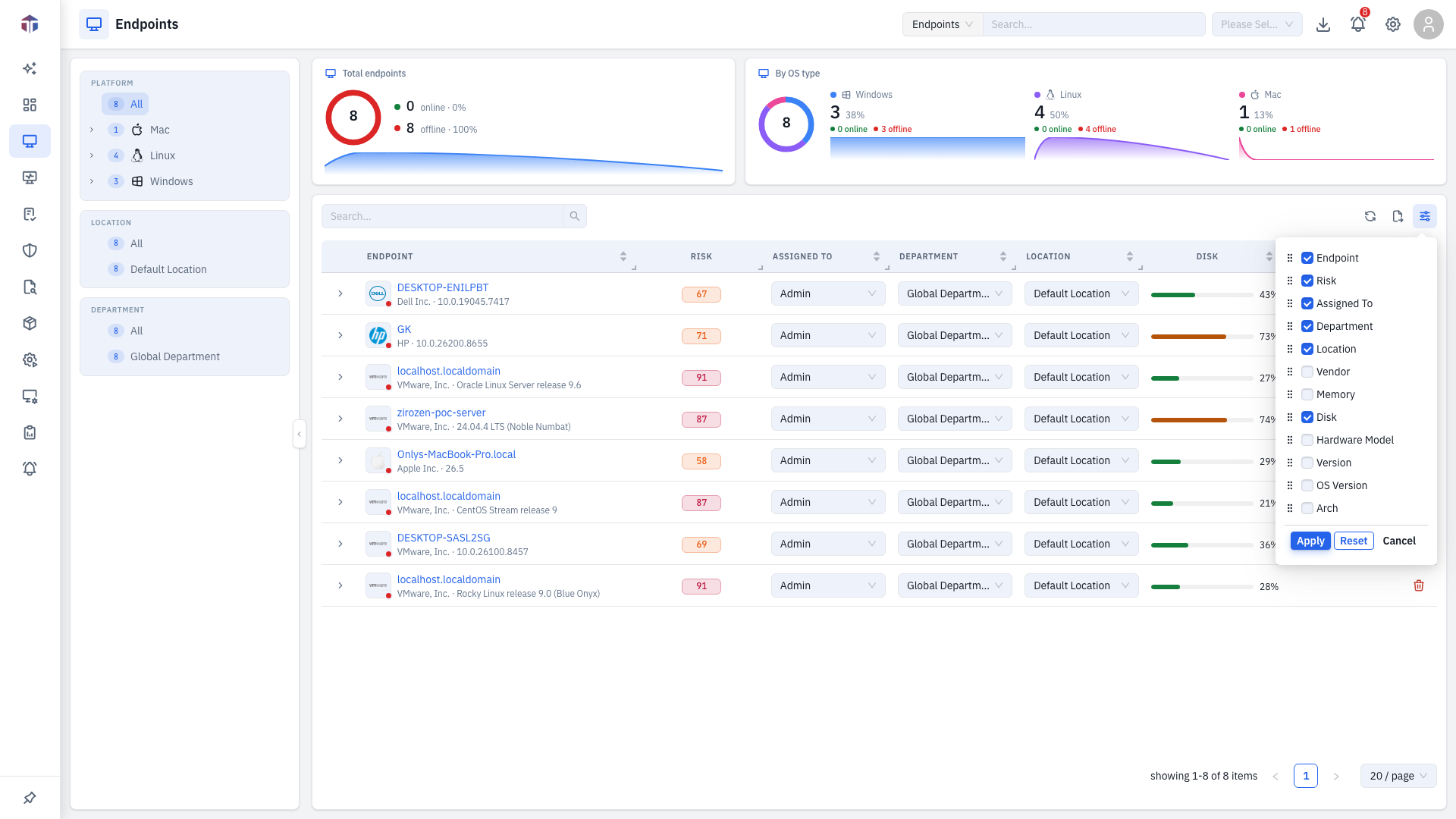
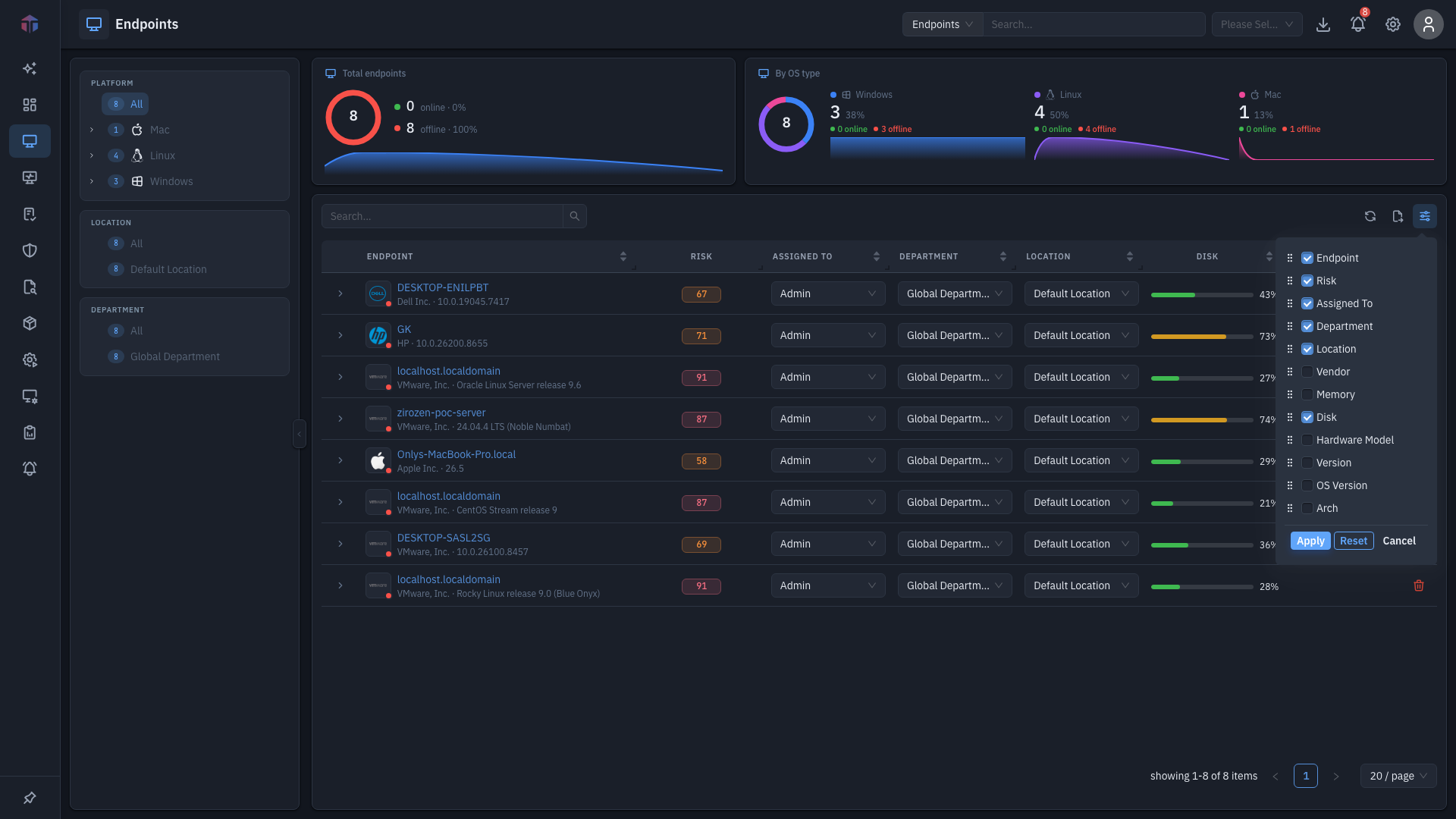
Tick the columns to show, untick to hide, and drag the handle to reorder. Use it to turn on the hidden hardware columns (OS Version, Kernel Version, CPU Brand, and so on). Click Apply to save (remembered next time), Reset for defaults, or Cancel.
Tips & troubleshooting
- An endpoint I enrolled isn't here. Give the agent a moment to check in. If your environment requires approval, the endpoint waits under Agent Approvals — look for the pending banner.
- The status dot is red. The endpoint is offline. Online-only actions (Remote Desktop, Terminal, Reboot, …) are disabled until it reconnects.
- Disk bar is red. Disk usage is above 80% — the machine is low on free space.
- I can't reassign owner or delete. Inline edits need Update Inventory; delete needs Delete Inventory. Ask your administrator about your role.
Related
- Summary — the full single-endpoint view: tabs and remote actions.
- Enrolling an Endpoint — get a machine into this list.
- Agent Approvals — approve endpoints awaiting enrollment.
- Alerts — security events raised against your endpoints.
- Dashboard — fleet-wide summaries built from this data.