BitLocker
The BitLocker tab shows the machine's disk-encryption state and its recovery keys. It has two sub-sections: BitLocker Status and BitLocker Recovery Keys. (Windows, licensed editions.)
How to get here
Open an endpoint (see Summary), then click the BitLocker tab.
URL path: /inventory/endpoints/{id}?tab=bitlocker
BitLocker Status
The encryption state of each drive.
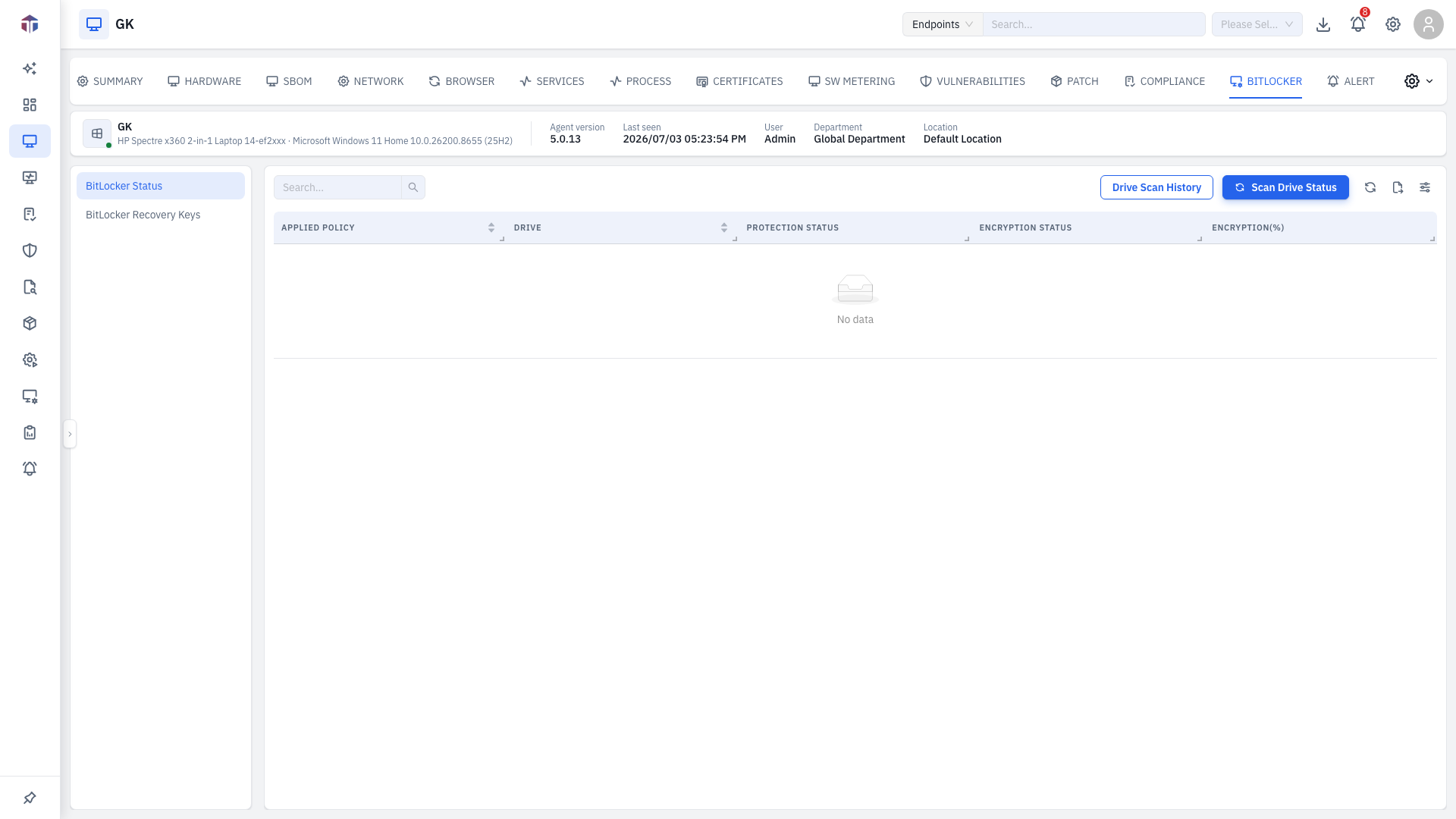
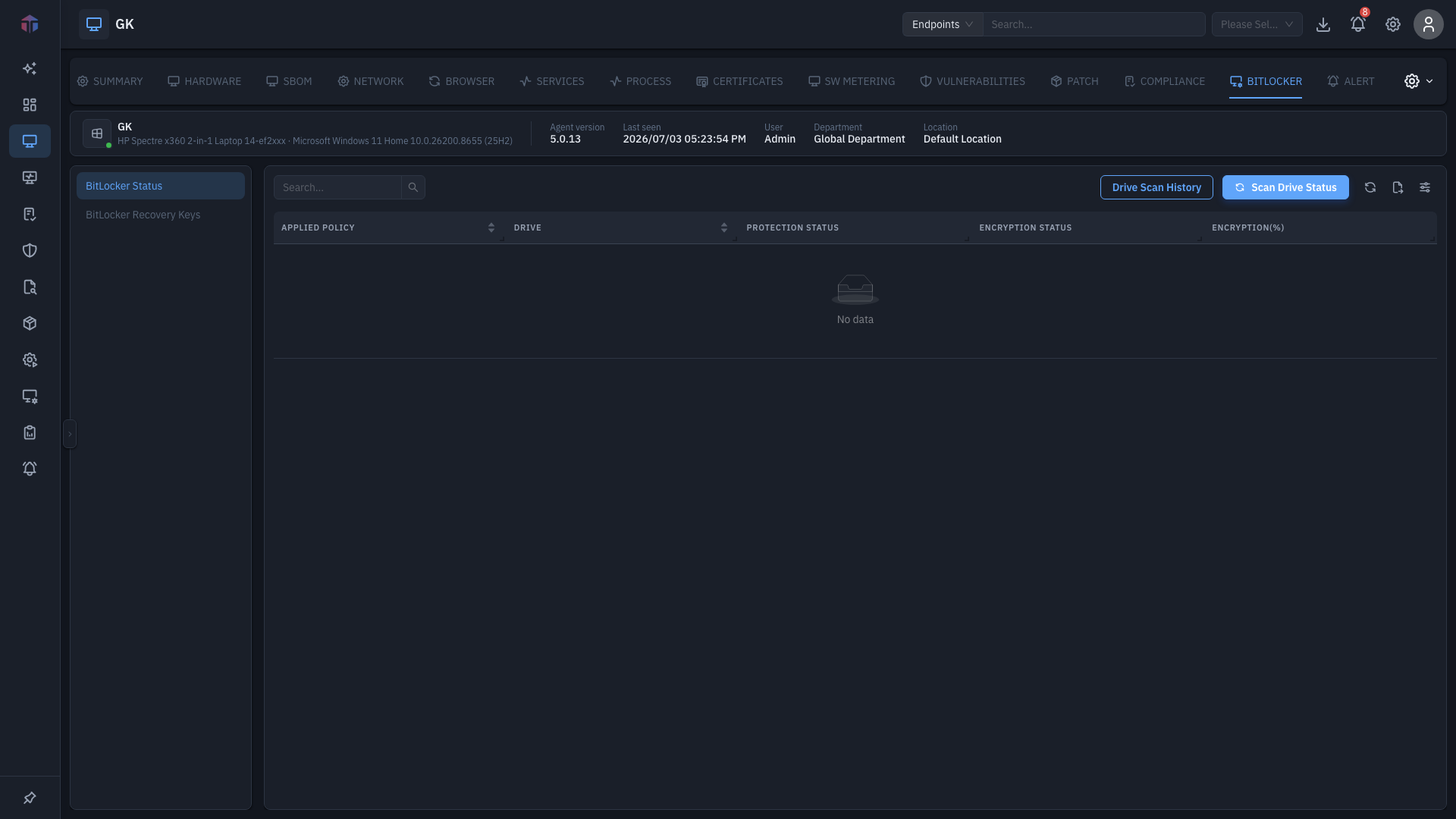
Shows the applied policy, the drive (with a lock indicator), and its encryption status.
BitLocker Recovery Keys
The recovery keys escrowed for the machine.
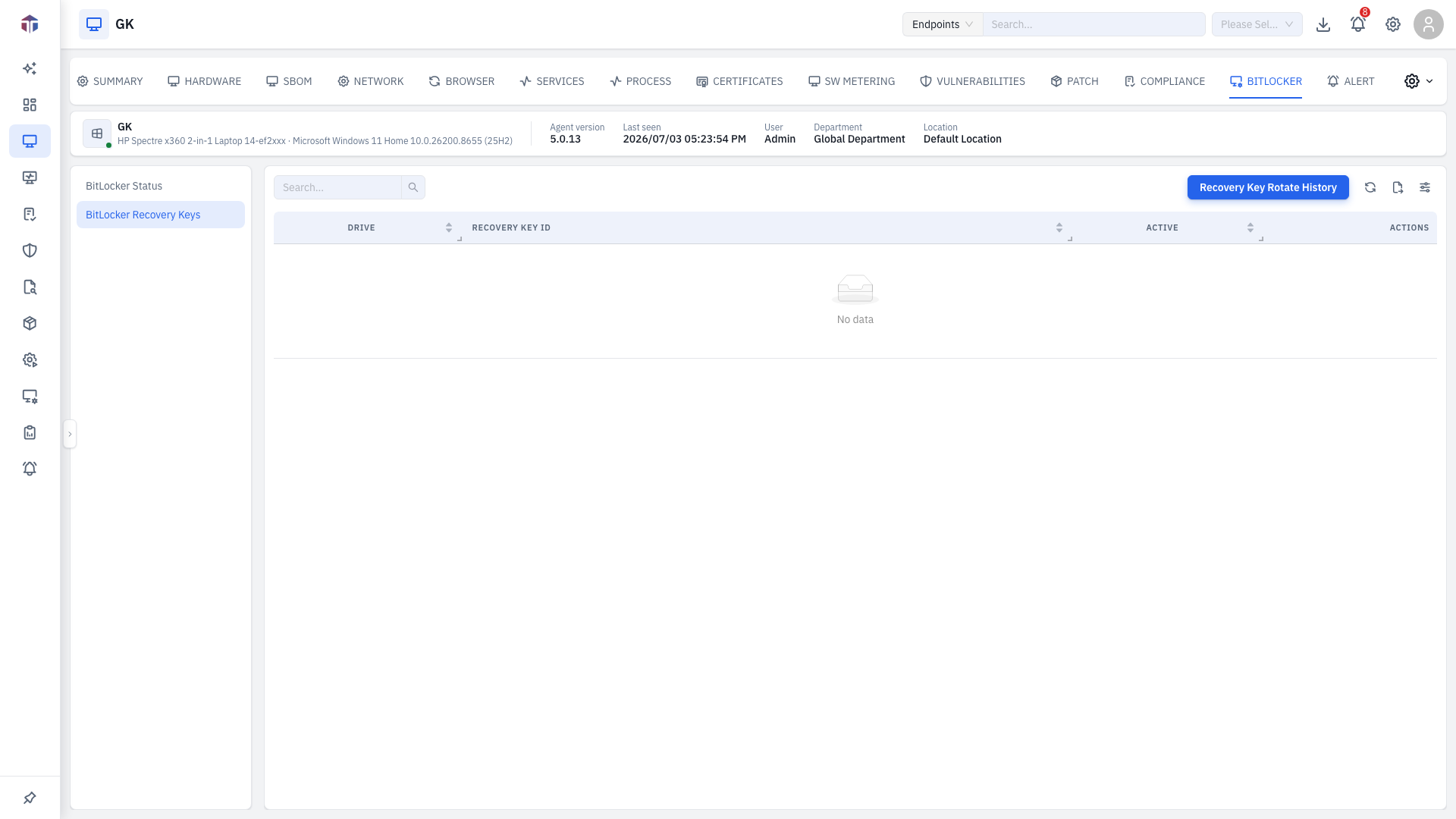
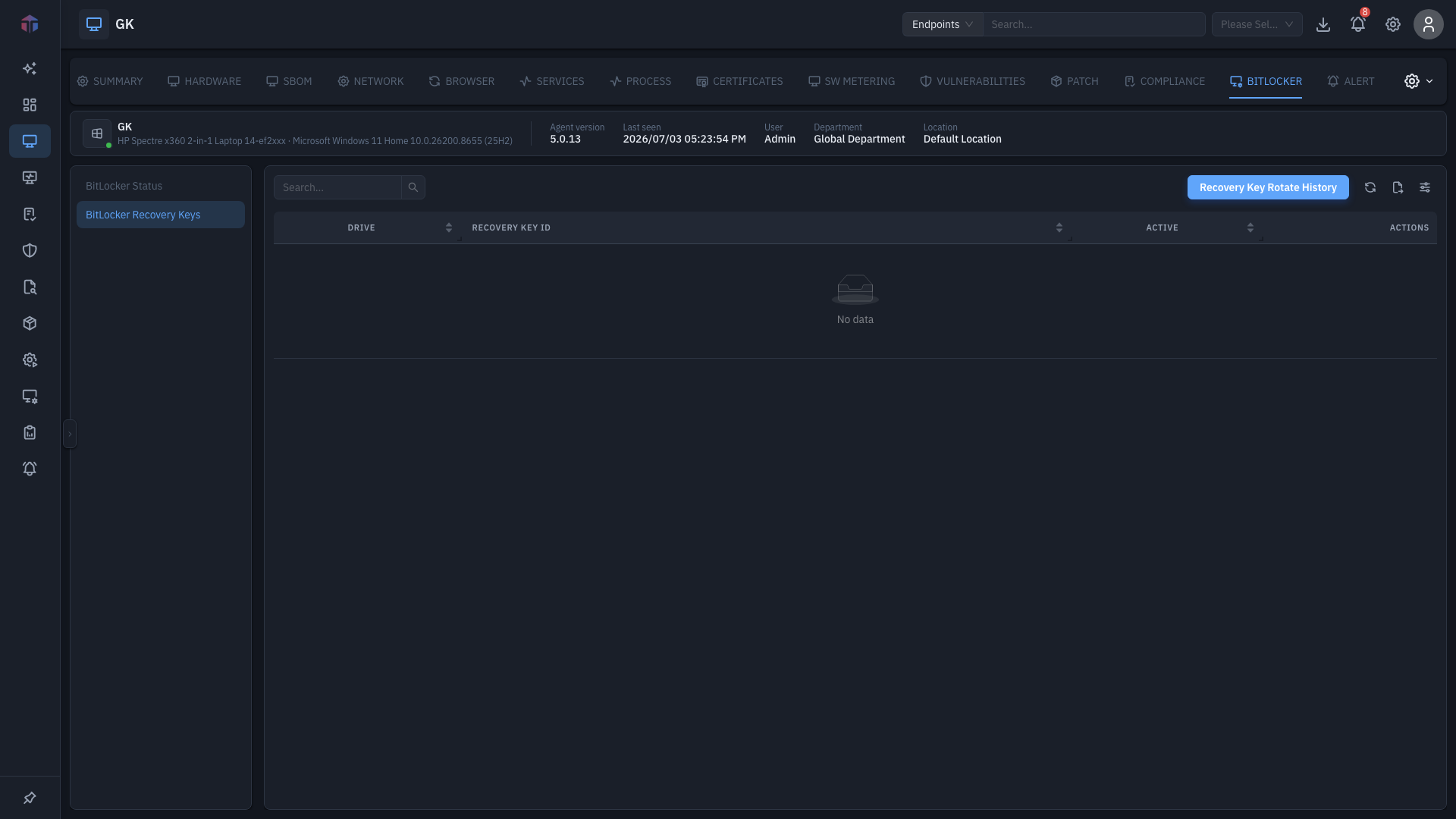
Lists each drive, its recovery key ID, and whether it's active, with actions to copy or rotate a key.
Recovery keys are sensitive
A BitLocker recovery key unlocks an encrypted drive. Only share it through approved channels, and rotate it if it may have been exposed.
Tips & troubleshooting
- A drive shows unencrypted. BitLocker isn't applied there — check the assigned policy under Device Control.
- The tab is missing. BitLocker requires Windows, the right edition, and View BitLocker permission.
Related
- Summary — the screen these tabs live on.
- Device Control — BitLocker disk-encryption policies are created and assigned from Device Control; this tab just shows the result for one endpoint.