Compliance
The Compliance tab shows how the machine scores against the compliance frameworks it's been assessed with. (Licensed editions.)
How to get here
Open an endpoint (see Summary), then click the Compliance tab.
URL path: /inventory/endpoints/{id}?tab=compliance
The Compliance tab
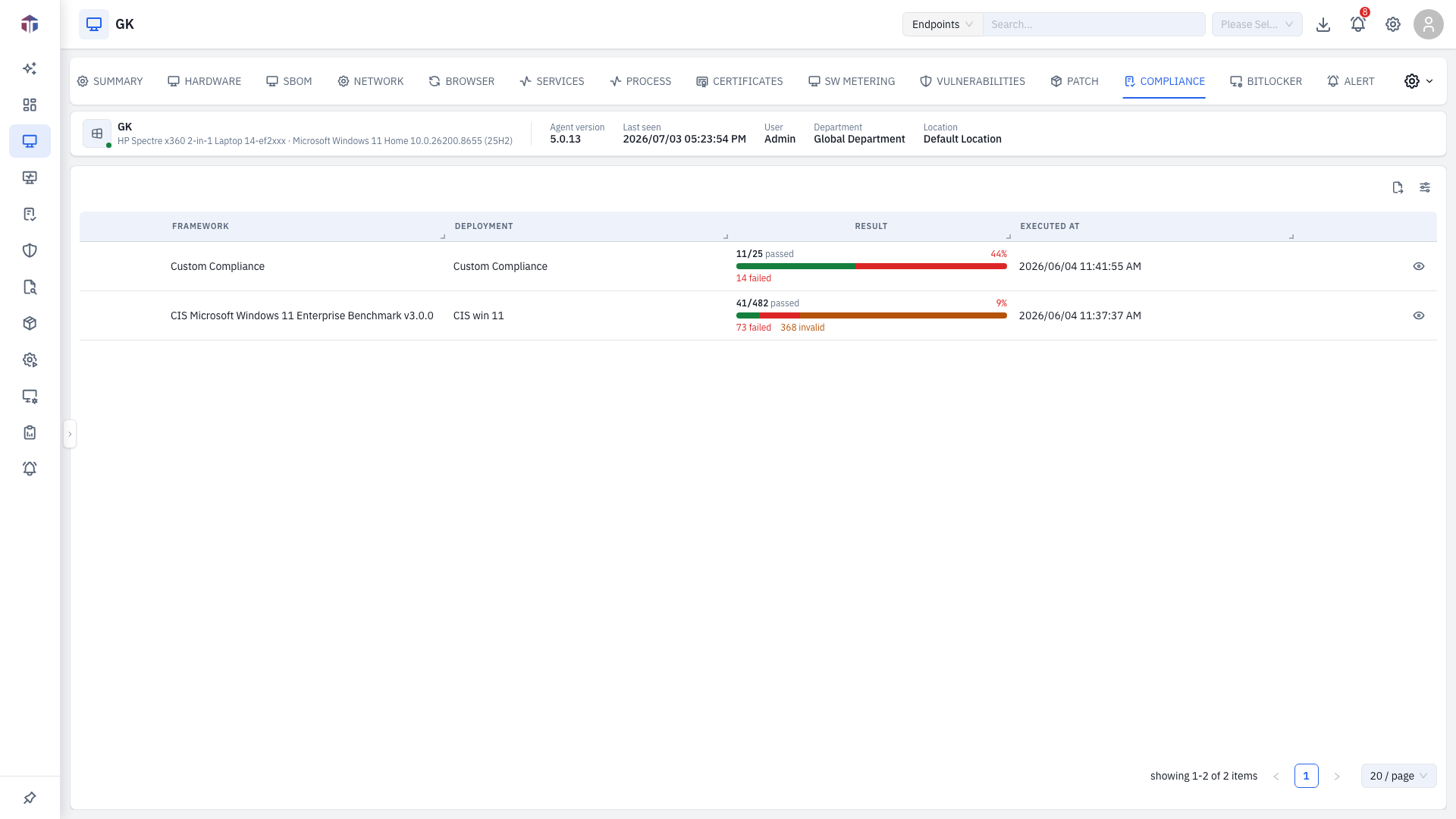
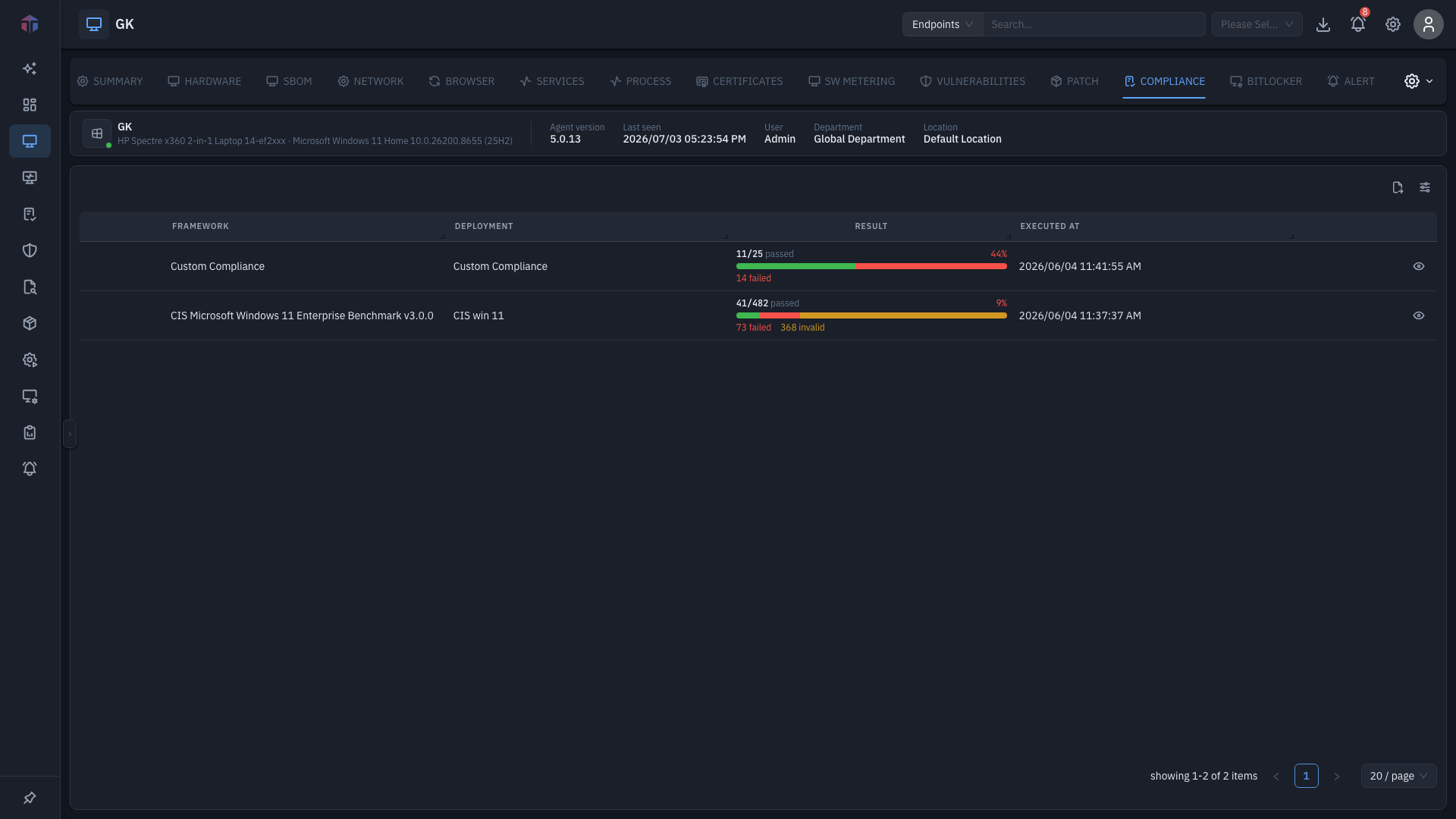
| Column | What it shows |
|---|---|
| Framework | The compliance framework (with its logo). |
| Deployment | The deployment that ran the assessment. |
| Result | A bar of passed / failed / not-applicable percentages. |
| Executed At | When the assessment last ran. |
Rows for recurring deployments expand to show each run.
Rule results
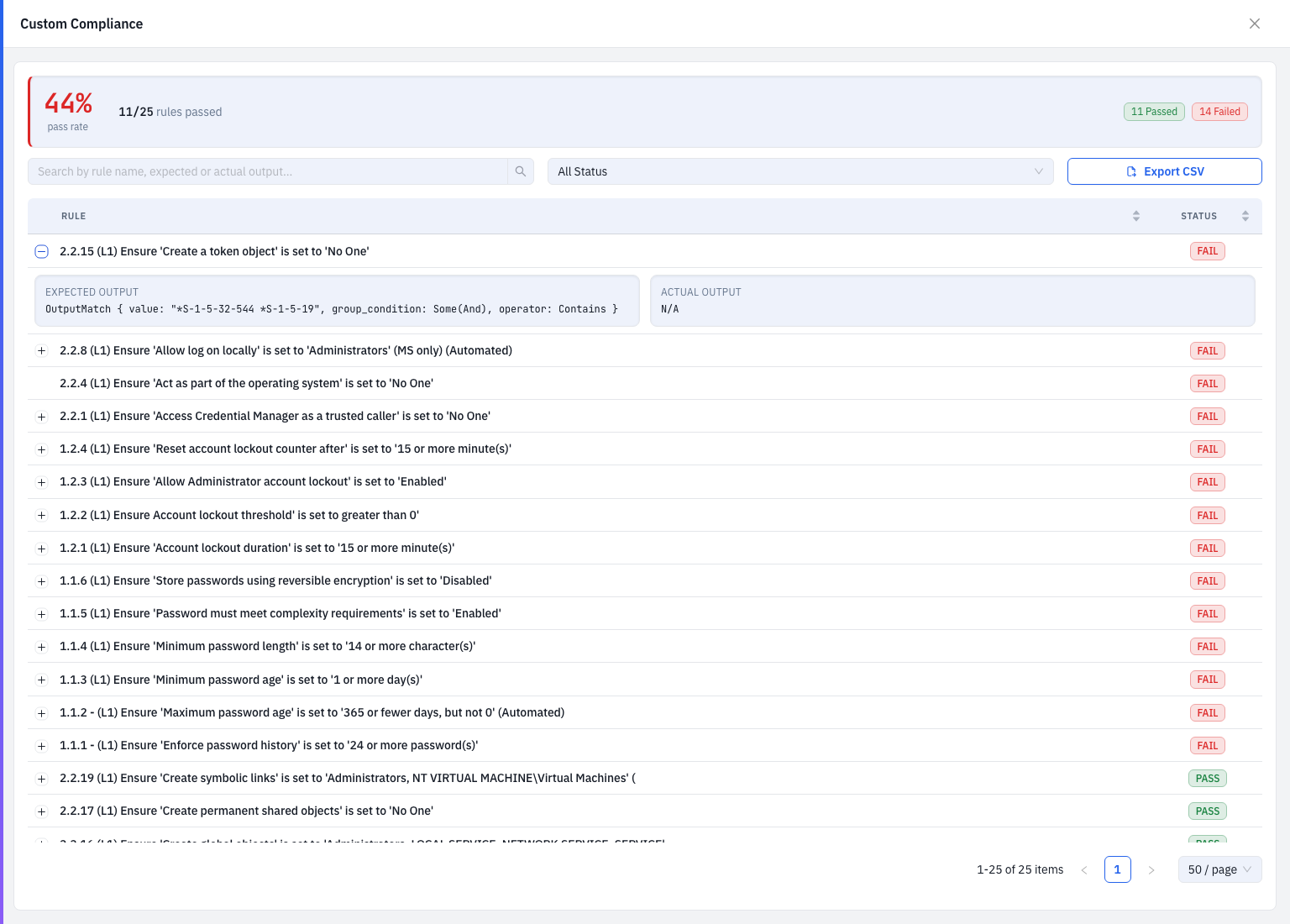
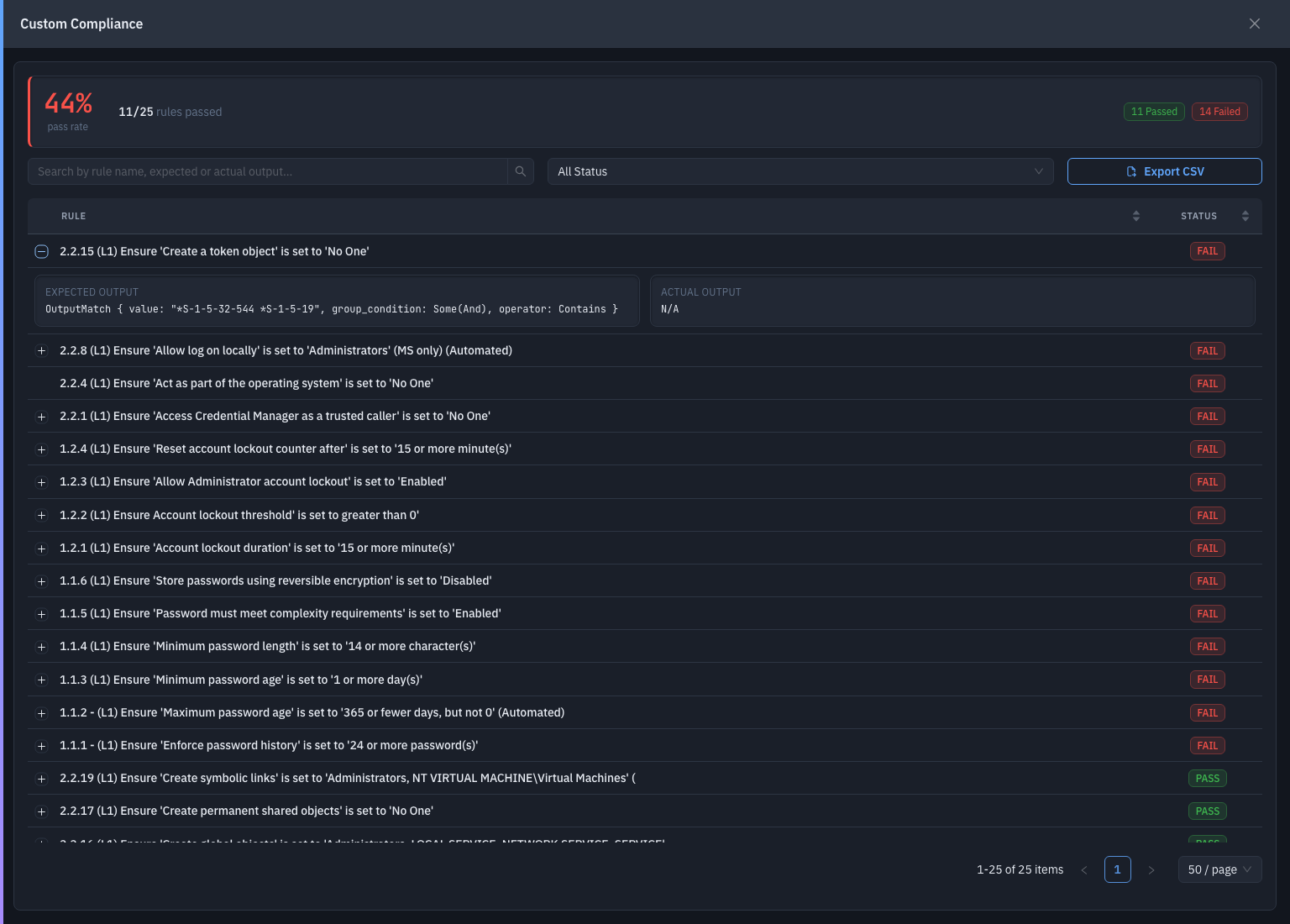
Click the eye icon (View Result) on a row to open the rule results drawer — every rule in that framework and how this endpoint scored.
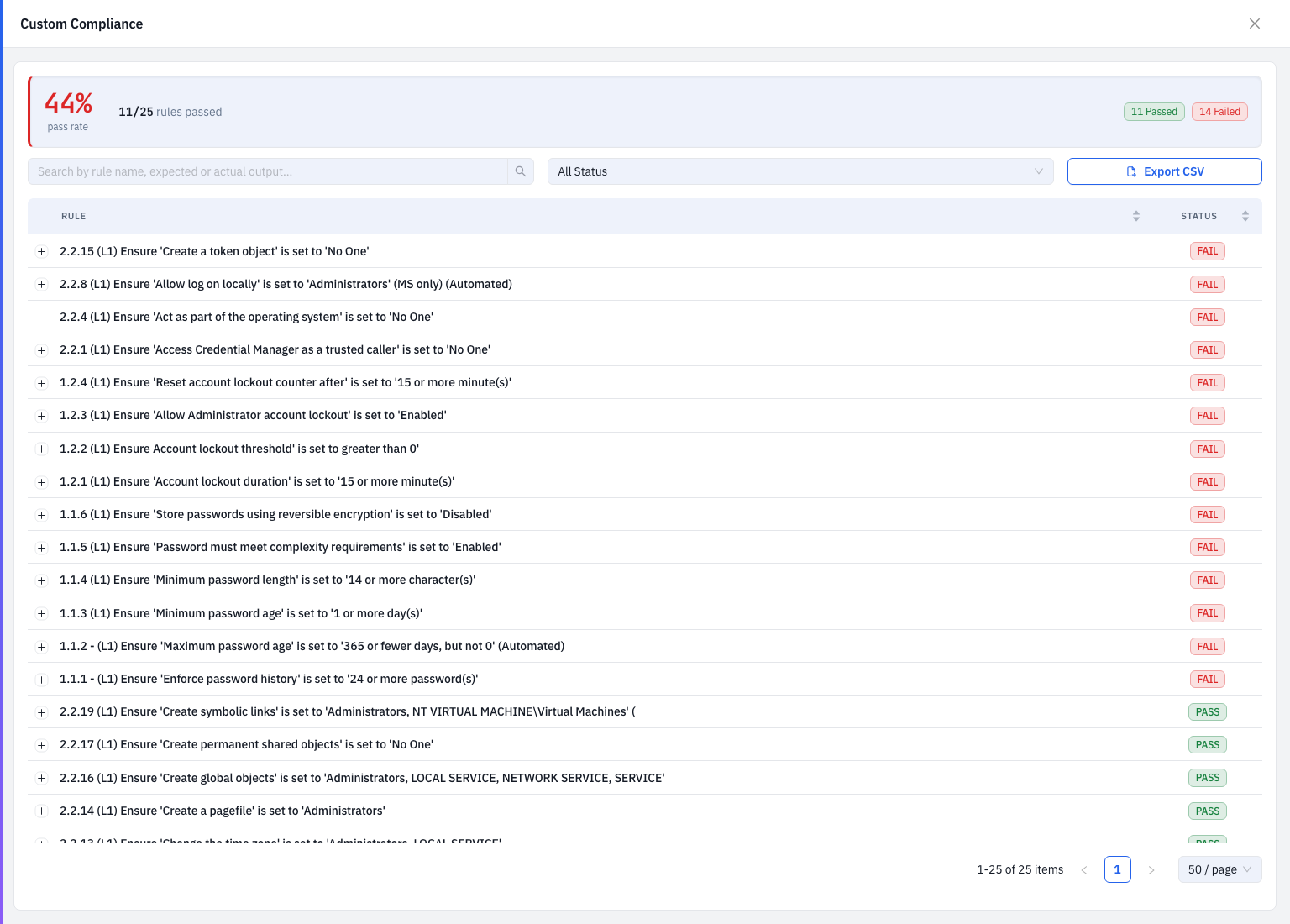
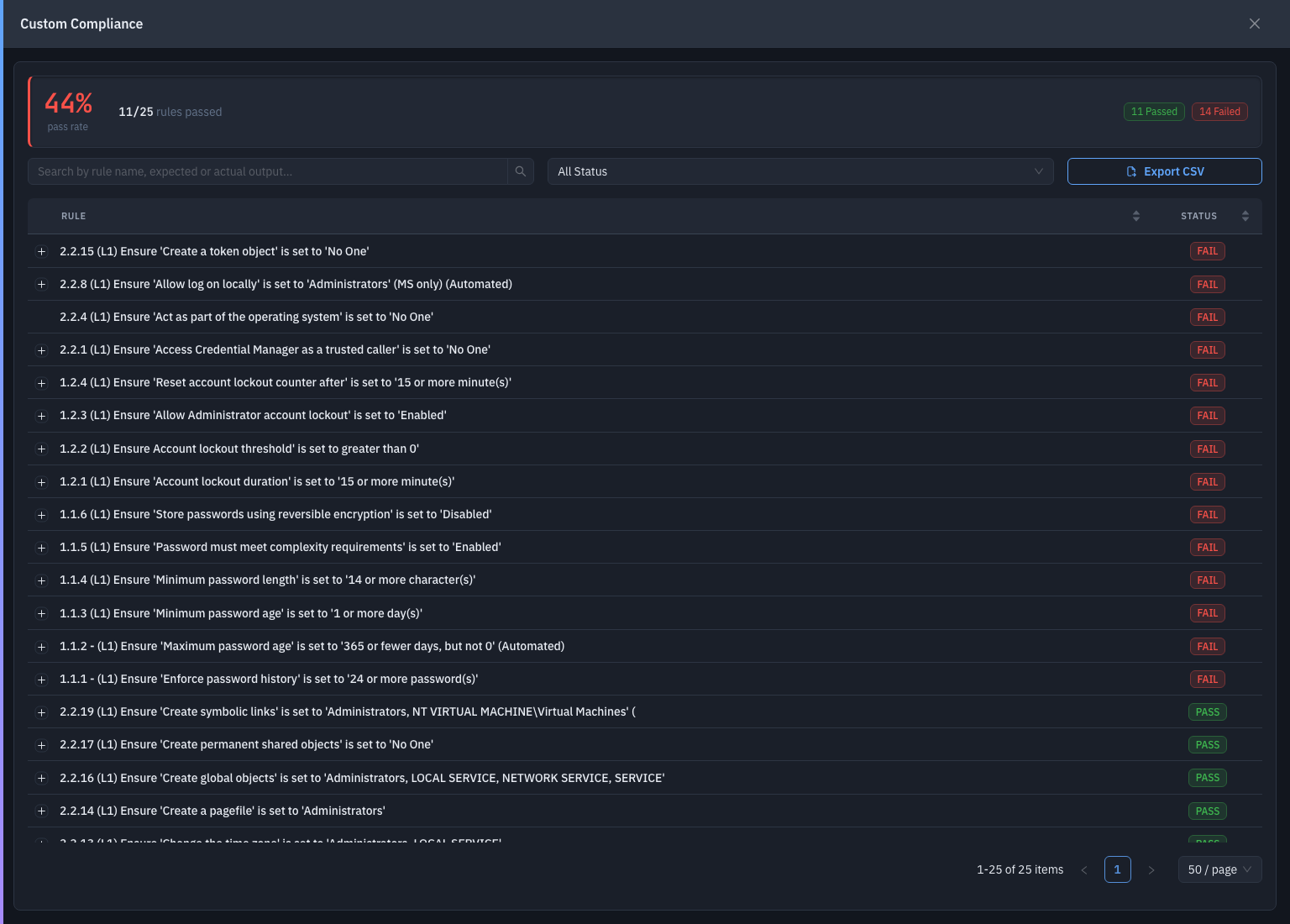
- A summary header: the pass rate (for example 44%), X / Y rules passed, and Passed / Failed chips.
- Search by rule name, expected, or actual output; a status filter (All / Passed / Failed / Invalid); and Export CSV.
- The rule table lists each Rule and its Status (a PASS / FAIL tag).
Expected vs actual output
Click a rule row to expand it and reveal its Expected Output (what the check required) beside the Actual Output (what it actually found on this endpoint) — so you can see exactly why a rule passed or failed.
Tips & troubleshooting
- The result bar is mostly red. Many rules failed — open the per-rule drawer to see which, and remediate on the endpoint.
- No frameworks listed. None have been assigned to this machine yet.
Related
- Summary — the screen these tabs live on.