Hardware
The Hardware tab is a deep inventory of the machine's physical components. A vertical list on the left picks the component group; the panel on the right shows its details.
How to get here
Open an endpoint (see Summary), then click the Hardware tab.
URL path: /inventory/endpoints/{id}?tab=hardware-inventory
Sub-sections
Pick a component group from the left. Most groups show a detail card of field/value pairs read straight from the machine; a few (Hard Disk, Memory) add a table. Groups with nothing to report are empty on that machine.
BIOS
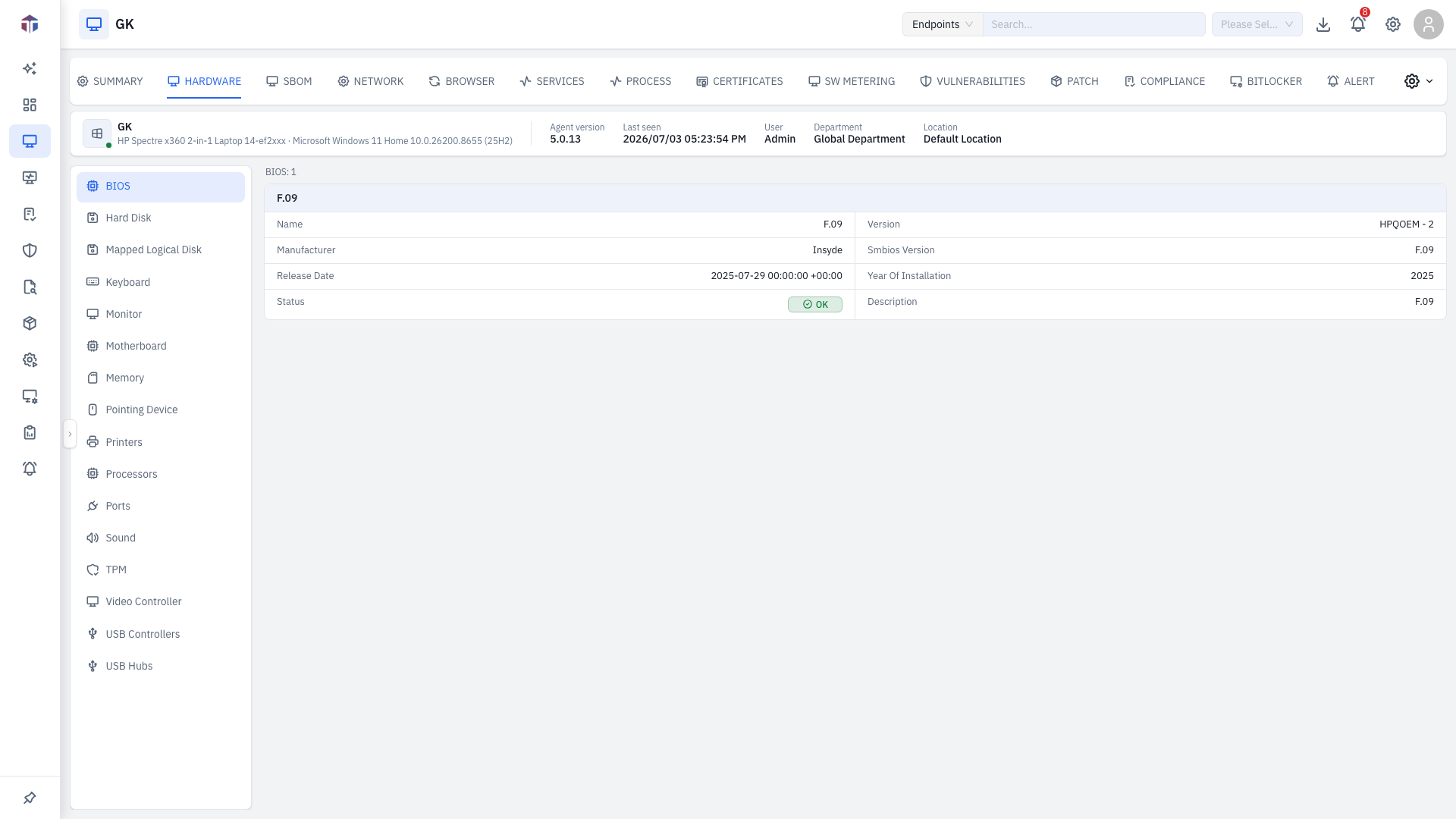
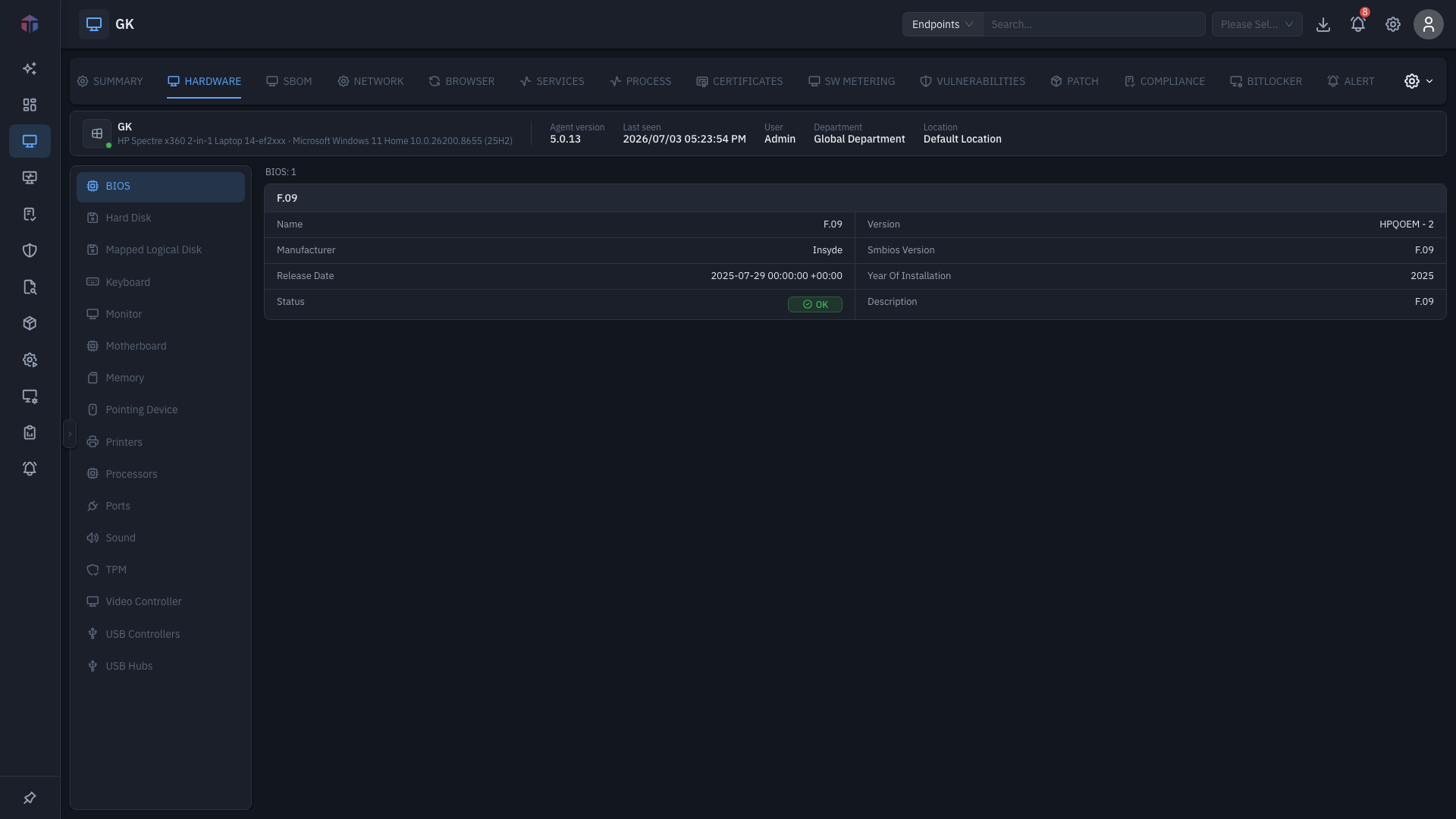
Firmware details — vendor, version, release date, serial number, and similar.
Memory
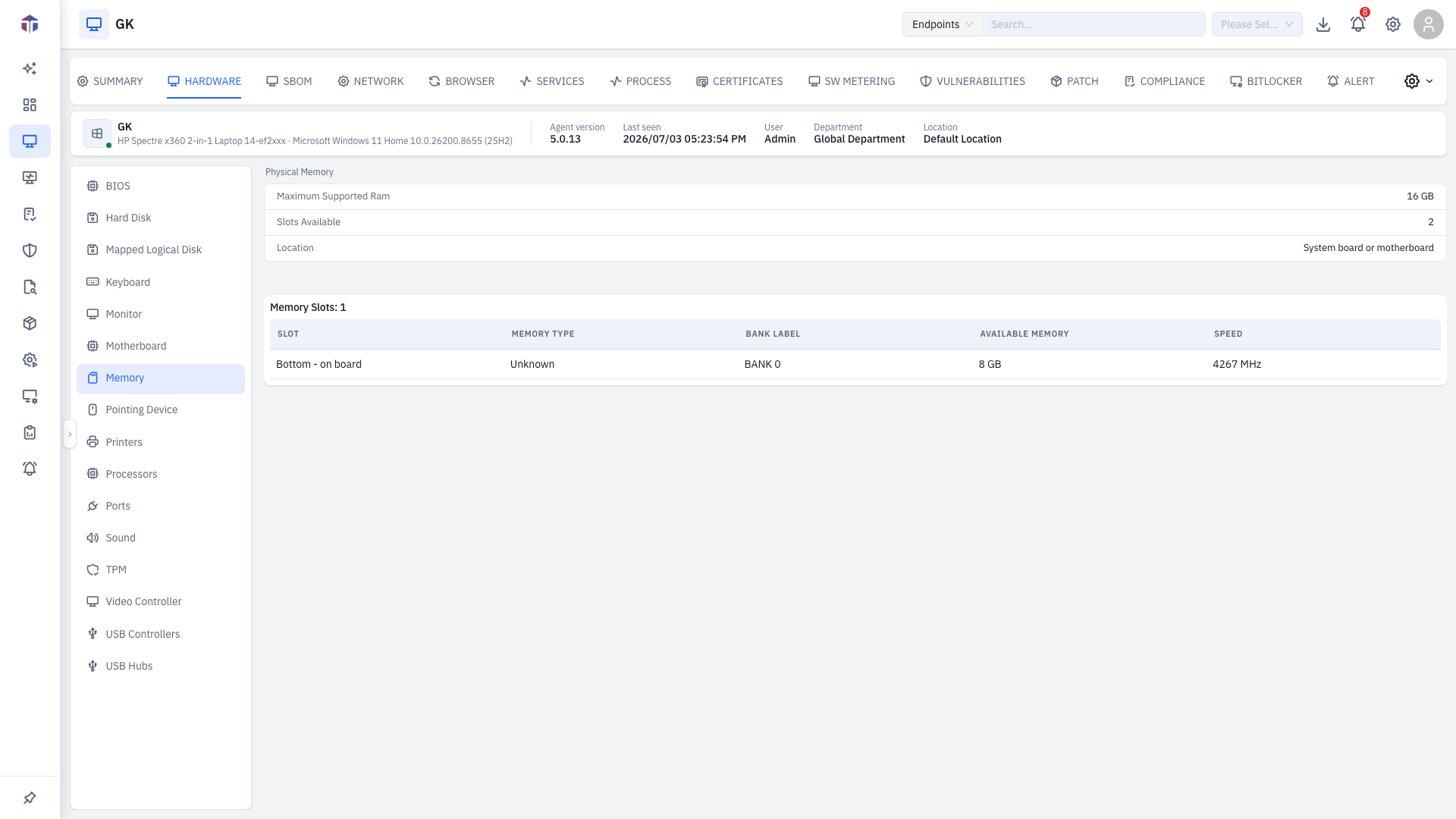
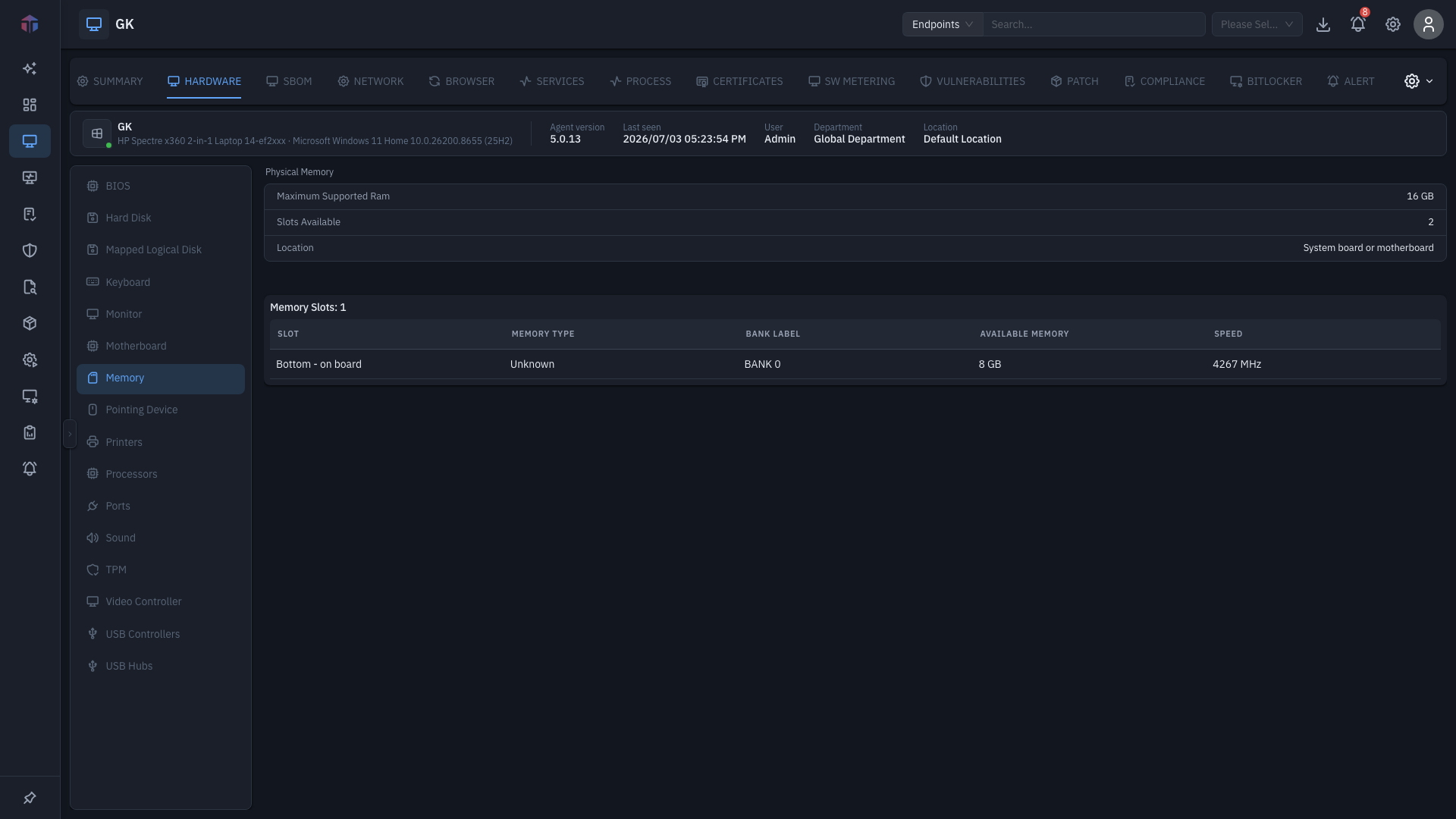
Physical memory totals plus a Memory Slots table (one row per installed module: capacity, speed, manufacturer, and so on).
Processors
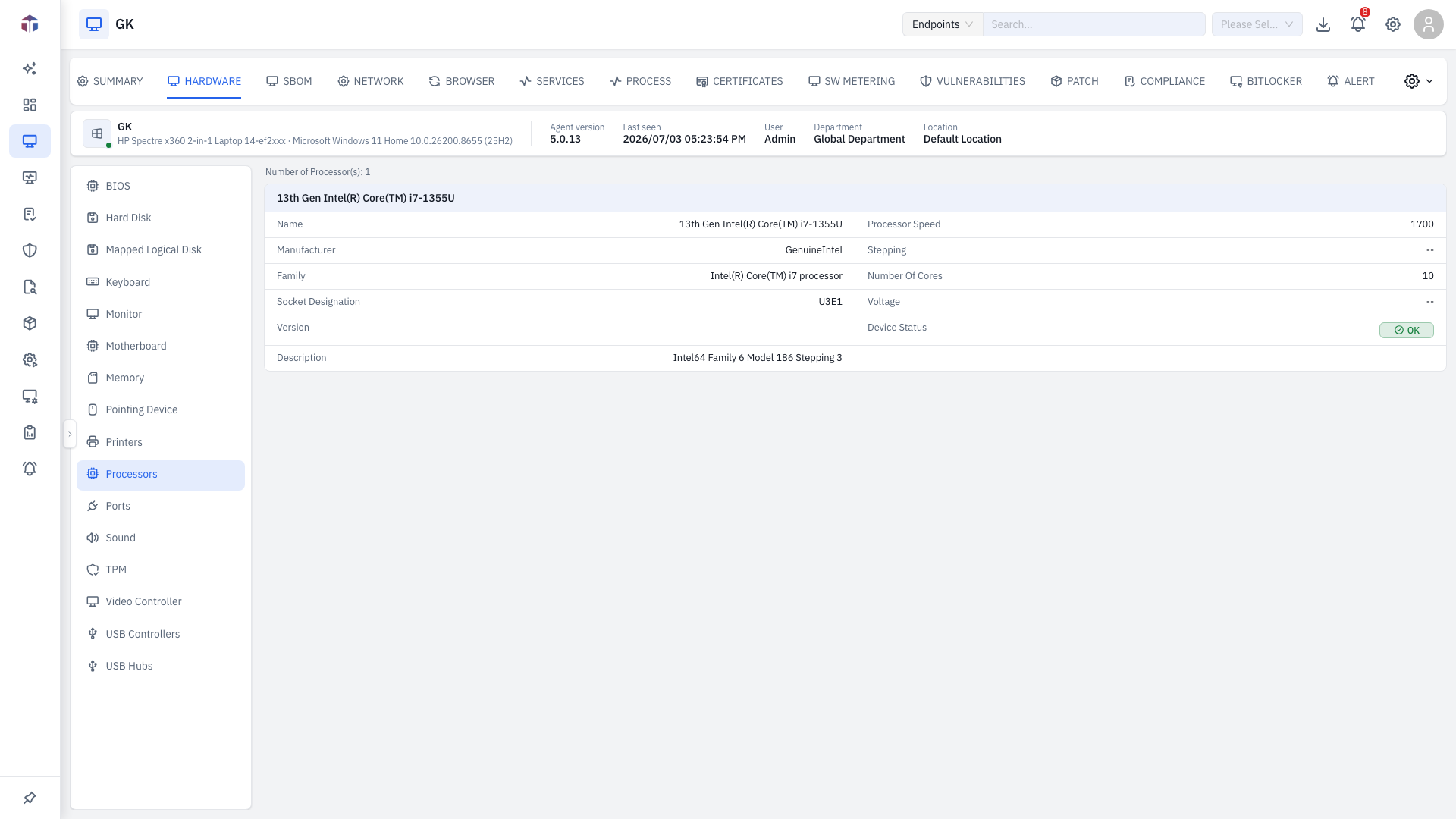
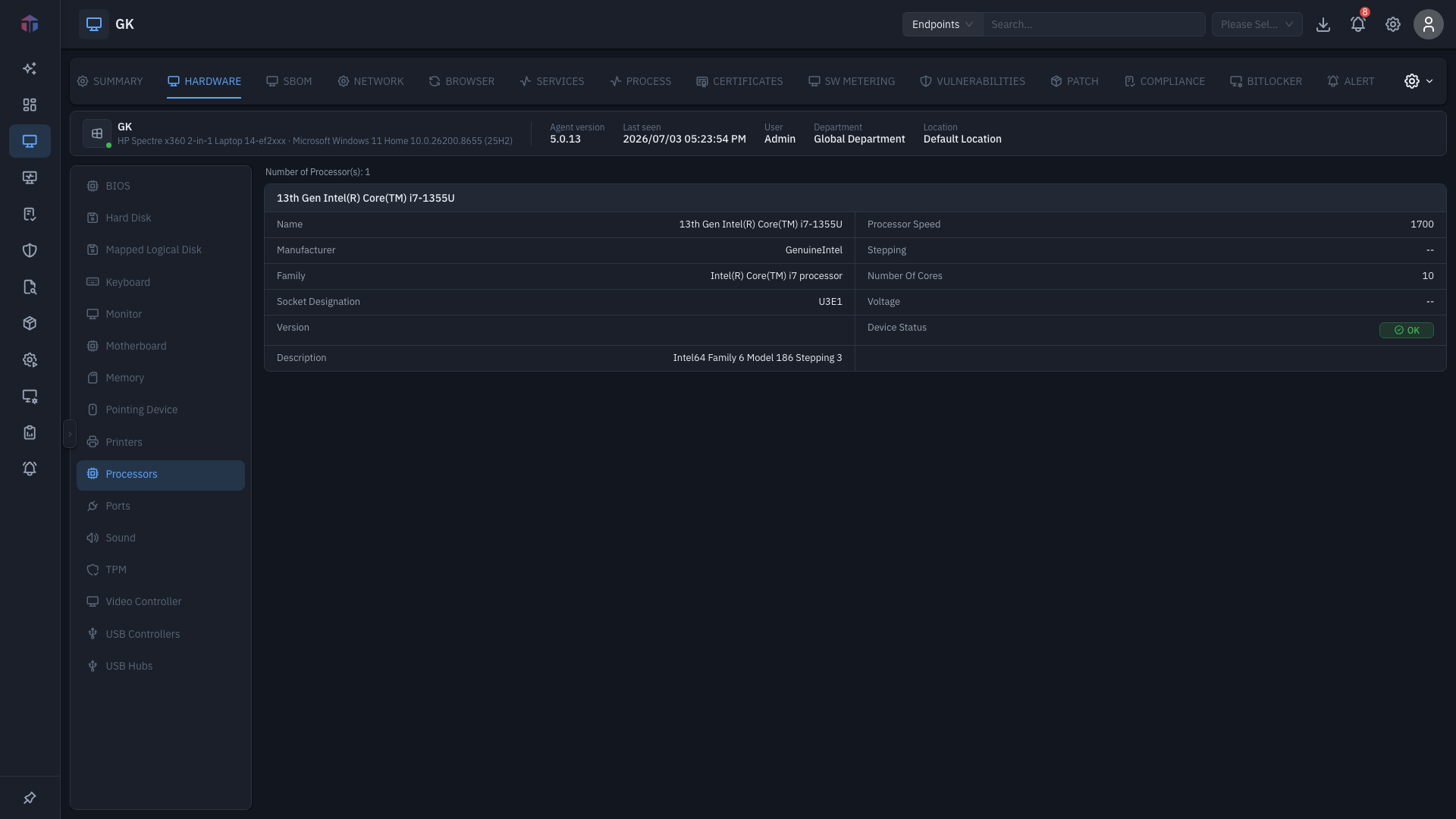
CPU make and model, core and thread counts, clock speed, and architecture.
Hard Disk
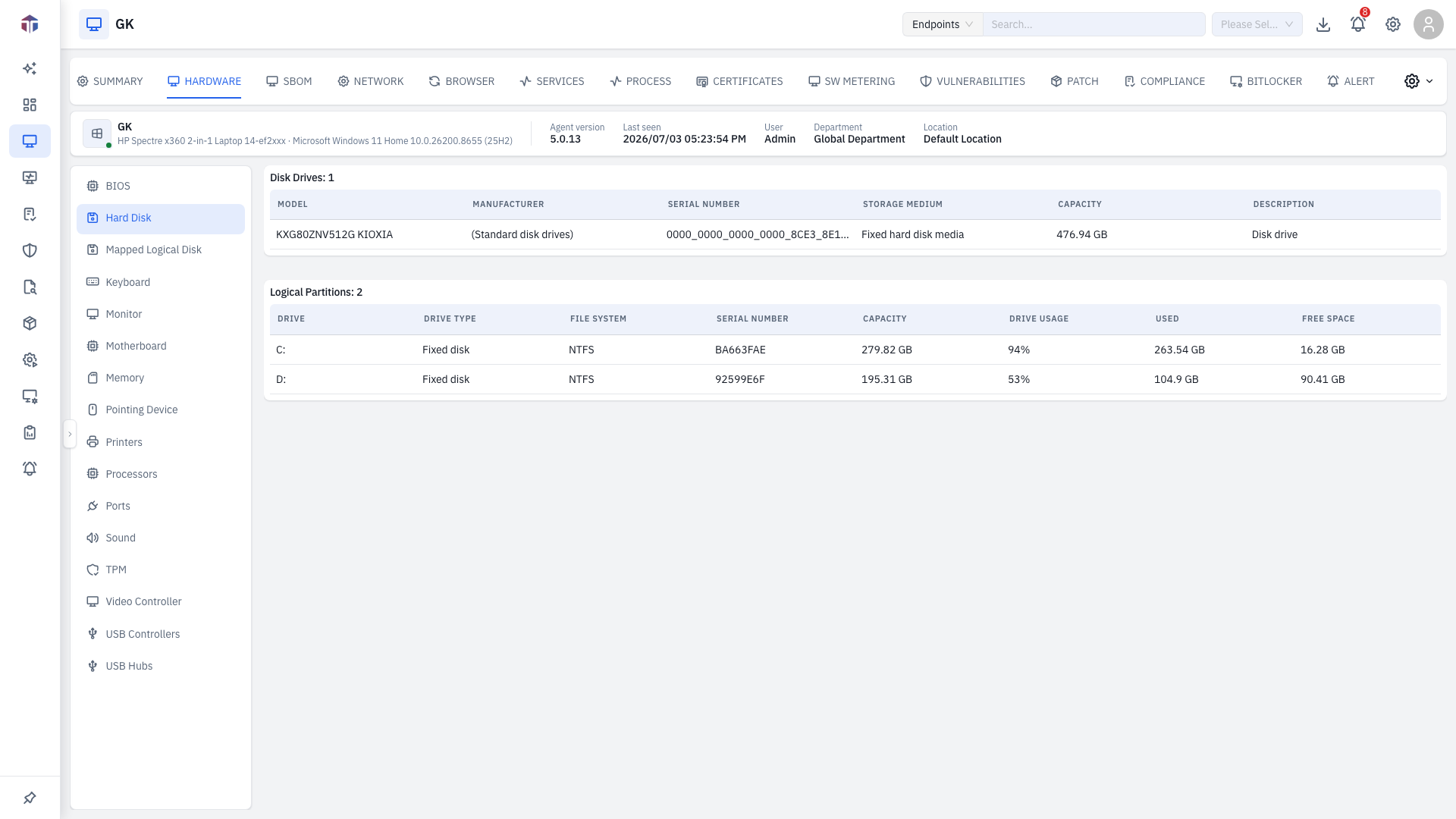
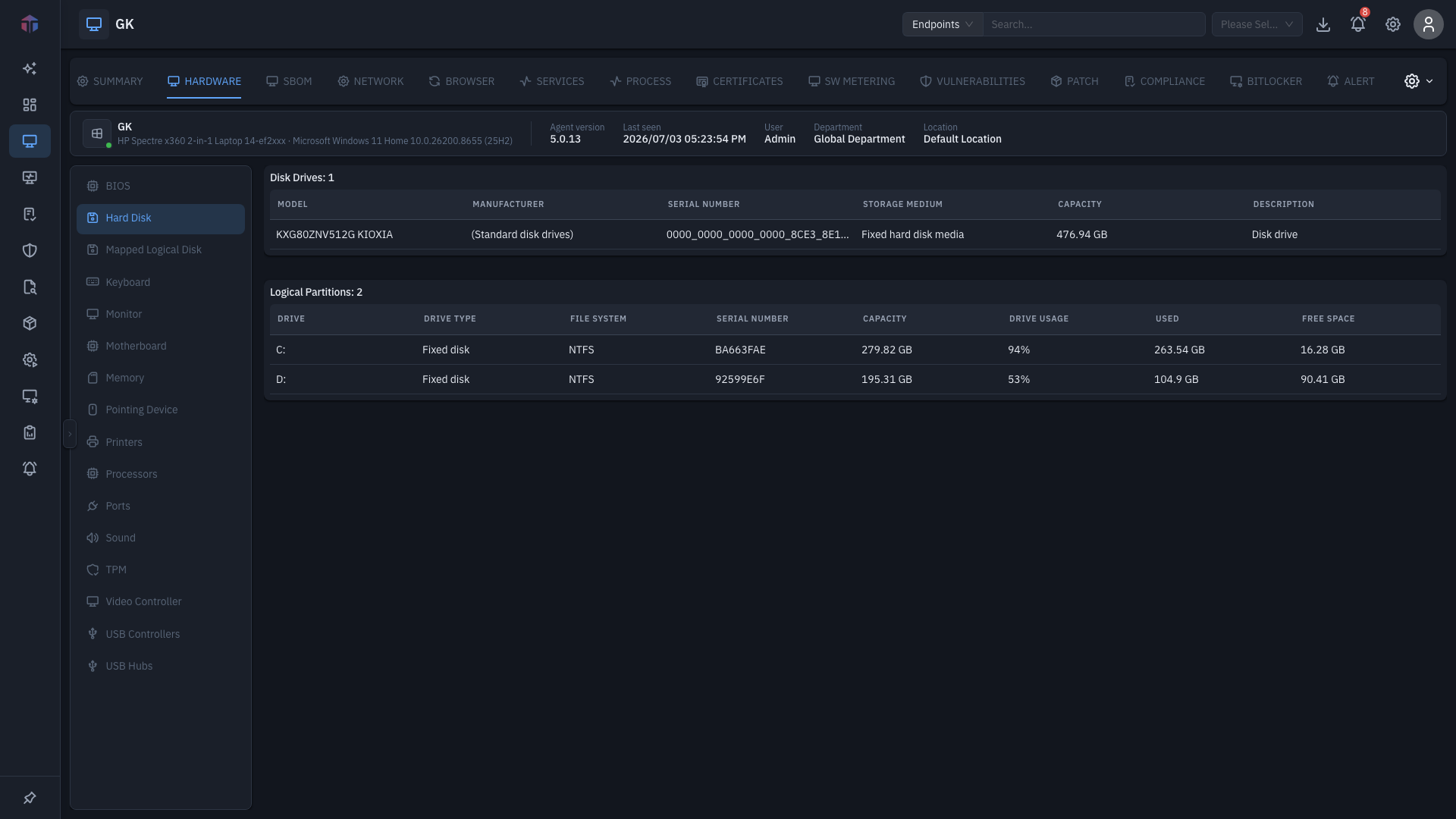
A Disk Drives table (physical disks) and a Logical Partitions table (volumes, sizes, and free space).
All sub-sections
The full list, in order:
| Sub-section | Shows |
|---|---|
| BIOS | Firmware vendor, version, release date, serial. |
| Hard Disk | Physical drives + logical partitions. |
| Mapped Logical Disk | Mapped/network drives. |
| Keyboard | Connected keyboard(s). |
| Monitor | Displays — model, resolution, connection. |
| Motherboard | Board manufacturer, model, serial. |
| Memory | Totals + per-slot modules. |
| Pointing Device | Mice / trackpads. |
| Printers | Installed printers. |
| Processors | CPU(s) — model, cores, speed. |
| Ports | Physical/system ports. |
| Sound | Audio devices. |
| TPM | Trusted Platform Module presence and version. |
| Video Controller | GPU(s) — model, memory, driver. |
| USB Controllers | USB host controllers. |
| USB Hubs | Connected USB hubs. |
Tips & troubleshooting
- A sub-section is empty. The machine has nothing of that type, or the agent hasn't reported it yet. Check Last Seen in the ribbon.
- Field names look raw. Labels come from the data the agent collects, so wording varies by operating system.
Related
- Summary — the screen these tabs live on.
- SBOM — the software counterpart to this hardware inventory.
- Agent Configuration — the Settings area that governs how often the agent collects hardware and other inventory.
Hardware inventory is only available per endpoint, here on this tab — there is no fleet-wide "all hosts hardware" page.