Network
The Network tab shows how the machine is connected and what it's listening on. It has two sub-sections on the left: Interfaces and Listening Ports.
How to get here
Open an endpoint (see Summary), then click the Network tab.
URL path: /inventory/endpoints/{id}?tab=network
Interfaces
The network adapters on the machine.
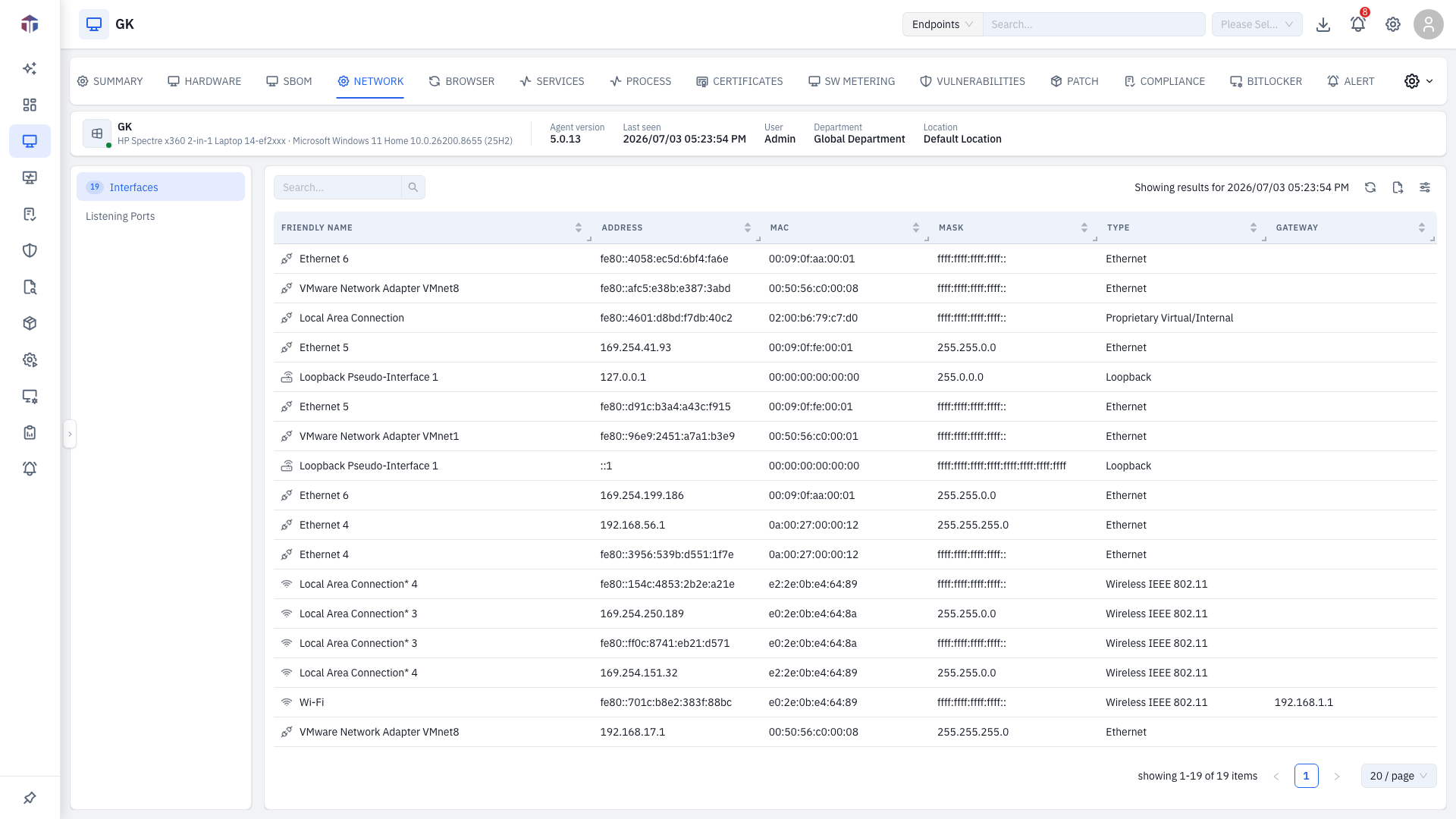
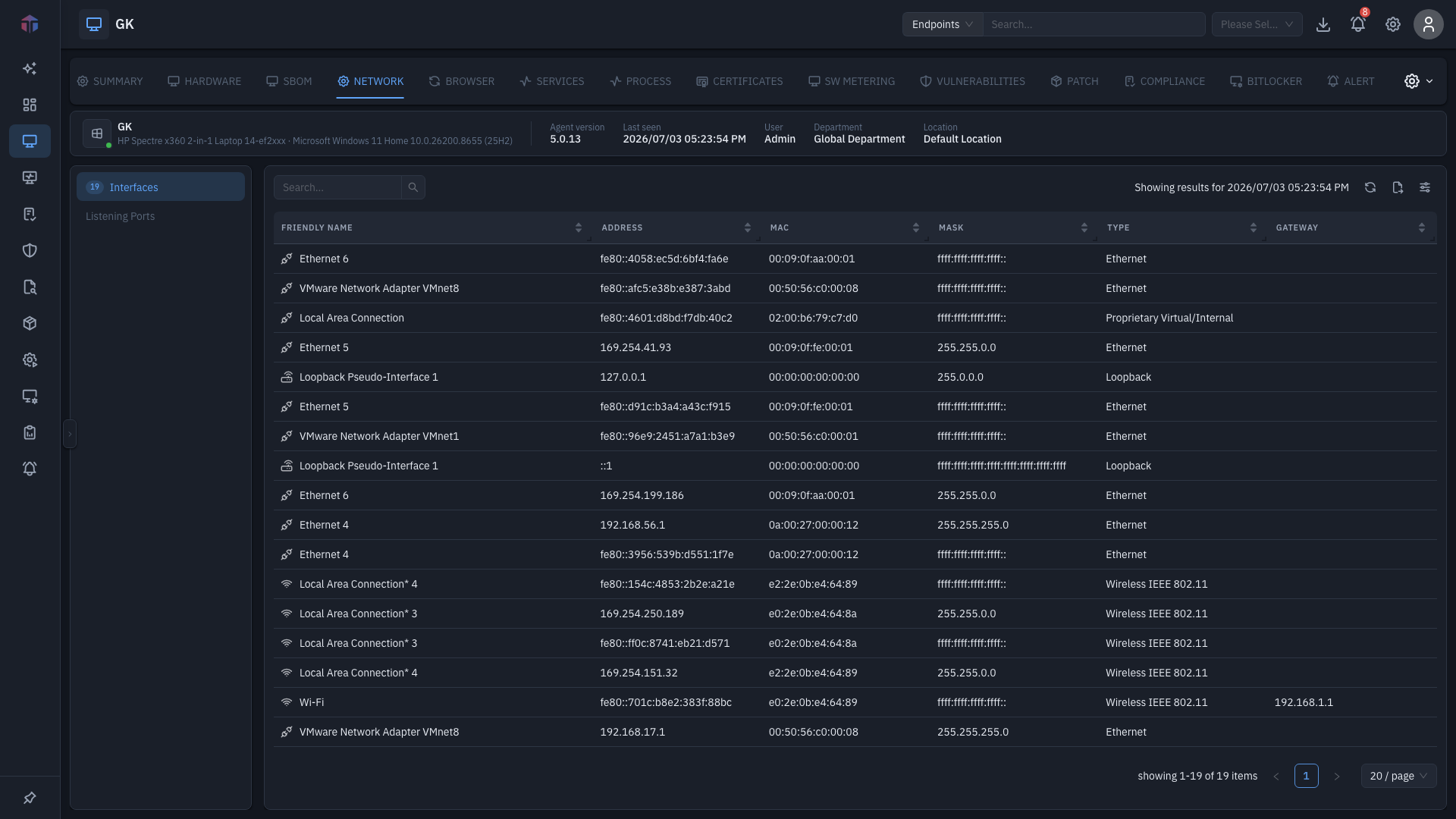
| Column | What it shows |
|---|---|
| Interface | The adapter's system name. |
| Address | Its IP address. |
| MAC | Hardware (MAC) address. |
| Mask | Subnet mask. |
| Type | Adapter type. |
| Friendly Name | A readable name, with a Wi-Fi / Ethernet / loopback icon. |
| Gateway | Default gateway. |
DHCP Enabled is available but hidden by default — turn it on with the column picker.
Listening Ports
The ports the machine is accepting connections on.
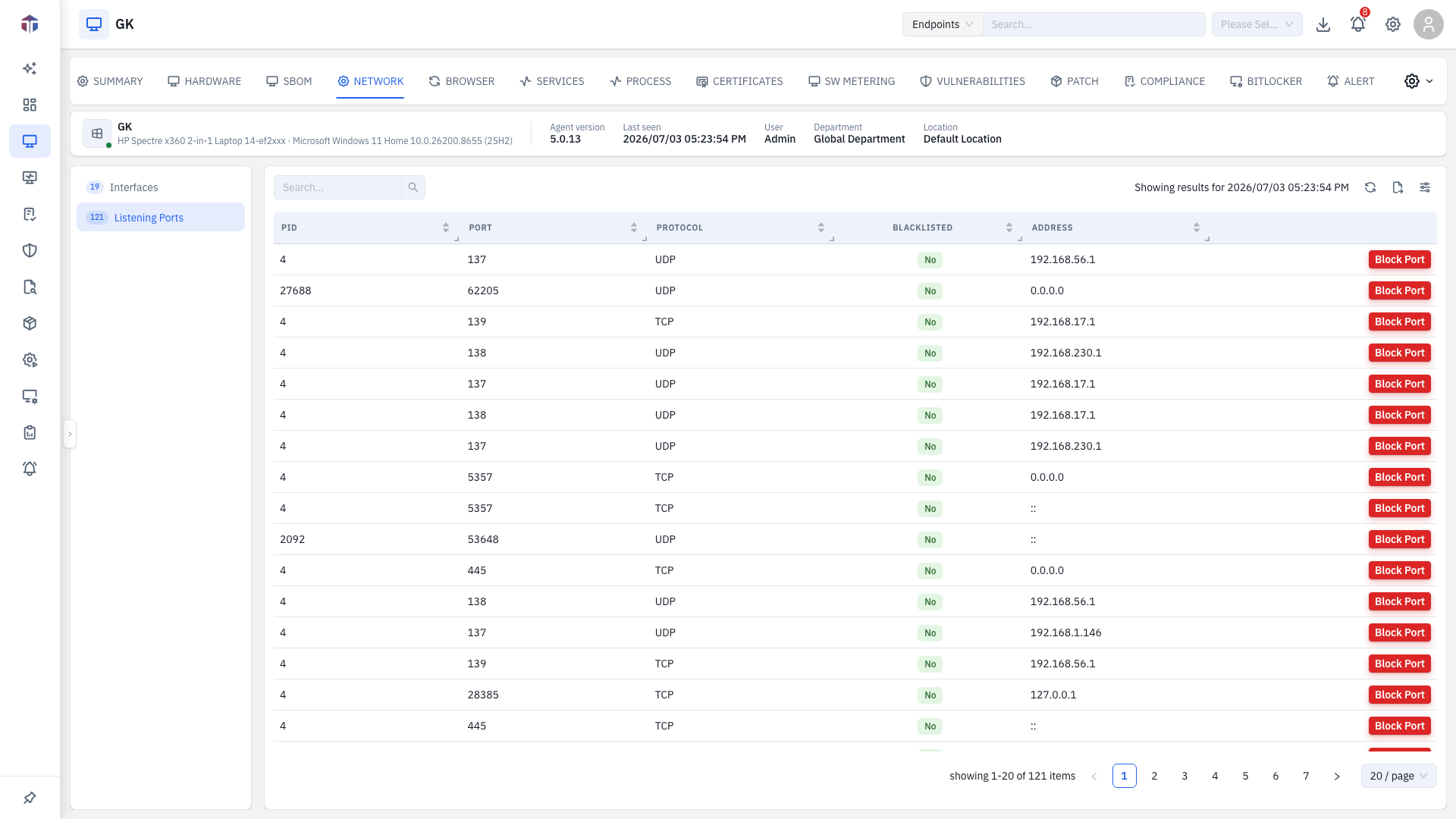
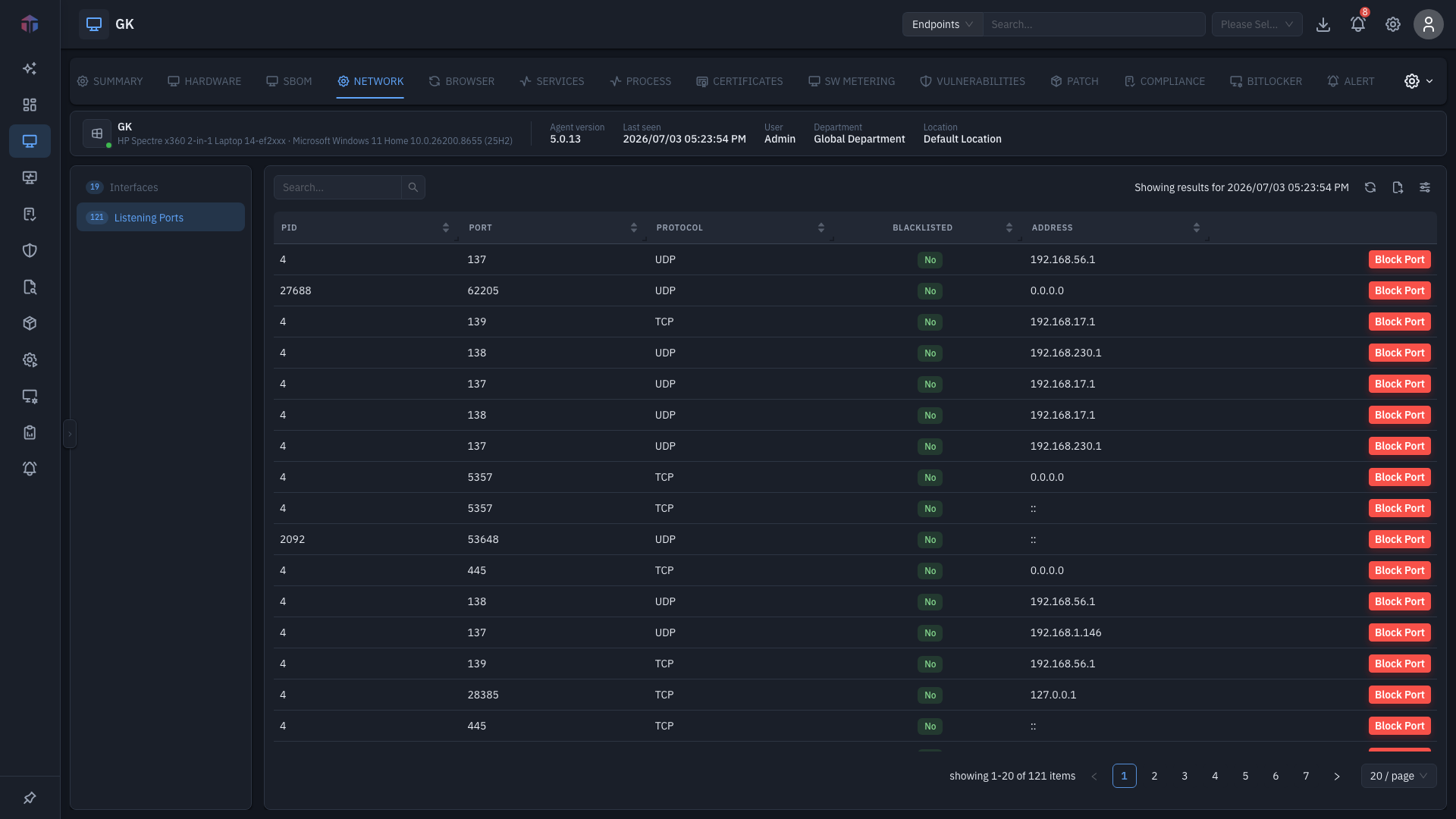
| Column | What it shows |
|---|---|
| PID | Process holding the port. |
| Port | The port number. |
| Protocol | TCP / UDP. |
| Blacklisted | Whether the port is on your blacklist. |
| Address | The bound address. |
Each row has a Block Port action (disabled while the endpoint is offline).
Tips & troubleshooting
- Block Port is greyed out. The machine is offline — port actions need it online.
- A port shows Blacklisted = Yes. It matches a port on your blacklist; review it under Settings → System Settings → Blacklisted Ports.
Related
- Process — see which process owns a port (Remote Connections).
- Summary — the screen these tabs live on.
- Blacklisted Ports — the Settings list that drives the Blacklisted flag and Block Port remediation here.
No standalone all-hosts view
Network details (interfaces and listening ports) are shown per endpoint on this tab — there is no fleet-wide "all hosts network" page.