Patch
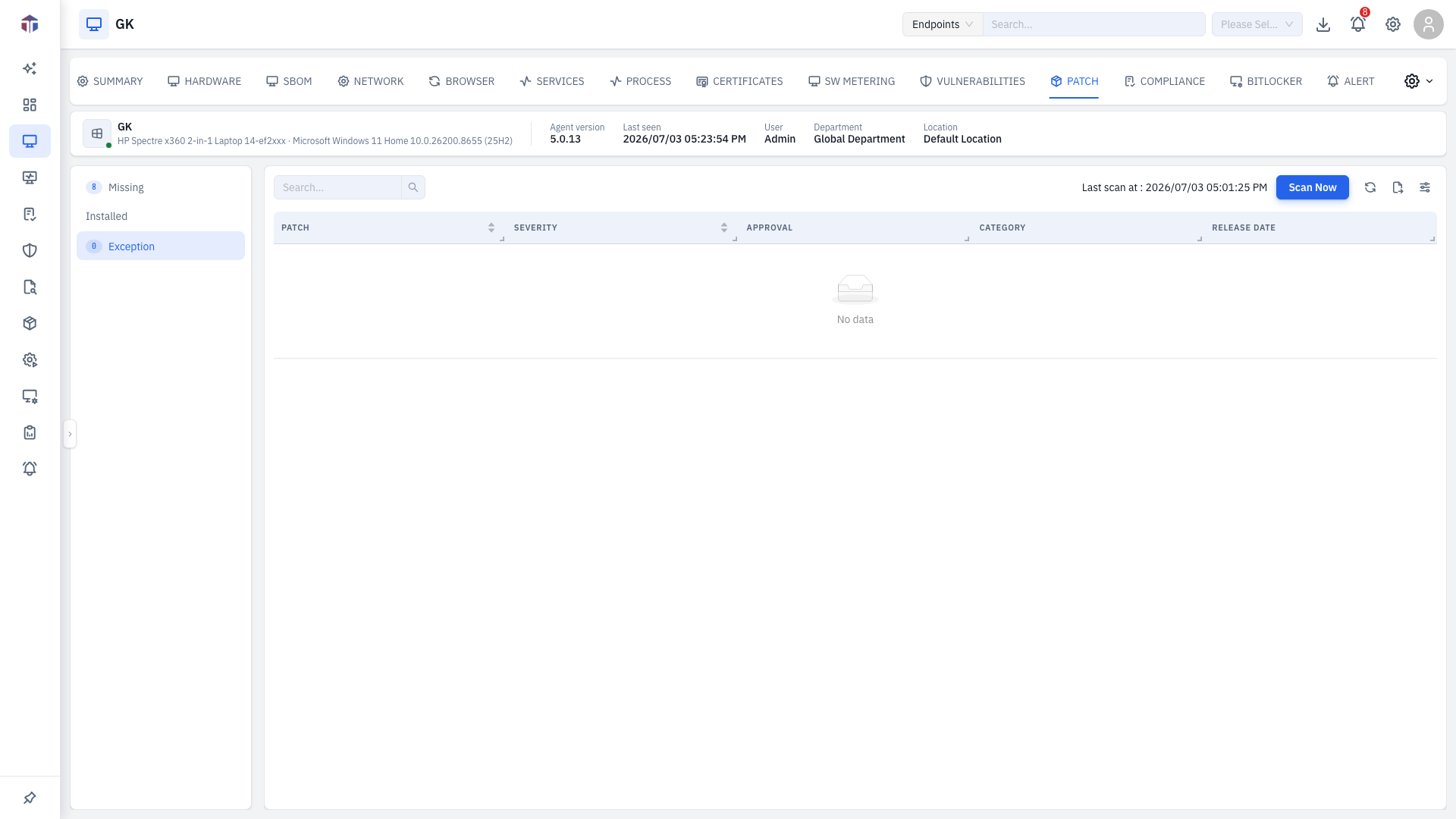
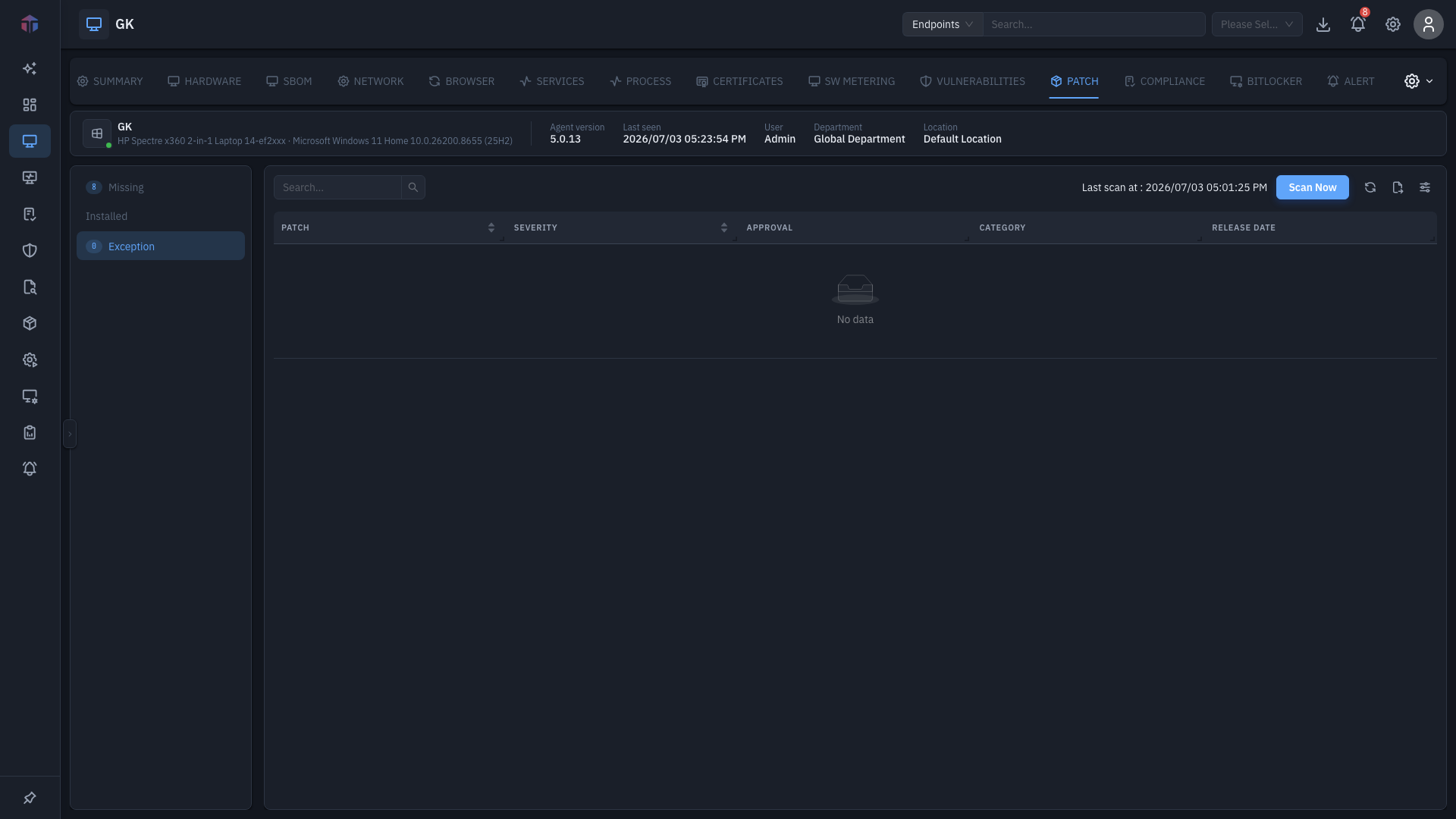
The Patch tab shows the patch state of the machine and lets you deploy or roll back patches. It has three sub-sections: Missing, Installed, and Exception.
How to get here
Open an endpoint (see Summary), then click the Patch tab.
URL path: /inventory/endpoints/{id}?tab=patch
Columns
All three sub-sections share these columns:
| Column | What it shows |
|---|---|
| ID | The patch ID (links to its detail). |
| Title | The patch title (links out). |
| Severity | Patch severity. |
| Platform | OS it applies to. |
| Release Date | When it was released. |
| Rollback | Whether it can be rolled back. |
| Category | Patch category. |
| KBID | Knowledge-base ID (links to the vendor article). |
Hidden by default: UUID, Patch Approval Status, Patch Test Status, and (on Exception) Exception Reason.
Missing
Patches not yet installed.
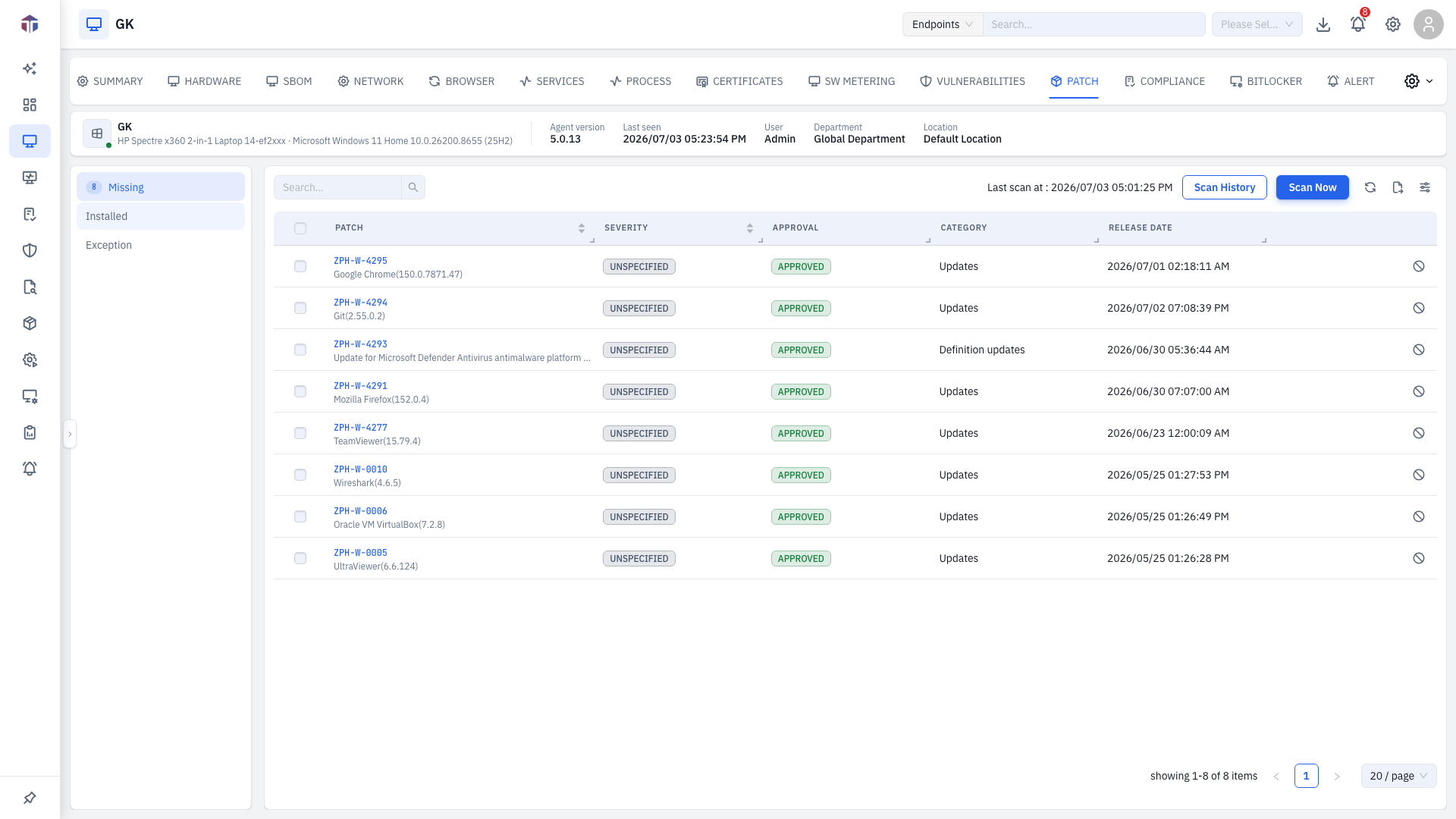
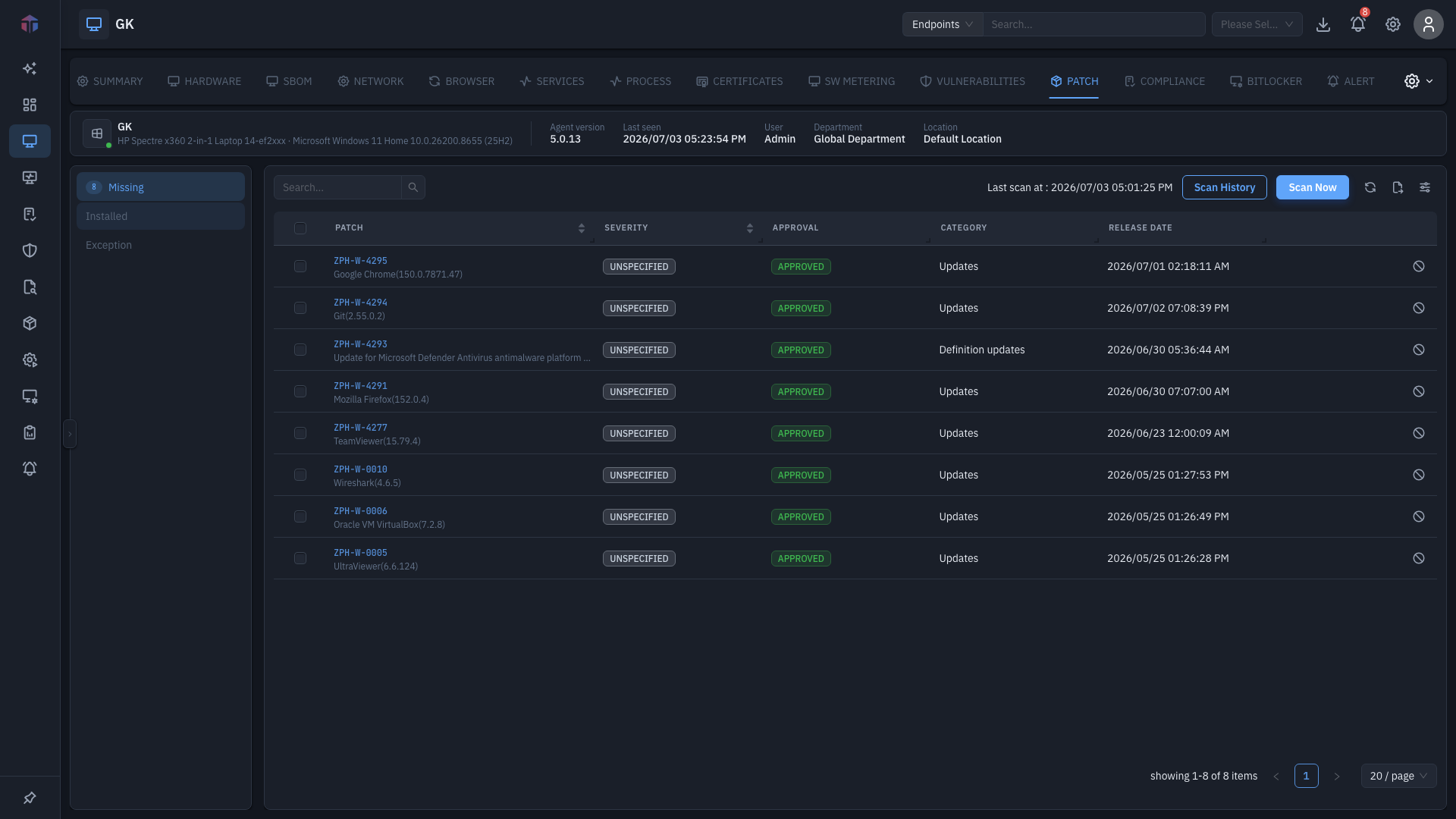
Select rows and click Install to deploy them. Add Exceptions excludes a patch from this machine.
Installed
Patches already applied.
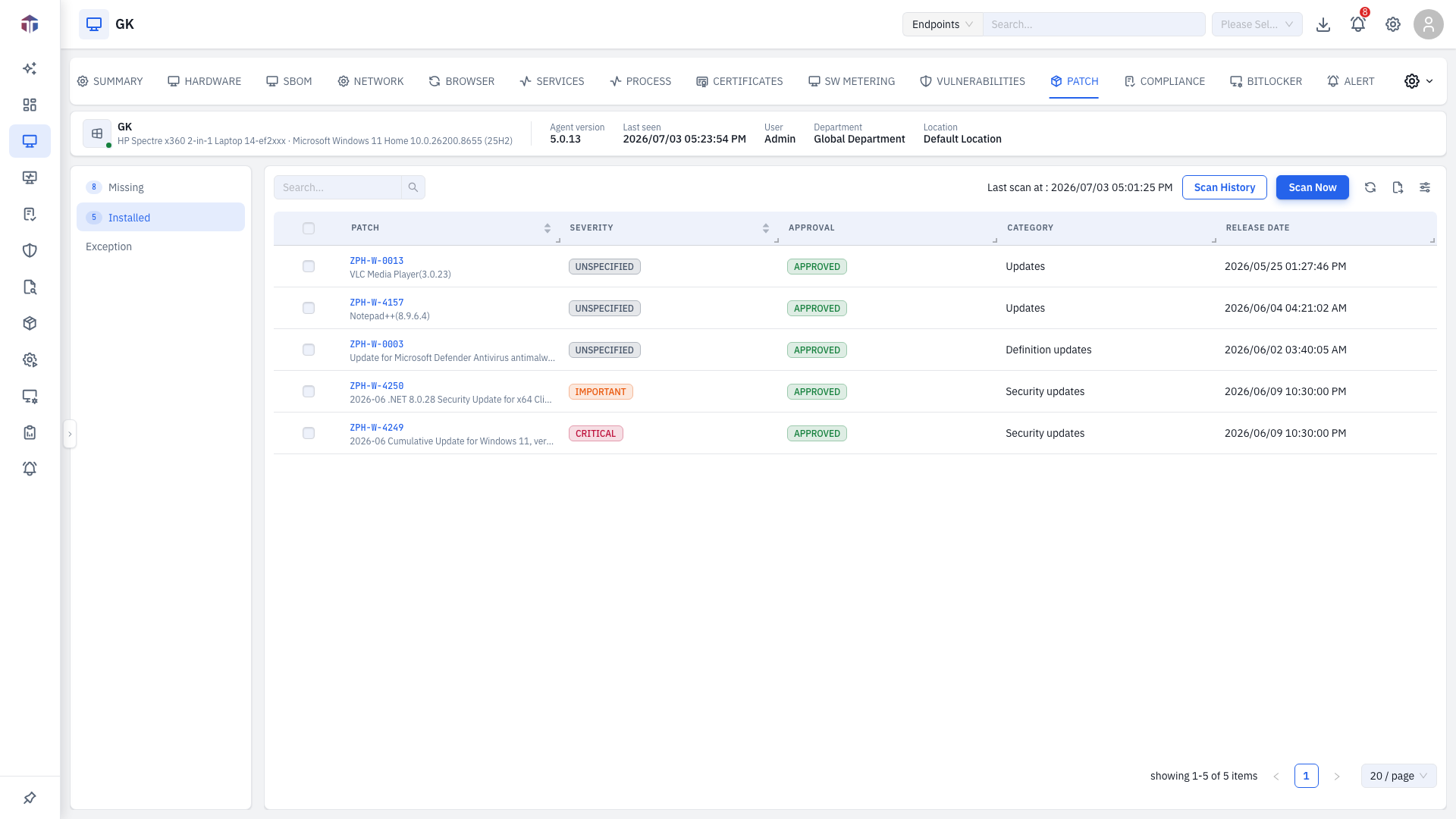
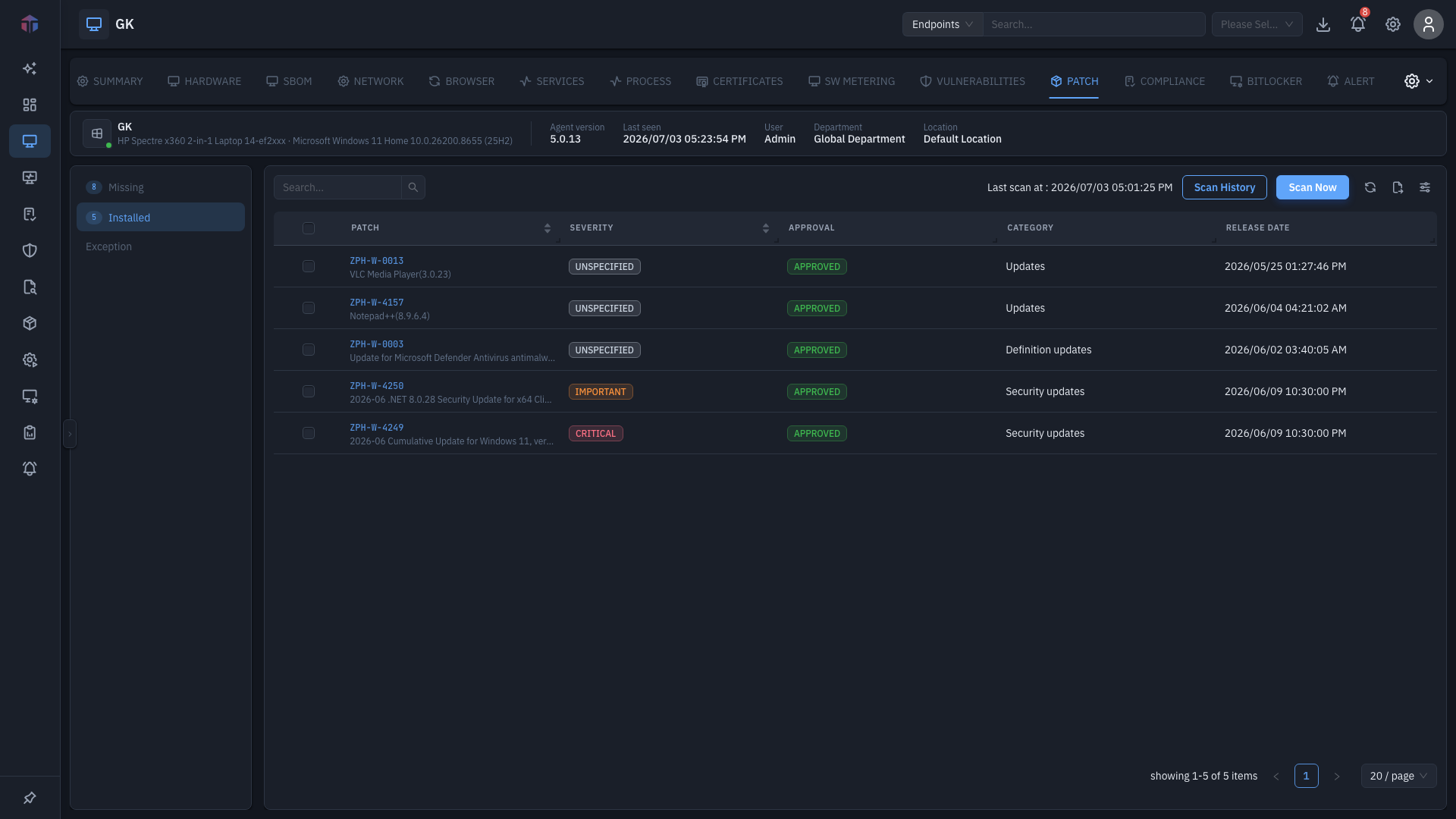
Select rows and click Rollback to remove them (where the patch supports it).
Exception
Patches you've excluded, with the Exception Reason.
Toolbar
Across all three: the Last Scan time, Scan Now (re-scan this machine), and Scan History (a drawer of past scans).
Tips & troubleshooting
- A patch keeps showing under Missing. Deploy it with Install, or exclude it with Add Exceptions if it shouldn't apply here.
- Counts look stale. Click Scan Now, then check Scan History for the result.
Install and Rollback act on this live machine and may trigger a reboot. Rollback works only where the Rollback column says it's supported, and it removes an applied patch. Add Exceptions stops a patch from ever applying here until you remove the exception — use it deliberately, not to clear a stuck row.
Related
- Patches — the fleet-wide Patch module, the same patches across every endpoint.
- Vulnerabilities — what these patches remediate.
- Summary — the screen these tabs live on.