Resolvers
The Resolvers tab shows who resolves this endpoint's SLA items (its open vulnerabilities and missing patches) and why. It lists the endpoint's resolver list (a primary and up to three backups), checks whether each user can actually take the work, and lets you edit or clear the list.
How resolvers are picked
Each endpoint can have a resolver list: a Primary and up to 3 Backups, in order. When an SLA item needs an owner, it goes to the first user in the list who can sign in, has Manage permission on the item's module (Vulnerability or Patch), and can see the endpoint. If nobody in the list qualifies, or there's no list, the item goes to the default resolver set in the SLA Policy. With no default either, the item is Unassigned.
A list can be set by hand on this tab, in bulk from the Endpoints list, or automatically by an Endpoint Assignment rule.
Anyone who can open the endpoint sees this tab. Edit… needs Update Inventory permission. The Vulnerabilities column and tile need View Vulnerability permission and an edition with vulnerability data (ZiroPatchPlus or higher); the Patches ones need View Patch.
How to get here
You need View Inventory permission.
- Open Inventory → Endpoints (see Endpoints).
- Click an endpoint's name.
- Click the Resolvers tab. On a narrow screen the last tabs move into the ··· menu at the end of the tab row; open it to find Resolvers.
Navigate to: Inventory → Endpoints → (an endpoint) → Resolvers
URL path: /inventory/endpoints/{id}?tab=resolvers
The Resolvers tab
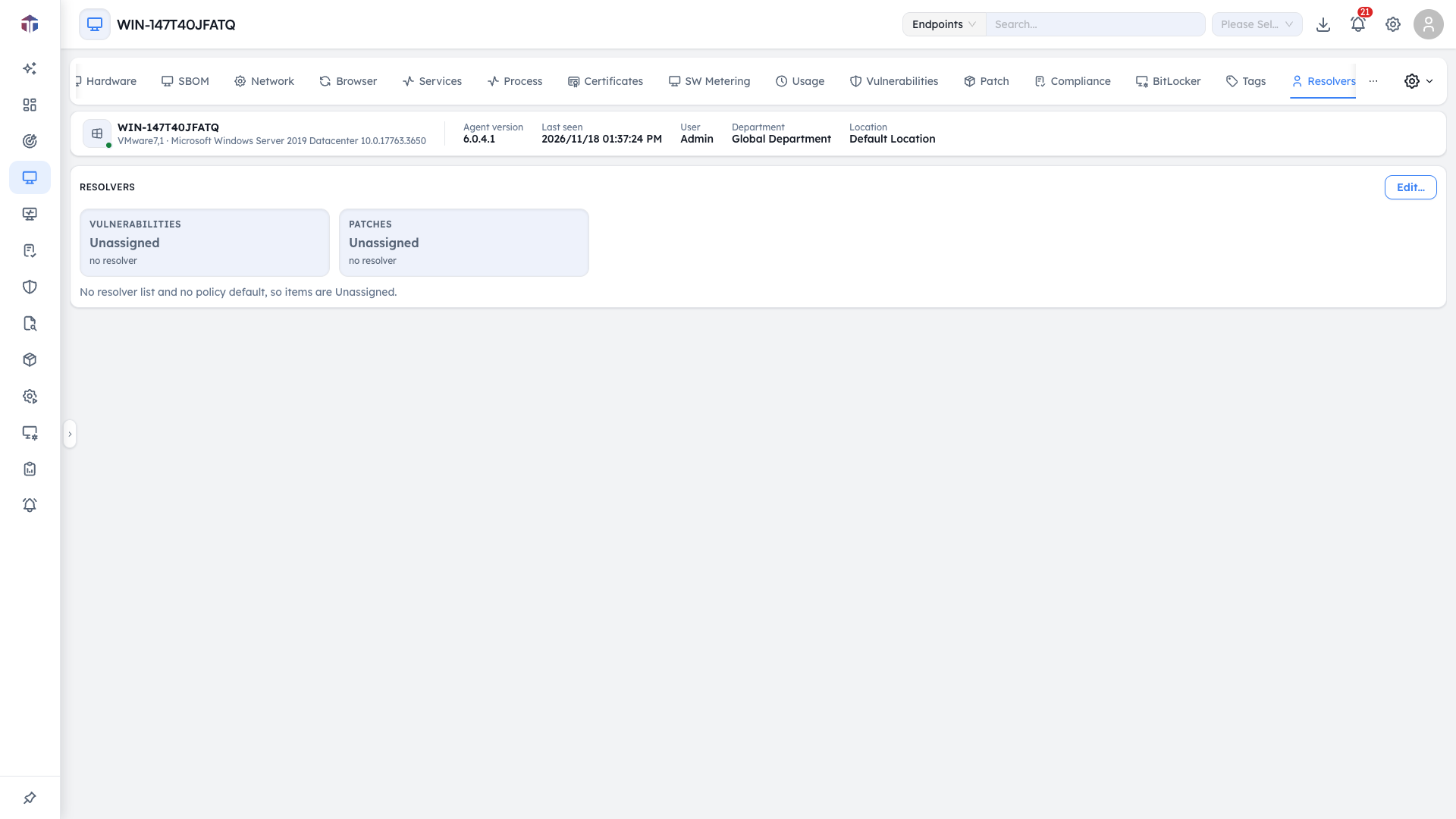
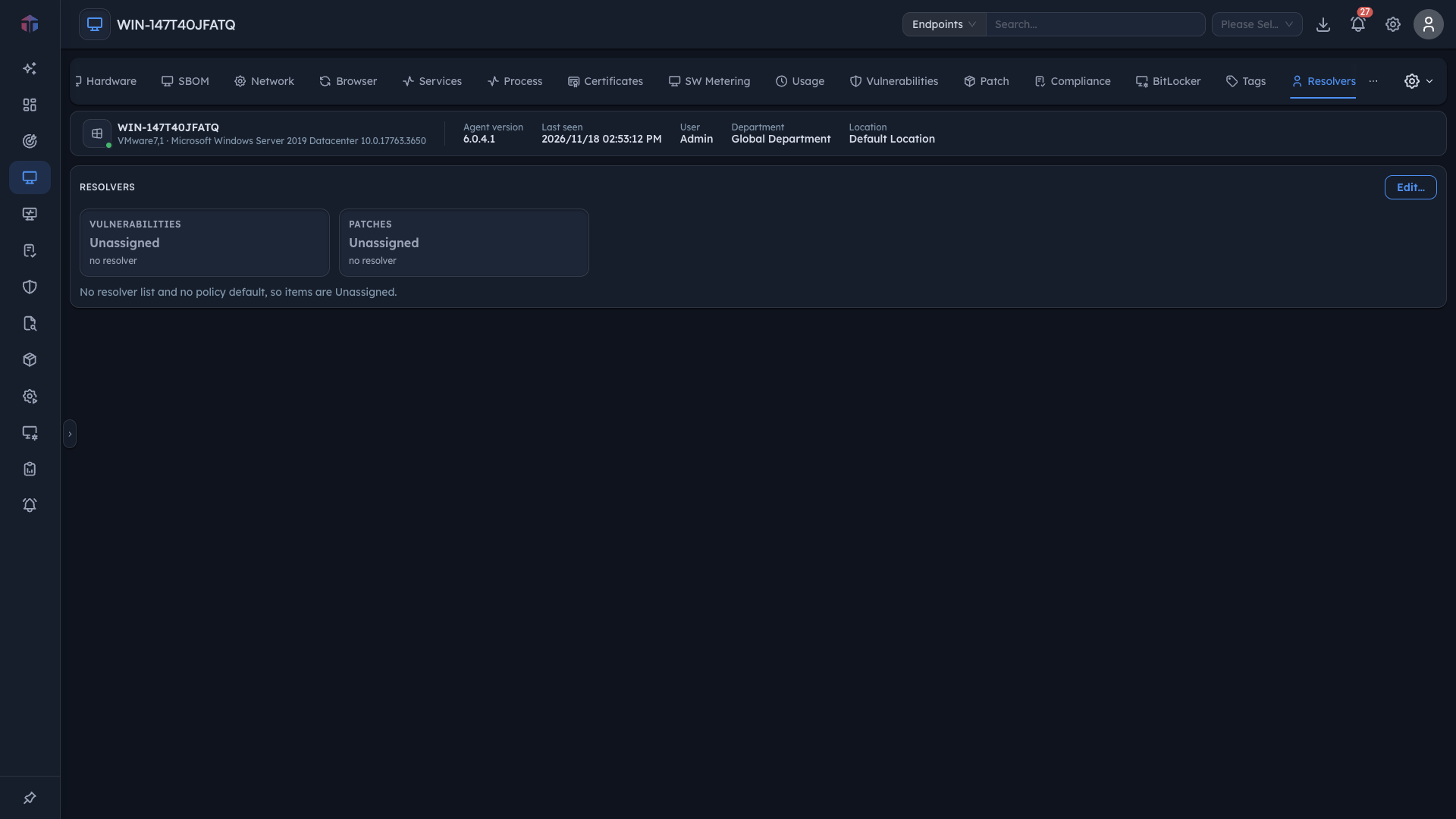
The tab is one Resolvers card.
Who set the list
At the top right, next to Edit…, a line says who set the list and when:
| Line | Meaning |
|---|---|
| Set by rule "rule name" | An Endpoint Assignment rule set the list. |
| Set by an admin | Someone set the list by hand. |
| Cleared by an admin | Someone cleared the list by hand. |
| Kept after its rule stopped applying | A rule set the list, then stopped matching this endpoint. The list stays as it was. |
Who resolves each kind now
A tile per kind of SLA item, Vulnerabilities and Patches, shows who gets that kind of item right now:
- The user's name, or Unassigned when nobody does.
- How they got it: primary, backup, or policy default (or no resolver).
You only see the tiles your role can view (see the permissions note above). If you can view neither, the card reads Your role cannot view SLA vulnerabilities or patches, so who resolves them here is hidden.
When the endpoint has no list, the card says so: No resolver list on this endpoint., or No resolver list and no policy default, so items are Unassigned.
The positions table
The table lists each position in order, and checks every user against each kind:
| Column | What it shows |
|---|---|
| Position | Primary, Backup 1, Backup 2, Backup 3, then Policy default (the SLA Policy's default resolver, when there is one). |
| User | The user's name. |
| Vulnerabilities / Patches | Whether this user can take that kind of item on this endpoint (see below). |
Each check shows one status. Hover a status for the reason:
| Status | Meaning |
|---|---|
| Eligible | The user can take this kind of item. |
| Deleted | The user was deleted. |
| Cannot log in | The user is inactive or not allowed to sign in. |
| Not in scope | The user's department doesn't include this endpoint. Users with no department never qualify. |
| No manage | The user's role has no Manage permission on Vulnerability (or Patch). |
An item skips any user who isn't Eligible and moves on to the next position.
How do I…
Edit the resolver list?
-
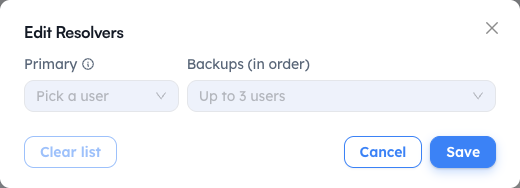
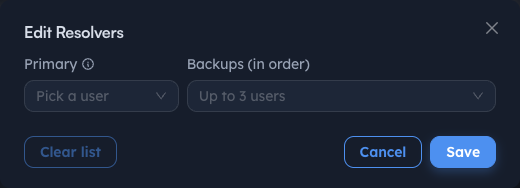
On the Resolvers card, click Edit…. The Edit Resolvers dialog opens.
-
Fill in the fields:
Field Required Notes Primary Yes, if you pick any backups The first user items go to. Hover the info icon for how items are routed. Backups (in order) No Up to 3 users, tried in the order you pick them. The primary can't also be a backup. -
Click Save. A Resolvers saved. message appears and the card updates.
To change the order of the backups, remove a user and pick them again: new picks go to the end.
The dialog stops you from saving a list that can't work: backups with no primary (Pick the primary resolver), more than three backups (At most 3 backups), or the same user twice (A user can be in the list once). Saving a list that hasn't changed just closes the dialog.
Clear the resolver list?
- Click Edit….
- Click Clear list (bottom left). It's available only when the endpoint has a list.
With no list, items go to the SLA Policy's default resolver, or stay Unassigned.
If an Endpoint Assignment rule set the list (Set by rule …), saving or clearing asks you to confirm first: Change a list a rule sets? Rules run again right after a manual change, so the rule puts its list back while it still matches this endpoint. To keep a different list, change the rule or switch it off.
Select endpoints in the Endpoints list and click Resolvers (n) to set or clear the same list on all of them.
Tips & troubleshooting
- The tile says Unassigned but the list has users. Nobody in the list is Eligible for that kind, and there's no policy default. Check the statuses in the table: a user may lack Manage permission, be outside the endpoint's department, or be unable to sign in.
- My change was undone. A rule set the list and ran again. Change or switch off the rule instead.
- I don't see Edit…. It needs Update Inventory permission.
- A red error with Retry appears. The tab couldn't read the resolvers. What it shows may be out of date, and Edit… is off until Retry succeeds.
Related
- SLA Tracking — the SLA items these resolvers own, and how they're doing.
- SLA Policy — sets the default resolver and the SLA targets.
- Endpoint Assignment — rules that set resolver lists automatically.
- Tags — the endpoint's tags and criticality.
- Summary — the endpoint screen this tab lives on.