SBOM
The SBOM tab is the machine's software bill of materials — every package installed on it, plus a summary of software and the vulnerabilities it carries.
How to get here
Open an endpoint (see Summary), then click the SBOM tab.
URL path: /inventory/endpoints/{id}?tab=sbom
Summary
The first sub-section, Summary, charts the totals.
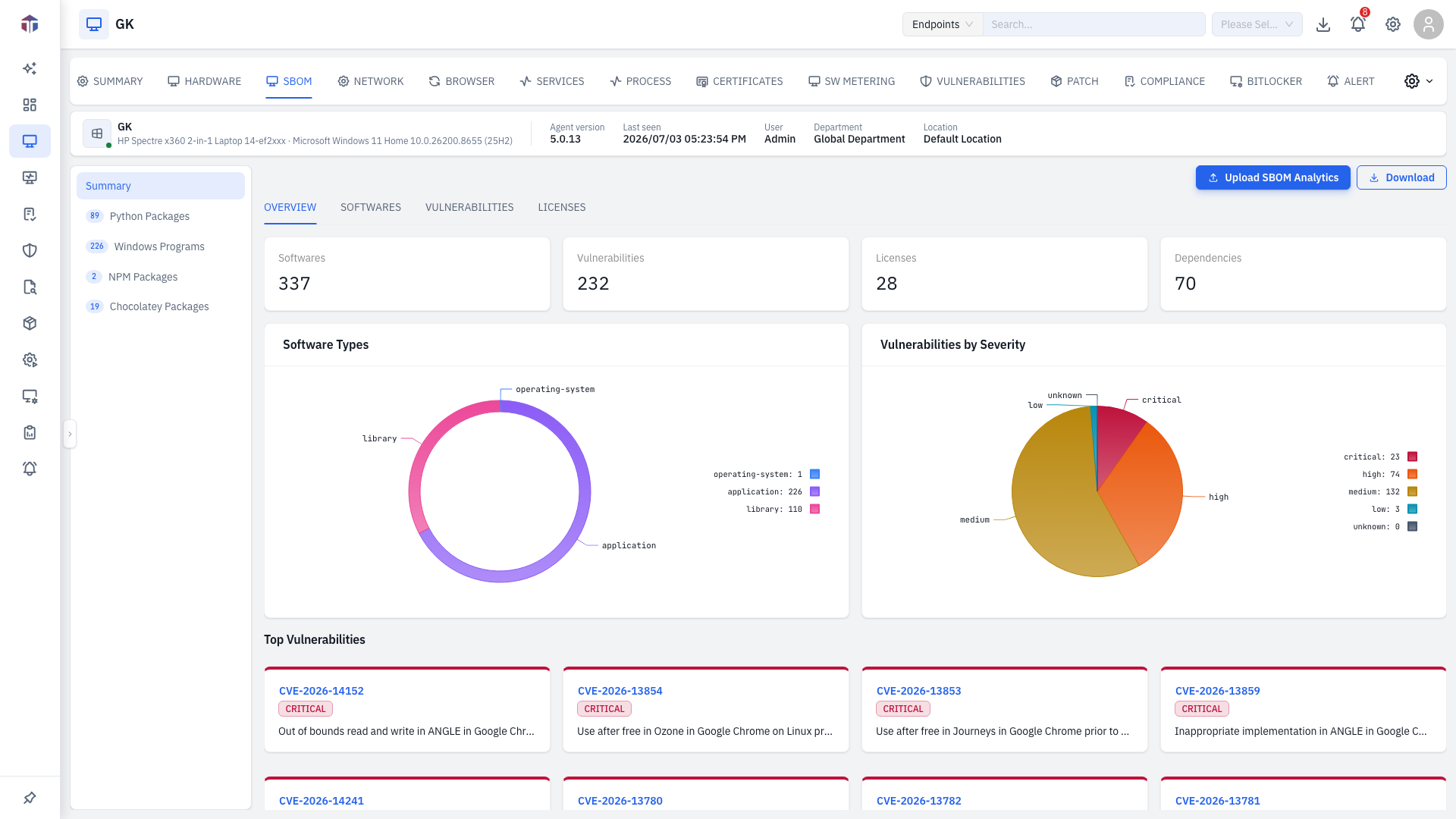
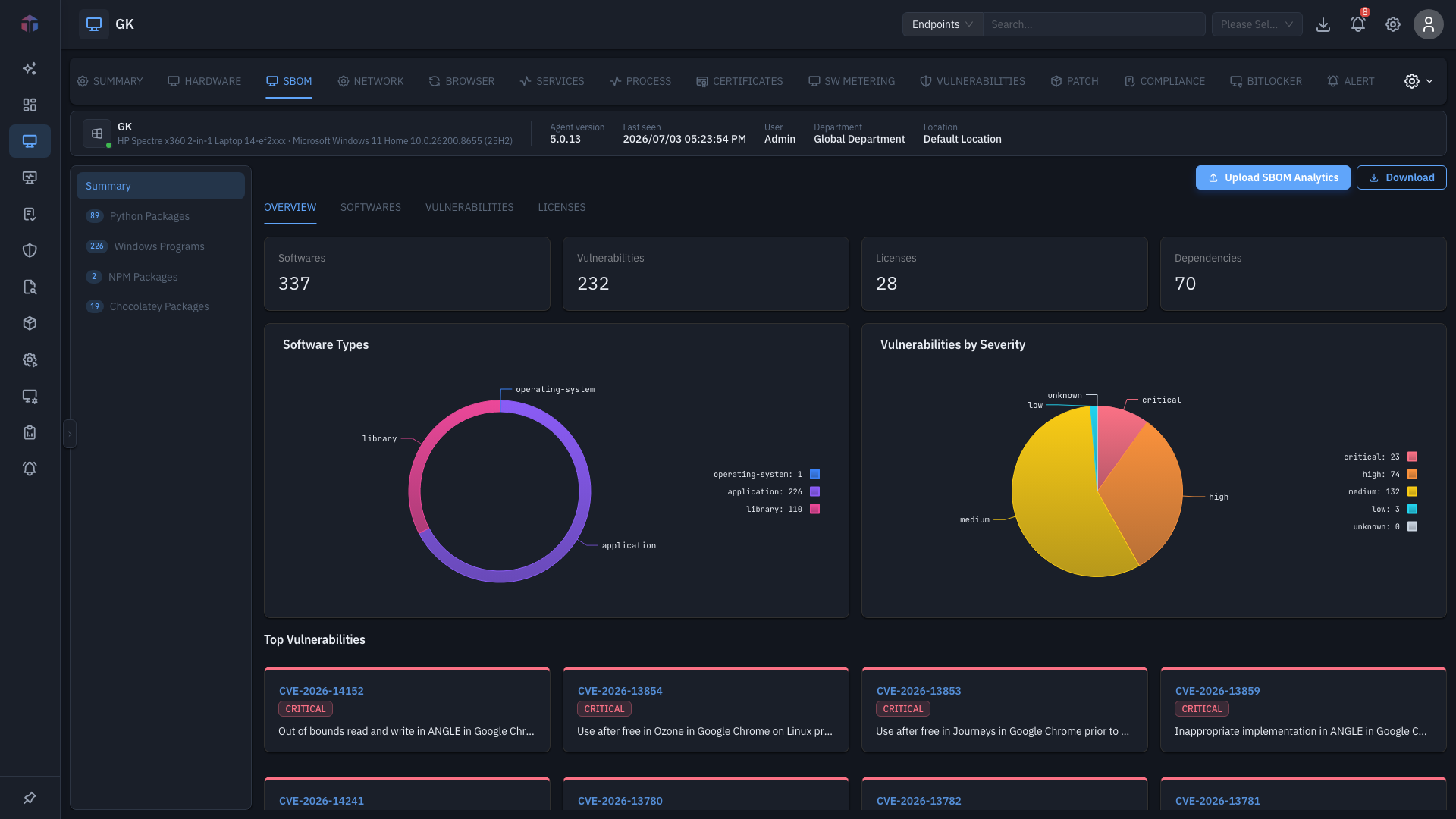
It shows counts for software, vulnerabilities, licenses, and dependencies, the top vulnerabilities, and breakdowns by software type and vulnerability severity.
Package categories
The remaining sub-sections, down the left, group packages by type — for example Python Packages, Windows Programs, NPM Packages, Chocolatey Packages — each with a count. Pick one to see its package list.
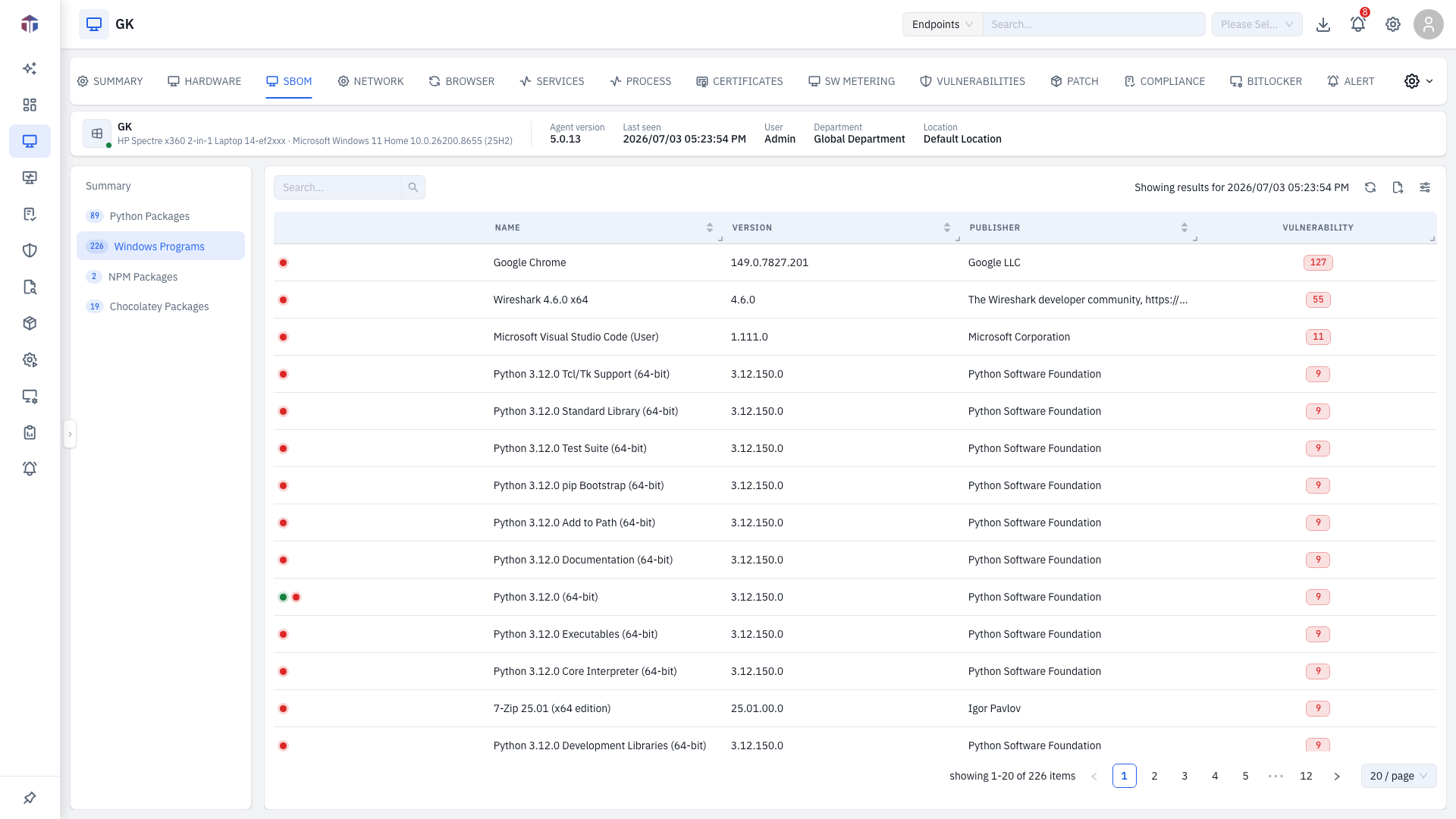
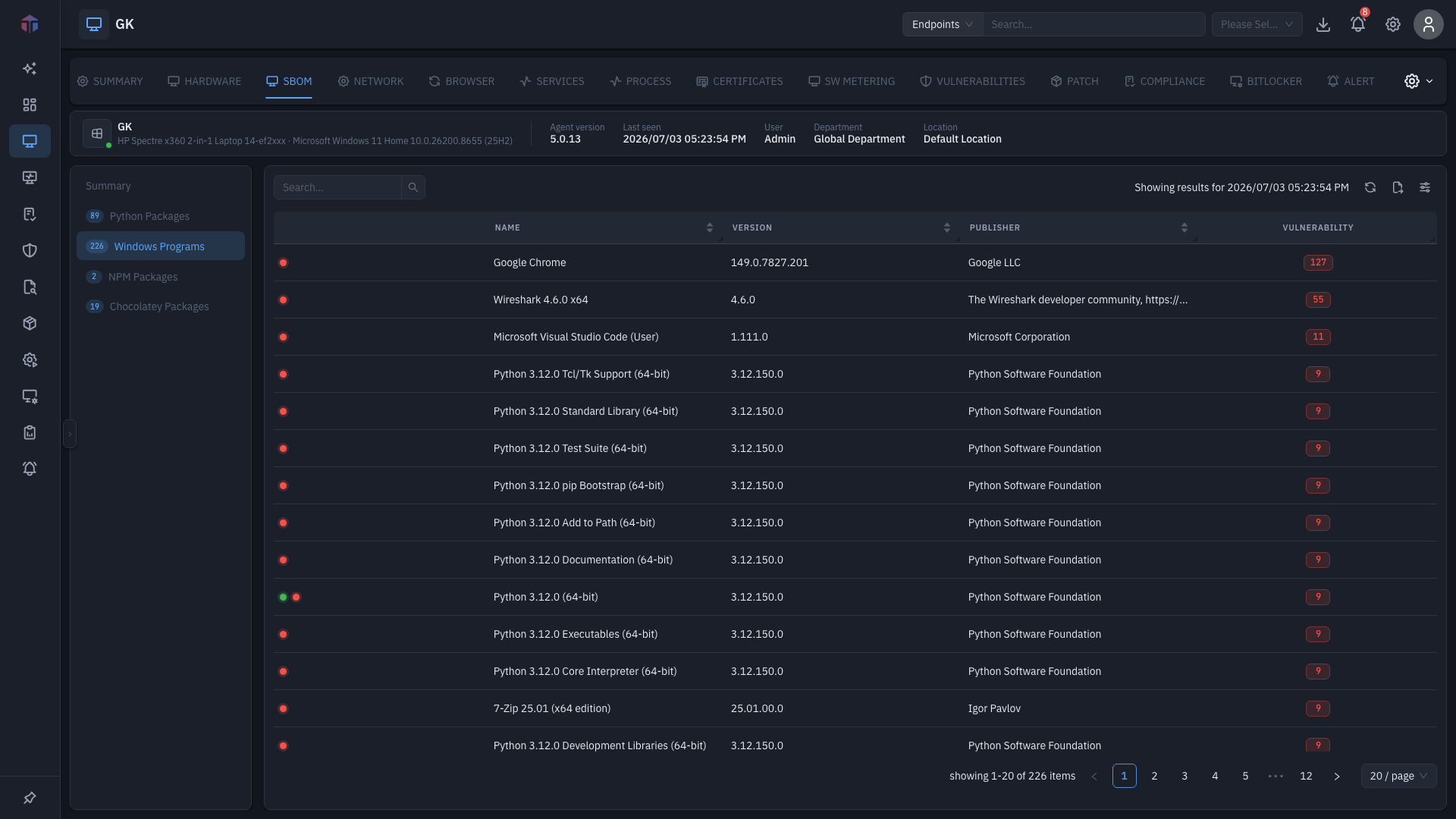
| Column | What it shows |
|---|---|
| (icon) | Flags prohibited and vulnerable packages. |
| Name | Package name. |
| Version | Installed version. |
| Release | Package release. |
| Publisher | Vendor/author. |
| Release Date | When this version shipped. |
| EOS | End of support date. |
| EOL | End of life date. |
| Vulnerability | Known CVEs for the package (licensed editions); click to view. |
Use Search to filter, and the toolbar to upload or download an SBOM file.
Tips & troubleshooting
- A package shows a red dot. It has known vulnerabilities — open the Vulnerability cell, or see the Vulnerabilities tab.
- EOS / EOL is set. That software is at or past end of support/life and should be planned for replacement.
Related
- Software Inventory (SBOM) — the same software inventory across every host, not just this endpoint.
- Vulnerabilities — CVEs that come from this software.
- SW Metering — how often this software is actually used.