Tags
The Tags tab shows an endpoint's criticality and its tags, and explains where each came from. From here you can add or remove tags, bring back a tag a rule was stopped from adding, and override the criticality by hand.
Tags are labels in the form Category: Value (for example Role: Domain Controller). A tag can carry its own criticality level, and the endpoint's criticality is the highest level among its tags, unless someone overrides it. Tags and the rules that add them automatically are defined under Endpoint Tags.
Anyone who can open the endpoint sees this tab. Adding, removing and re-including tags, and overriding the criticality, need Update Inventory permission. Without it the tab is read-only and its buttons are hidden.
How to get here
You need View Inventory permission.
- Open Inventory → Endpoints (see Endpoints).
- Click an endpoint's name.
- Click the Tags tab. On a narrow screen the last tabs move into the ··· menu at the end of the tab row; open it to find Tags.
Navigate to: Inventory → Endpoints → (an endpoint) → Tags
URL path: /inventory/endpoints/{id}?tab=tags
The Tags tab
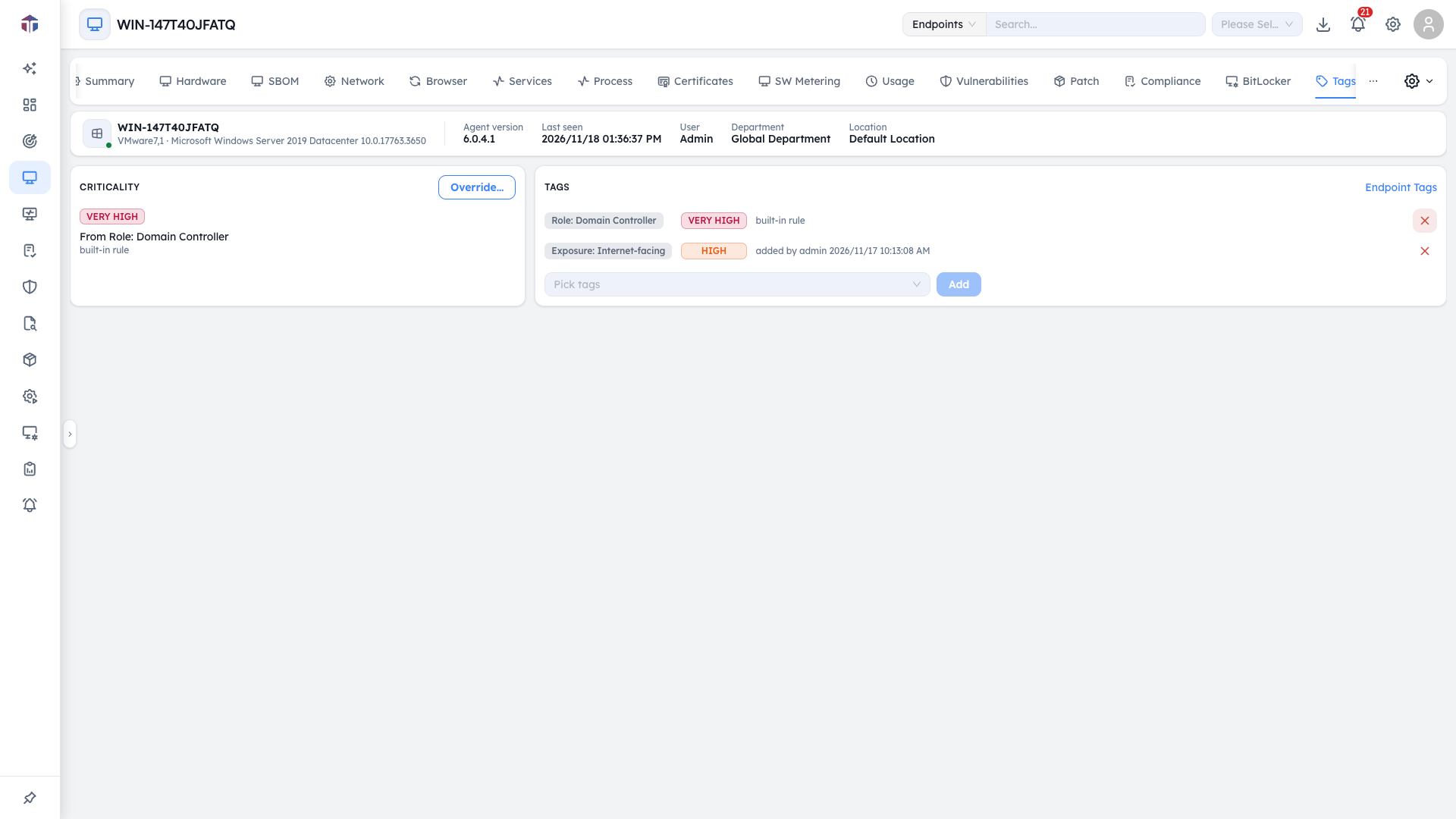
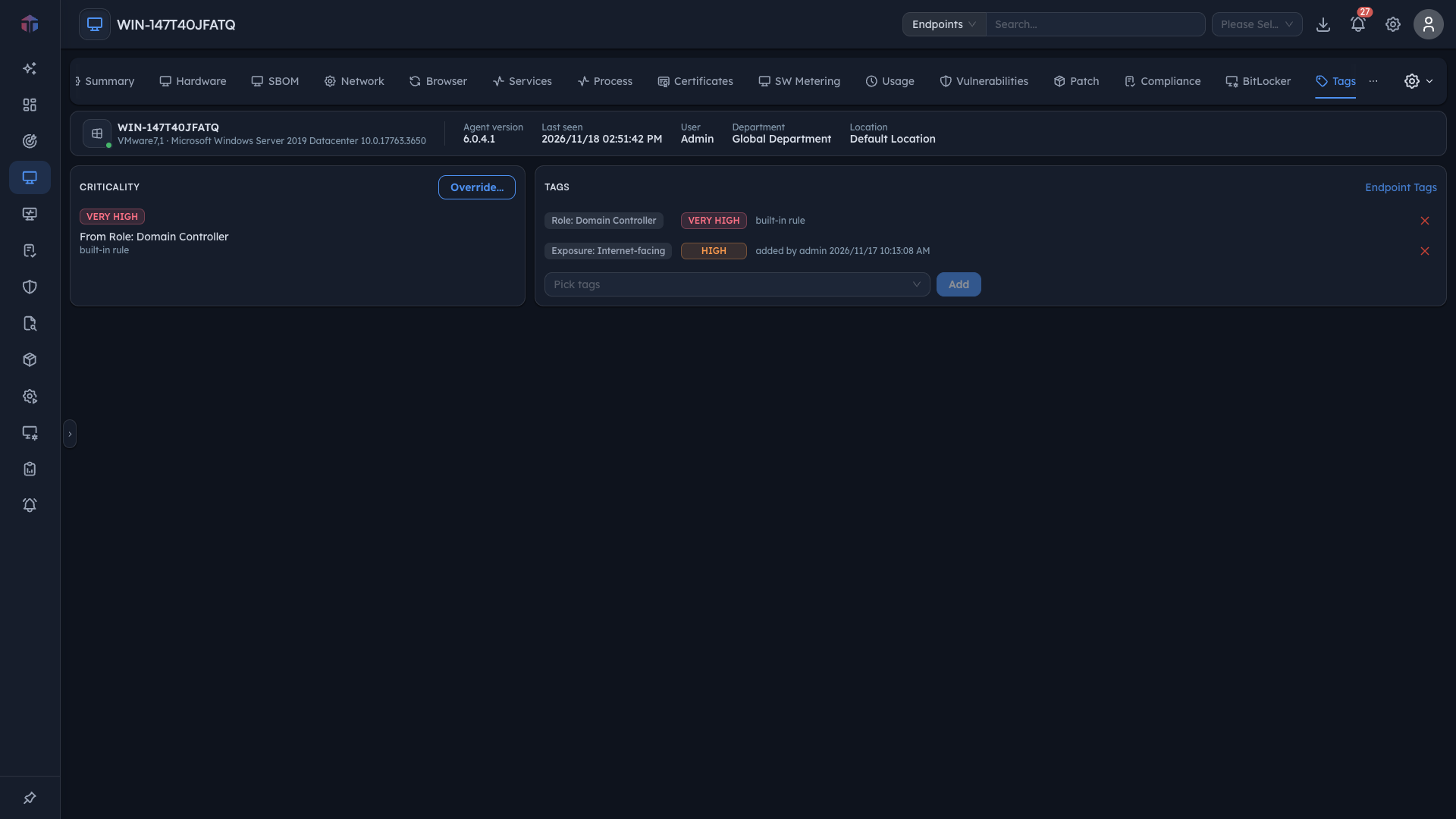
The tab has two cards: Criticality and Tags. On a wide screen they sit side by side; on a narrower one, Tags moves below Criticality.
Criticality card
The card shows the endpoint's criticality as a badge: VERY LOW, LOW, MEDIUM, HIGH, VERY HIGH, or a dashed NOT RATED when nothing sets one. Under the badge, a line says why:
| What you see | What it means |
|---|---|
| From Category: Value, then that tag's source | The level comes from this tag, the one with the highest level on the endpoint. |
| Set by hand, then the reason, who set it and when | Someone overrode the criticality. If the tags would give a level, the line adds the tags say that level. |
| No tag on this endpoint sets a criticality. | None of the endpoint's tags has a level, and there's no override. |
The card's buttons:
- Override… — set the criticality by hand (see below).
- Revert to tags — shown only while an override is in place. It removes the override straight away, and the criticality goes back to what the tags say.
Tags card
Each tag on the endpoint is a row:
| Part of the row | What it shows |
|---|---|
| Tag chip | Category: Value, in the tag's colour. |
| Level | The tag's own criticality level, or — when the tag has none. The highest level here is the endpoint's criticality. |
| Source | Who put the tag here: built-in rule (a rule that ships with the product), rule (a tag rule your team set up), or added by name date and time (added by hand). |
| × | Remove the tag (see below). |
An endpoint with no tags reads No tags.
Under the list you'll find the Pick tags box and an Add button, for adding tags by hand.
If the endpoint has been excluded from any tag rules, an Excluded from their rule section lists those tags, with who excluded the endpoint and when, and a Re-include link.
The Endpoint Tags link at the top right of the card opens Settings → Inventory Profile → Endpoint Tags, where tags, their levels and their rules are defined. You see it only if you can view Settings.
How do I…
Add tags to this endpoint?
- In the Tags card, click the Pick tags box.
- Choose one or more tags. Tags already on the endpoint aren't offered.
- Click Add.
The new tags appear in the list with added by your name as their source, and the criticality updates if one of them has a higher level.
Remove a tag?
Click the × at the end of the tag's row.
-
A tag added by hand that has no rule is removed straight away.
-
A tag that has a rule asks you to confirm first, because removing it doesn't simply delete it:
- If the rule added the tag, removing it excludes this endpoint from the rule, so the rule doesn't add the tag back.
- If you added it by hand but the tag also has a rule, the endpoint is excluded only if the rule matches it; otherwise the tag is just removed.
Click Remove to go ahead.
A tag rule runs again and re-applies its tag to every endpoint it matches. To stop that for one endpoint, removing the tag excludes the endpoint from the rule. The tag then shows under Excluded from their rule until someone re-includes it.
Re-include an endpoint in a tag rule?
- In the Tags card, find the tag under Excluded from their rule.
- Click Re-include.
The exclusion is lifted, and the rule can add the tag again the next time it matches this endpoint.
Override the criticality?
-
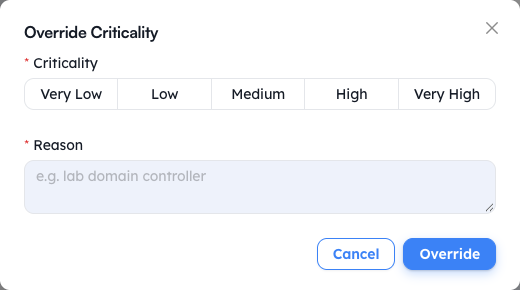
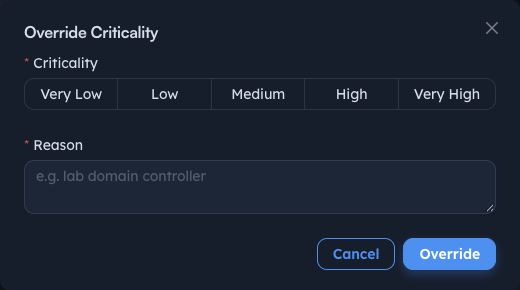
In the Criticality card, click Override…. The Override Criticality dialog opens.
-
Fill in the fields:
Field Required Notes Criticality Yes Very Low, Low, Medium, High, or Very High. Reason Yes Why you're overriding, for example lab domain controller. Up to 500 characters. Shown on the card with your name and the time. -
Click Override.
The badge changes to your level and the card reads Set by hand. To go back to the level the tags give, click Revert to tags.
To set or clear an override on several endpoints together, select them in the Endpoints list and use Tags → Set criticality.
Tips & troubleshooting
- The criticality didn't change when I added a tag. Either the tag has a lower level (or none), or the criticality is overridden. Check the line under the badge.
- A tag I removed now shows under Excluded from their rule. The tag came from a rule, so removing it excluded the endpoint instead. Click Re-include to undo.
- I can't see Add, Override… or the × buttons. They need Update Inventory permission.
- A red error with Retry appears. The tab couldn't read the endpoint's tags. What it shows below may be out of date, and nothing can be changed until Retry succeeds.
Related
- Endpoint Tags — define tags, their levels, and the rules that apply them.
- Endpoints — filter the list by tag or criticality, and tag many endpoints at once.
- Resolvers — who resolves this endpoint's SLA items.
- Summary — the endpoint screen this tab lives on.