Configurations
Saved snapshots of the network device's running configuration- a tab on the device detail. View any snapshot's full text, or compare two versions side by side.
How to get here
- Open a device (see Device Details).
- Click the Configurations tab.
The Configurations tab
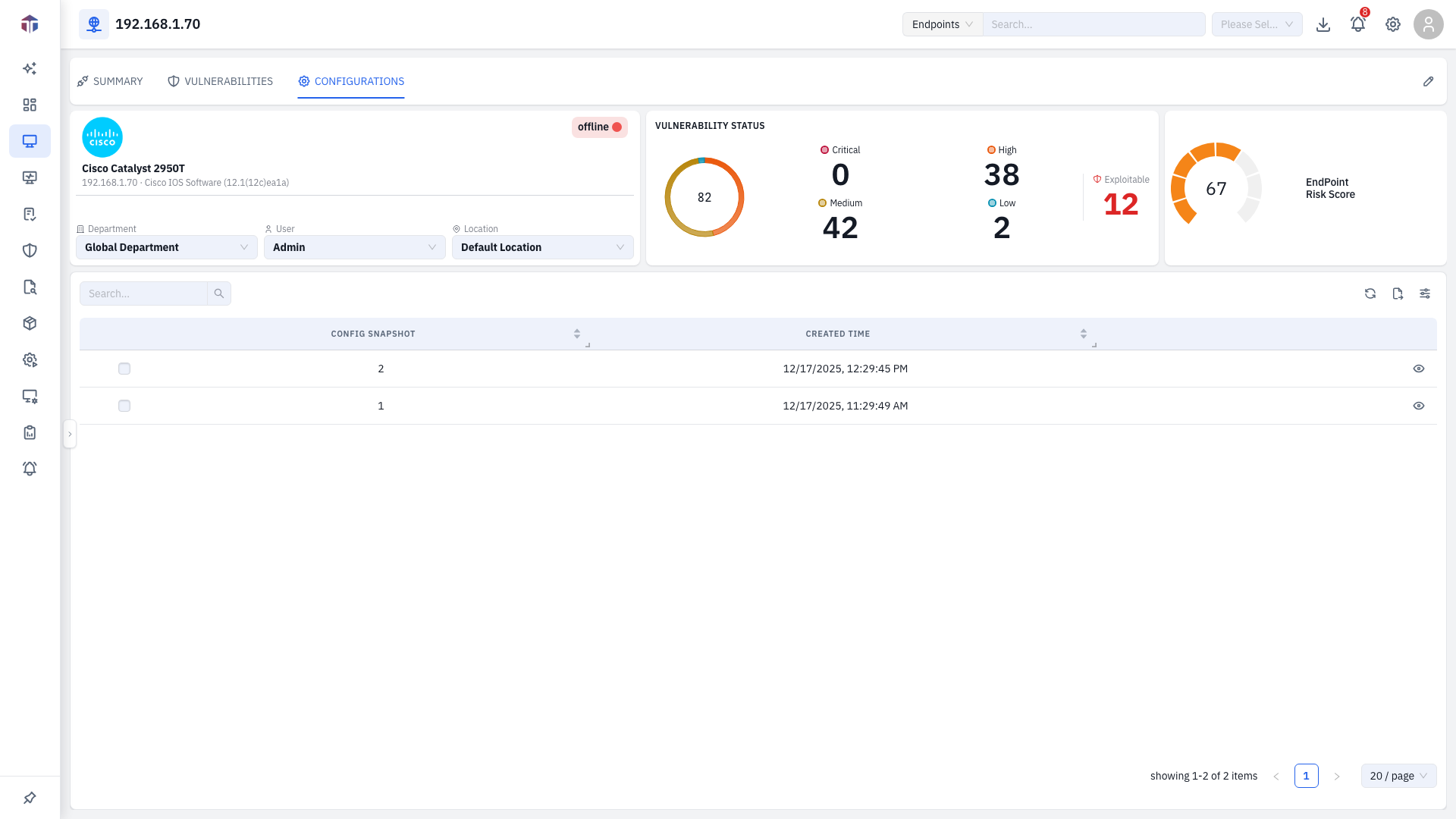
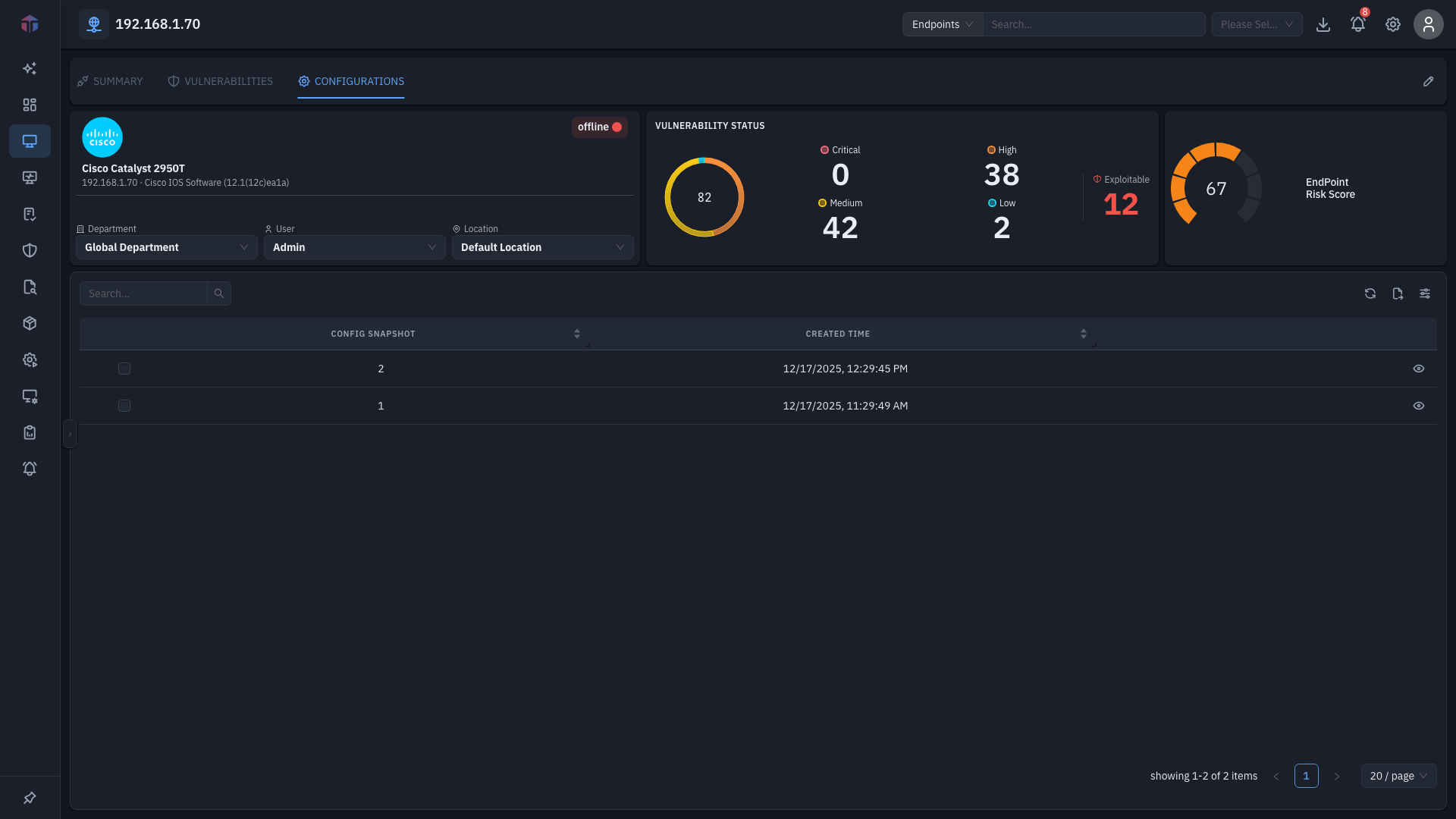
| Column | What it shows |
|---|---|
| Config Snapshot | The configuration version. |
| Created Time | When the snapshot was captured. |
| Actions | View the snapshot's full text. |
Viewing a snapshot
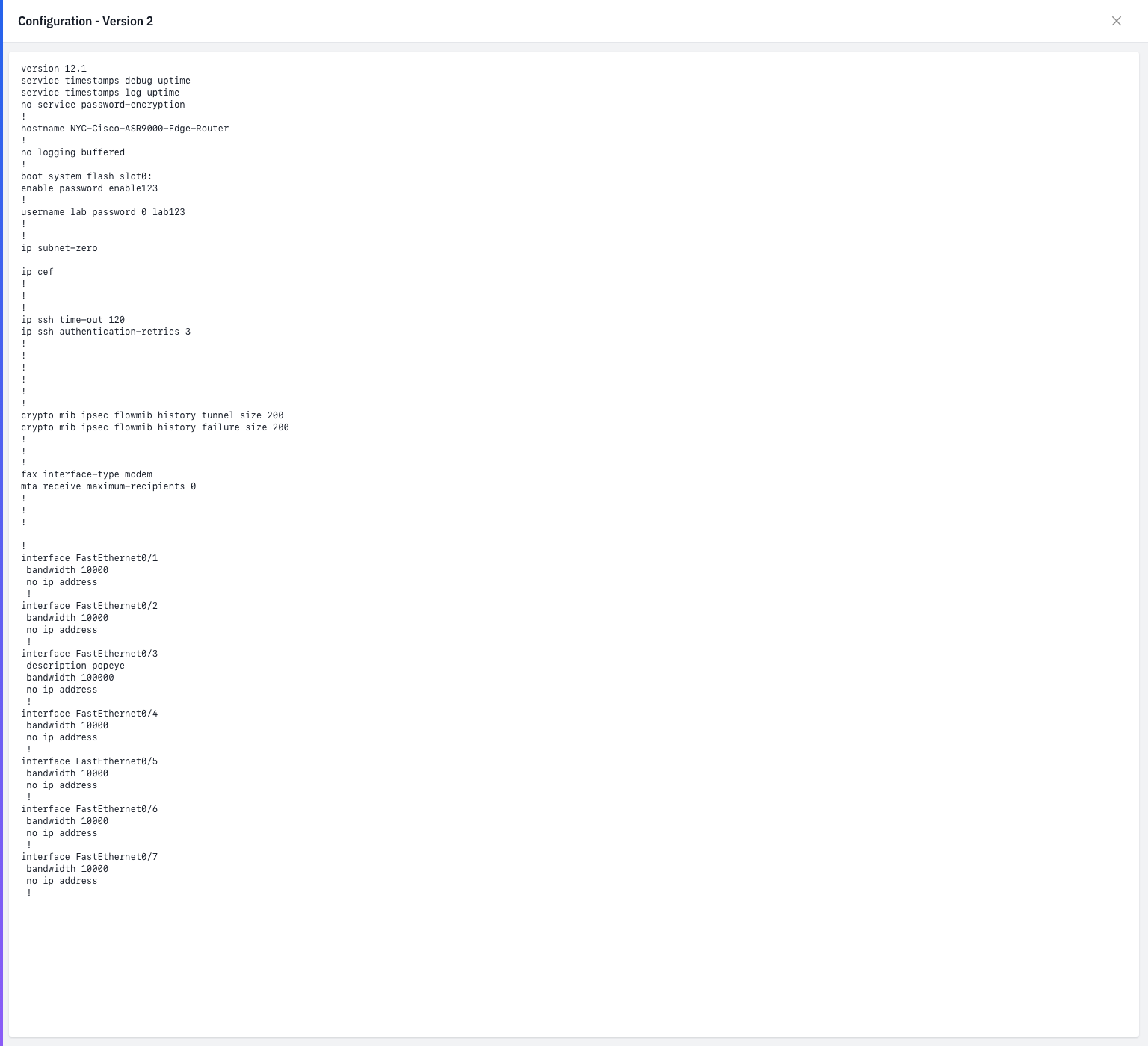
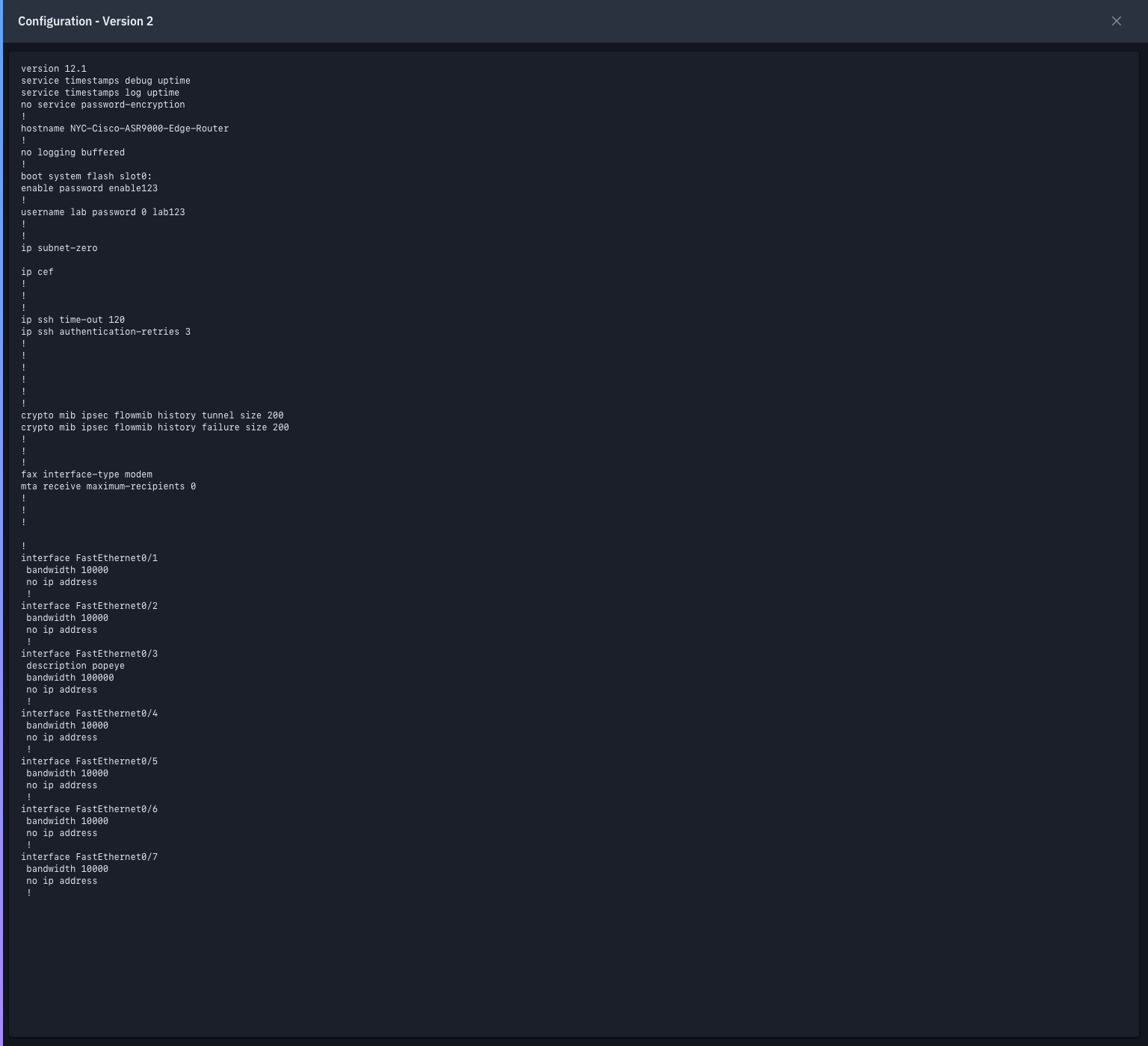
Click a row's View action to open the snapshot's full configuration text in a drawer.
Comparing versions
Tick two snapshots, then click Compare Versions. A diff drawer shows the two configurations side by side and highlights what changed between them- handy for spotting unplanned changes or confirming a config push.
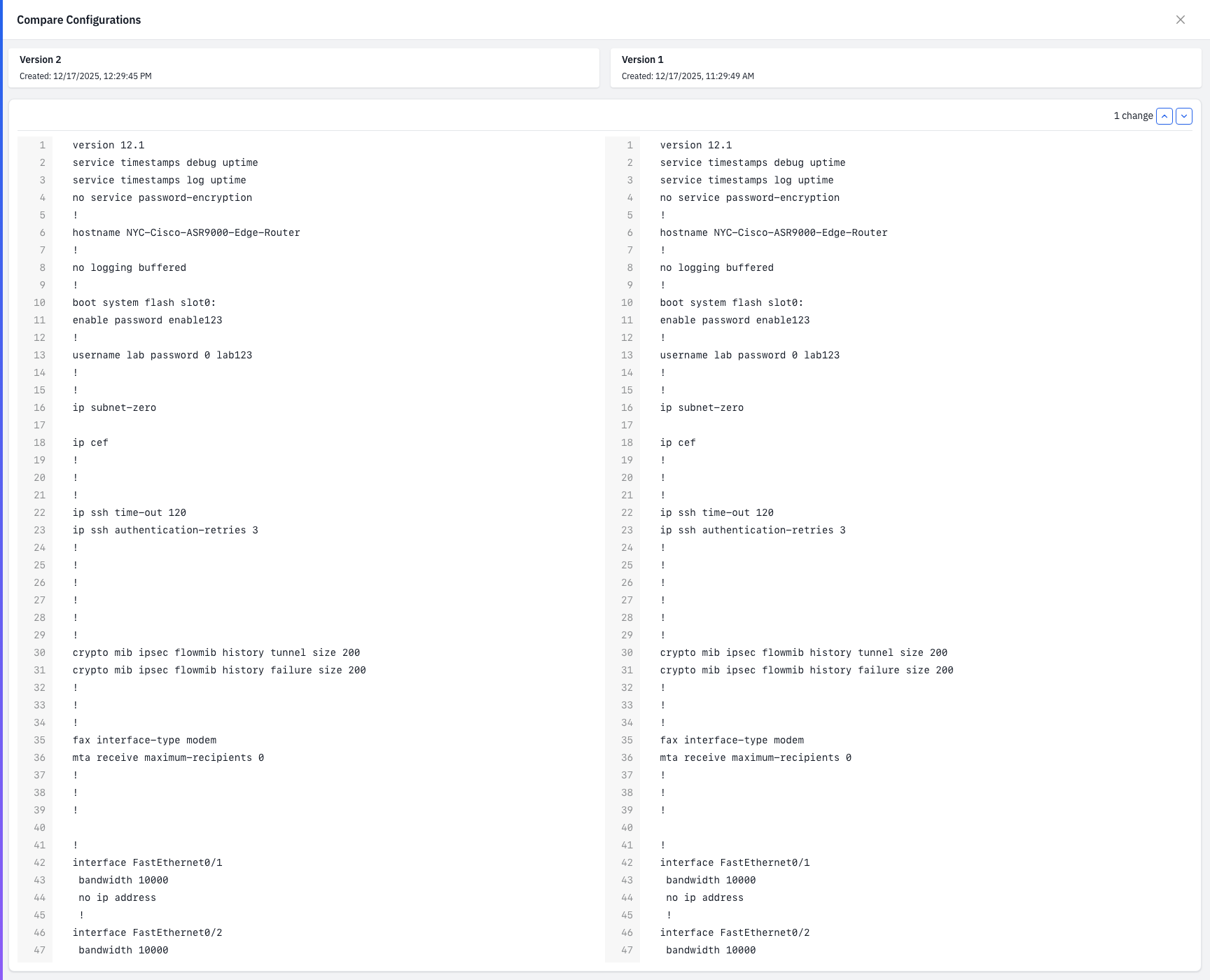
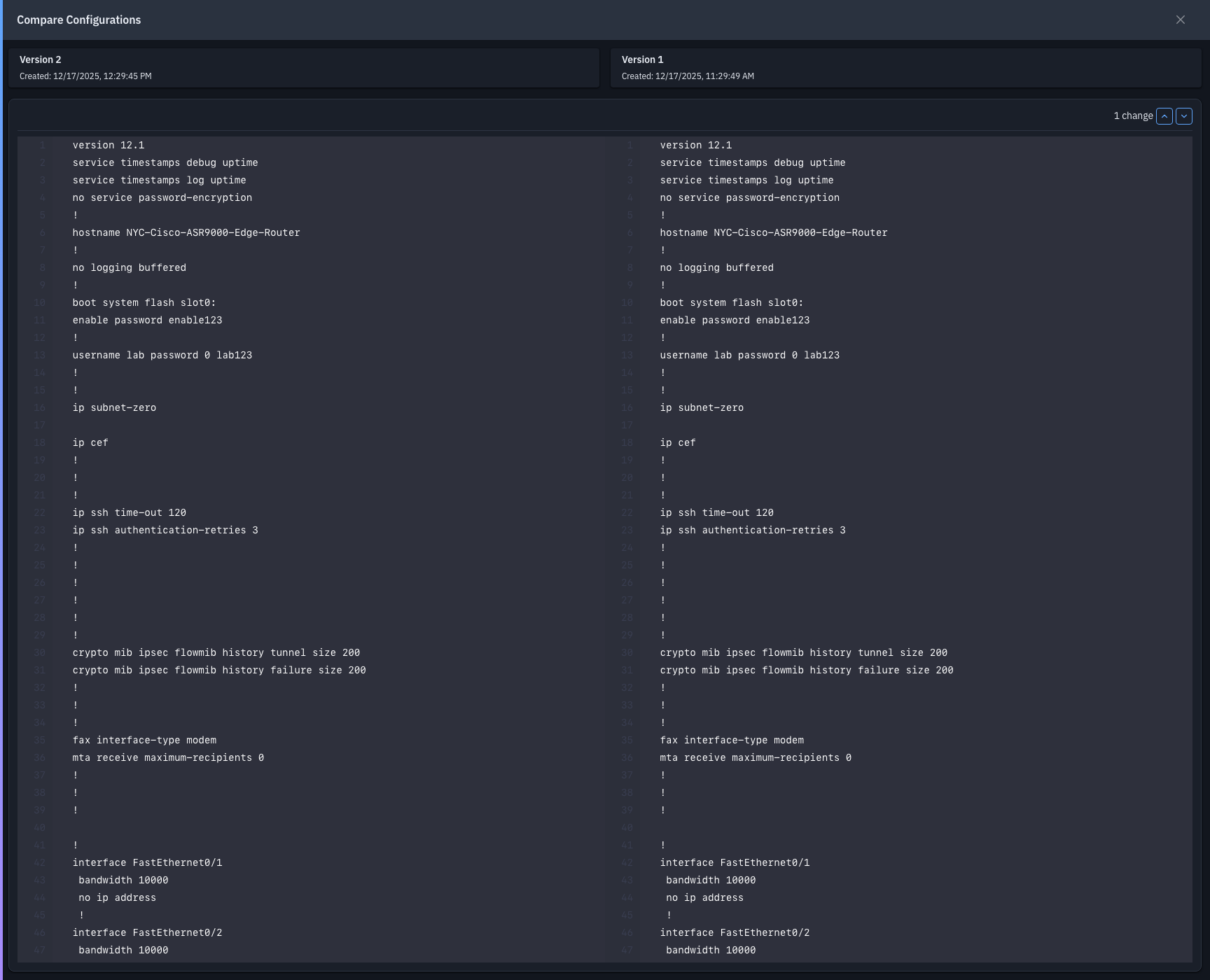
Each version is labelled with its capture time; the change counter and the up/down arrows jump between the differences.
Tips & troubleshooting
- Compare Versions is hidden. It appears only when exactly two snapshots are selected.
- No snapshots. The device hasn't been polled for its configuration yet- check its credential profile and polling interval on Device Details.
Related
- Device Details- the device's interfaces and identity.