Device Details
The single network device view — its identity and network interfaces. Two more tabs cover its Vulnerabilities and Configurations.
How to get here
- Open Inventory → Network Devices (see Network Devices).
- Click a device's Host Name.
URL path: /inventory/network-devices/{id}
The device ribbon
Across the top of every tab sits an info ribbon:
- The vendor logo and a live online/offline indicator.
- Device Model.
- Host, Firmware, Firmware Version, Department, User, and Location (owner / department / location are editable).
- A vulnerability pie (Critical / High / Medium / Low) — click a slice or the Exploitable CVE count to jump to the Vulnerabilities tab filtered accordingly.
- A risk score gauge.
Summary — interfaces
The default tab lists the device's network interfaces.
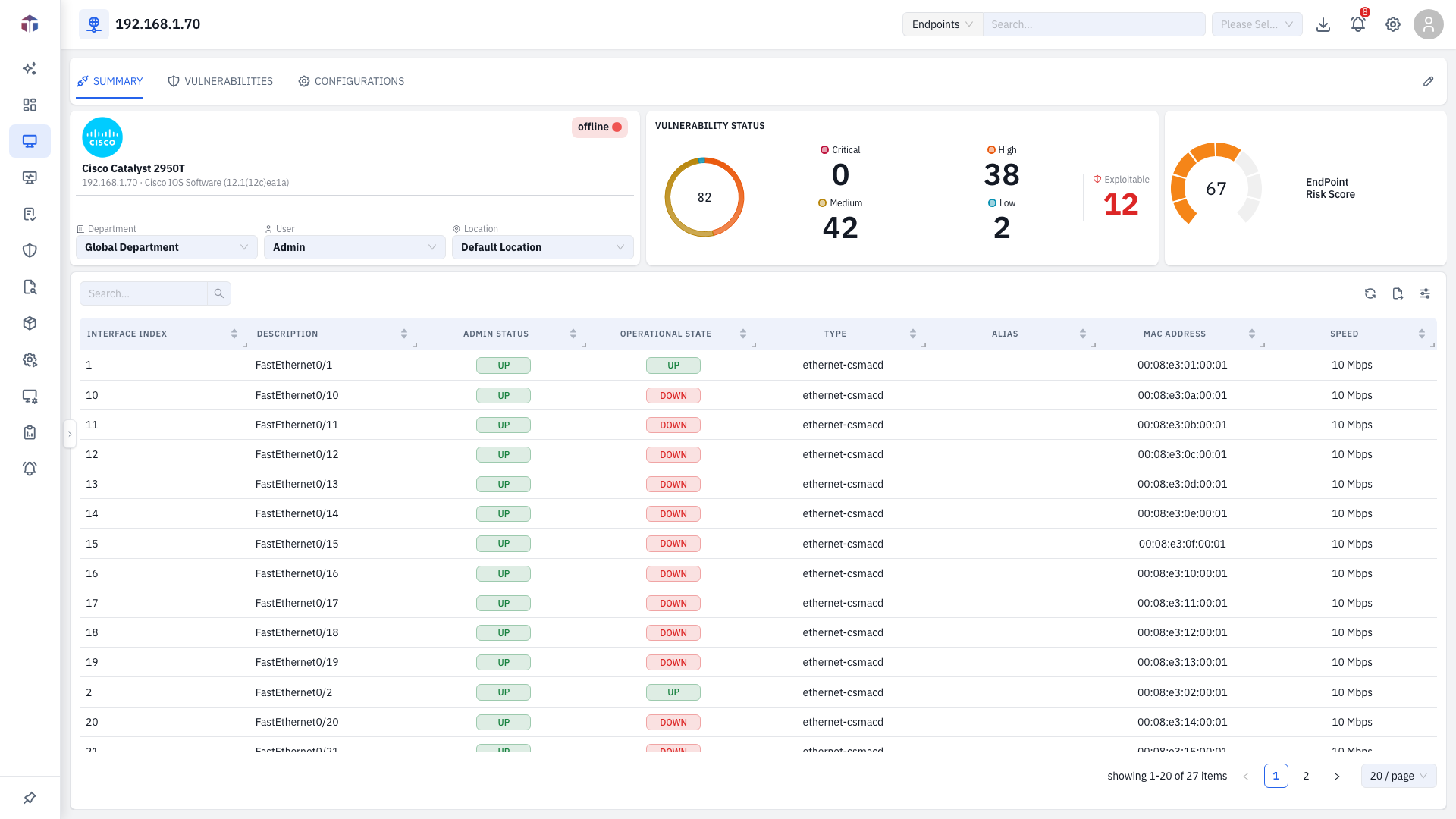
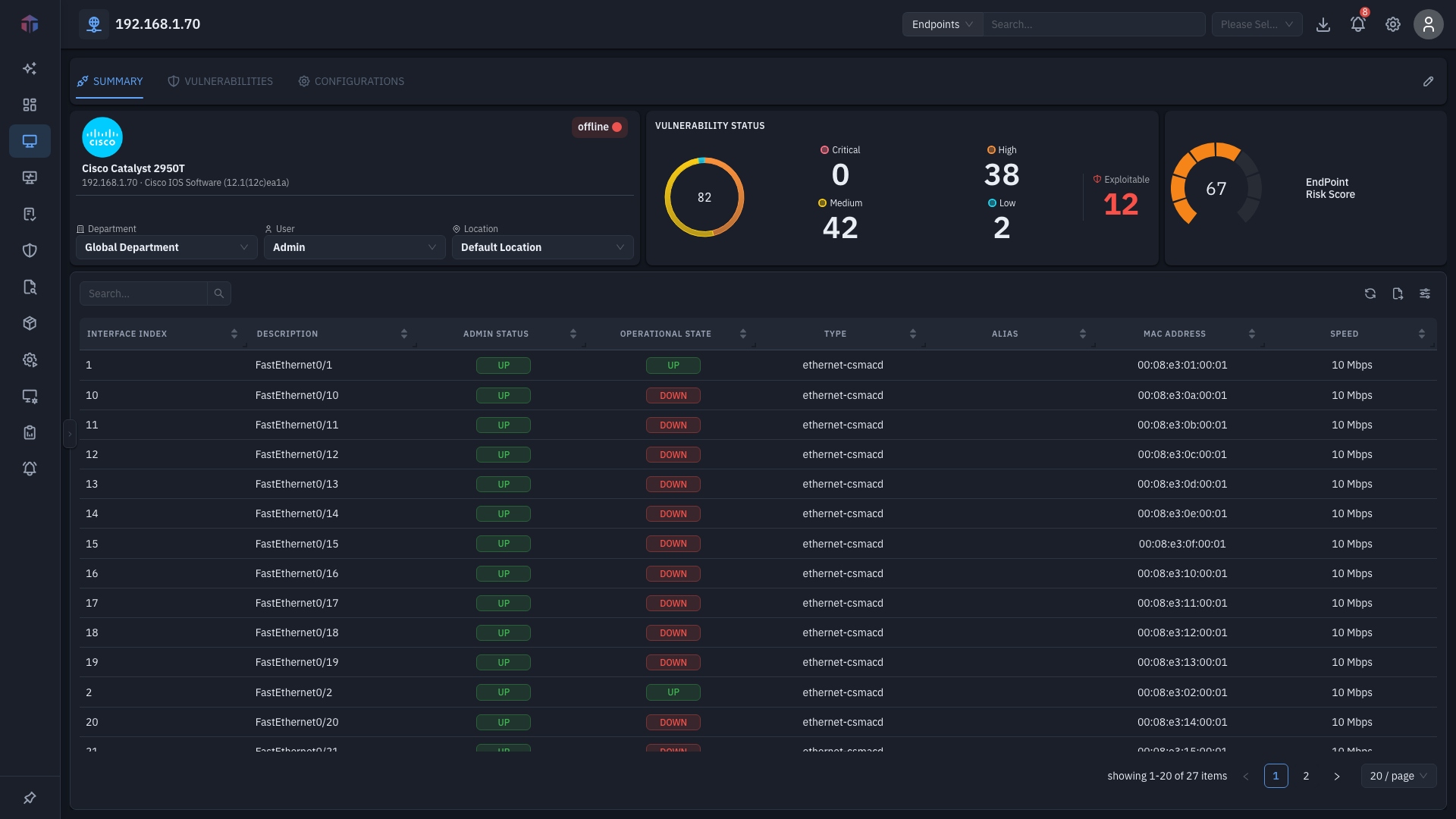
| Column | What it shows |
|---|---|
| Interface Index | The interface's index. |
| Description | Interface description. |
| Admin Status | Administrative status (up/down), as a tag. |
| Operational State | Operational status, as a tag. |
| Type | Interface type. |
| Alias | Interface alias. |
| MAC Address | Hardware address. |
| Speed | Link speed, in Mbps. |
Editing the device
Use Edit Device to change how the device is owned and polled:
| Field | Notes |
|---|---|
| Owner / Department / Location | Assignment. |
| Polling Interval (seconds) | How often EndpointOps polls the device (minimum 1). |
| Credential Profile Type | None, SSH, or TELNET. |
| Credentials | The credential profile to poll with (shown once a type is chosen). |
Tips & troubleshooting
- No interfaces. The device hasn't been polled yet, or the credential profile can't reach it — check Edit Device and the polling interval.
Related
- Network Devices — the list you open this from.
- Vulnerabilities — the device's CVEs.
- Configurations — saved configuration snapshots.
- Credential Profiles — the credentials used to poll devices.