Software Metering — Rules
The Rules tab defines which software EndpointOps meters and on which machines. Each rule names an executable to watch; usage then shows up on the Summary tab.
How to get here
- Open Inventory → Software Metering (see Summary).
- Click the Rules tab.
URL path: /inventory/software-metering/rules
The Rules tab
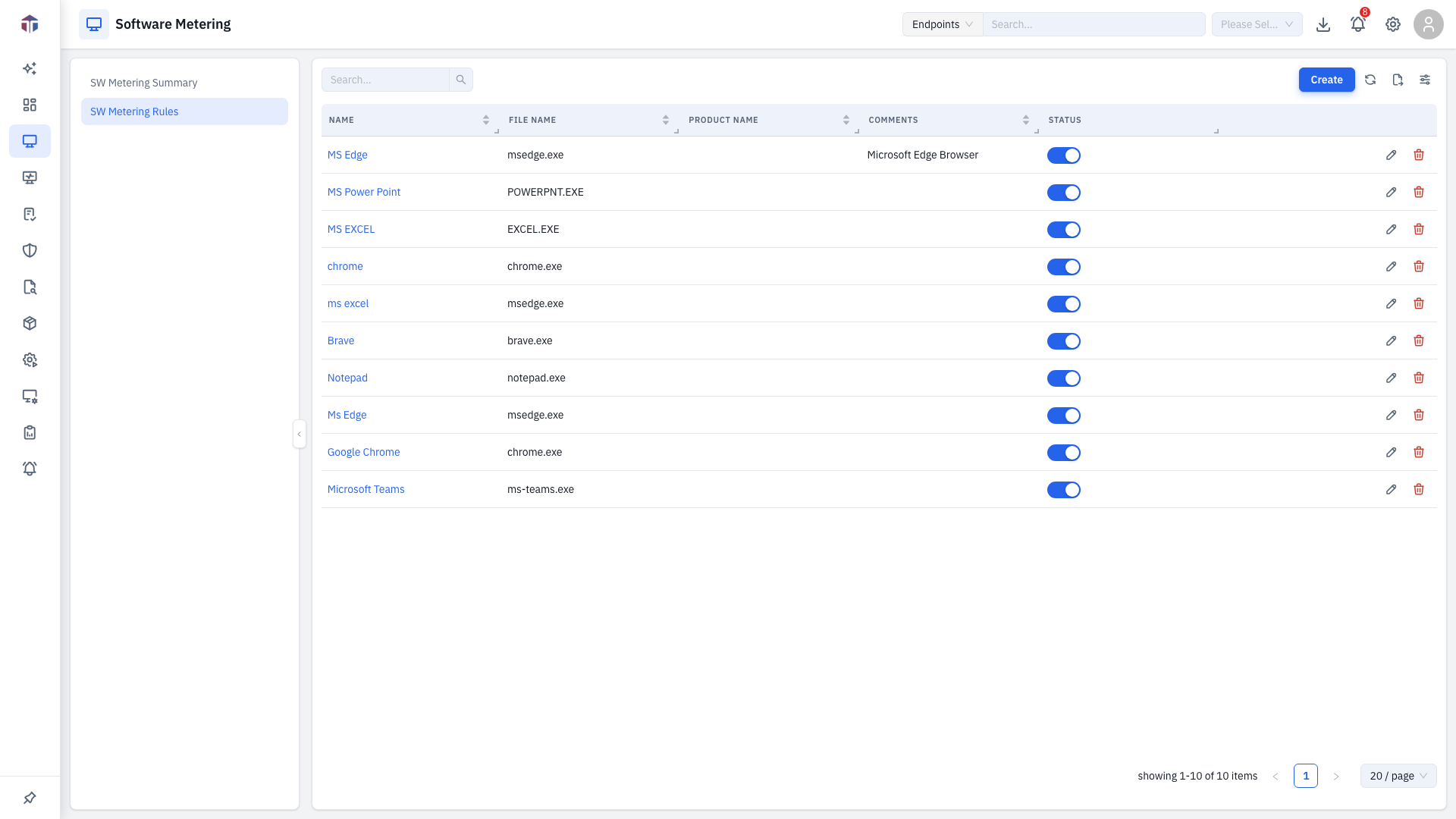
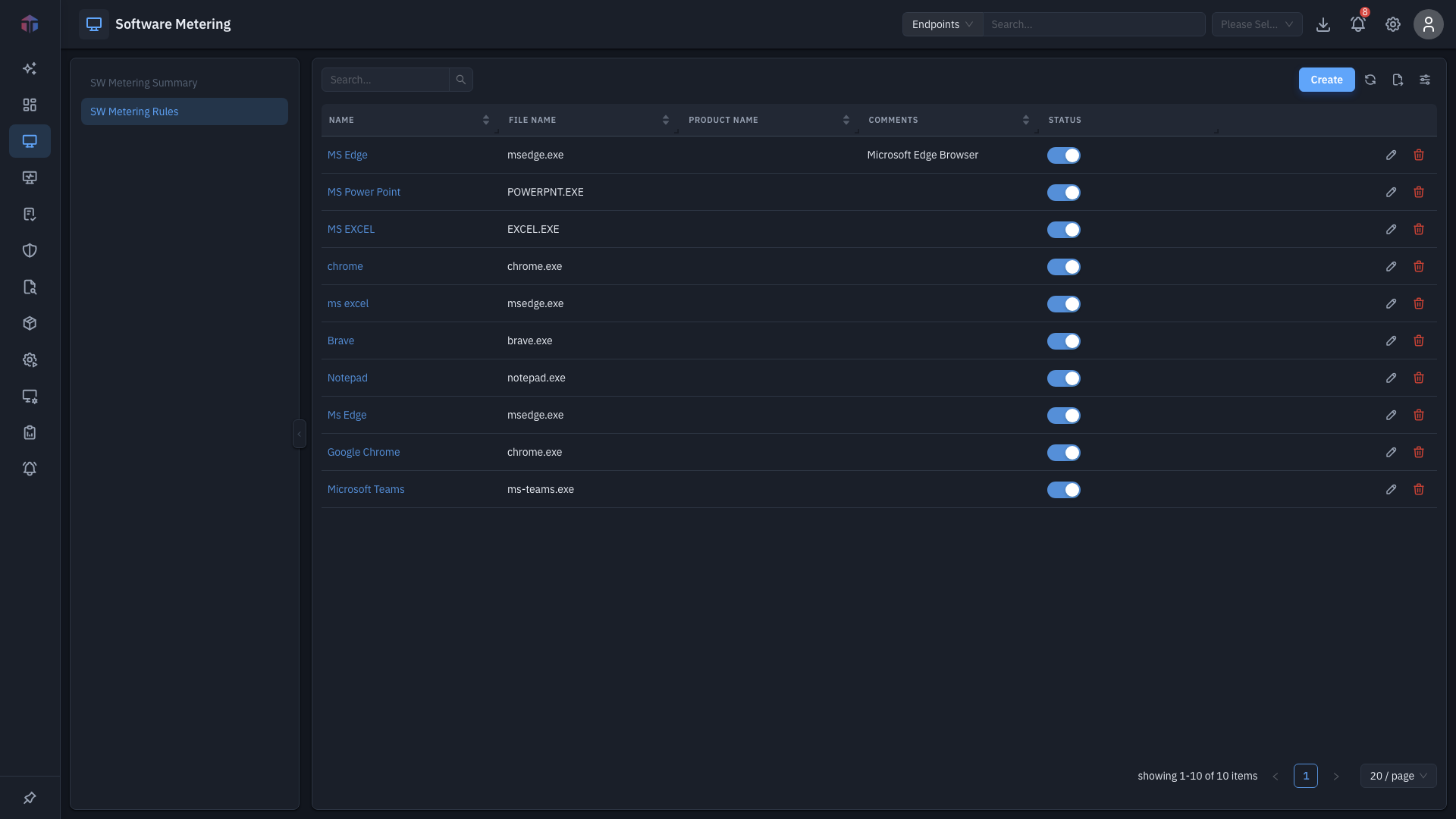
| Column | What it shows |
|---|---|
| Name | The rule name (links to the rule). |
| File Name | The executable the rule watches. |
| Product Name | The product the file belongs to. |
| Comments | Free-text notes. |
| Status | An on/off toggle — switch metering for this rule (editable inline). |
| Actions | Edit and Delete (need the matching permissions). |
Use Create (needs Create Inventory) to add a rule, Search to filter.
How do I create a metering rule?
-
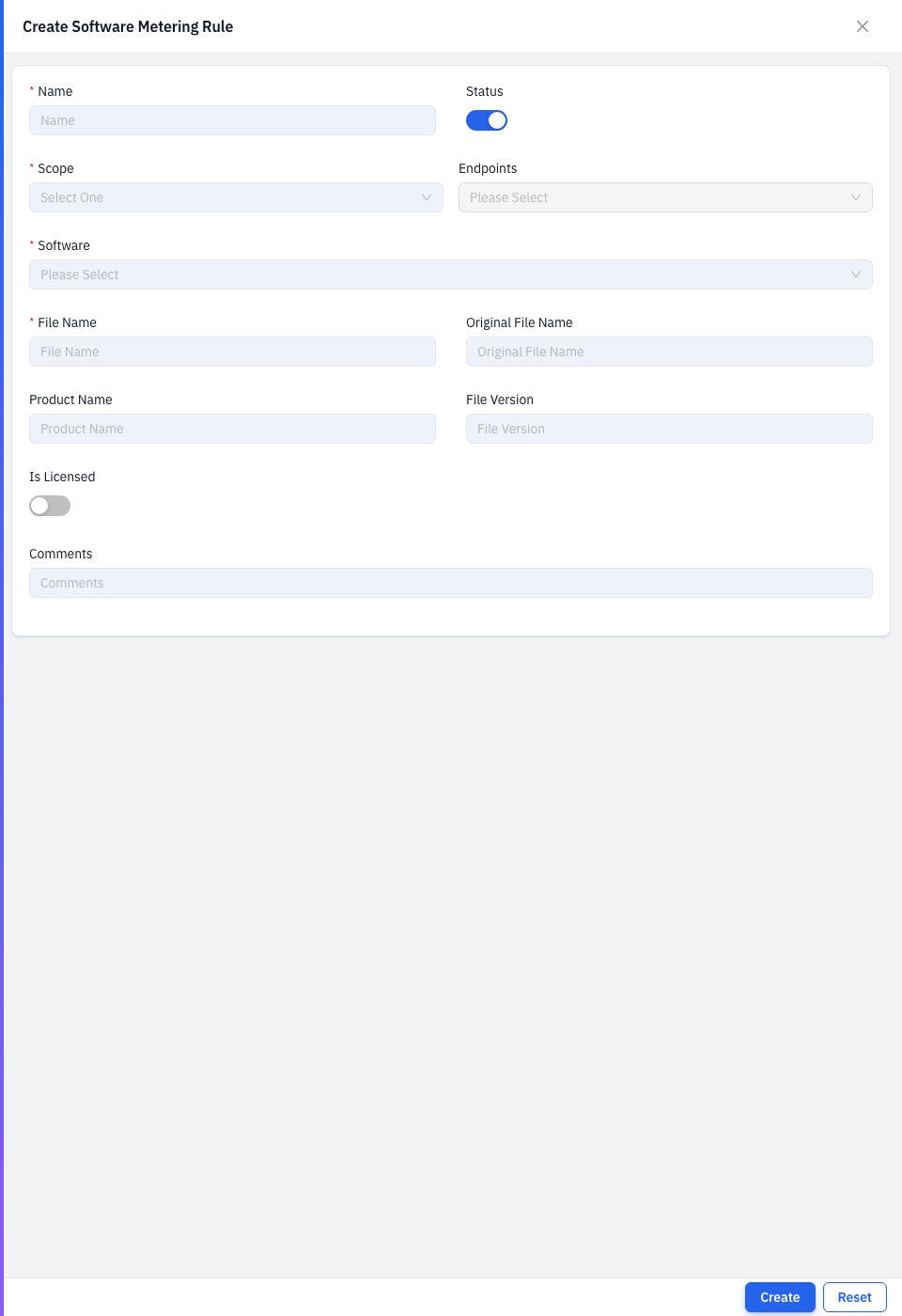
Click Create. The rule form opens.
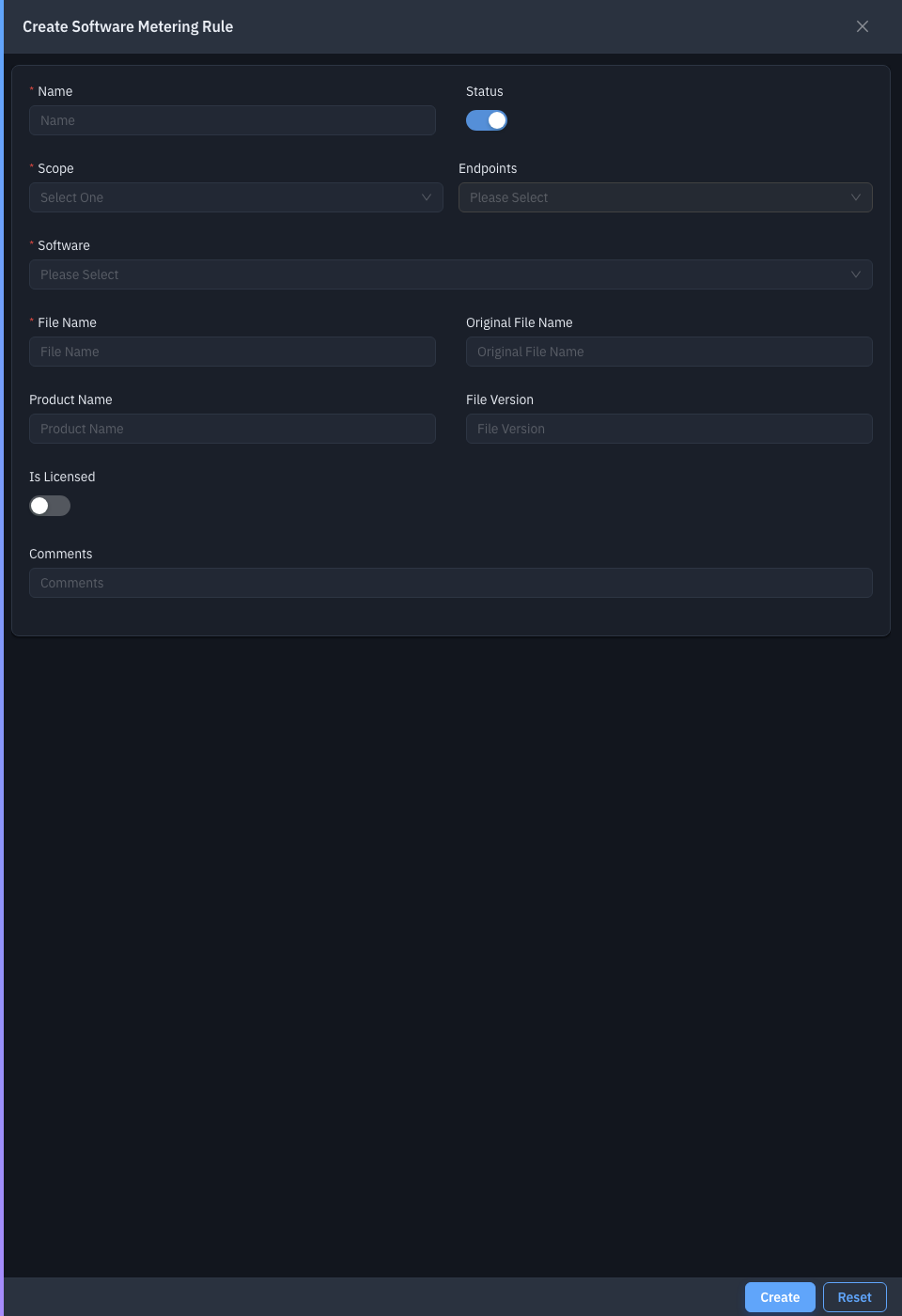
-
Fill in the fields (red asterisk = required):
Field Required Notes Name Yes The rule's name. Status — On/off; defaults to on. Scope — Which endpoints the rule applies to. Software Yes The software to meter (filtered by the scope). File Name Yes The executable file to watch. Original File Name — The file's original name, if different. Product Name — The product the file belongs to. File Version — A specific file version to match. Is Licensed — Mark the software as licensed. Comments — Notes. -
Save. Usage starts appearing on the Summary tab as endpoints report.
Tips & troubleshooting
- A rule shows no usage. Check the File Name matches the real executable, the Scope includes the machines, and Status is on.
Related
- Summary — the usage results these rules produce.