On-Demand Deployment
On-Demand Deployment pushes selected, approved patches to a chosen set of endpoints right now (or on a schedule you pick) — the manual counterpart to the automated Autonomous and Progressive workflows.
How to get here
You need View Patch permission.
- In the left sidebar, click Patch to expand it, then click On-Demand Deployment.
Navigate to: Patch → On-Demand Deployment
URL path: /patch/patch-deployments
The deployments list
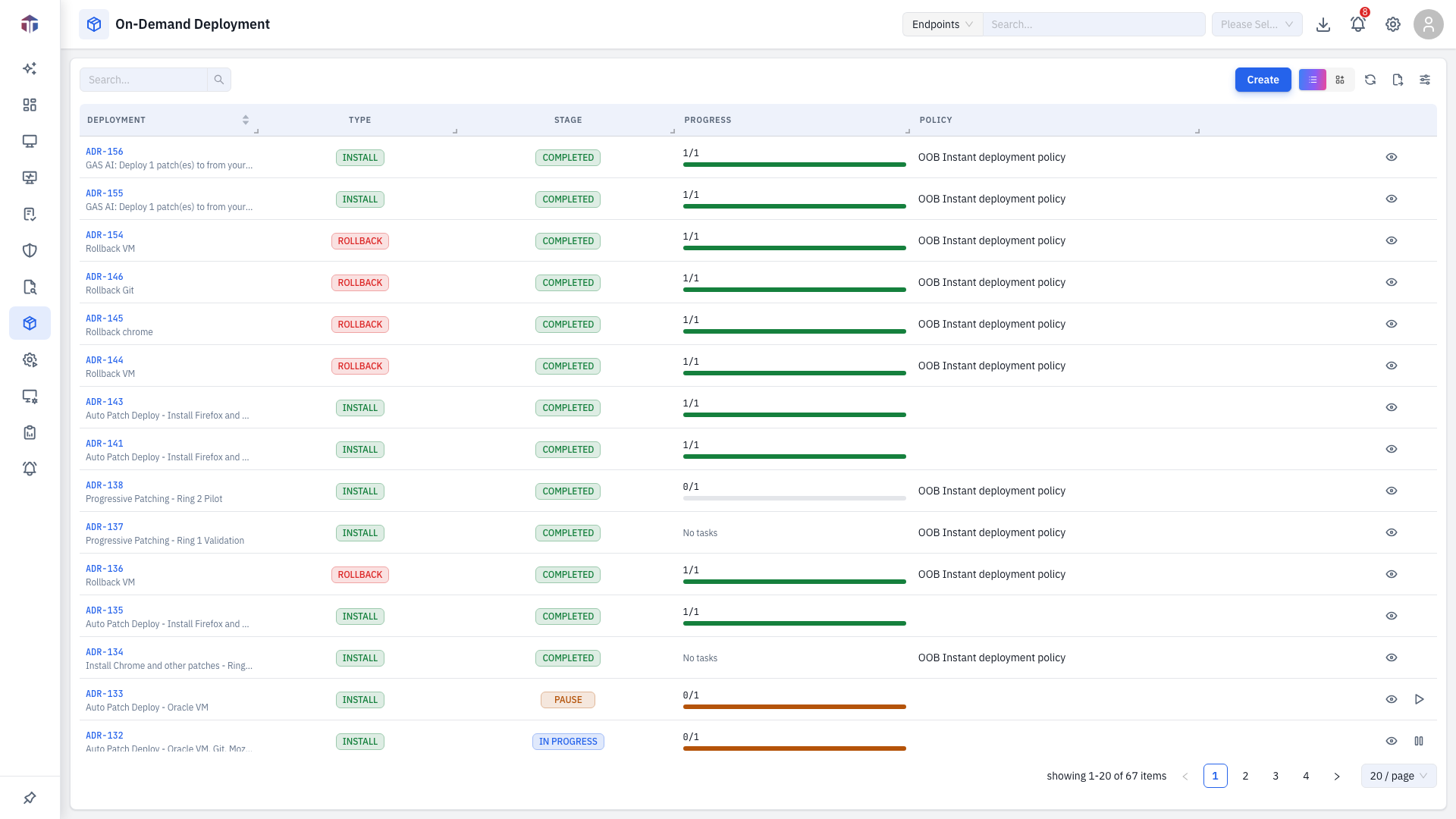
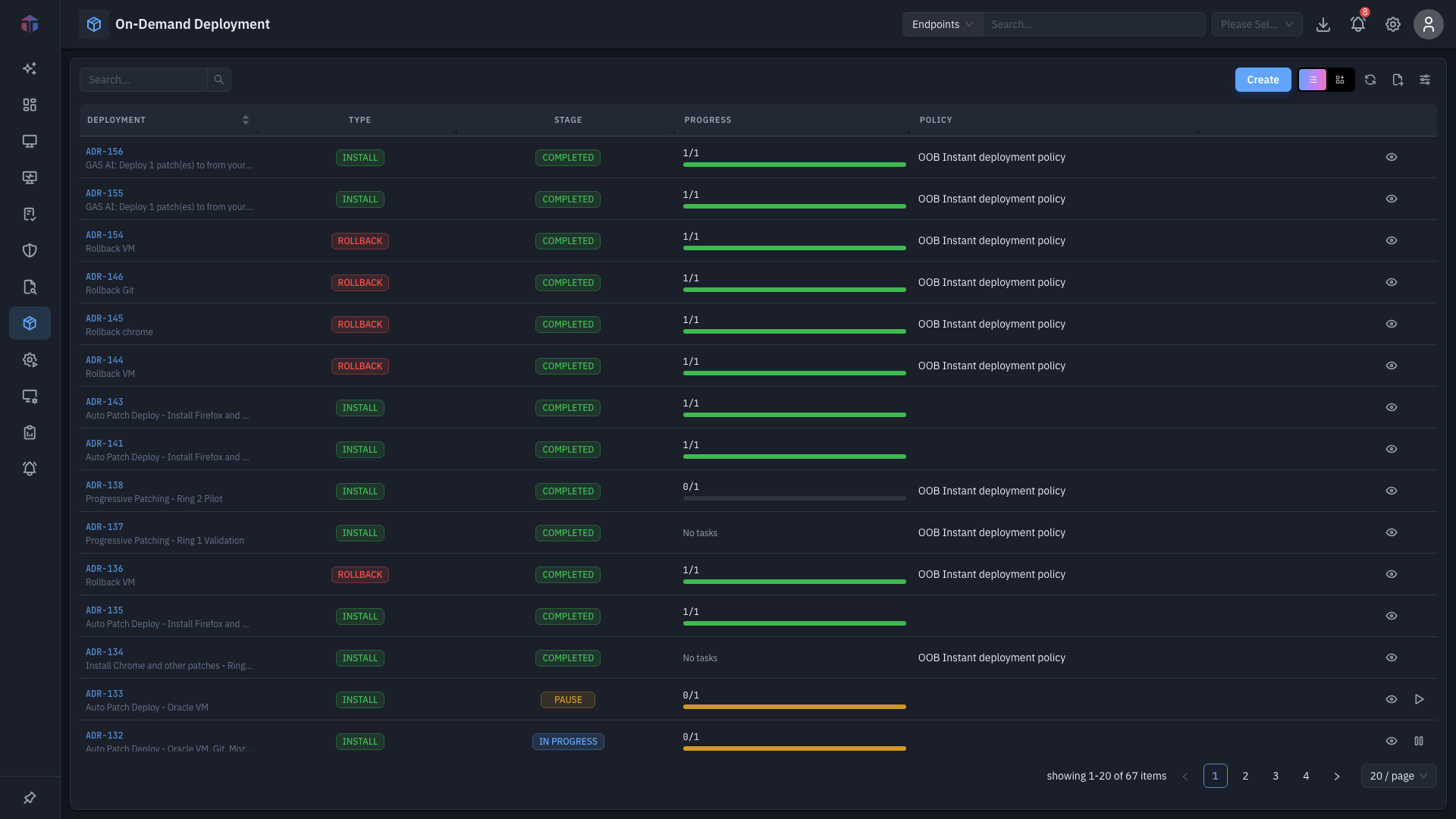
| Column | What it shows |
|---|---|
| ID | The deployment ID. |
| Name | The deployment name. |
| Description | What it does. |
| Type | Install or rollback. |
| Stage | Draft, Initiated, In Progress, Completed, … |
| Policy | The deployment policy used. |
| Pending / Succeeded / Failed | Per-endpoint progress counts. |
| Created By / Created On | Who and when. |
| Actions | View task history, and more. |
This deployment table is shared by all four patch-deployment screens — only the Type and the create form differ.
Card view
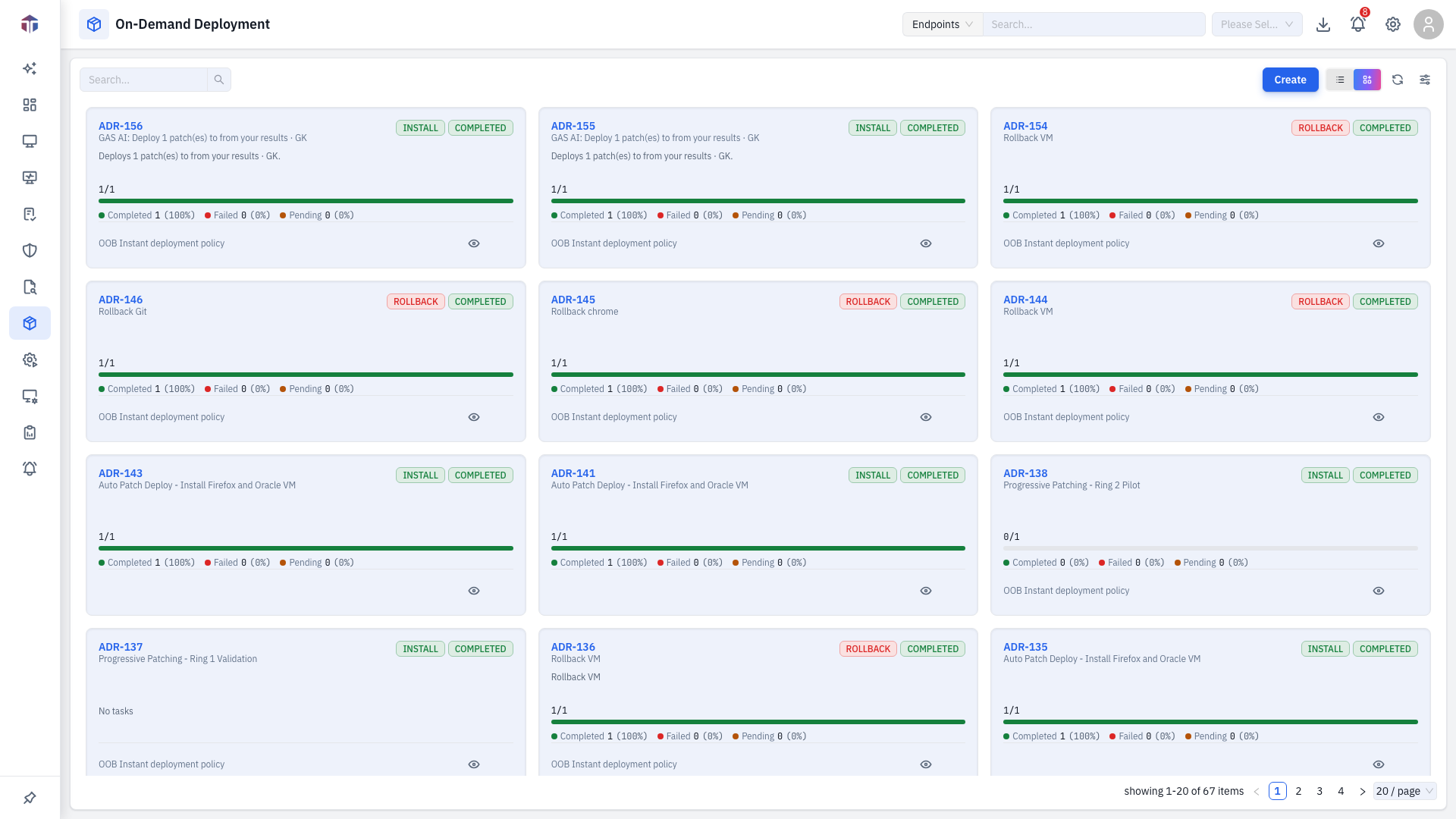
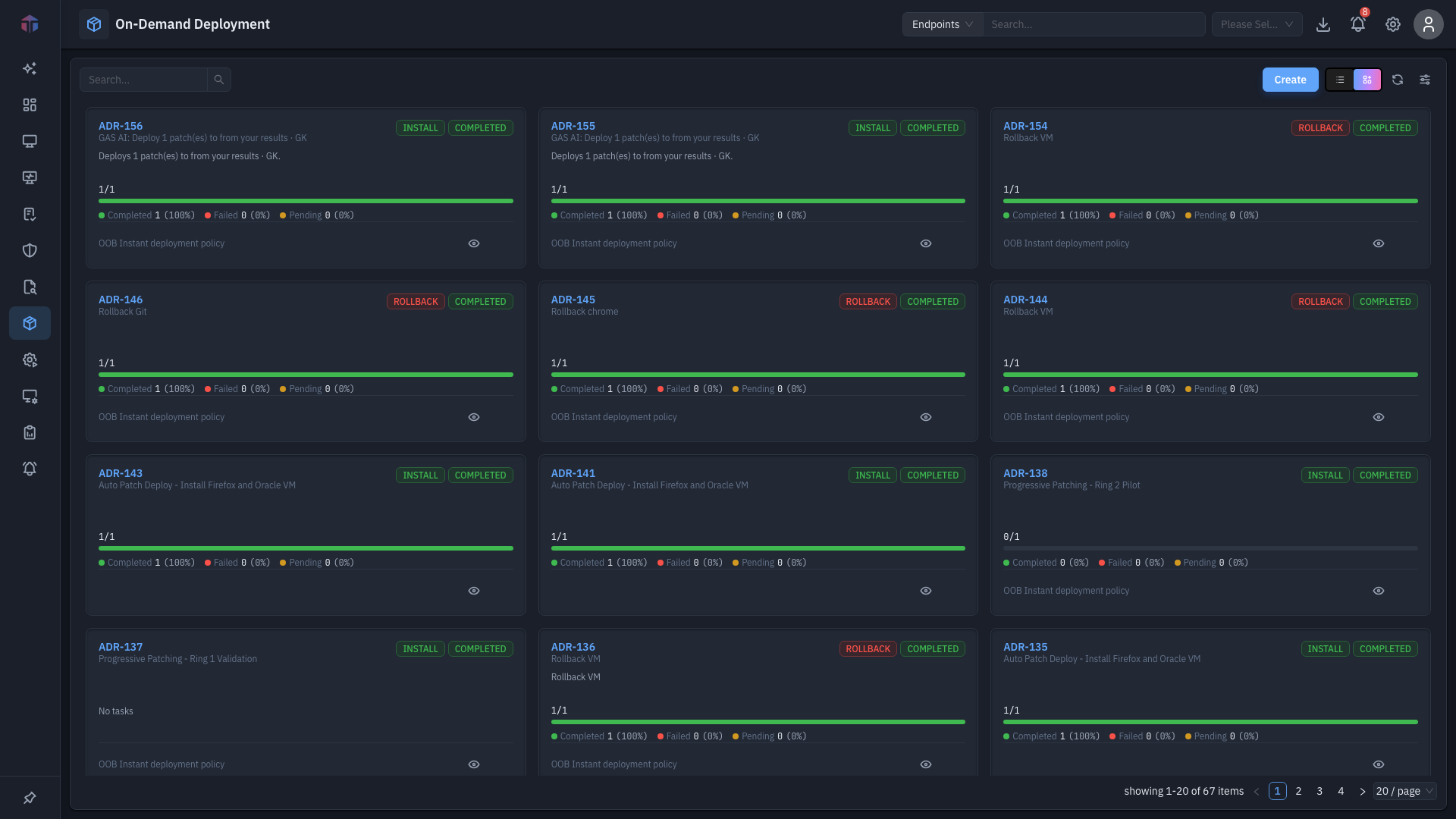
Switch the table to cards with the list / card toggle in the toolbar. Each card shows the deployment's type, stage, a per-endpoint progress bar (completed / failed / pending), and its policy — handy for scanning many deployments at a glance.
How do I create a deployment?
Click Create to open the deployment form.
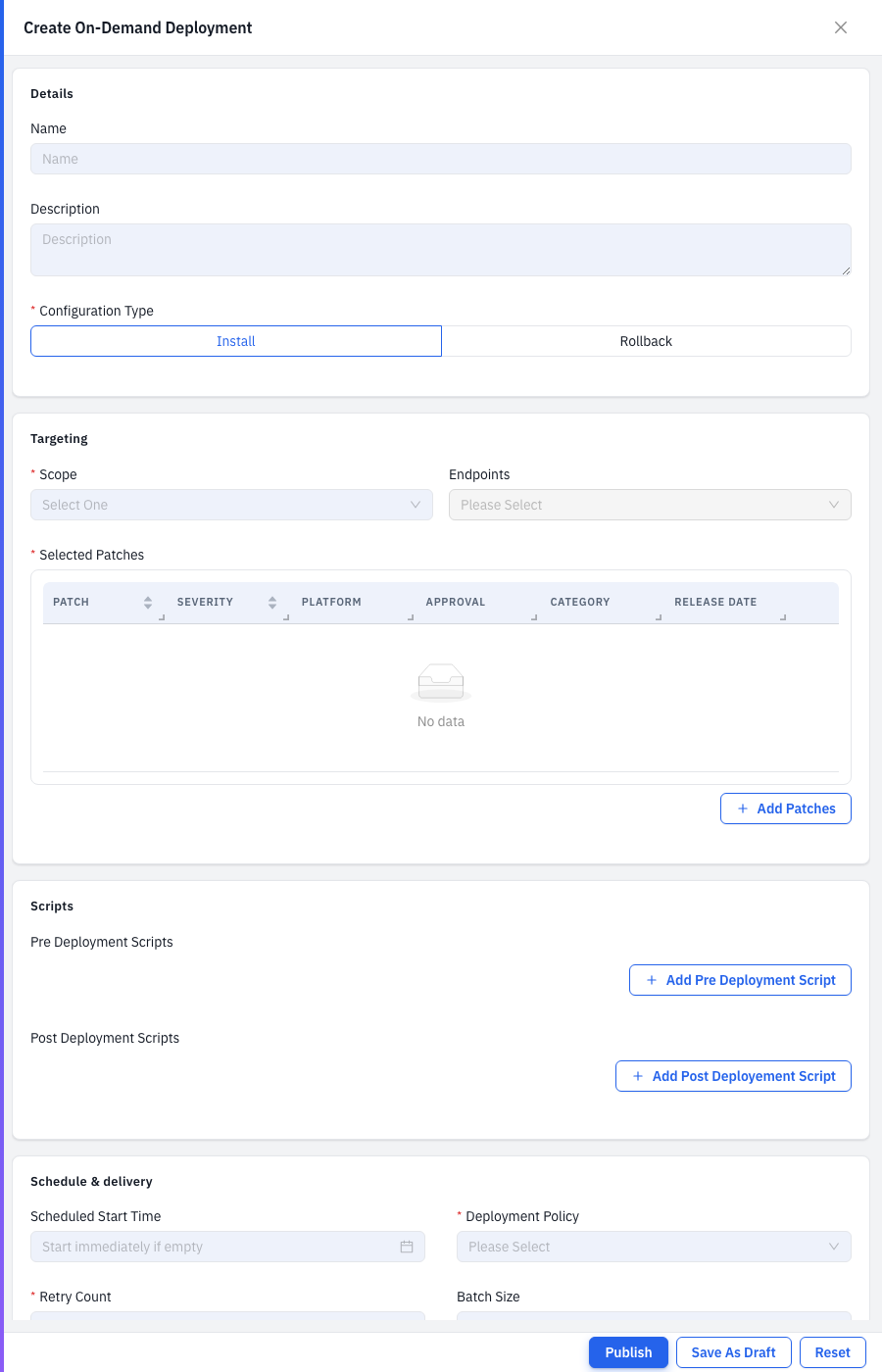
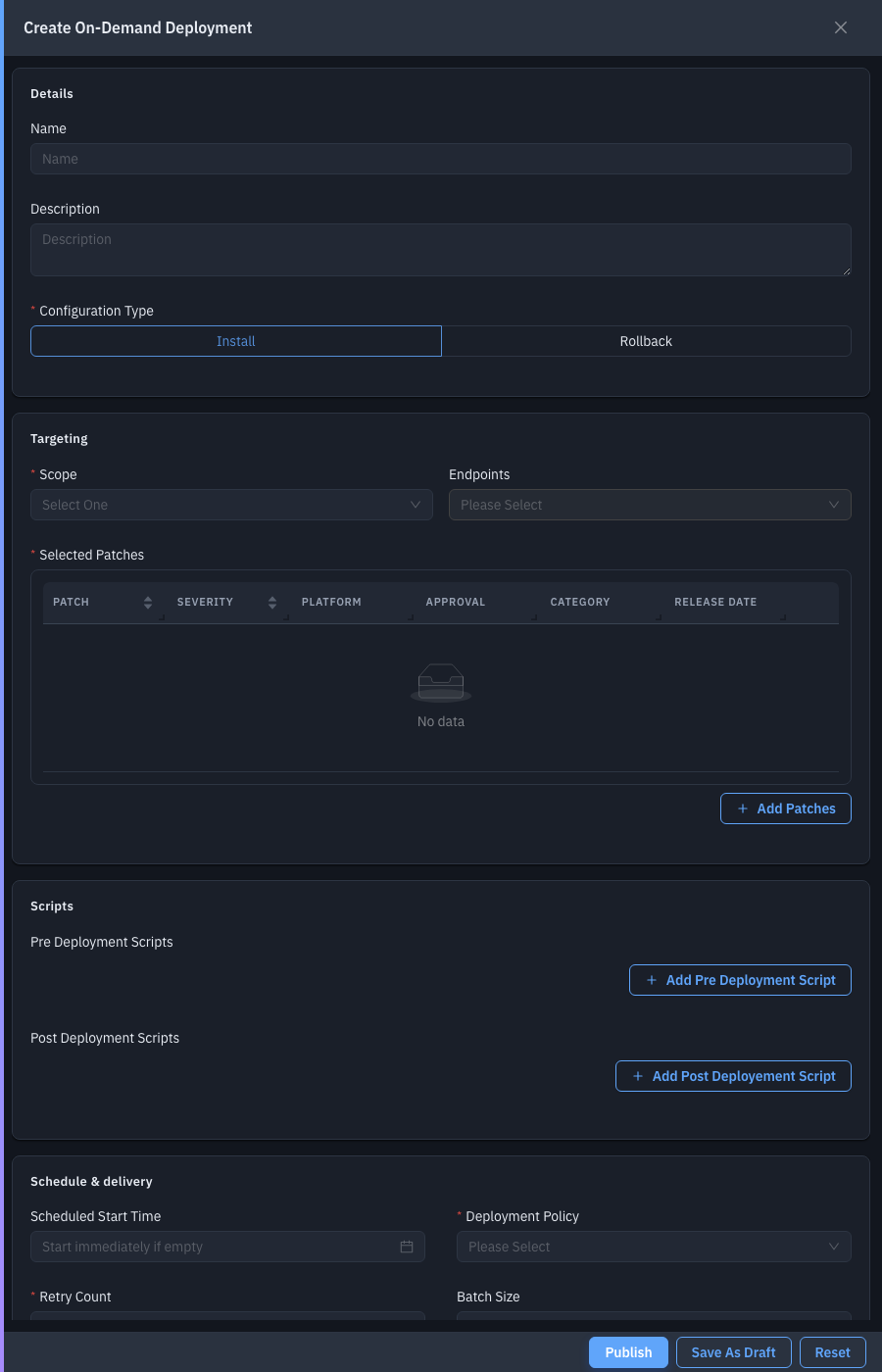
| Field | Required | Notes |
|---|---|---|
| Name / Description | — | Identify the deployment. |
| Configuration Type | Yes | Install or Rollback (uninstall). |
| Scope | — | The endpoints / departments / locations to target. |
| Patches | Yes | The approved patches to deploy (filtered by approval = approved and the install/rollback state). |
| Pre / Post Deployment Scripts | — | Scripts to run before/after. |
| Scheduled Start Time | — | When to start (leave blank for now). |
| Deployment Policy | Yes | The execution policy (retry, batching, reboot handling). |
| Notify to | — | Email recipients for status. |
| Retry Count | Yes | How many times to retry a failed endpoint. |
| Batch Size | — | How many endpoints at a time. |
Save with Publish to start it, or Save As Draft.
Choosing Rollback as the Configuration Type removes the selected patches from every targeted endpoint and may force reboots — there is no automatic undo. Roll back to a small Scope first and confirm the result before widening it.
Tips & troubleshooting
- A patch isn't in the Patches picker. Only Approved patches are deployable — approve it on its detail page first.
Related
- Patches / Patch detail — approve patches first.
- Autonomous and Progressive — automate deployment instead of doing it by hand.
- Deployment Policies — what the Deployment Policy field controls (retry, batching, reboot handling).