Patch Test & Approve
Patch Test & Approve rolls new patches out to a test computer group first, so you can confirm they're safe before approving them for the wider fleet.
How to get here
You need View Patch permission.
- In the left sidebar, click Patch to expand it, then click Patch Test & Approve.
Navigate to: Patch → Patch Test & Approve
URL path: /patch/auto-patch-test
The screen
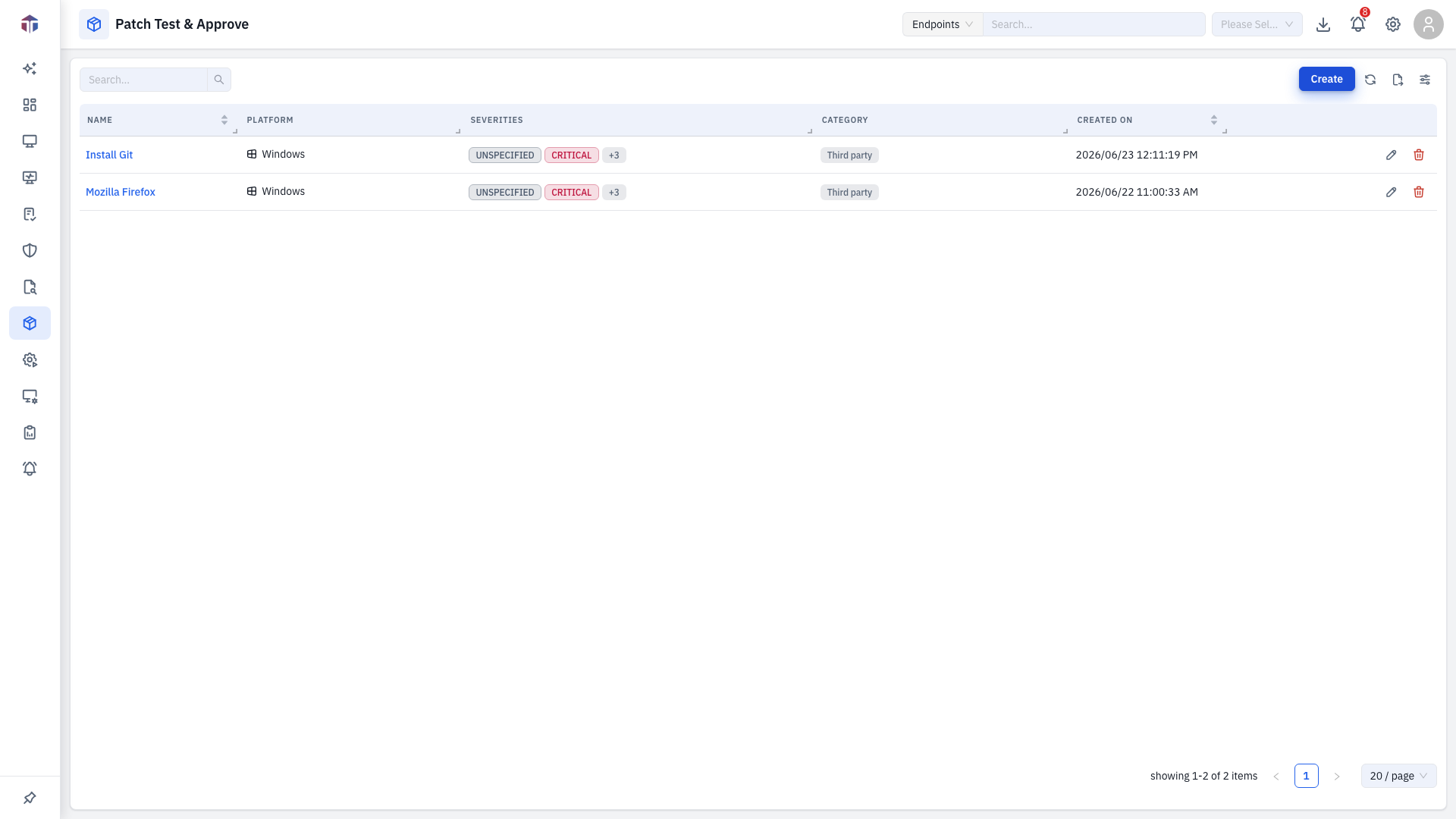
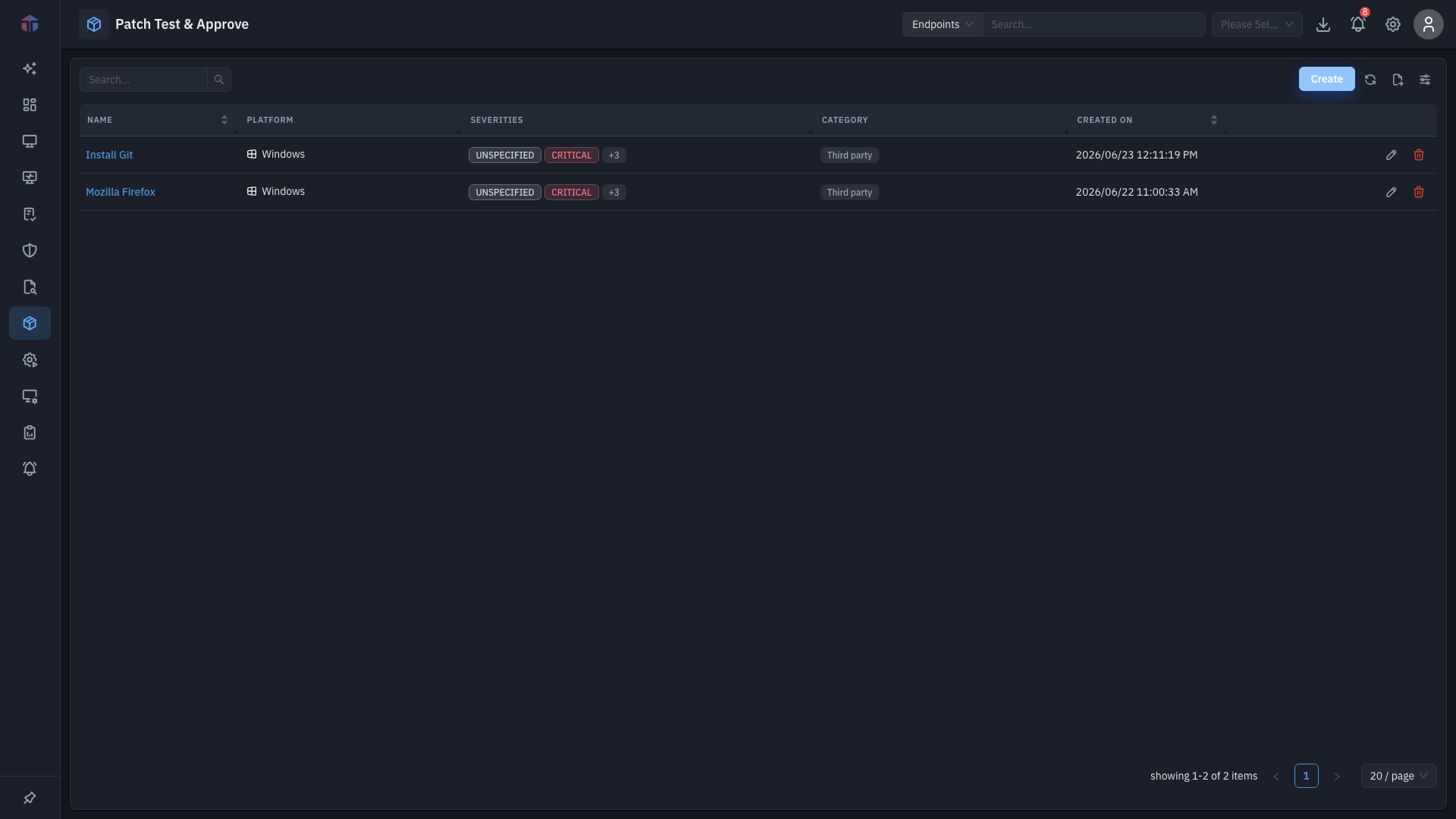
It uses the shared deployment table (ID, Name, Description, Type, Stage, Policy, Pending / Succeeded / Failed, Created By / On, Actions) — scoped to test deployments against a chosen computer group. From the results you approve patches that passed (so they become deployable elsewhere) or hold/decline ones that failed.
How do I create a test deployment?
Click Create to open the form.
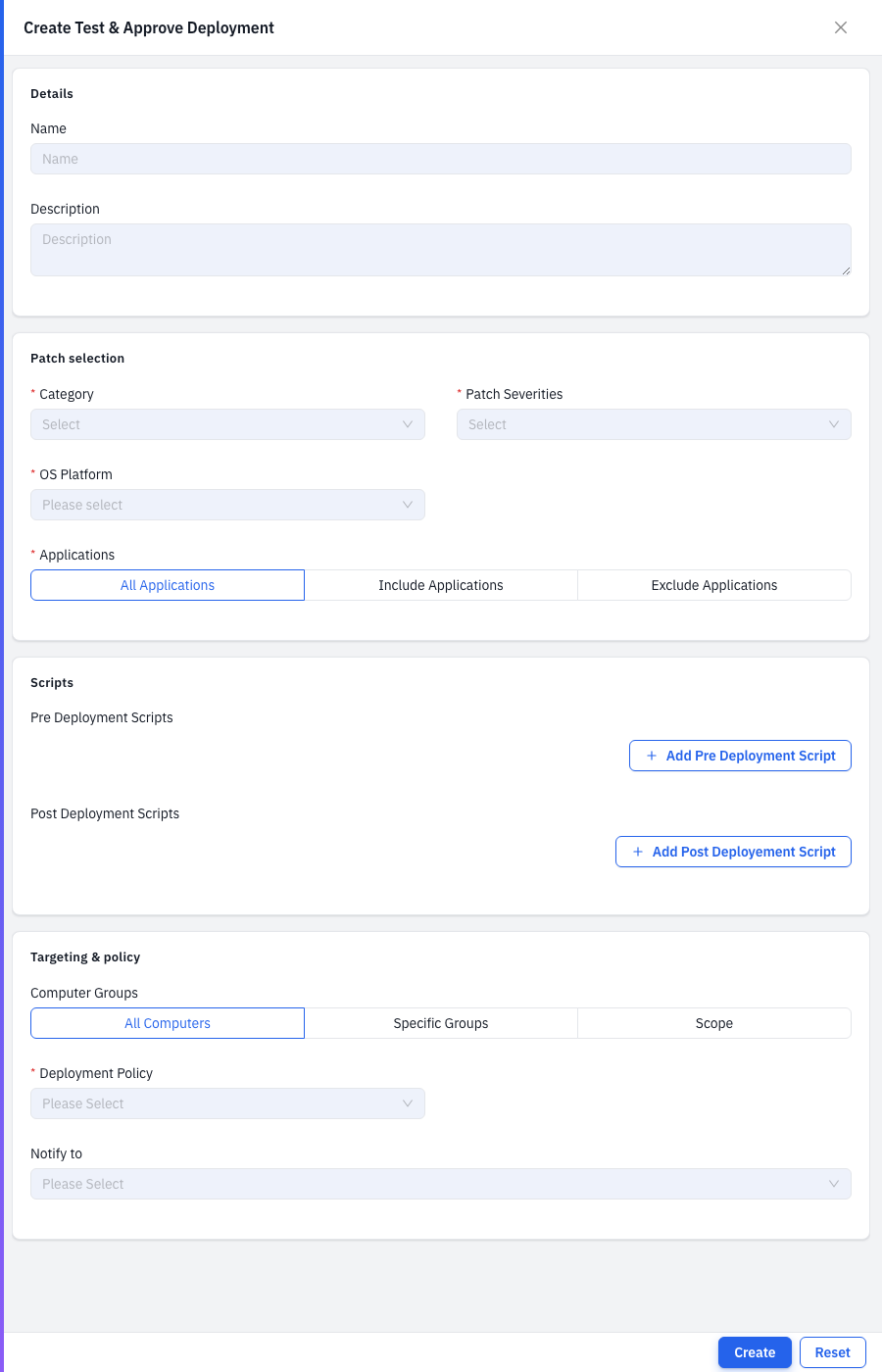
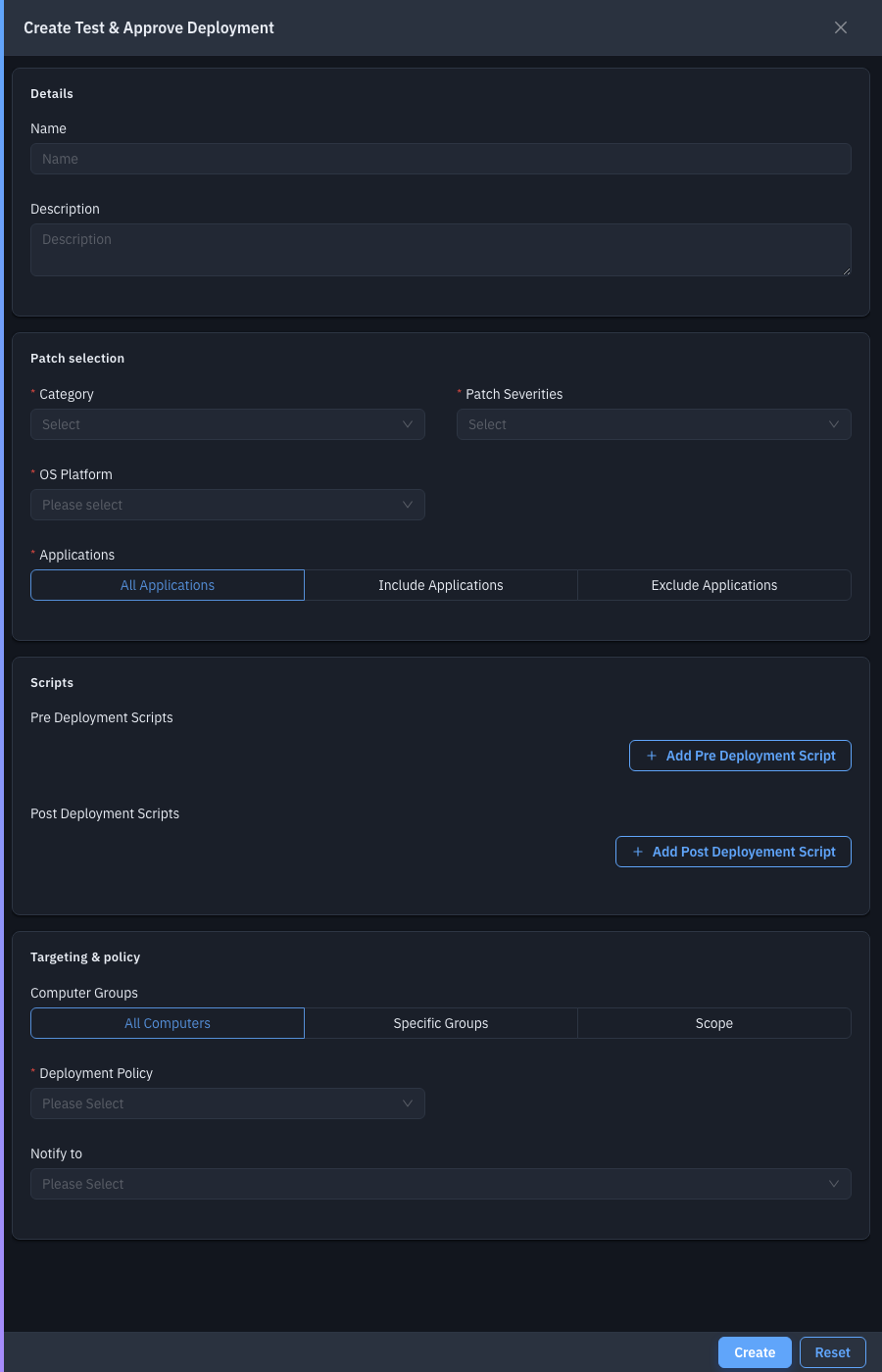
| Field | Required | Notes |
|---|---|---|
| Name / Description | — | Identify the test run. |
| Category | Yes | Patch categories to test (multiple). |
| Patch Severities | Yes | Severities to test (multiple). |
| OS Platform | Yes | Windows / Linux / … |
| Applications | Yes | All Applications, or Include / Exclude specific ones (a picker appears for include/exclude). |
| Pre / Post Deployment Scripts | — | Scripts to run around the install. |
| Computer Groups | — | All Computers, Specific Groups (your test group), or Scope. |
| Deployment Policy | Yes | Execution policy (retry, reboot handling). |
| Notify to | — | Email recipients. |
Save with Create. EndpointOps deploys the matching patches to the test group; once they pass, approve them so they're deployable to the rest of the fleet.
Tips & troubleshooting
- No groups to test against. Define computer groups first under Settings → Patch Management → Computer Groups.
Related
- Patches — approval status lives on each patch.
- Autonomous Deployment — auto-roll approved patches.
- Computer Groups — the test groups.
- Deployment Policies — what the Deployment Policy field sets (retry, reboot handling).