Patches
Patches is the catalogue of OS and application patches EndpointOps knows about — which endpoints are missing or have installed each one, with severity and source details. From here you approve, scan, except, and deploy patches. Sibling views cover the deployment workflows: Patch Test & Approve, On-Demand Deployment, Autonomous Deployment, and Progressive Deployment.
How to get here
You need View Patch permission.
- In the left sidebar, click Patch to expand it, then click Patches.
Navigate to: Patch → Patches
URL path: /patch/patches
The Patches screen
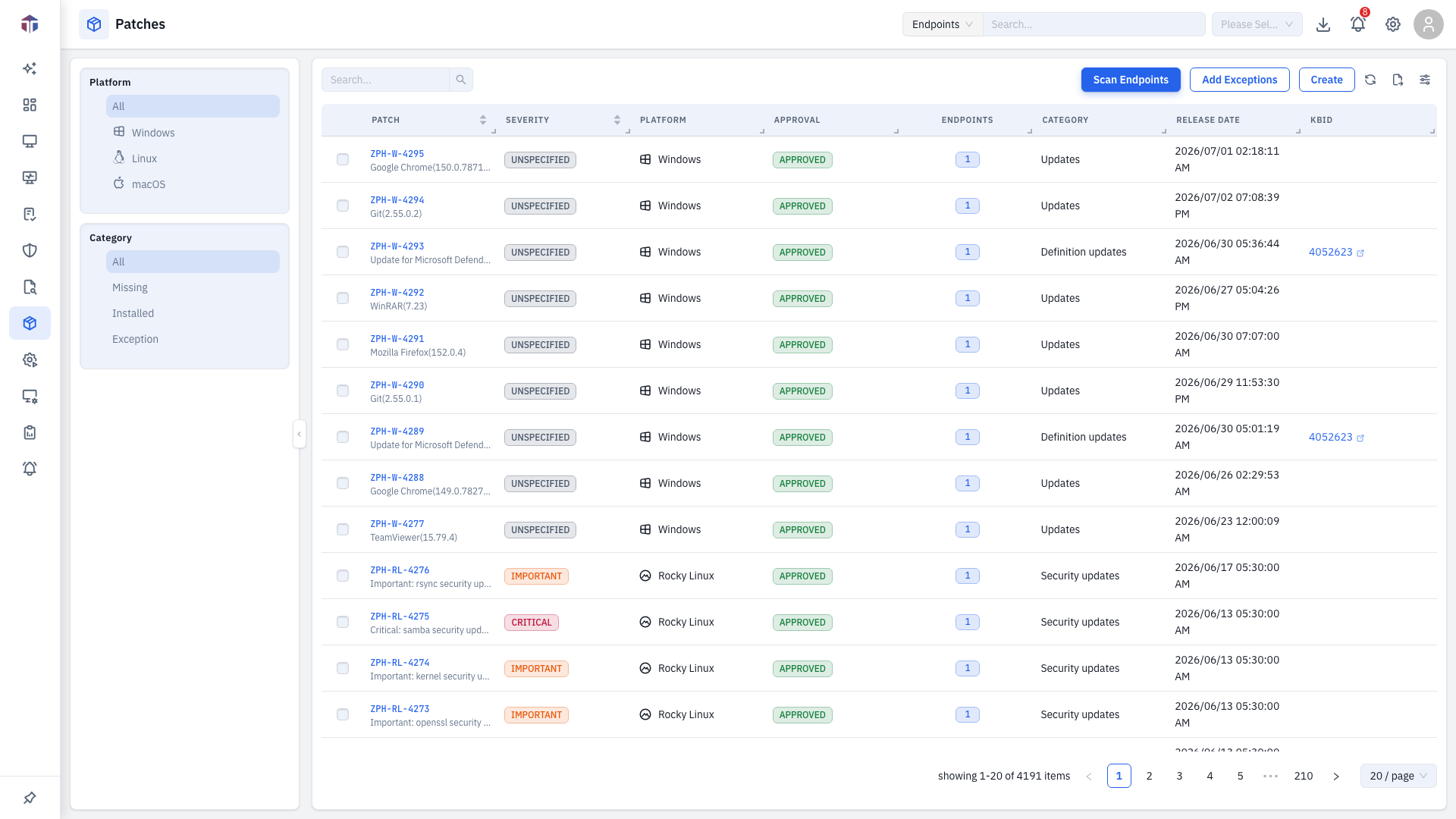
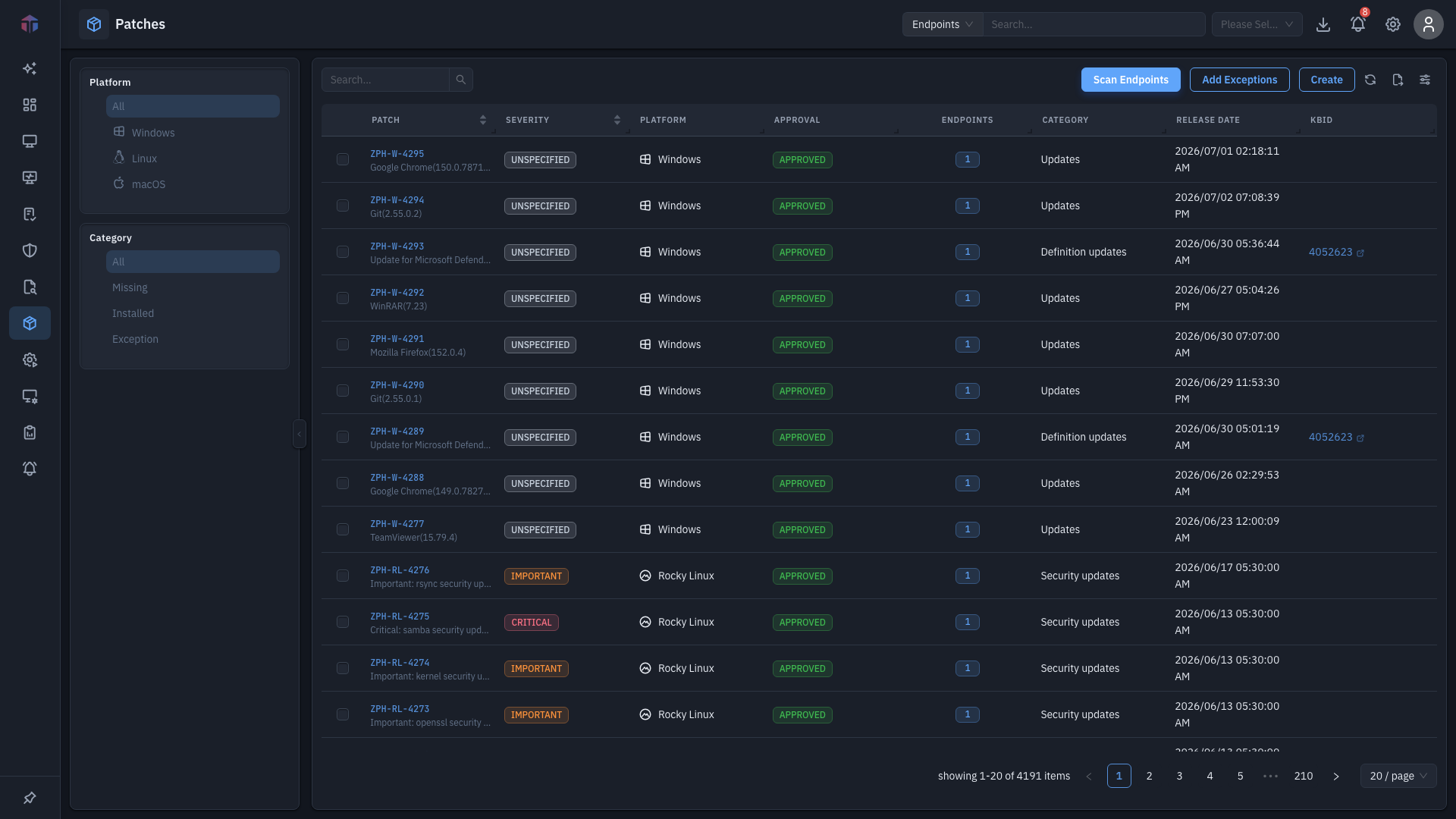
A filter pane on the left narrows the list:
- Platform — Windows, Linux, …
- State — All, Missing, Installed, Ignored.
| Column | What it shows |
|---|---|
| ID | The patch ID — click to open its detail. |
| Title | The patch title. |
| Endpoints | How many endpoints (for the current state filter) — a clickable count. |
| Severity | Patch severity, as a tag. |
| Platform | OS, with an icon. |
| Release Date | When the patch was released. |
| Category | Patch category (Security Update, …). |
| Rollback | Whether it can be rolled back. |
| KBID | Knowledge-base ID (links to the vendor article). |
| CVE Number | The CVE(s) it fixes (double-click to copy). |
Patch Approval Status and Patch Test Status are available via the column picker (hidden by default).
Drill-down: affected endpoints
Click a row's Endpoints count to open a drawer with Missing / Installed / Exceptions sub-tabs of the machines for that patch — the same view as the patch detail Endpoints tab.
Actions
-
Scan Endpoints — re-check endpoints for missing/installed patches.
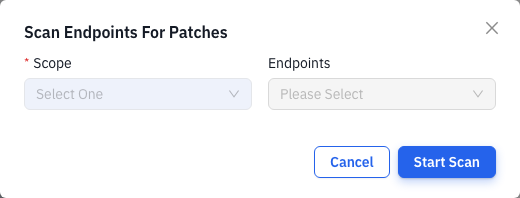
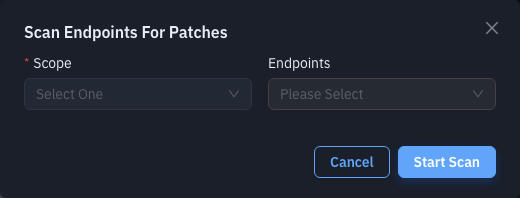
-
Add Exceptions — select patches (when the state isn't Ignored) and exclude them, with a reason and scope.
Tips & troubleshooting
- A patch shows Missing everywhere. Approve it and deploy via On-Demand or a deployment policy.
- Counts look stale. Run Scan Endpoints.
Related
- Patch detail — everything about one patch.
- On-Demand Deployment — deploy approved patches now.
- Vulnerabilities — the CVEs patches remediate.