Distribution Server
A distribution server caches patches and files inside your network, so your endpoints download from it instead of reaching out to the internet one by one. This saves bandwidth and supports air-gapped sites.
How to get here
You reach this page through Settings, so you need administrator (settings) permission. If you don't see the Settings icon, ask your administrator for access.
- Sign in to EndpointOps.
- In the top-right of any screen, click the Settings (gear ⚙️) icon.
- In the Settings menu on the left, open Patch Management and click Distribution Server.
Navigate to: Settings → Patch Management → Distribution Server
URL path: /settings/patch-management/distribution-servers
The Distribution Server screen
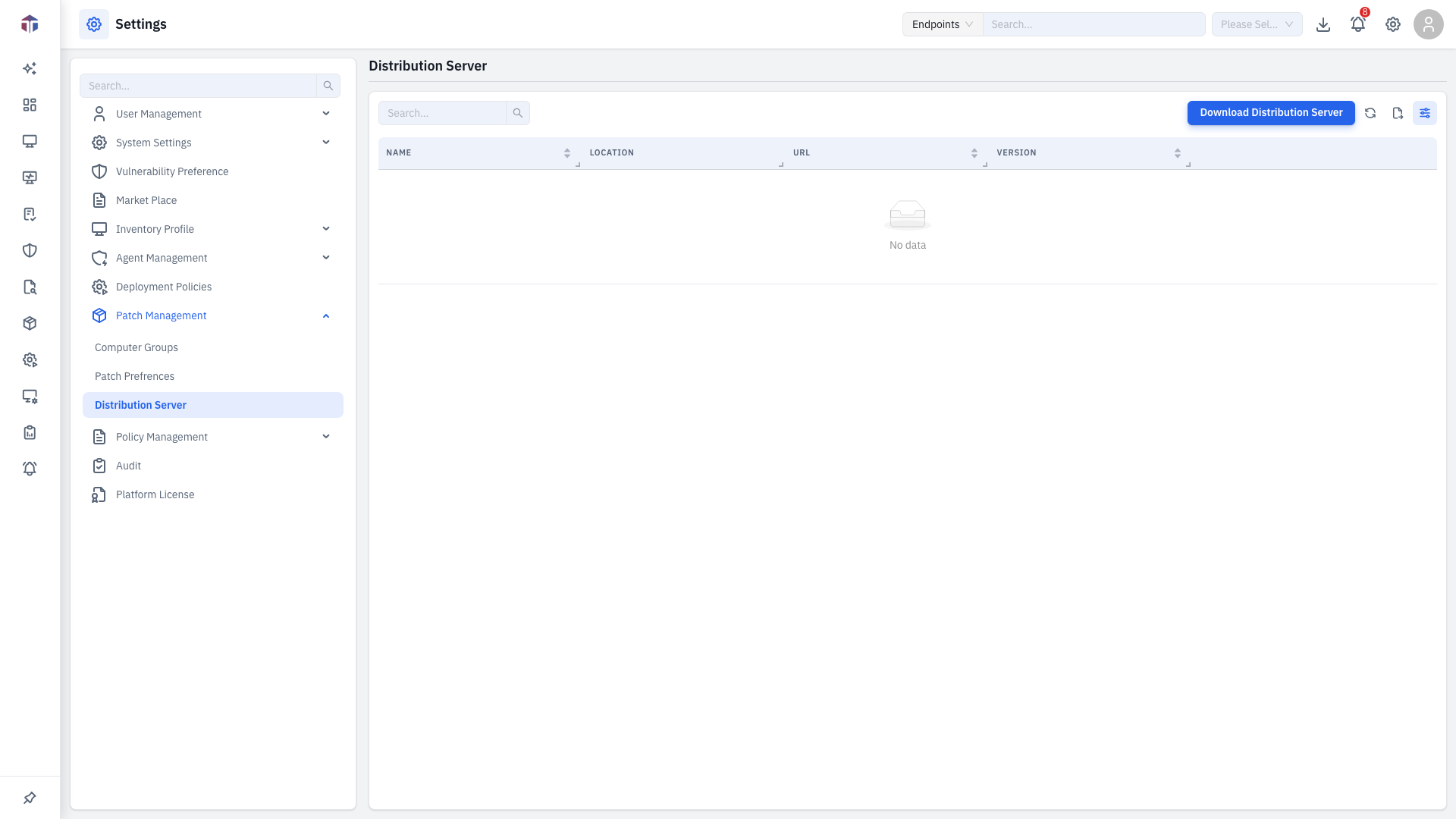
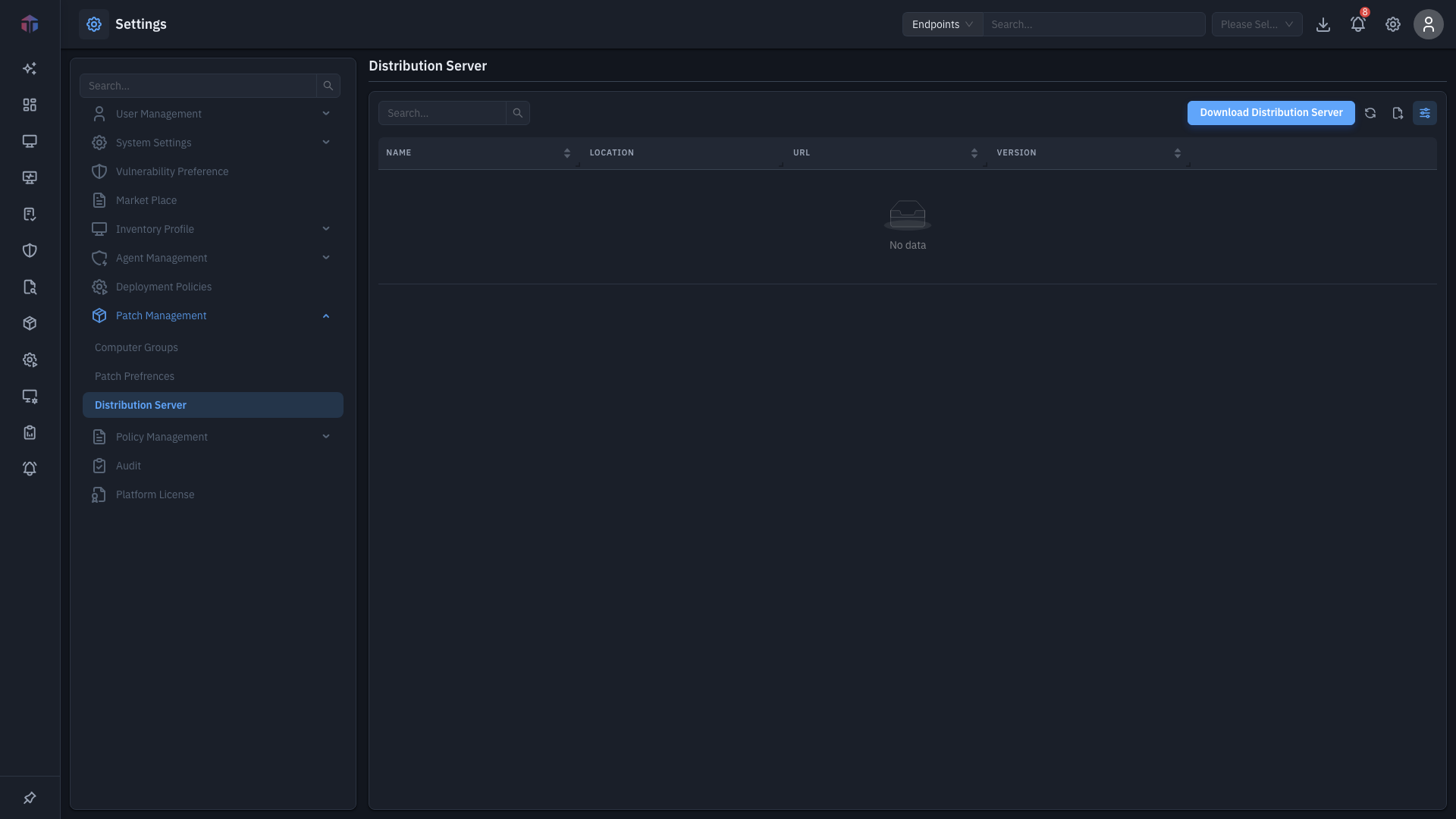
Columns: Name (with a live connection indicator), Description, Location, URL, Version, Created On. Each row has Test Connection, edit (✏️), and delete (🗑️) actions. Search above the table to find a server.
How do I add a distribution server?
You don't create one with a form — you download and install the distribution server software, and it registers itself here.
- Click Download Distribution Server (top-right) and choose Windows or Linux.
- Install the downloaded package on the machine that will act as the distribution server.
- Once it's running, it appears in this list.
How do I configure a server?
-
Test Connection: click the row's Test Connection action to check EndpointOps can reach it; the result shows on screen.
-
Edit: click edit (✏️) to adjust its settings:
Field Required Notes Name Yes A label for the server. URL Yes Set automatically by the server (read-only). Location Yes The location it serves. Allow Internet — Let it fall back to the internet when a file isn't cached. Air Gapped Patch Sync — For networks with no internet — sync patches via transferred media. Allowed Bandwidth to download Files Yes Download speed limit in KB/sec (use 0 for no limit). Description No Notes.
Choosing which columns to show
Click the Columns icon on the right of the toolbar to open the column picker, tick or untick columns, drag to reorder, then click Apply.
Tips & troubleshooting
- Test Connection fails. Confirm the distribution-server software is running on its host and that EndpointOps can reach the server's URL — a firewall or proxy between them may block it.
- A new server doesn't appear. It registers itself only after the downloaded package is installed and running. Re-check the install on the host.
- Endpoints still pull from the internet. Confirm the server's Location matches the endpoints' location, and decide whether the Allow Internet fallback should be on.
- Air-gapped site. Turn on Air Gapped Patch Sync and move patch data in on transferred media; endpoints then update with no internet access.
Related
- Patch Preferences — patching schedule and approvals.
- Computer Groups — target endpoints for patching.