Platform License
See your EndpointOps license — who it's for, what it includes, how many endpoints you can use, and when it expires — and activate or update it.
How to get here
You reach this page through Settings, so you need administrator (settings) permission. If you don't see the Settings icon, ask your administrator for access.
- Sign in to EndpointOps.
- In the top-right of any screen, click the Settings (gear ⚙️) icon.
- In the Settings menu on the left, click Platform License.
Navigate to: Settings → Platform License
URL path: /settings/platform-license
The Platform License screen
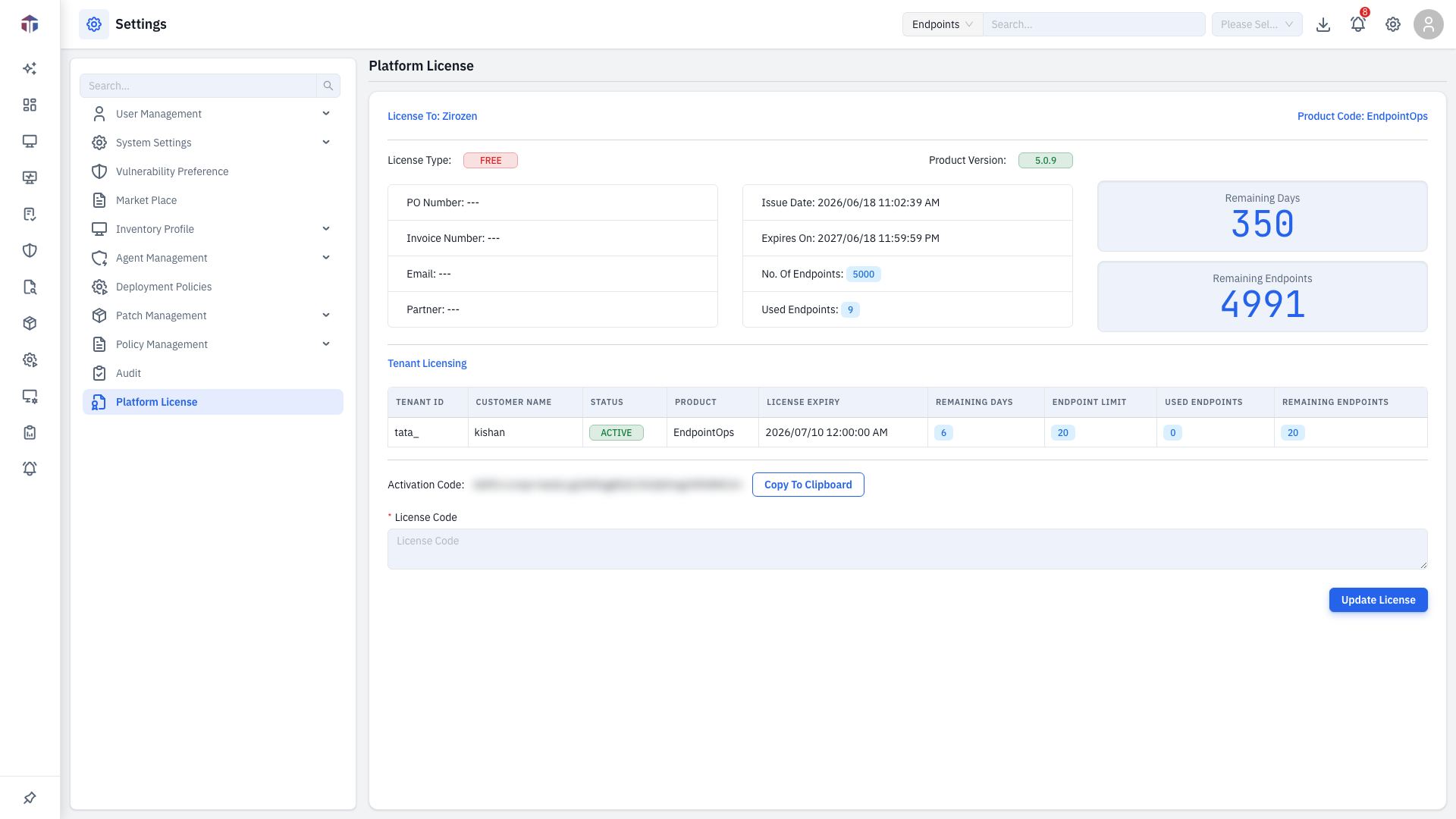
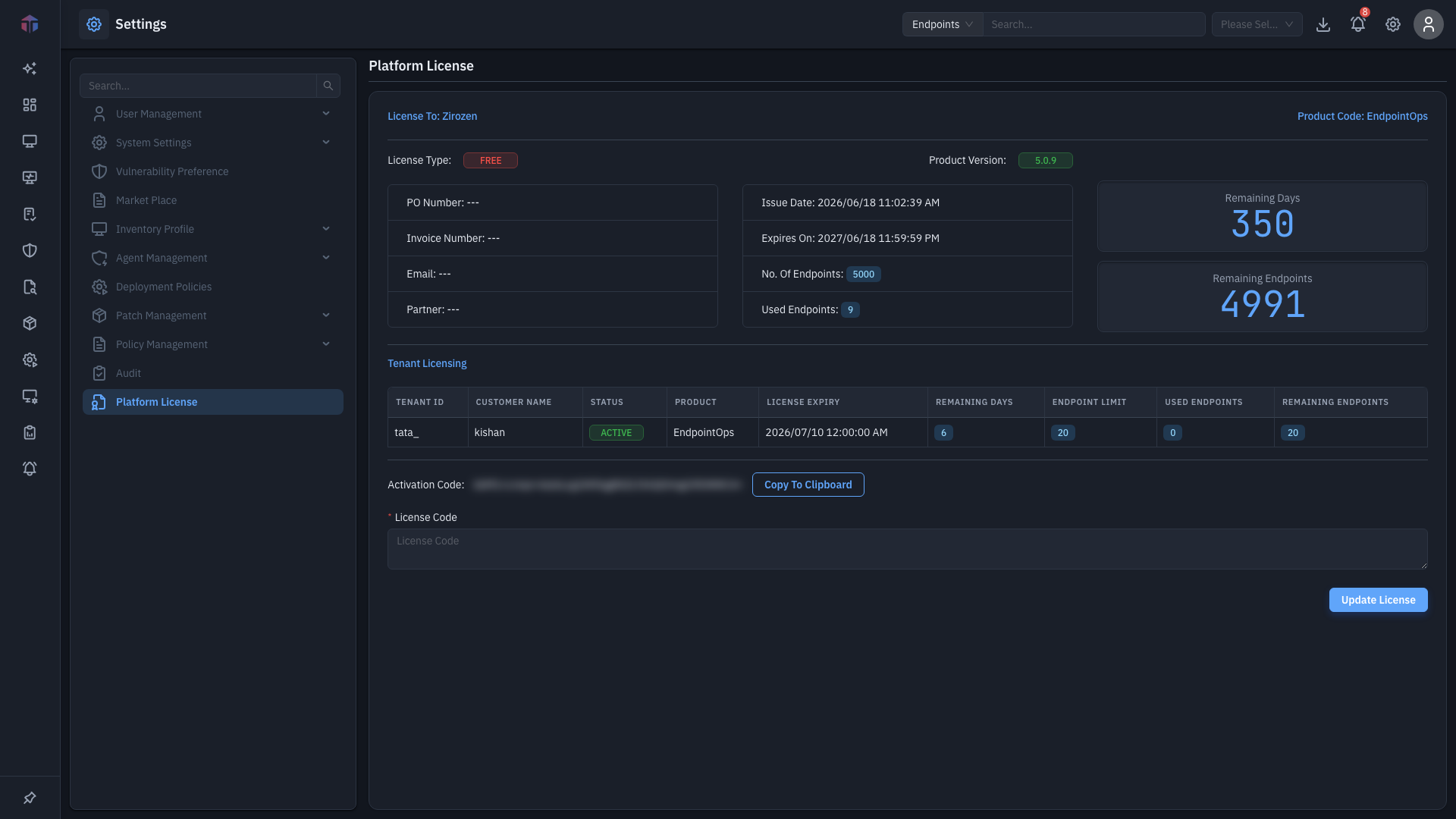
The top of the page summarizes your license:
| Item | Meaning |
|---|---|
| License To / Product Code | Who the license is issued to and the product. |
| License Type | For example Free or a paid type. |
| Product Version | The running product version. |
| PO Number / Invoice Number / Email / Partner | Purchase and contact details. |
| Issue Date / Expires On | When the license started and ends. |
| No. Of Endpoints / Used Endpoints | Your endpoint limit and how many are in use. |
| Remaining Days / Remaining Endpoints | The big counters on the right. |
In a multi-tenant deployment, a Tenant Licensing table lists each tenant's status, product, expiry, and endpoint usage.
How do I activate or update the license?
- Copy your Activation Code with Copy To Clipboard and send it to Zirozen to get a License Code.
- Paste the License Code into the box.
- Click Update License. The license details refresh.
Watch the endpoint and day counters
Remaining Endpoints and Remaining Days tell you when you'll run out of capacity or time. Renew before they reach zero so endpoints keep reporting.
Related
- User Management → Tenants — per-tenant licensing in multi-tenant setups.
- System Settings → License Edition — software license editions.