OKR Policy
OKR Policy sets the organisation-wide rules that every objective on OKR Progress follows: whether a new objective needs approval, how far behind pace a key result can fall before it is At risk or Off track, and how often a manual key result needs a check-in.
You need View Settings to open this page. To change and save it you also need Update Settings and must be a user who sees every department (the built-in admin, or a user in the default department). Anyone else sees the policy read-only, with the note "Only users who see every department and may update Settings can change the OKR policy."
How to get here
You reach this page through Settings, so you need View Settings permission.
- Sign in to EndpointOps.
- In the top-right of any screen, click the Settings (gear ⚙️) icon.
- In the Settings menu on the left, open Policy Management and click OKR Policy.
Navigate to: Settings → Policy Management → OKR Policy
URL path: /settings/policy-management/okr-policy
On Goals → OKR Progress, users who can manage objectives see a settings (gear) button at the right of the toolbar, labelled OKR policy. It opens this page.
The OKR Policy screen
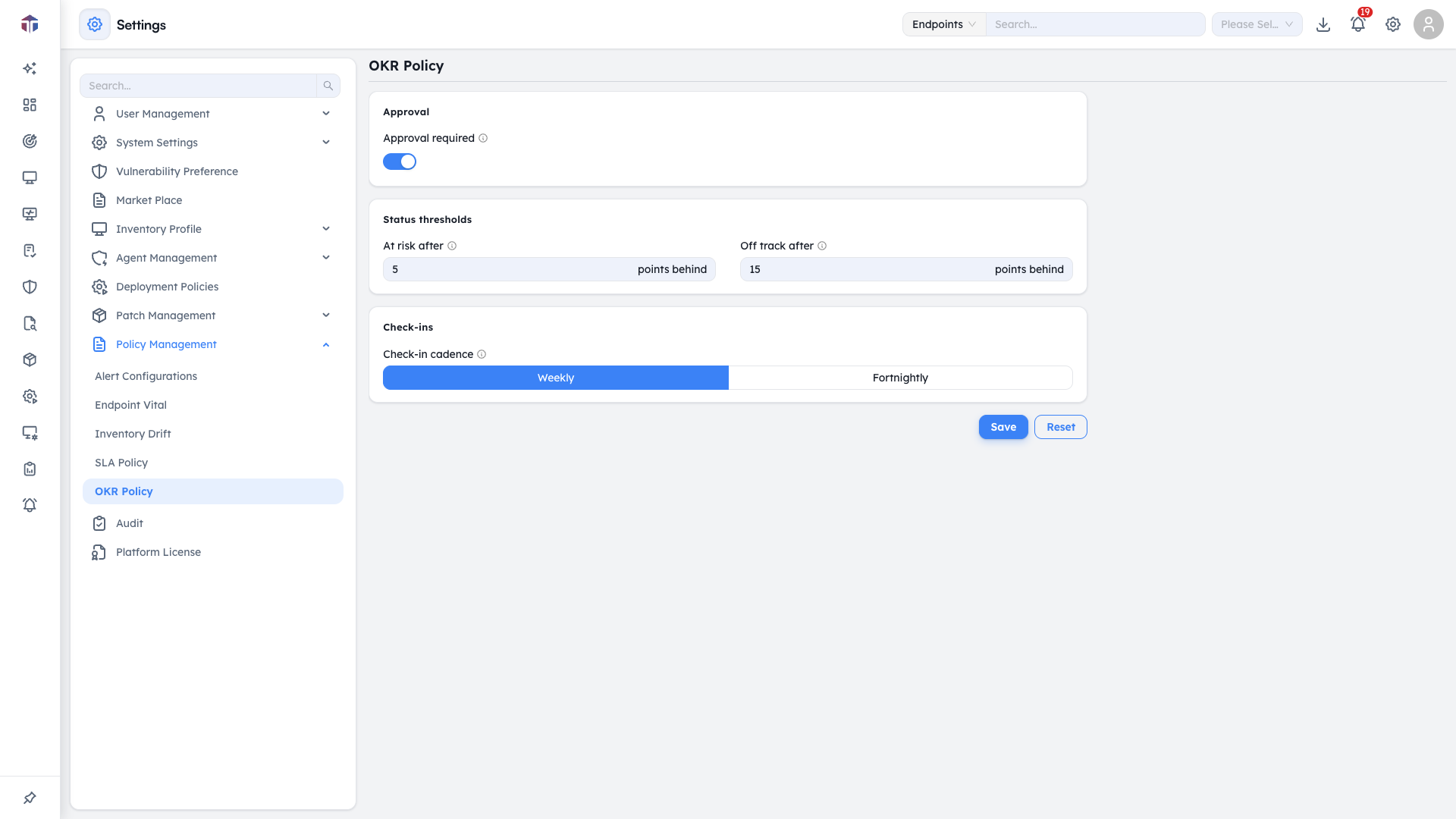
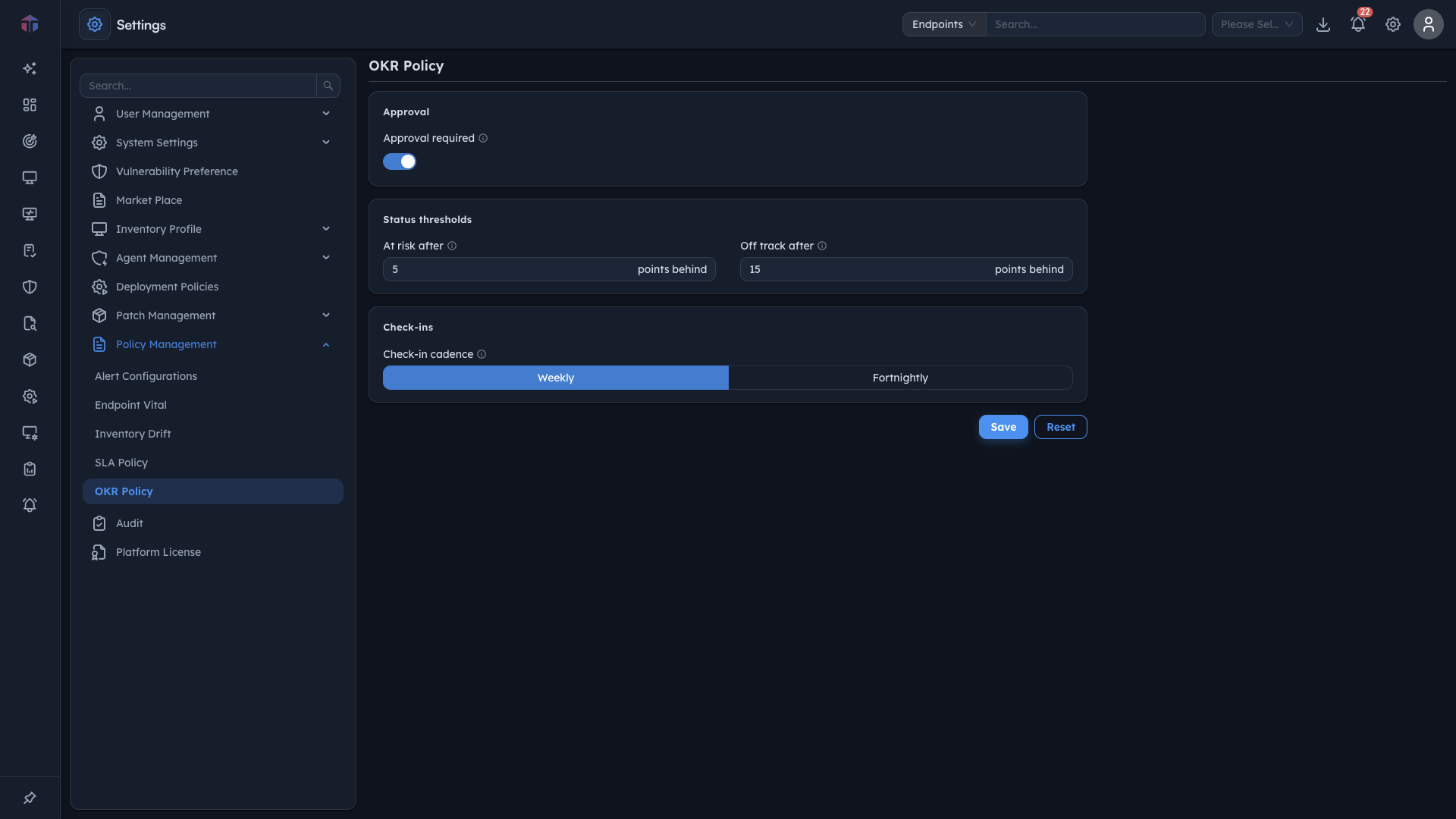
The page is one short form in three sections. When the policy has been saved before, a line at the top says Last edited by (user) · (date and time).
| Section | Field | Notes |
|---|---|---|
| Approval | Approval required | A switch. When on, a new or reopened objective needs another user's approval before it goes live. |
| Status thresholds | At risk after | Points behind the expected pace before a key result is At risk. A whole number from 1 to 50 (shown as points behind). |
| Off track after | Points behind the expected pace before a key result is Off track. A whole number from 1 to 50, and it must be more than At risk after. | |
| Check-ins | Check-in cadence | Weekly (7 days) or Fortnightly (14 days): how often a manual key result needs a check-in before it shows as Stale. |
At the bottom, Save stores the policy and Reset puts the form back to the values last saved. Both buttons appear only for users who can change the policy.
How do I change the OKR policy?
- Open Settings → Policy Management → OKR Policy.
- Turn Approval required on or off.
- Set At risk after and Off track after (for example 10 and 20 points behind).
- Pick a Check-in cadence.
- Click Save. A "OKR policy saved." message confirms it.
If a value breaks a rule (for example Off track after is not more than At risk after), the message shows under that field and nothing is saved.
How the policy is used
- Status. A key result's progress is compared with the progress expected by today in the cycle. Within At risk after points of that pace (or ahead) it is On track; between the two thresholds it is At risk; further behind than Off track after it is Off track. OKR Progress explains this in its How status is calculated panel.
- Approval. With approval on, the objective form asks for an Approver and its main button reads Submit for approval; with approval off it reads Publish. See OKR Progress → the approval flow.
- Cadence. A manual key result that has not been checked in within the cadence shows a Stale tag.
These are organisation defaults. In each objective's Tracking and approval section:
- Status thresholds offers Organisation default (these values, shown as X / Y pts) or Custom. An objective on Organisation default follows this policy; one with Custom thresholds keeps its own.
- Check-in cadence starts from this policy's value on a new objective, and can be changed per objective.
Tips & troubleshooting
- The form is greyed out and there is no Save button. You don't have Update Settings, or you don't see every department. Ask an administrator.
- "The OKR policy could not be read." The page couldn't load the policy. Click Retry.
- Off track can't be saved. Off track after must be larger than At risk after.
Related
- OKR Progress: the objectives and key results this policy governs.
- SLA Policy: the deadlines and targets many key results measure.
- SLA Tracking: live SLA figures behind linked key results.