SLA Policy
SLA Policy decides how quickly vulnerabilities and missing patches must be fixed. It sets a remediation deadline for every priority and exposure, the rules that raise or lower an item's priority, when an item's clock starts and pauses, the compliance targets, how exceptions work, and who is warned as a deadline gets close. The results show on SLA Tracking.
You need View Settings to open this page. To change and save the policy you also need Update Settings and must be a user who sees every department (the built-in admin, or a user in the default department). Anyone else sees the policy read-only, with the note "Only users who see every department and may update Settings can change the SLA policy."
How to get here
You reach this page through Settings, so you need View Settings permission.
- Sign in to EndpointOps.
- In the top-right of any screen, click the Settings (gear ⚙️) icon.
- In the Settings menu on the left, open Policy Management and click SLA Policy.
Navigate to: Settings → Policy Management → SLA Policy
URL path: /settings/policy-management/sla-policy
The SLA Policy screen
The whole policy is one form split across six tabs: Deadlines, Adjustments, Custom rules, Clock & targets, Exceptions and Escalation. The tab strip stays pinned at the top while you scroll. When the policy has been saved before, a line above the tabs says Last edited by (user) · (date and time).
Save and Reset sit under the last card of whichever tab is open. Save always stores every tab, not just the one you're looking at; Reset puts every tab back to the values last saved.
If a save is refused, each tab that holds a problem gets a red dot, and the first one opens for you. Fix the fields marked in red, then click Save again.
Deadlines
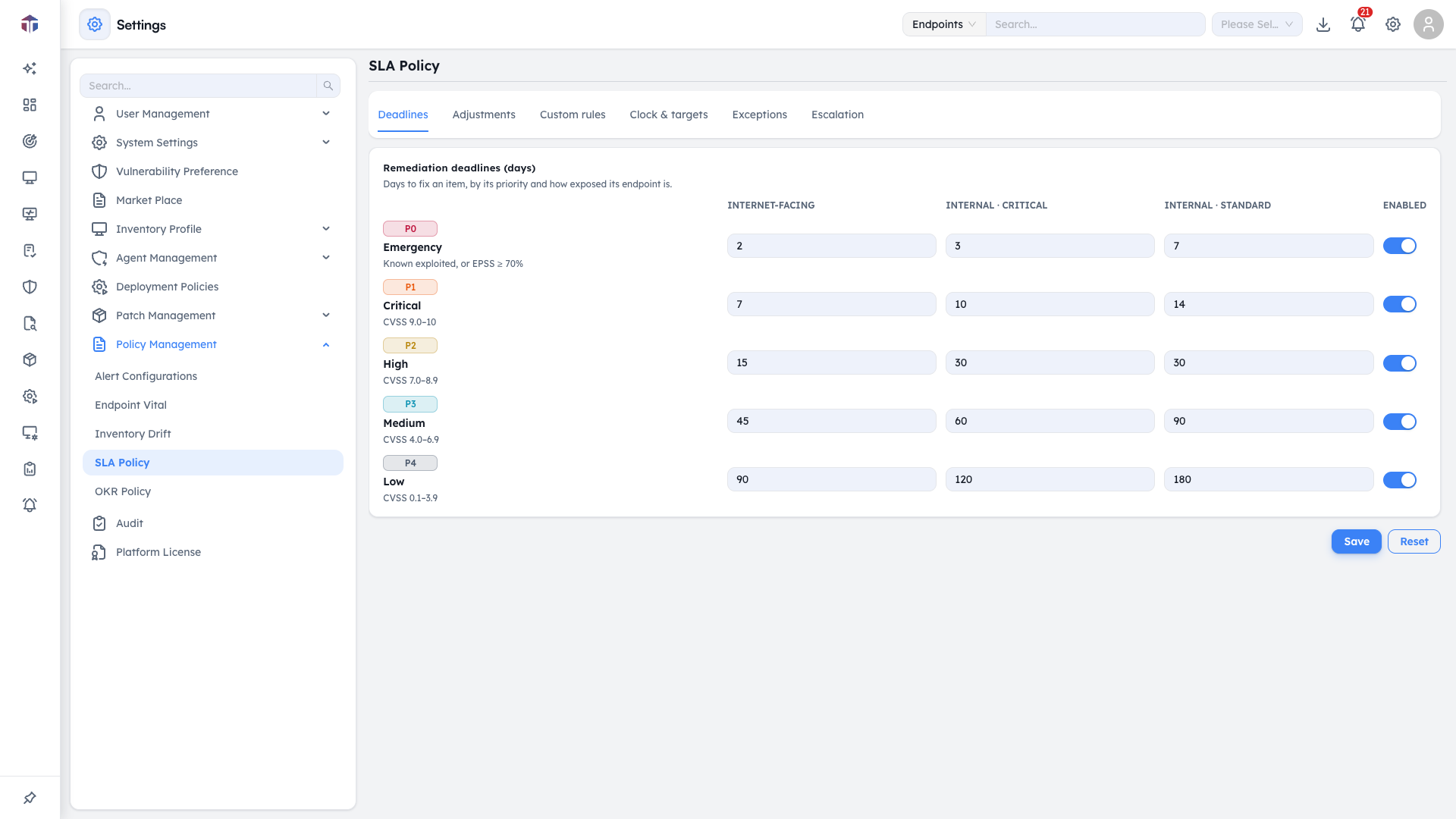
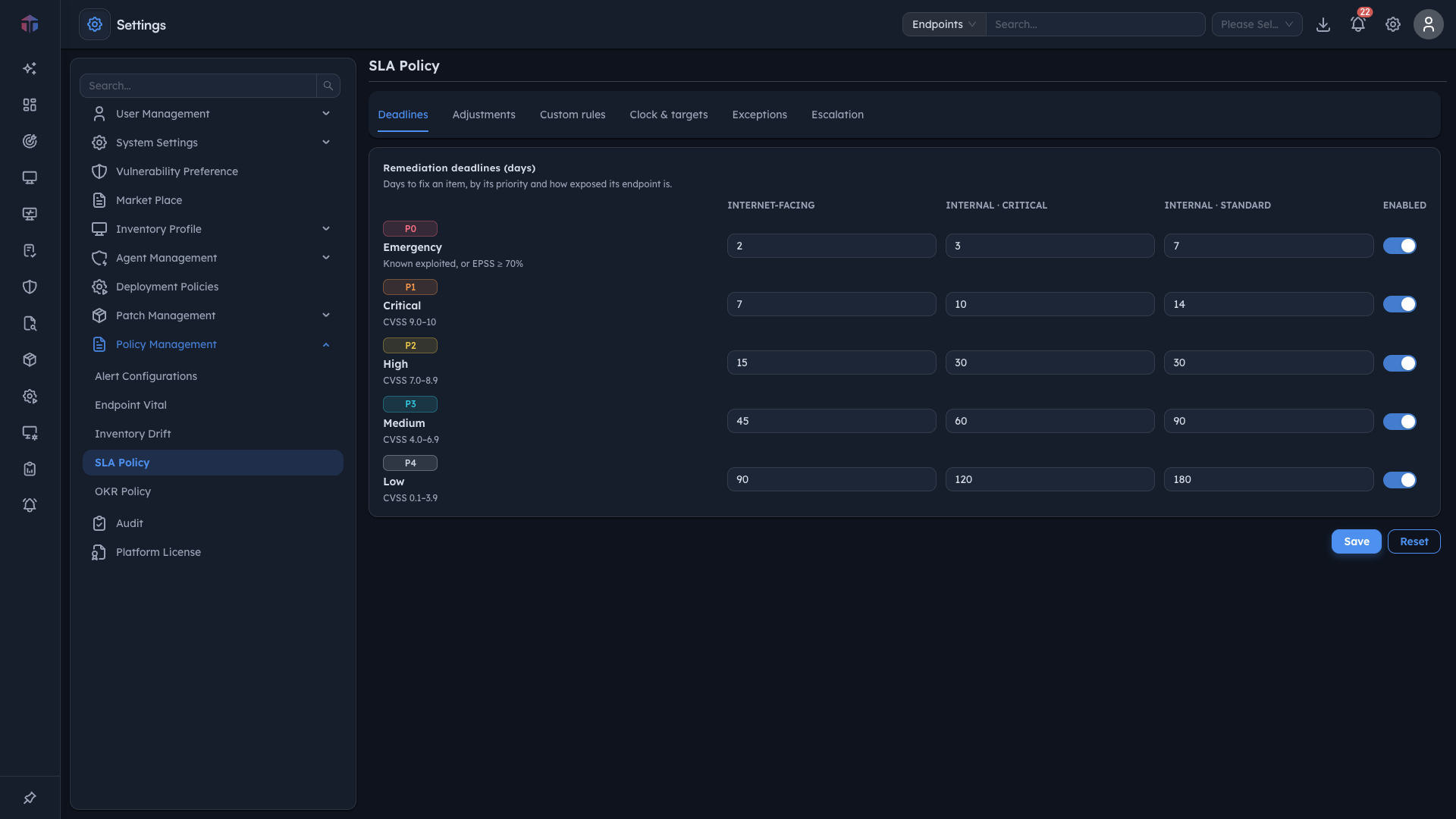
Remediation deadlines (days) is a grid of the days allowed to fix an item, by its priority (rows) and how exposed its endpoint is (columns).
| Row | Name | Which items |
|---|---|---|
| P0 | Emergency | Known exploited, or EPSS at or above the P0 threshold (this line follows the switches on the Adjustments tab). |
| P1 | Critical | CVSS 9.0–10 |
| P2 | High | CVSS 7.0–8.9 |
| P3 | Medium | CVSS 4.0–6.9 |
| P4 | Low | CVSS 0.1–3.9 |
- Columns: Internet-facing, Internal · critical, Internal · standard, then Enabled.
- Each cell is required: a whole number of days from 1 to 3650.
- Enabled switches a priority's tracking on or off. A priority that is off shows a Not tracked tag; its days are dimmed but kept and still saved.
- In a row, a less exposed endpoint can't get a shorter deadline (Internal · standard ≥ Internal · critical ≥ Internet-facing).
- In a column, a lower priority can't get a shorter deadline than the one above it (P1 ≥ P0, P2 ≥ P1, and so on).
- At least one priority must stay tracked: the last Enabled switch that is on can't be turned off.
Adjustments
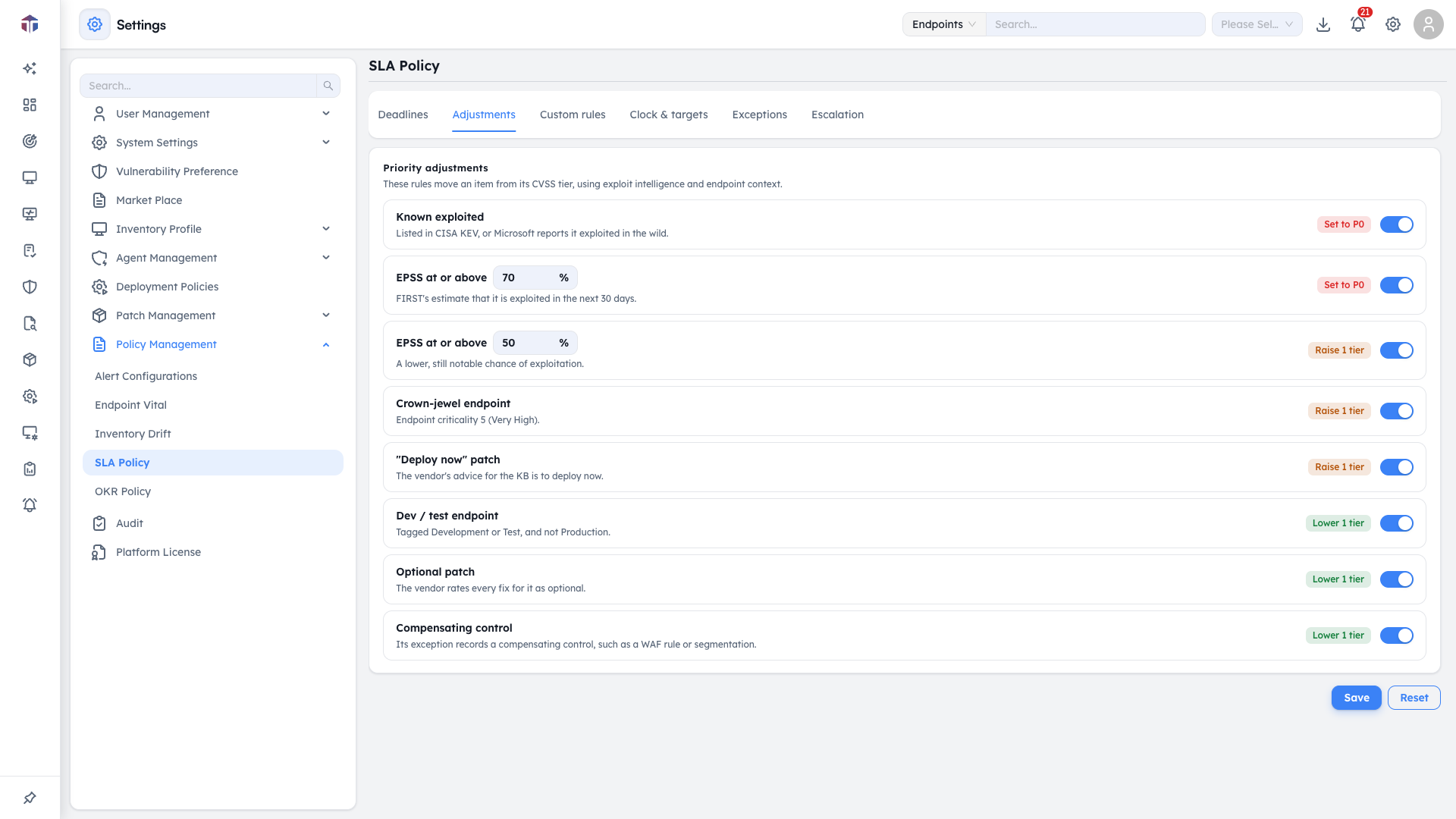
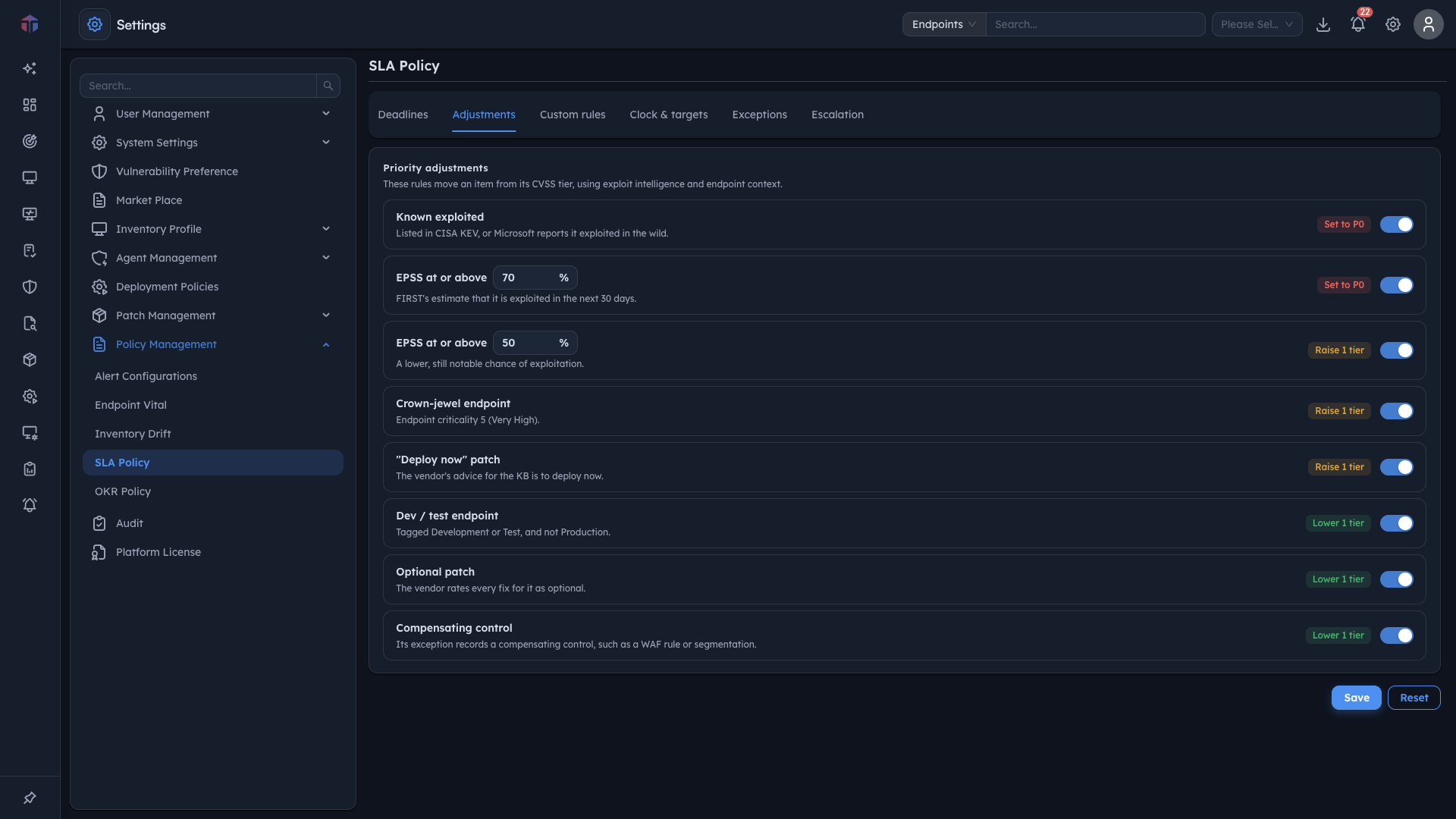
Priority adjustments move an item away from its CVSS tier using exploit intelligence and endpoint context. Each row has an on/off switch and a tag showing its effect.
| Adjustment | Matches | Effect |
|---|---|---|
| Known exploited | Listed in CISA KEV, or Microsoft reports it exploited in the wild. | Set to P0 |
| EPSS at or above (%) | FIRST's estimate that it is exploited in the next 30 days. | Set to P0 |
| EPSS at or above (%) | A lower, still notable chance of exploitation. | Raise 1 tier |
| Crown-jewel endpoint | Endpoint criticality 5 (Very High). | Raise 1 tier |
| "Deploy now" patch | The vendor's advice for the KB is to deploy now. | Raise 1 tier |
| Dev / test endpoint | Tagged Development or Test, and not Production. | Lower 1 tier |
| Optional patch | The vendor rates every fix for it as optional. | Lower 1 tier |
| Compensating control | Its exception records a compensating control, such as a WAF rule or segmentation. | Lower 1 tier |
The two EPSS at or above rows each have a threshold box (a percentage from 0 to 100, required).
With Known exploited and the P0 EPSS row both off, the P0 row on the Deadlines tab reads "No vulnerability is raised to P0 automatically".
Custom rules
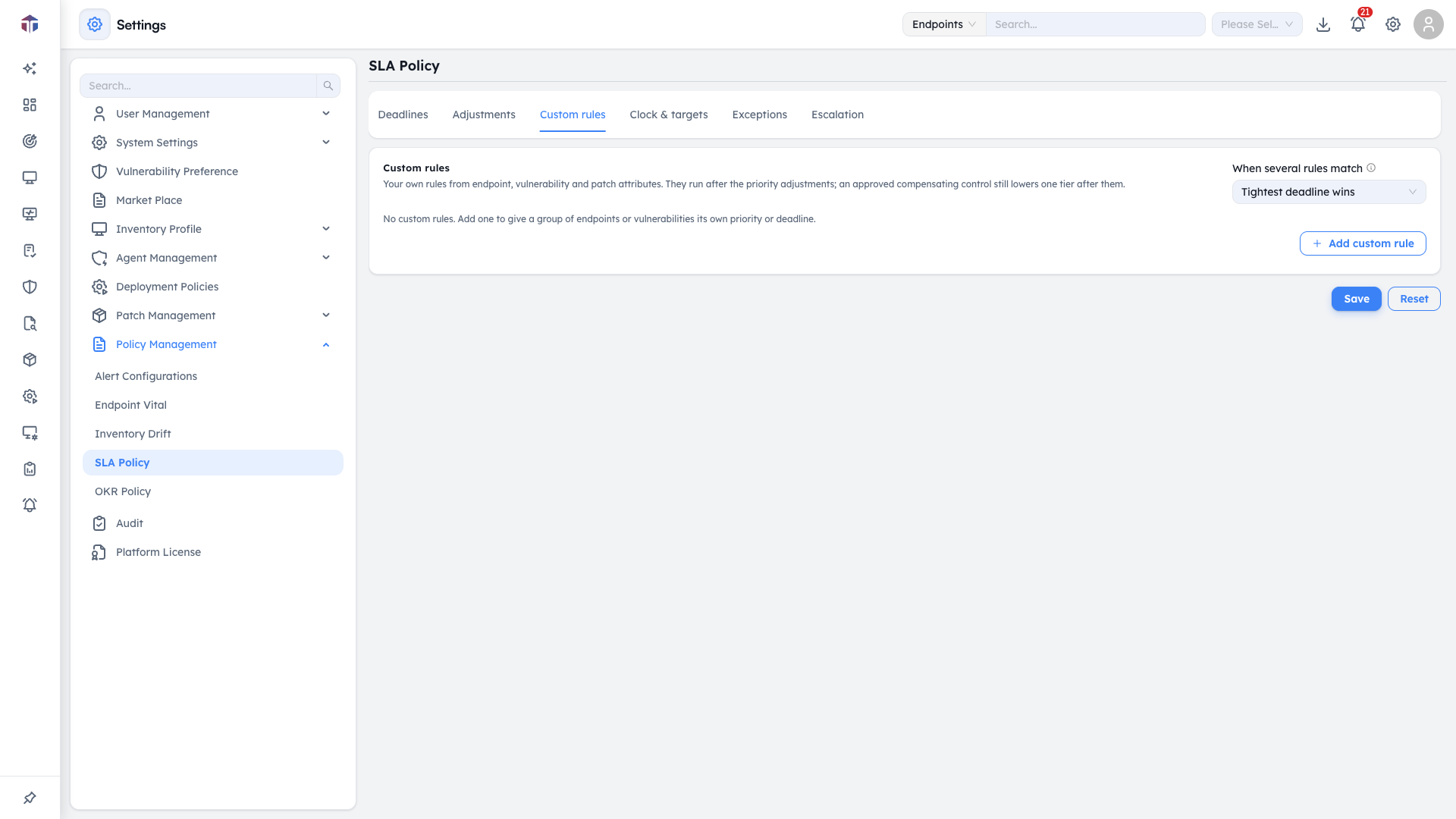
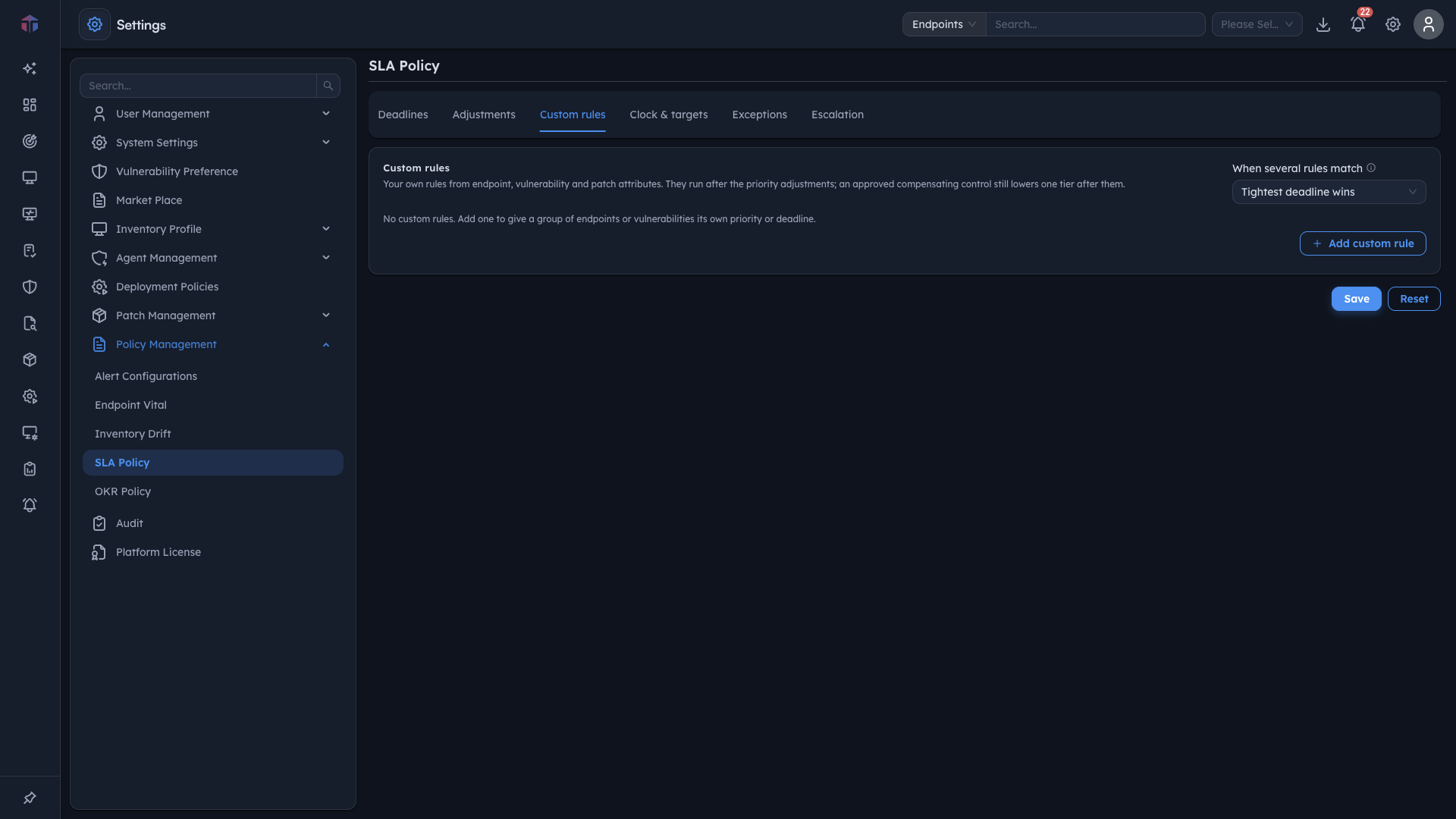
Custom rules are your own rules, built from endpoint, vulnerability and patch attributes, that give a group of endpoints or vulnerabilities its own priority or deadline. They run after the priority adjustments; an approved compensating control still lowers one tier after them.
- When several rules match (top right): Tightest deadline wins, First matching rule wins, or Highest priority wins. Only one rule applies to an item. Ties go to the higher priority (or the earlier deadline), then to the list order. Rules that are off are ignored.
- Each rule row shows a drag handle (drag to reorder), its number (#1, #2, …), its name and a one-line summary, how many open items it sets now (a link that opens those items on SLA Tracking's Items tab), an on/off switch, Edit rule and Delete rule.
- Add custom rule (bottom right) adds a rule and opens its editor. You can have up to 50 rules.
The rule editor (opens in place under the row):
| Field | Required | Notes |
|---|---|---|
| Name | Yes | Up to 100 characters, e.g. PCI cardholder systems. |
| Applies to | — | Vulnerabilities, Patches, or Vulnerabilities and patches. Vulnerabilities and patches offers the endpoint fields only; changing this removes conditions that no longer fit. On a licence without vulnerability data, only Patches is offered. |
| If | — | All of these conditions or Any of these conditions, then the conditions themselves (Add condition). |
| Priority (Then) | — | None, Set to (then Priority to set: a tracked P0–P4), Raise by or Lower by (then Tiers: 1 tier or 2 tiers). |
| Fixed deadline (Then) | — | Days (1–365), counted from the item's clock start and used only when tighter than the tier deadline. Leave empty for none. |
Condition fields come in three groups:
- Endpoint fields: Tag, Criticality, Exposure, Department, Location, Platform, OS version, Hostname, AD OU, AD group.
- Vulnerability fields: CVSS score, EPSS score (%), Exploit, CVE.
- Patch fields: Patch severity, Vendor advice.
Preview (in the editor) checks the rule against today's open items without saving, e.g. Applies to 12 open items on 4 endpoints · 2 would become overdue, or No open items match. Done closes the editor. Nothing is stored until you click the page's Save.
The editor notes that Assign resolver team, add escalation recipient and require exception review actions are coming later.
Clock & targets
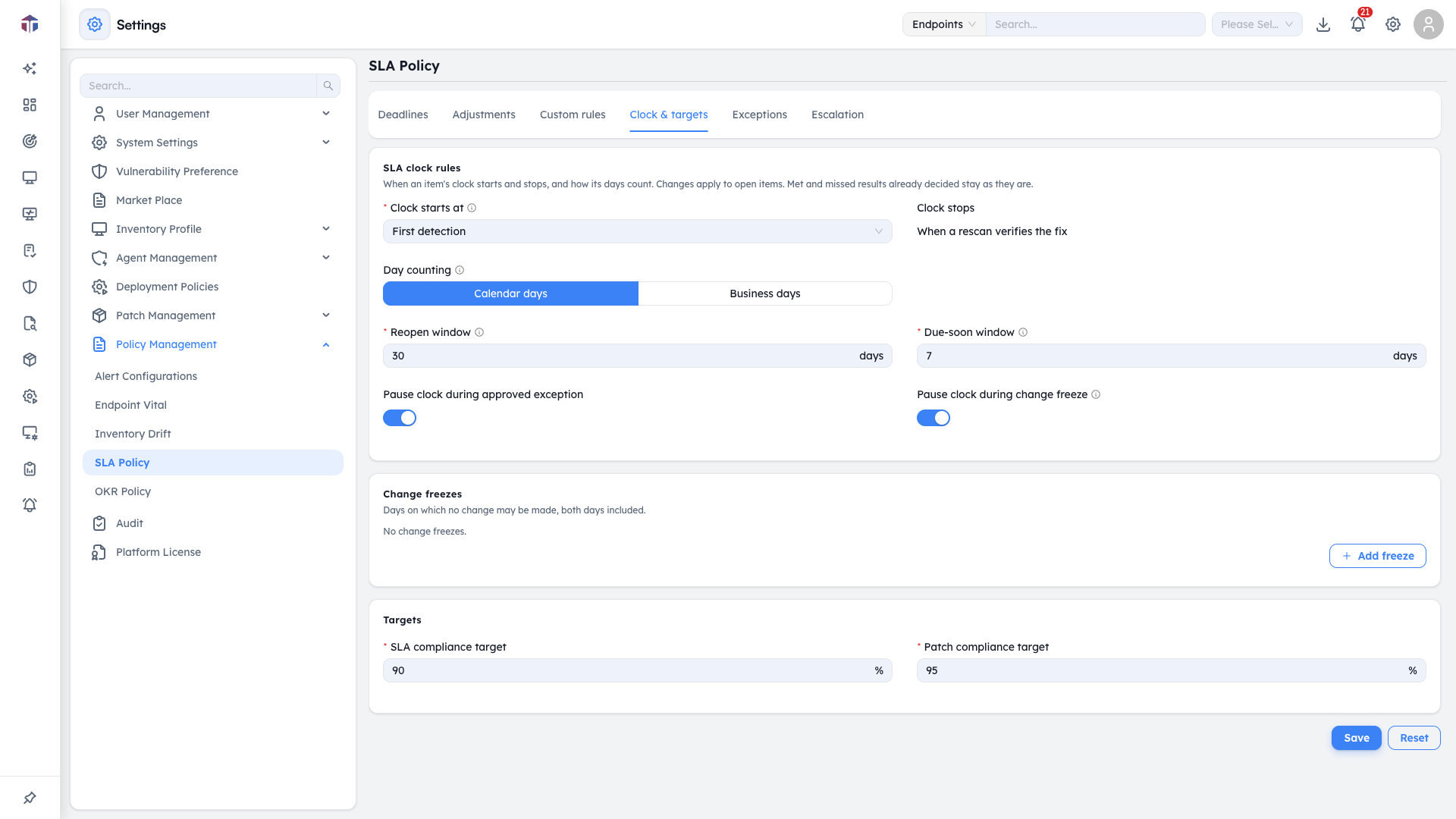
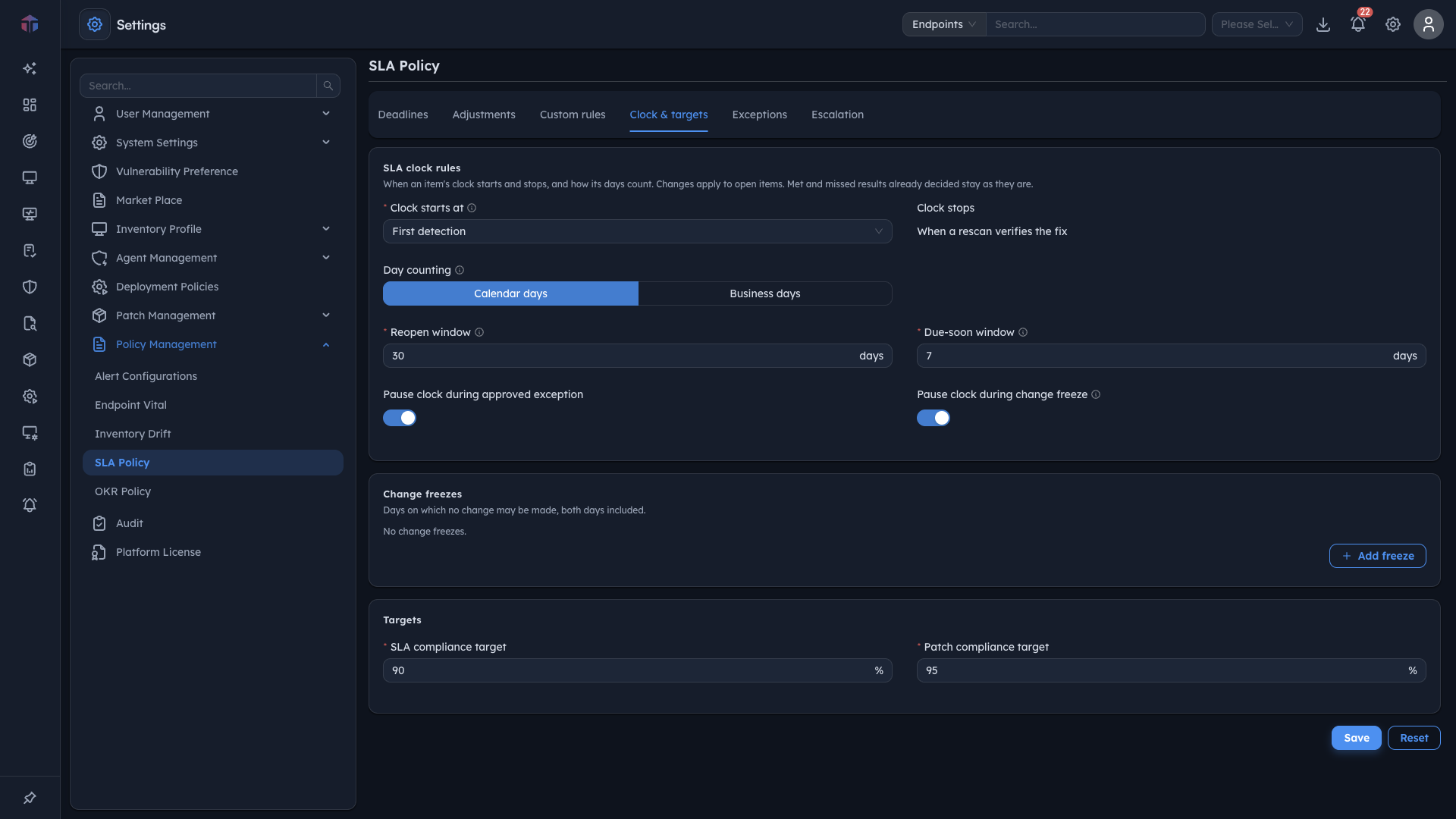
This tab has three cards.
SLA clock rules: when an item's clock starts and stops, and how its days count. Changes apply to open items; met and missed results already decided stay as they are.
| Field | Required | Notes |
|---|---|---|
| Clock starts at | Yes | First detection, Vendor patch release, or Later of detection / patch release. Deadlines count from here; with no known patch release, from first detection. Mean time to remediate is always measured from first detection or first missing. |
| Clock stops | — | Fixed: When a rescan verifies the fix. |
| Day counting | — | Calendar days or Business days. Business days skip the weekend days for deadlines and the due-soon window; how long an item is overdue is still counted in calendar days. |
| Weekend days | — | Shown only with Business days. Pick the days that don't count (Mon–Sun); at least one day stays a working day. |
| Reopen window | Yes | 0–365 days. A vulnerability that comes back within this many days keeps its original due date. |
| Due-soon window | Yes | 1–90 days. An item due within this many days counts as Due soon. |
| Pause clock during approved exception | — | Switch. |
| Pause clock during change freeze | — | Switch. Deadlines stop counting during a change freeze; an item still due when one starts gets the freeze's days added. |
Change freezes: named day ranges on which no change may be made (both days
included). Click Add freeze, type a Name (e.g. Year-end close; up to 100
characters, no ;) and pick the days. Each freeze can be at most 90 days, freezes
can't overlap, and you can have up to 50. While Pause clock during change freeze is
off, the freezes are dimmed with "Not applied while the pause is off."
Targets:
| Field | Required | Notes |
|---|---|---|
| SLA compliance target | Yes | 1–100 %. SLA Tracking measures its SLA compliance figures against it (target N%). |
| Patch compliance target | Yes | 1–100 %. SLA Tracking measures Endpoints patch-compliant against it. |
Exceptions
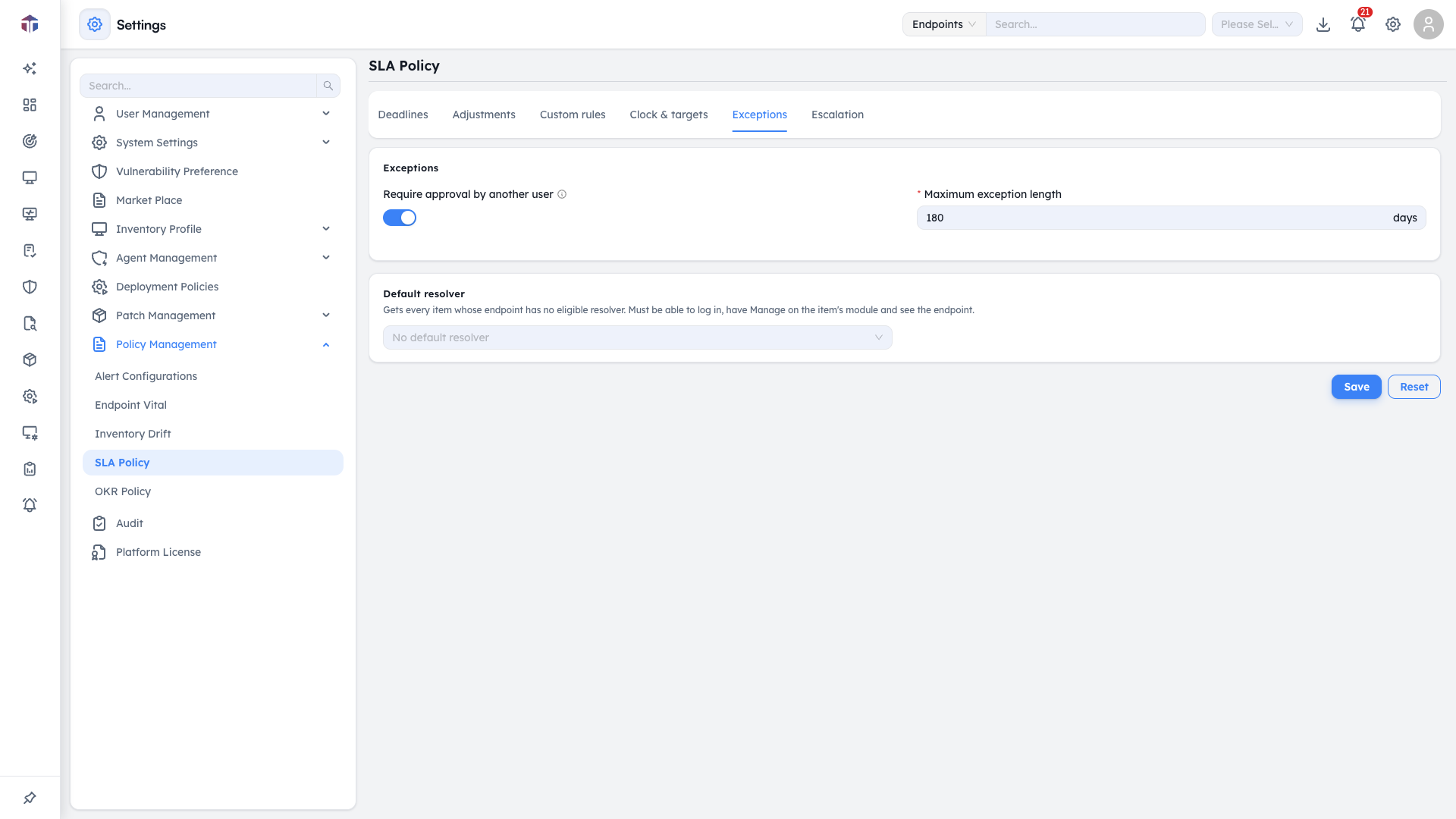
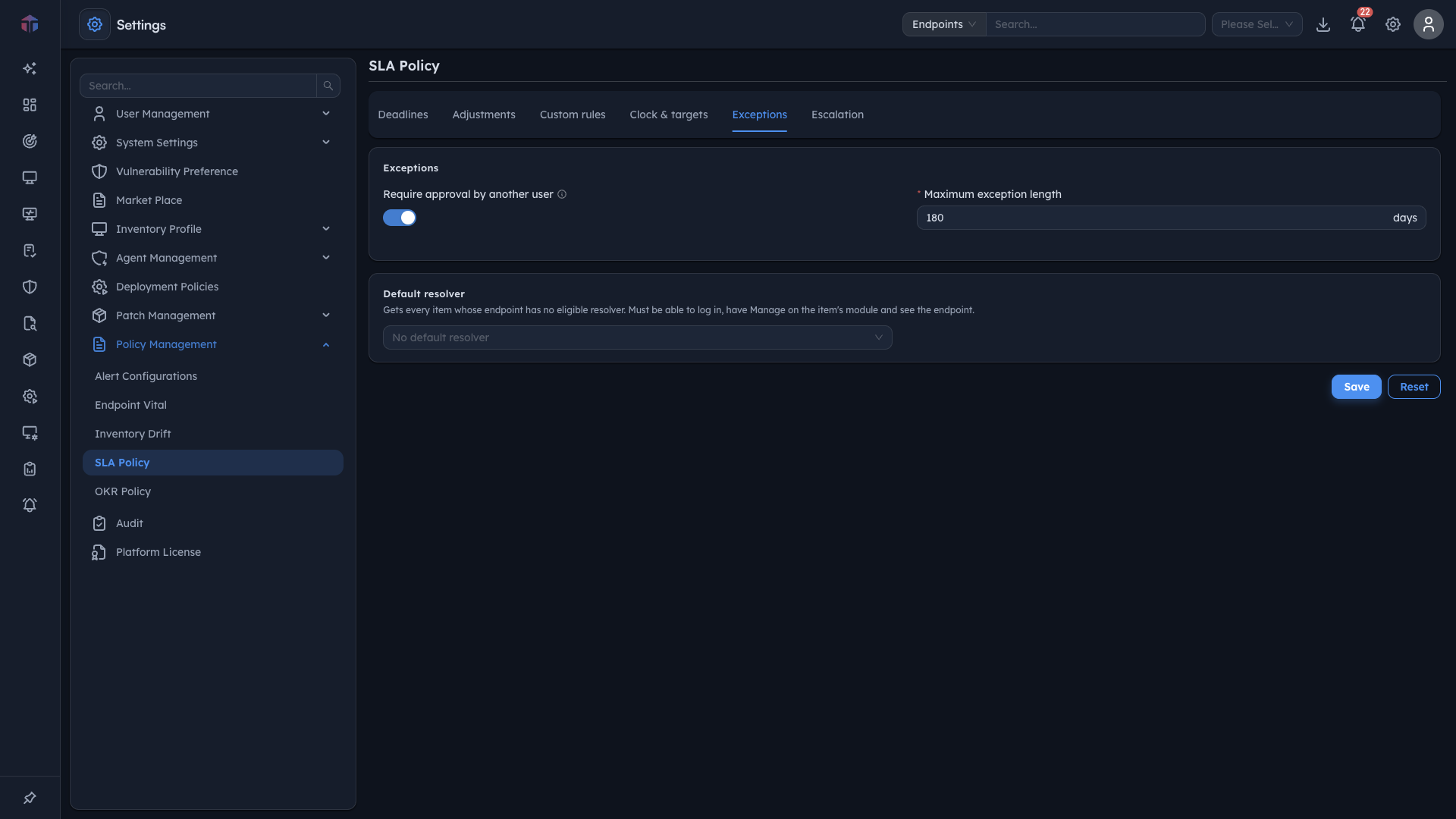
| Field | Required | Notes |
|---|---|---|
| Require approval by another user | — | Switch. An exception request takes effect only when someone other than the requester approves it. |
| Maximum exception length | Yes | 1–365 days. |
| Default resolver | — | The user who gets every item whose endpoint has no eligible resolver. Must be able to log in, have Manage on the item's module and see the endpoint. Leave empty for No default resolver. |
Exception requests are approved or rejected on SLA Tracking's Exceptions tab and on Manage Exceptions.
Escalation
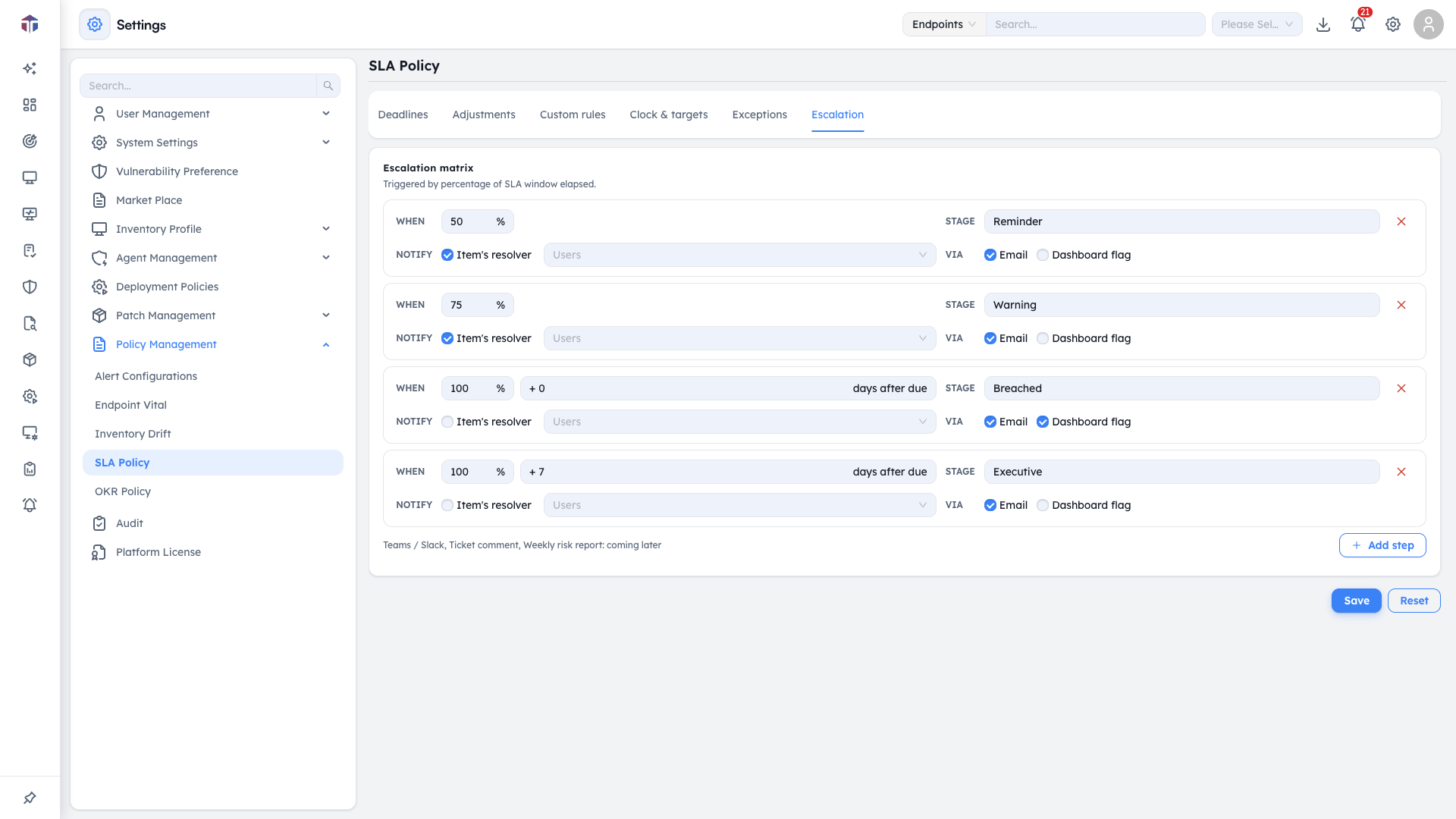
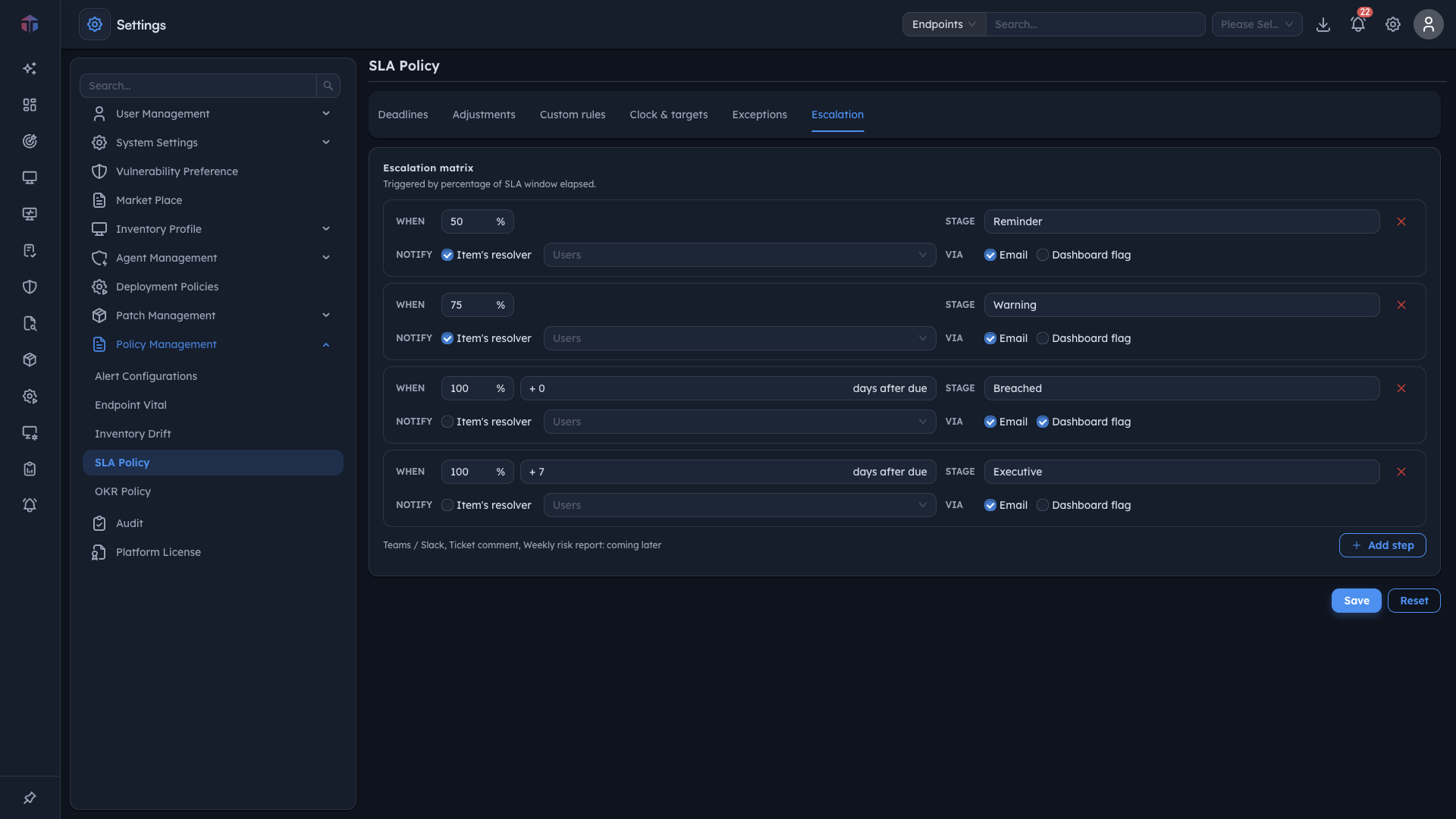
The Escalation matrix warns people as an item uses up its SLA window. Each step is a card:
| Part | Required | Notes |
|---|---|---|
| When | Yes | The percentage of the SLA window elapsed (1–100 %). At 100 % a second box appears: + days after due (0–365). |
| Stage | Yes | A name for the step, e.g. Warning (up to 50 characters, no ; or ` |
| Notify | — | Item's resolver and/or named Users (up to 20). |
| Via | — | Email and/or Dashboard flag. |
Click Add step to add one (up to 10) and the × to remove one. Two steps can't have the same trigger. Under the steps, a note says Teams / Slack, Ticket comment and Weekly risk report channels are coming later.
How do I save a change?
- Change what you need on any tab.
- Click Save. The button reads Checking impact… while EndpointOps works out what the change does to open items.
- If the change moves items, the Before you save dialog opens (see below). Review it, choose a grace period if offered, and click Save. If nothing changes, the policy saves straight away.
- A message confirms: "SLA policy saved. Items recompute in the background; the dashboard follows in a minute or so."
The "Before you save" dialog
The dialog starts with Against the N open items … computed at (time): and lists only the lines that apply:
- Due dates: how many items become due earlier and later.
- Newly overdue: items the change makes overdue.
- Priority: items raised (and how many to P0) and lowered.
- Tracking: items no longer tracked and newly tracked.
- Due in the next 30 days: today's count → the new count (with the % change).
Grace period for newly overdue items (shown when it matters): None, 7 days or 14 days. Items the change makes due sooner keep at least this long, and never less than they had; items already overdue are not affected. A line under it says how many items get the extra time and until when.
Click Save to apply the change or Cancel to go back and edit.
The dialog says "The impact could not be worked out." with the reason. You can still Save (with a grace period) or Cancel.
Open items follow the new rules. Met and missed results already decided stay as they are. Figures on SLA Tracking catch up within a minute or so.
Tips & troubleshooting
- No Save button. You need Update Settings and must see every department.
- "The SLA policy could not be read." Click Retry.
- A deadline cell won't save. Check the order rules above: a less exposed endpoint or a lower priority can't get fewer days.
- A custom rule shows a red line. Open it with Edit rule: the problem is written under the fields (for example a missing name).
- SLA compliance looks wrong right after a save. Items recompute in the background; refresh SLA Tracking after a minute.
Related
- SLA Tracking: the deadlines, compliance and escalations this policy produces.
- OKR Progress: key results can copy the SLA policy's targets.
- OKR Policy: the companion policy for objectives.
- Manage Exceptions and the Patch Catalog: where exceptions are requested.