Currency
A reference list of currencies and their exchange rates, used when recording software costs and license values in EndpointOps.
Currency is available on EndpointOps editions and above. If you don't see it in the menu, your license doesn't include it.
How to get here
You reach this page through Settings, so you need administrator (settings) permission. If you don't see the Settings icon, ask your administrator for access.
- Sign in to EndpointOps.
- In the top-right of any screen, click the Settings (gear ⚙️) icon.
- In the Settings menu on the left, open System Settings and click Currency.
Navigate to: Settings → System Settings → Currency
URL path: /settings/system-settings/currency
The Currency screen
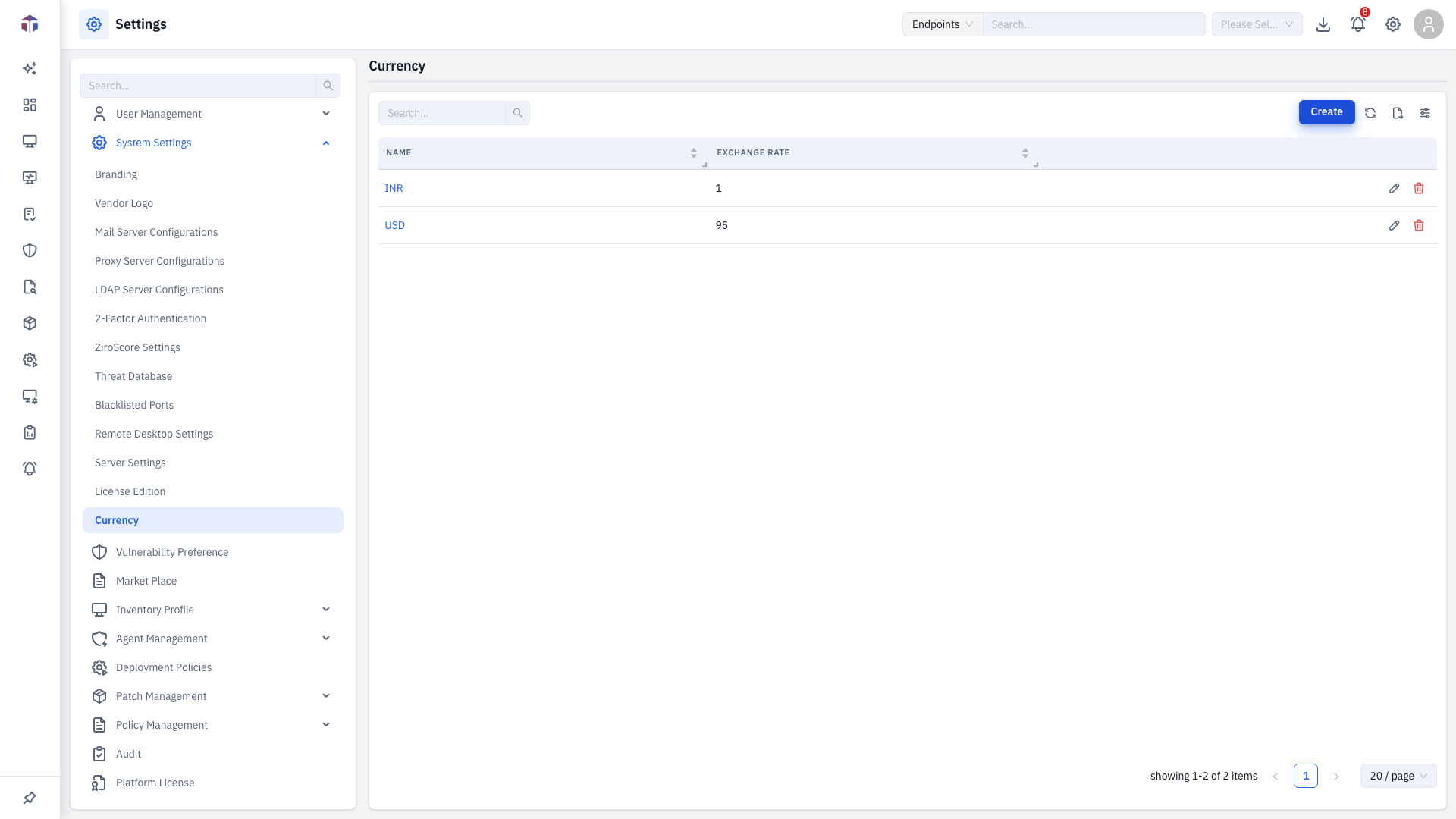
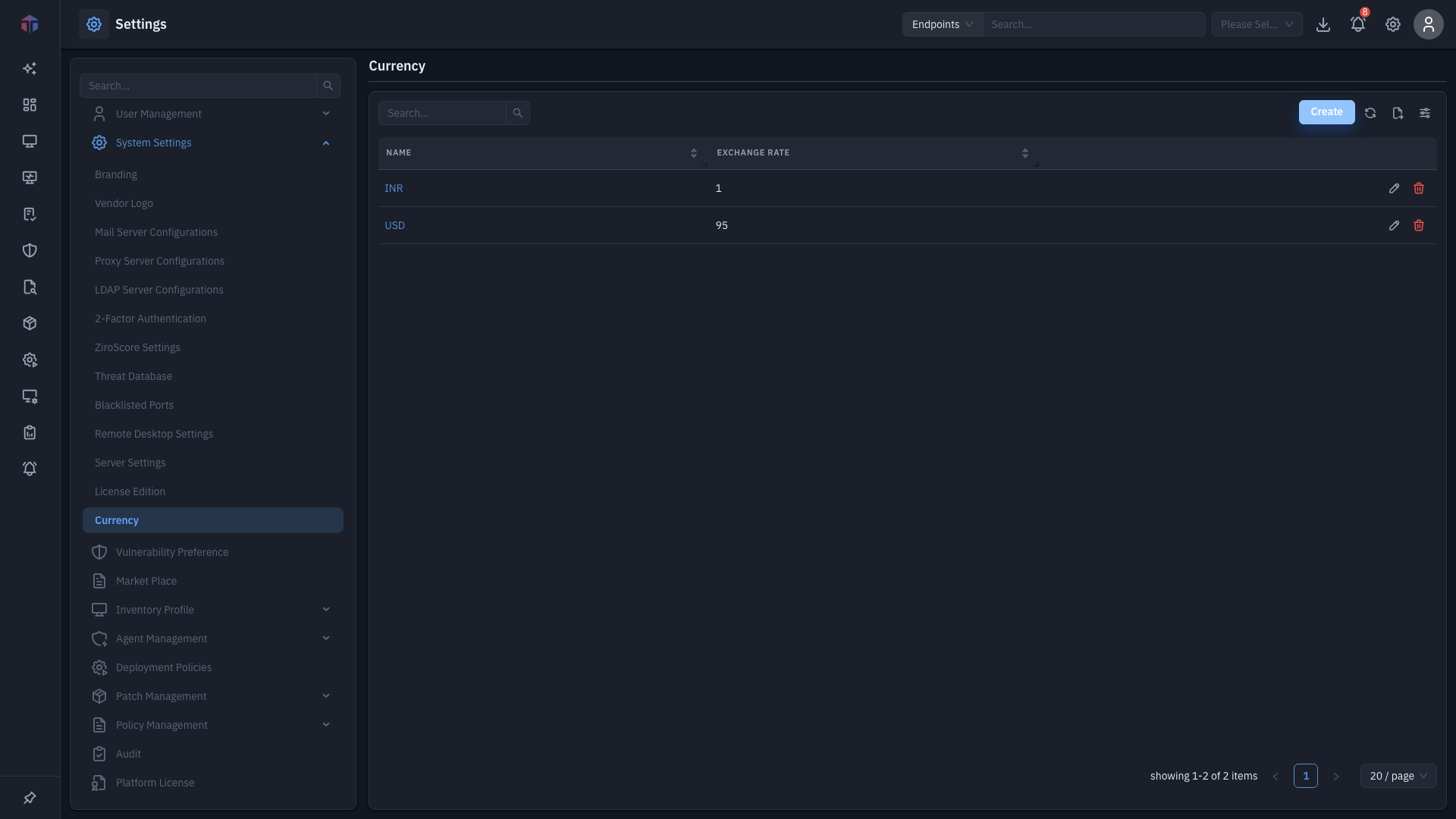
Columns: Name, Exchange Rate. (Created On and Modified Time are hidden by default — show them from the column picker.)
Each row has edit (✏️) and delete (🗑️) actions.
The toolbar
Above the list, the same toolbar appears on every list screen:
- Create — add a new item (opens a form panel from the right).
- Refresh — reload the latest data.
- Export — download the current list.
- Columns — choose which columns to show (covered under "Choosing which columns to show" below).
Working with the list
These controls behave the same on every list:
- Search — type in the Search… box above the table to filter rows as you type.
- Sort — click the arrows in a column header to sort by that column.
- View details — click a row's link in the first column to open a read-only view.
- Edit / delete — use the edit (✏️) and delete (🗑️) icons at the end of a row.
- Pagination — when a list runs to more than one page, use the page controls at the bottom-right and the / page selector to change how many rows show.
- Permissions — you only see Create, edit, and delete if your role grants the matching permission; otherwise the screen is read-only.
When you save a new or edited record, a success message appears, the panel closes, and the list refreshes. Required fields are marked with a red asterisk.
How do I add a currency?
-
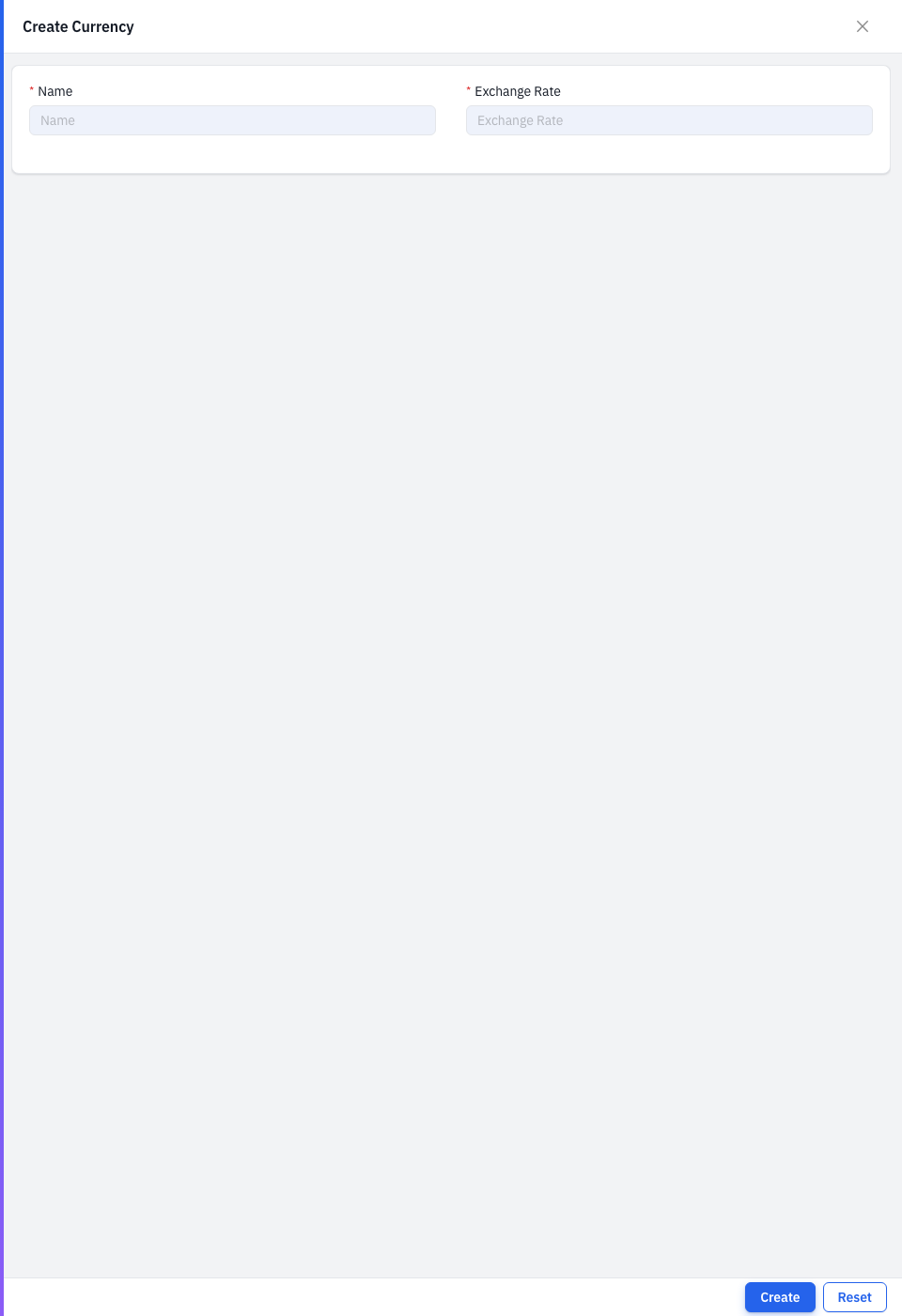
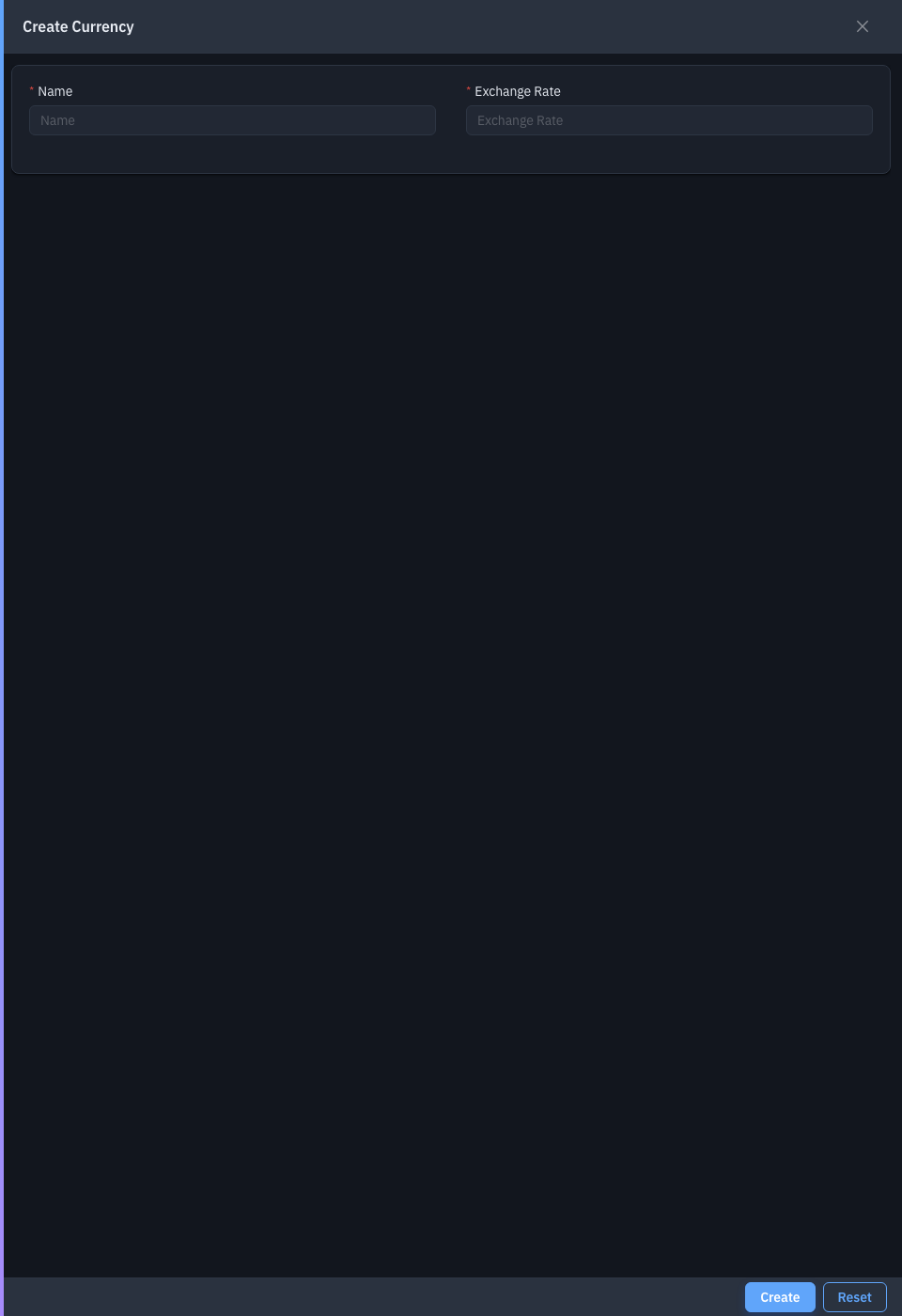
Click Create. The form panel opens.
-
Fill in the fields (both required):
Field Required Notes Name Yes The currency name or code (for example USD, EUR, INR). Exchange Rate Yes Its rate relative to your base currency. -
Click Create.
Choosing which columns to show
Click the Columns icon on the right of the toolbar to open the column picker.
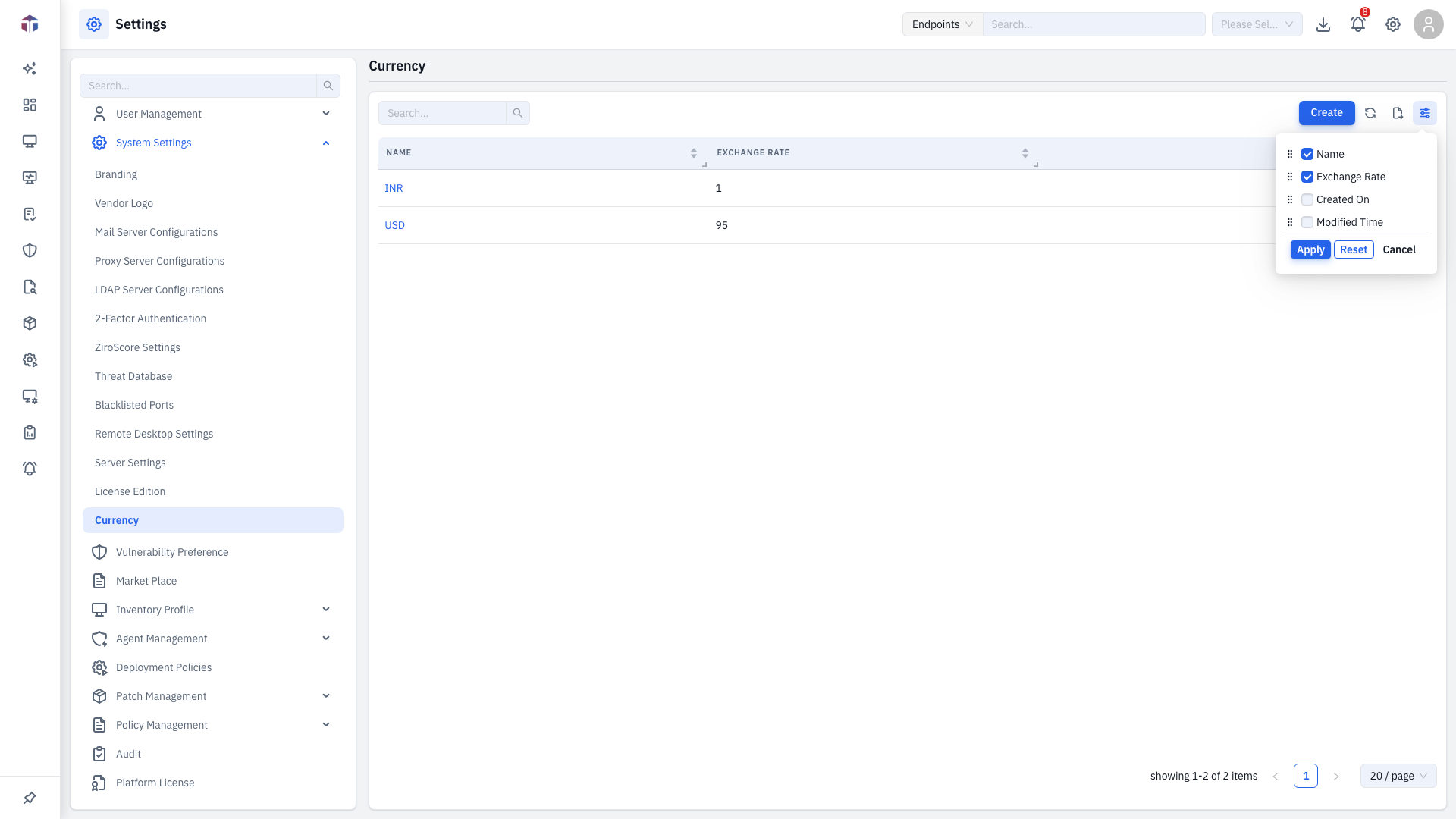
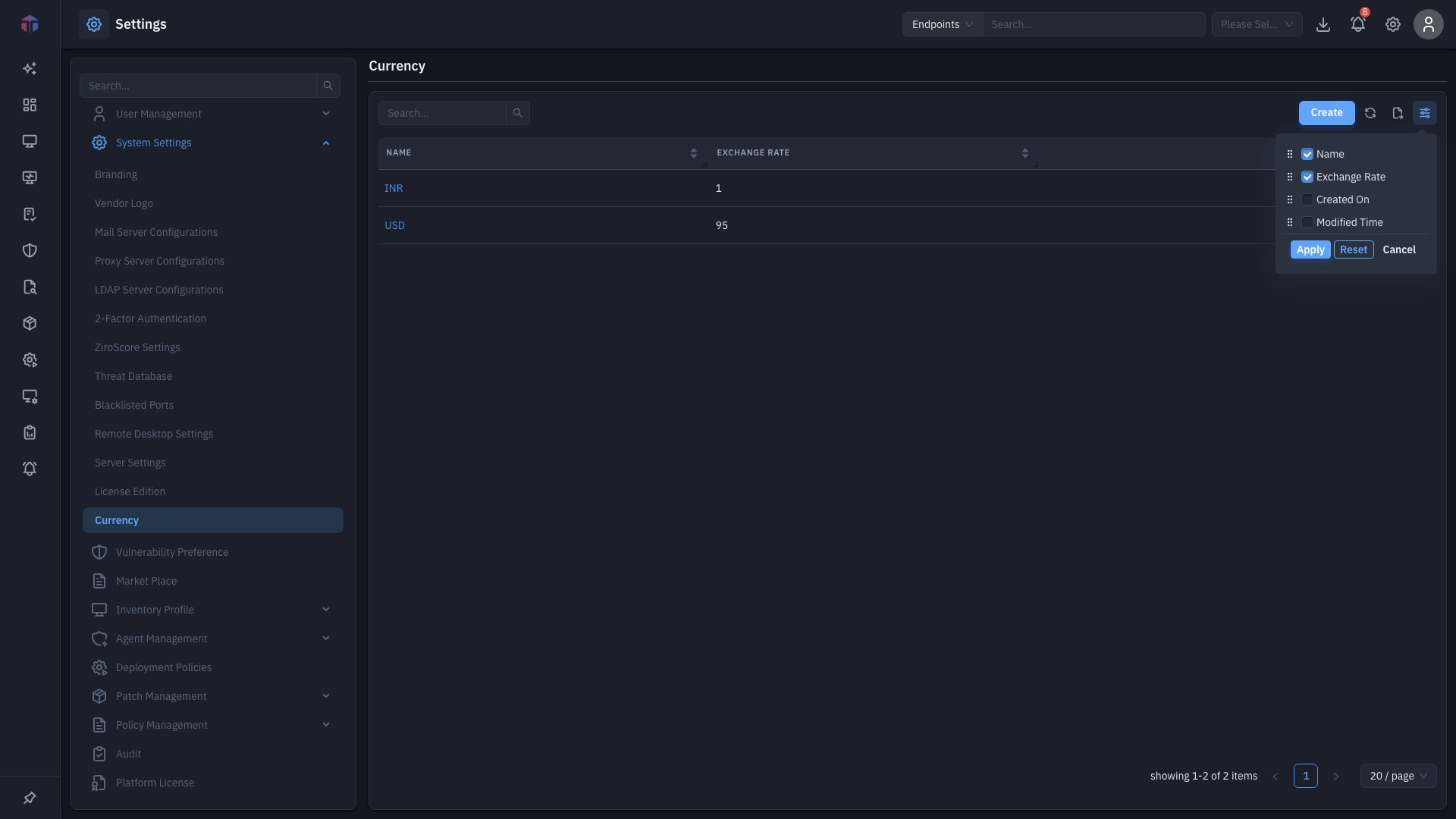
Tick the columns to show (including the hidden Created On / Modified Time), drag to reorder, then click Apply.
Related
- License Edition — software license editions.