Mail Server Configurations
Set up the SMTP mail server EndpointOps uses to send email — notifications, alerts, reports, and account messages.
How to get here
You reach this page through Settings, so you need administrator (settings) permission. If you don't see the Settings icon, ask your administrator for access.
- Sign in to EndpointOps.
- In the top-right of any screen, click the Settings (gear ⚙️) icon.
- In the Settings menu on the left, open System Settings and click Mail Server Configurations.
Navigate to: Settings → System Settings → Mail Server Configurations
URL path: /settings/system-settings/mail-server-config
The Mail Server screen
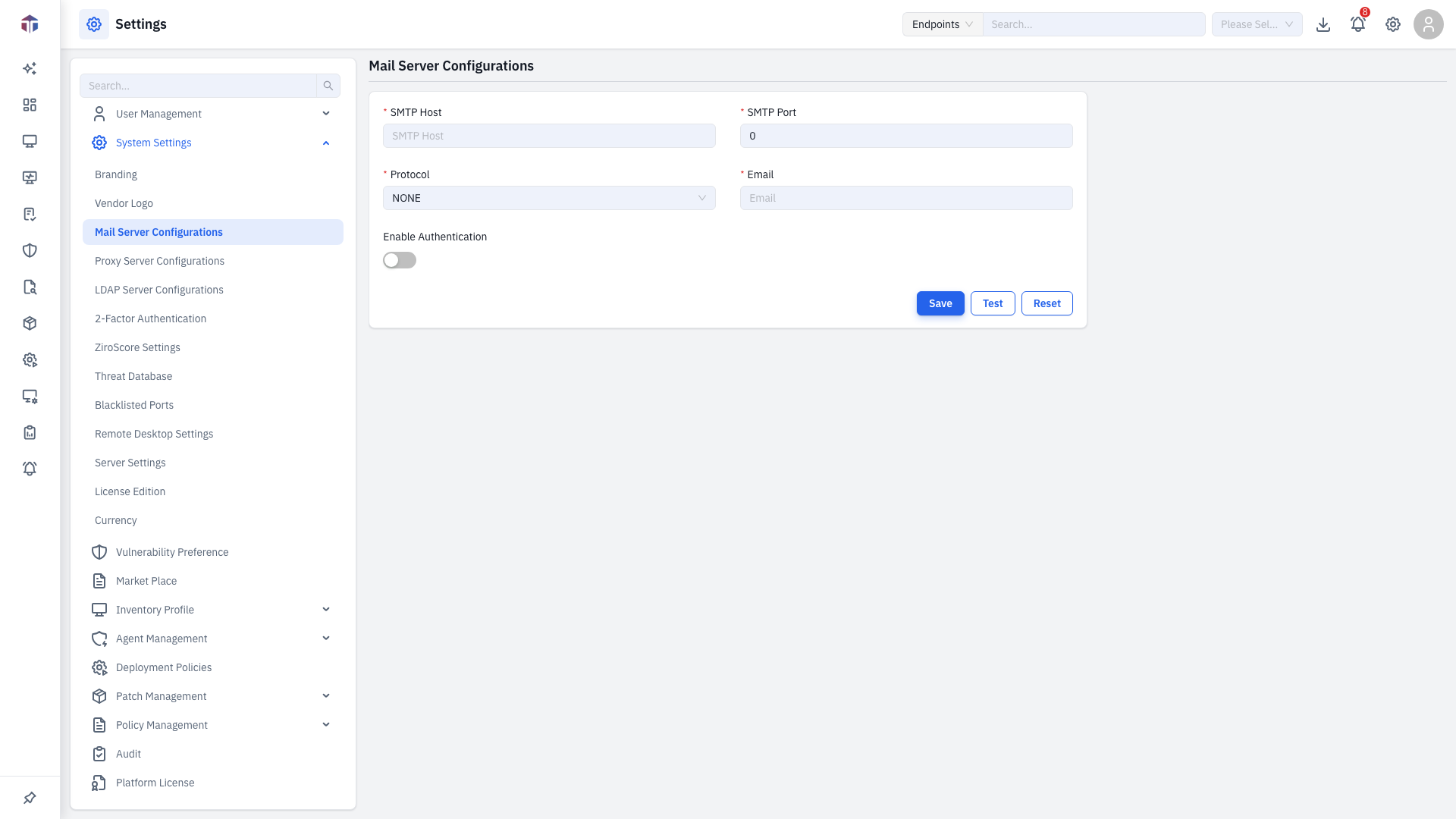
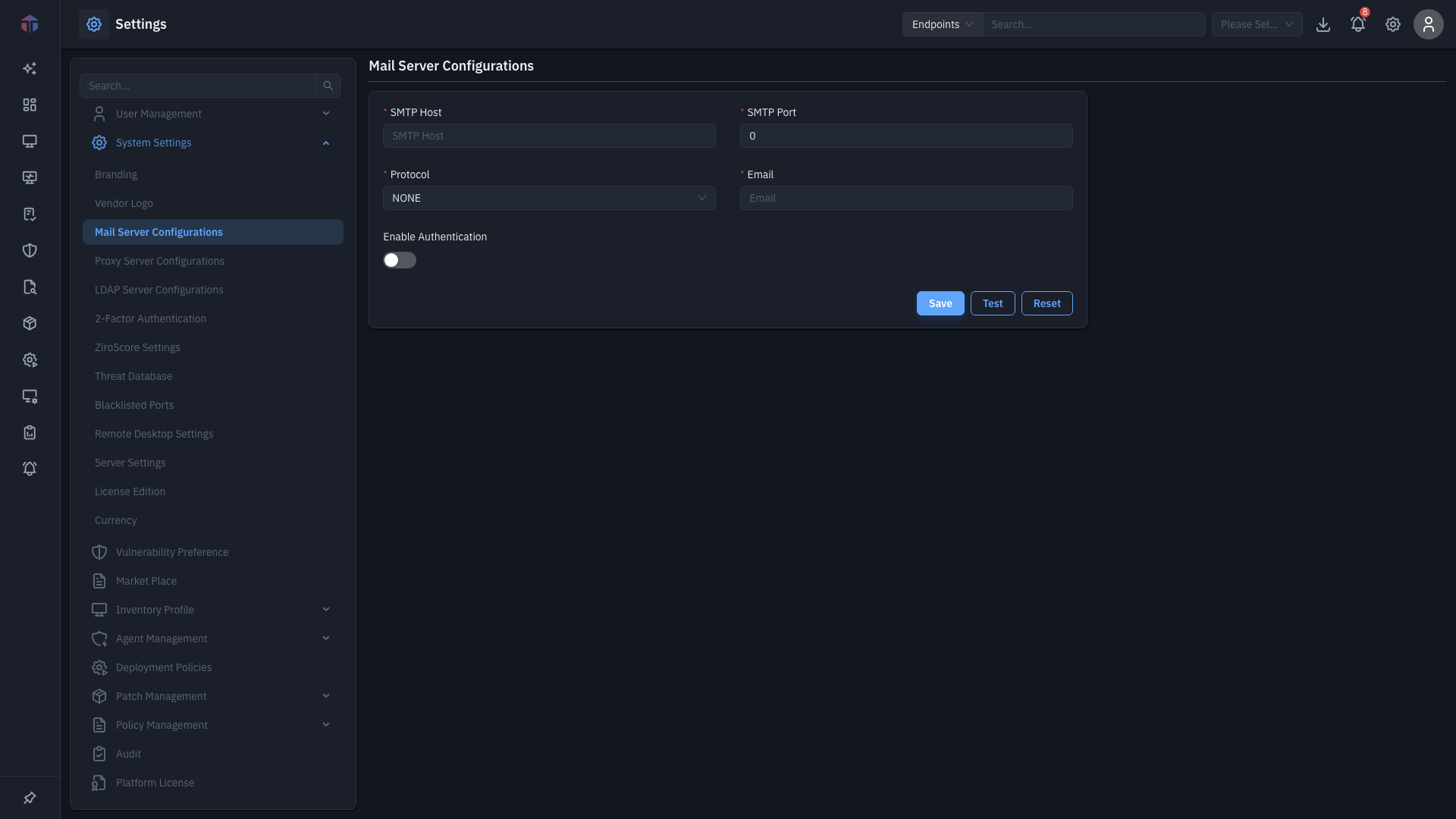
| Field | Required | Notes |
|---|---|---|
| SMTP Host | Yes | Your mail server's hostname. |
| SMTP Port | Yes | The mail server port (for example 587 or 465). |
| Protocol | Yes | None, SSL, or TLS. |
| Yes | The "from" address. Must be a valid email. | |
| Enable Authentication | — | Turn on if your server needs a login. |
| Username | Yes (if auth on) | The mailbox username. Shown only when Enable Authentication is on. |
| Password | Yes (if auth on) | The mailbox password. Shown only when Enable Authentication is on. |
The screenshot above shows the form with Enable Authentication turned on, so the Username and Password fields are visible.
How do I set it up?
- Fill in SMTP Host, SMTP Port, Protocol, and Email.
- If your server requires a login, turn on Enable Authentication and enter the Username and Password.
- Click Test to send a test message and confirm the settings work.
- Click Save. Use Reset to undo unsaved changes.
Test before you save
Use Test to verify the server accepts your settings before saving — the result (success or error) shows on screen. Fix any errors, then save.
Common provider settings
| Provider | SMTP Host | Port | Protocol | Notes |
|---|---|---|---|---|
| Microsoft 365 | smtp.office365.com | 587 | TLS | SMTP auth may need to be enabled for the mailbox by your tenant admin. |
| Gmail / Google Workspace | smtp.gmail.com | 587 | TLS | Use an app password, not the account's normal password. |
| Generic SMTP (implicit SSL) | your mail host | 465 | SSL |
Tips & troubleshooting
- Test fails with an authentication error. Re-check Username/Password. For Microsoft 365 and Gmail, the normal password often won't work — use an app password or an account your identity provider allows for SMTP.
- Test times out. A firewall or proxy is likely blocking the port. Confirm the server can reach the SMTP Host on the Port, and configure a Proxy if outbound mail must go through one.
- "From" address rejected. Some providers require the Email to be a real mailbox on the same domain as the login.
- Test passes but no mail arrives. Check the recipient's spam folder and whether the provider is throttling a new sender.
Related
- Proxy Server Configurations — route outbound traffic through a proxy.
- 2-Factor Authentication — email mode uses this mail server.