Remote Desktop Settings
Configure how EndpointOps opens remote desktop sessions to endpoints — locally, or through a remote gateway server.
How to get here
You reach this page through Settings, so you need administrator (settings) permission. If you don't see the Settings icon, ask your administrator for access.
- Sign in to EndpointOps.
- In the top-right of any screen, click the Settings (gear ⚙️) icon.
- In the Settings menu on the left, open System Settings and click Remote Desktop Settings.
Navigate to: Settings → System Settings → Remote Desktop Settings
URL path: /settings/system-settings/remote-desktop-settings
The Remote Desktop screen
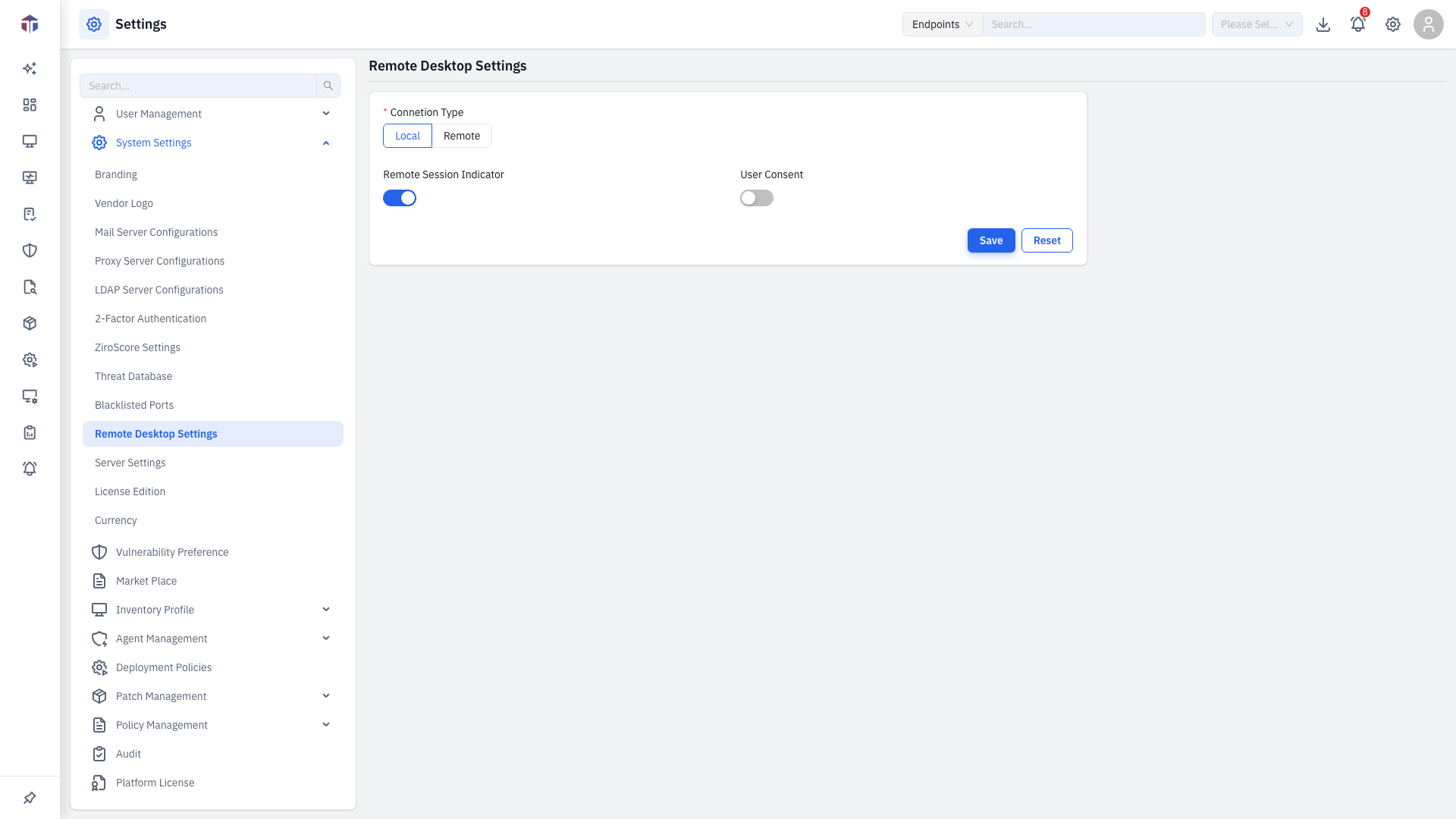
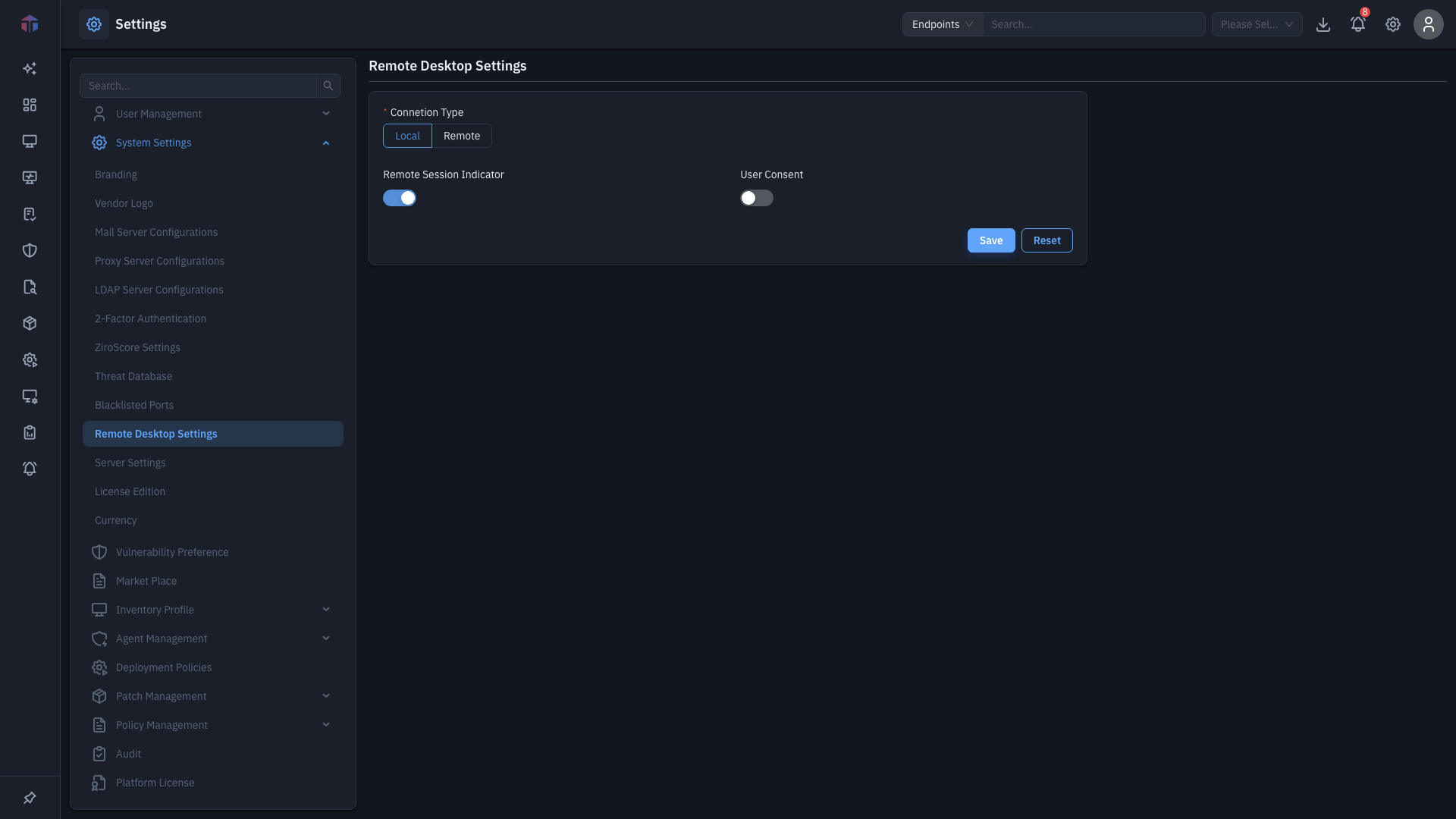
| Field | Required | Notes |
|---|---|---|
| Connection Type | Yes | Local or Remote. Remote reveals the gateway fields below. |
| Remote Session Indicator | — | Show the user an on-screen indicator during a remote session. |
| User Consent | — | Ask the endpoint user to approve the session before it starts. |
| Server FQDN | Yes (Remote) | The gateway server's fully-qualified domain name. |
| Server IP Address | Yes (Remote) | The gateway server's IP. |
| SSH Port | Yes (Remote) | The gateway's SSH port. |
| Auth Type | Yes (Remote) | Password or SSH Key. |
| Username | Yes (Remote) | The gateway login user. |
| Password | Yes (Password auth) | Shown when Auth Type is Password. |
| SSH key / SSH Passphrase | Yes (SSH Key auth) | Shown when Auth Type is SSH Key. |
How do I set it up?
- Choose a Connection Type:
- Local — sessions run directly; just set the indicator and consent options.
- Remote — fill in the gateway Server FQDN, Server IP Address, and SSH Port, then pick an Auth Type and enter the credentials.
- For a remote gateway, click Test to verify the connection.
- Click Save. Use Reset to undo.
Fields appear as you choose
The gateway fields only show when Connection Type is Remote, and the credential fields switch between Password and SSH Key based on Auth Type. The Test button appears only for a remote connection.
Tell users a session is active
Turn on Remote Session Indicator and User Consent so endpoint users know when someone connects and can approve it first.
Tips & troubleshooting
- Test fails for a remote gateway. Confirm the Server FQDN / Server IP and SSH Port are correct and reachable, and that the Username and credentials (Password, or SSH Key + passphrase) are valid on the gateway.
- A session won't open even though Test passed. The target endpoint must be online — check its status on Endpoints. Remote actions are disabled for offline machines.
Related
- Server Settings — other system-wide server options.