Server Settings
System-wide server options: session timeouts, how often endpoint status refreshes, scan timing, and logging detail.
How to get here
You reach this page through Settings, so you need administrator (settings) permission. If you don't see the Settings icon, ask your administrator for access.
- Sign in to EndpointOps.
- In the top-right of any screen, click the Settings (gear ⚙️) icon.
- In the Settings menu on the left, open System Settings and click Server Settings.
Navigate to: Settings → System Settings → Server Settings
URL path: /settings/system-settings/server-settings
The Server Settings screen
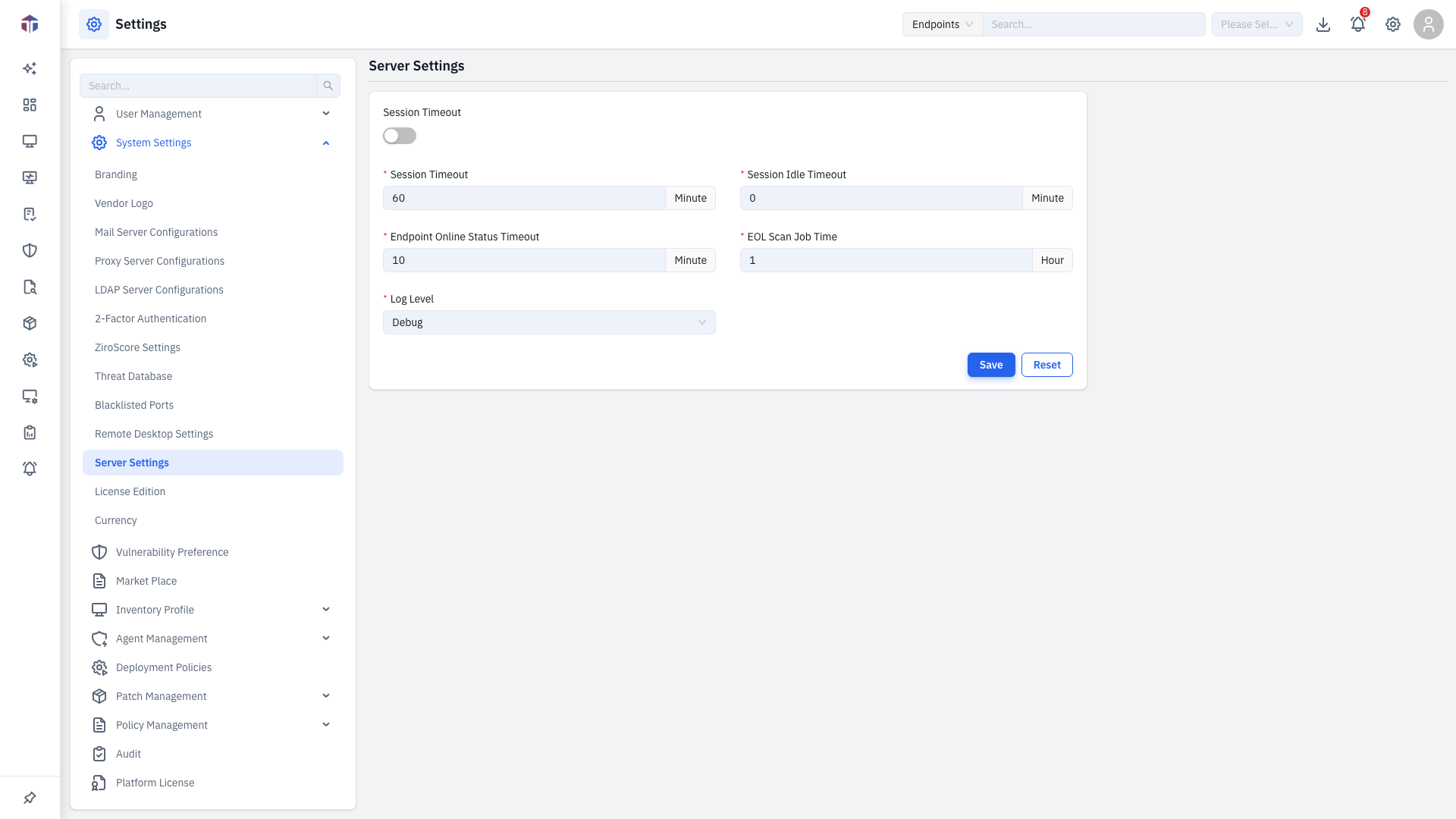
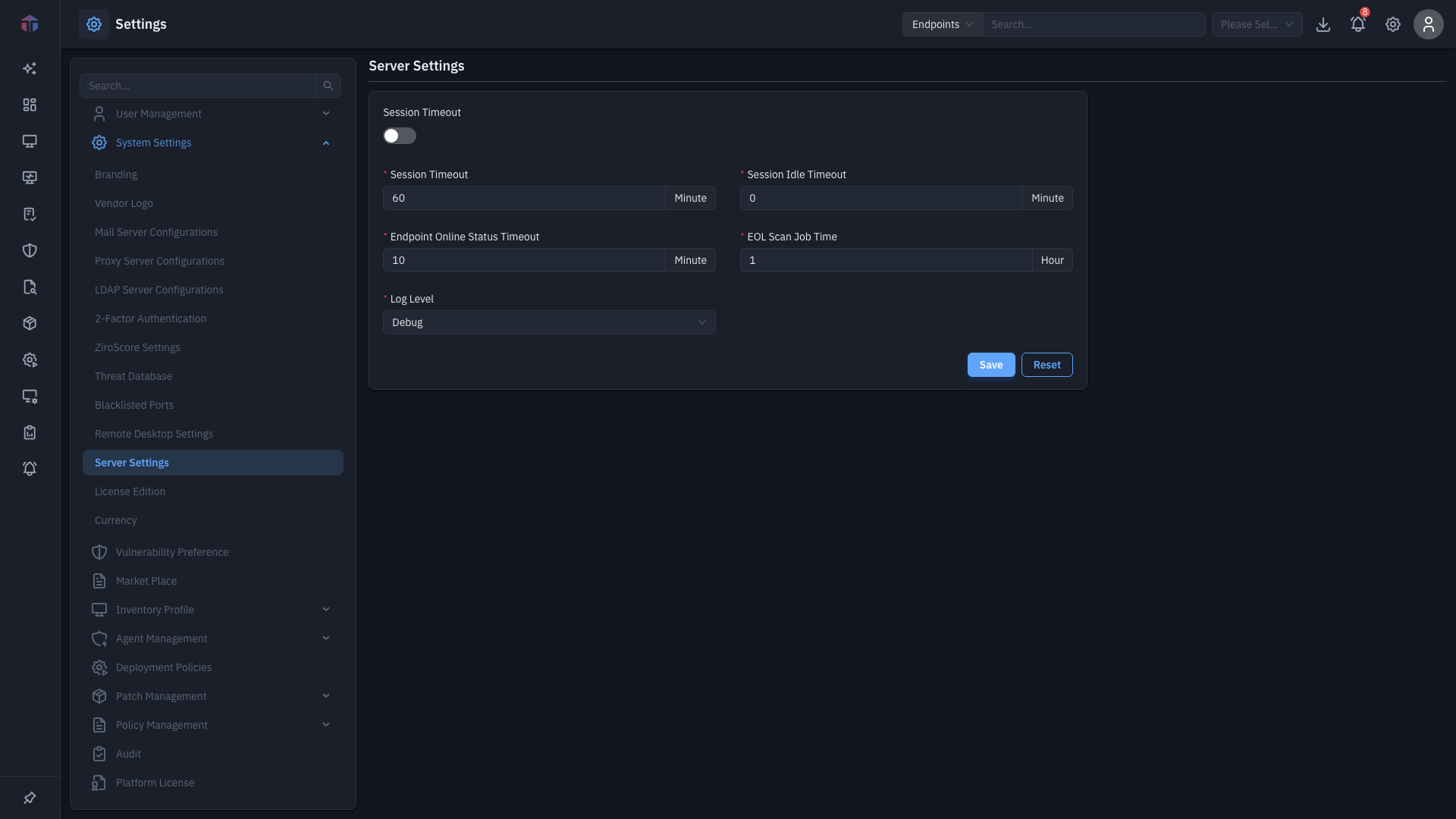
| Field | Required | Notes |
|---|---|---|
| Session Timeout | — / Yes | Toggle, plus the maximum session length in minutes. |
| Session Idle Timeout | Yes | How long a session can sit idle before sign-out, in minutes. |
| Endpoint Online Status Timeout | Yes | How often endpoint online/offline status refreshes, in minutes. |
| EOL Scan Job Time | Yes | When the end-of-life scan job runs, in hours. |
| Log Level | Yes | Logging detail: Trace, Debug, Warning (default), or Info. |
How do I change them?
- Set the timeouts and scan time (each field's unit — minutes or hours — is shown next to it).
- Choose a Log Level.
- Click Save. Use Reset to undo unsaved changes.
Log level
Leave Log Level at Warning for normal use. Raise it to Debug or Trace only while troubleshooting — verbose logging grows log files quickly.
Related
- Remote Desktop Settings — remote session options.
- Proxy Server Configurations — outbound traffic settings.