Threat Database
Maintain your own threat indicators — known malicious file hashes and blacklisted IP addresses — that EndpointOps uses to flag activity on your endpoints.
Threat Database appears only on editions that include threat detection (ZiroXpose and above). If you don't see it in the menu, your license doesn't include it.
How to get here
You reach this page through Settings, so you need administrator (settings) permission. If you don't see the Settings icon, ask your administrator for access.
- Sign in to EndpointOps.
- In the top-right of any screen, click the Settings (gear ⚙️) icon.
- In the Settings menu on the left, open System Settings and click Threat Database.
Navigate to: Settings → System Settings → Threat Database
URL path: /settings/system-settings/threat-database
The Threat Database screen
The screen has two tabs: Malicious Hash and Blacklisted IP.
Malicious Hash
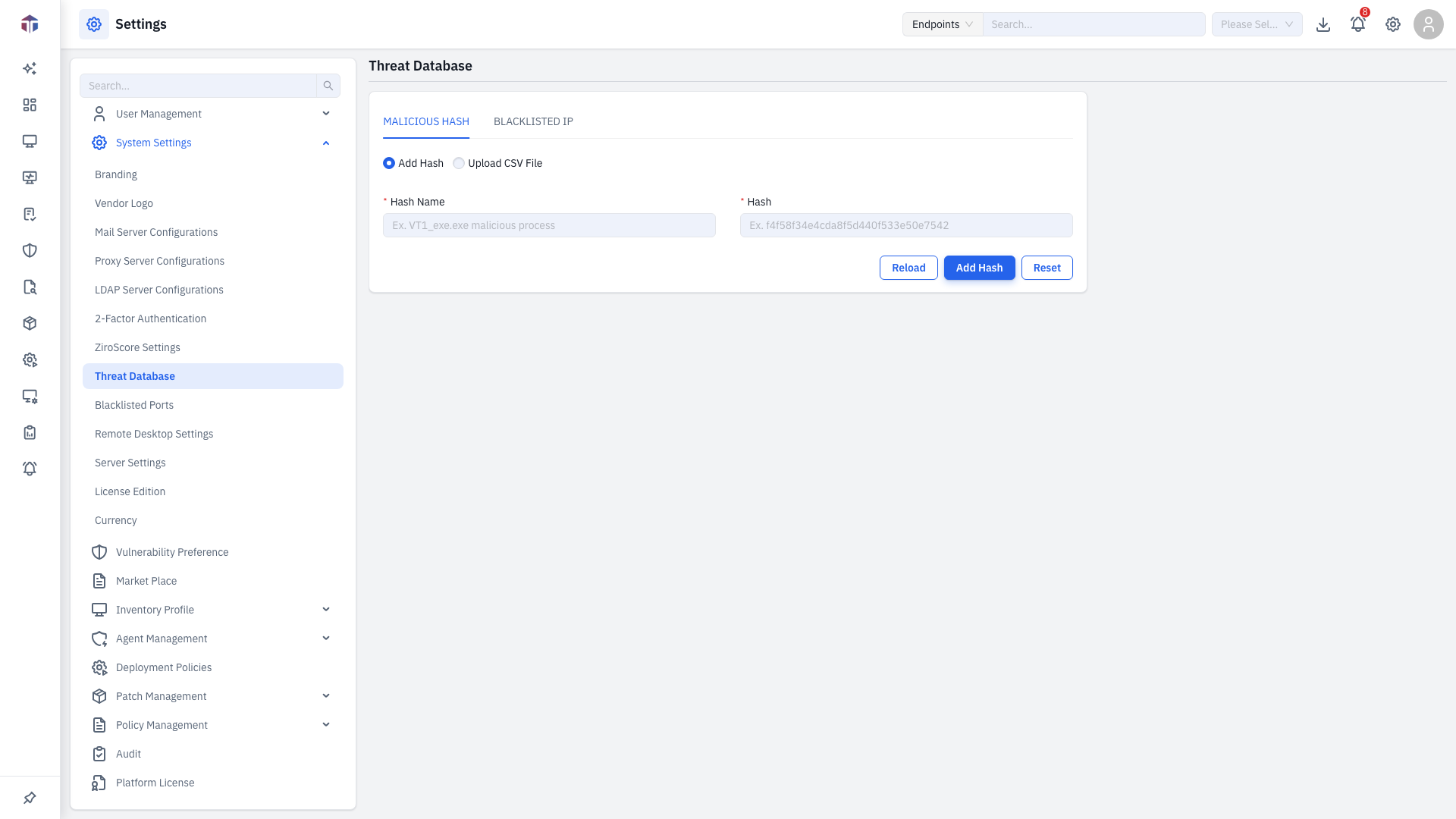
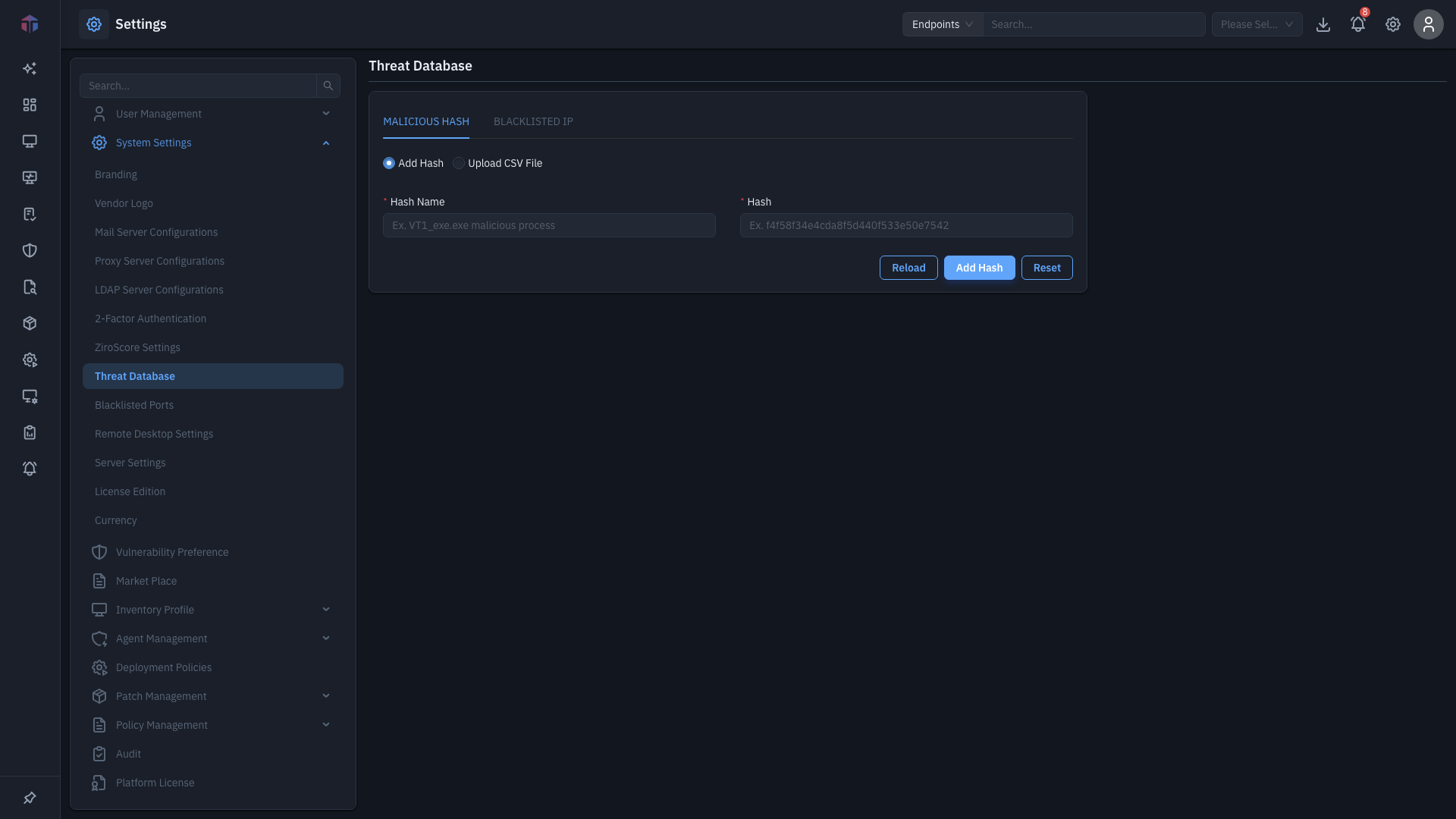
Choose how to add hashes with the Add Hash / Upload CSV File option:
| Field | Required | Notes |
|---|---|---|
| Hash Name | Yes (single) | A label, e.g. VT1_exe.exe malicious process. |
| Hash | Yes (single) | The file hash, e.g. f4f58f34e4cda8f5d440f533e50e7542. |
| CSV File | Yes (CSV) | A CSV of hashes (a sample download link is provided). |
Click Add Hash (or Upload for a CSV). Use Reload to refresh the list and Reset to clear the form.
Blacklisted IP
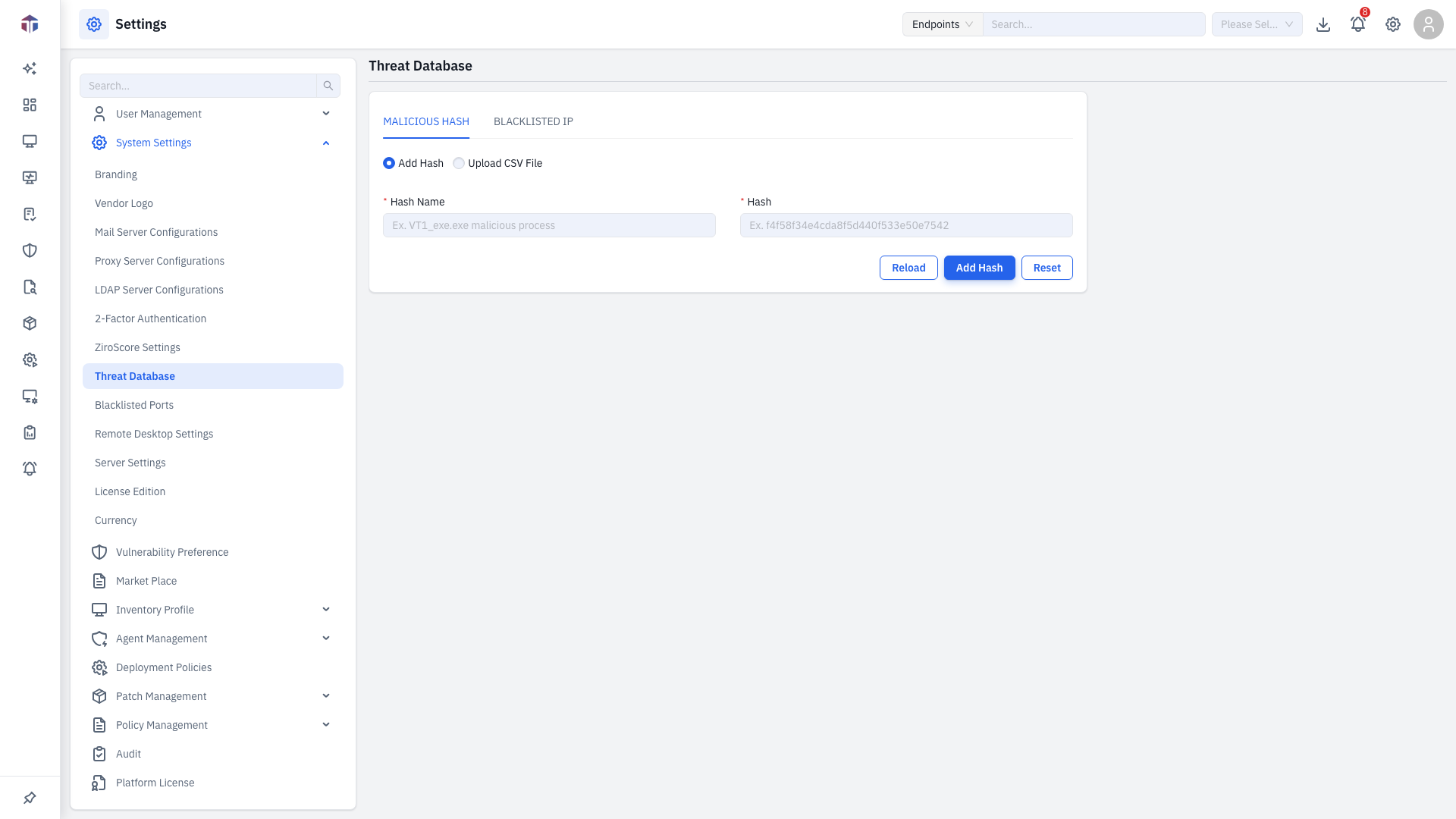
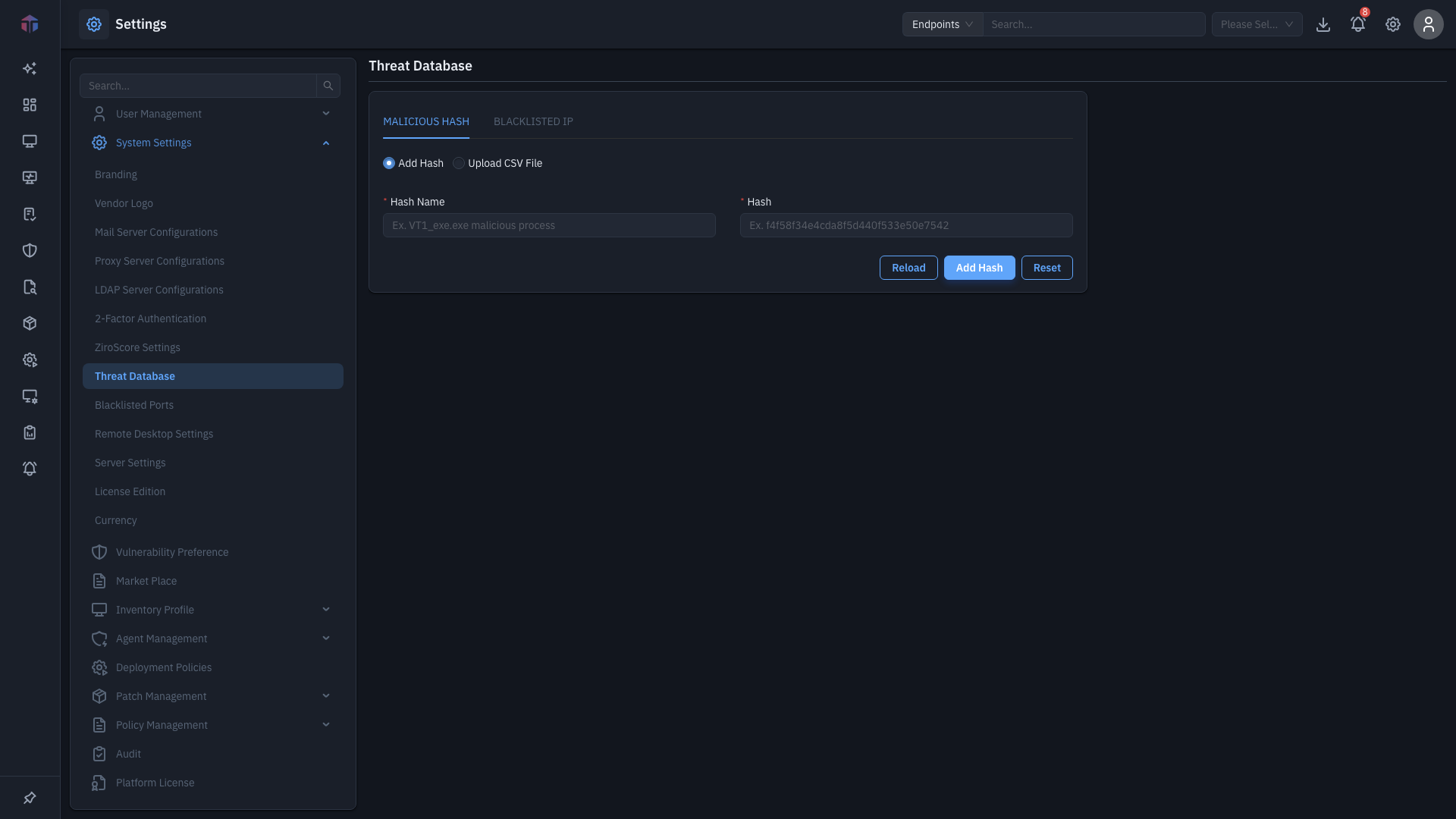
| Field | Required | Notes |
|---|---|---|
| IP Address | Yes (single) | A single IPv4 address, e.g. 20.20.20.20. |
| CSV File | Yes (CSV) | A CSV of IP addresses (a sample download link is provided). |
Click Add Blacklisted IP (or Upload for a CSV).
How do I add indicators in bulk?
- Switch to the tab you want (Malicious Hash or Blacklisted IP).
- Choose Upload CSV File.
- Download the sample CSV, fill it in, and upload it.
- Click Upload.
The Malicious Hash tab manages file hashes; the Blacklisted IP tab manages IP addresses. Each has its own Reload to refresh that list.
Tips & troubleshooting
- CSV upload fails or imports nothing. Start from the provided sample CSV and keep its column headers; put one hash (or IP) per row and remove blank rows or stray characters.
- A hash isn't matching. Confirm it's the right algorithm, lower-case, with no surrounding spaces.
- An IP isn't being flagged. Use a single IPv4 address per row (no ranges unless the sample shows them).
Related
- ZiroScore Settings — the Threats weight uses this data.
- Blacklisted Ports — block traffic on specific ports.