2-Factor Authentication
Turn on two-factor authentication (2FA) to require a second verification step when users sign in, on top of their password.
How to get here
You reach this page through Settings, so you need administrator (settings) permission. If you don't see the Settings icon, ask your administrator for access.
- Sign in to EndpointOps.
- In the top-right of any screen, click the Settings (gear ⚙️) icon.
- In the Settings menu on the left, open System Settings and click 2-Factor Authentication.
Navigate to: Settings → System Settings → 2-Factor Authentication
URL path: /settings/system-settings/2fa
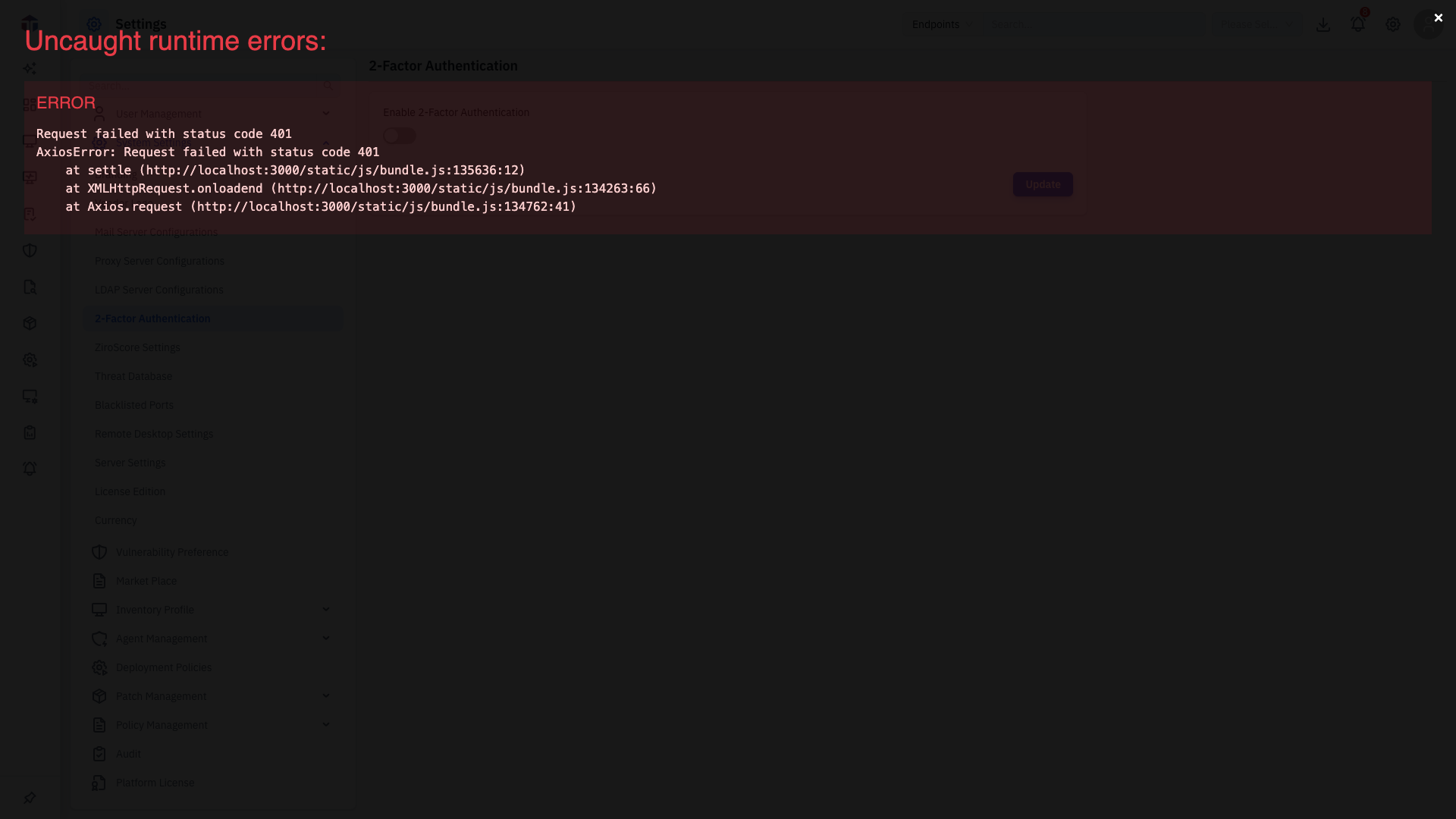
The 2-Factor Authentication screen
| Field | Required | Notes |
|---|---|---|
| Enable 2-Factor Authentication | — | Turn 2FA on or off for the whole account. |
| Authentication Mode | Yes (if enabled) | Email (a code is emailed) or App (an authenticator app). Shown only when 2FA is enabled. |
How do I turn it on?
- Turn on Enable 2-Factor Authentication.
- Choose an Authentication Mode:
- Email — users receive a one-time code by email (uses your Mail Server settings).
- App — users enter a code from an authenticator app.
- Click Update.
For App mode, EndpointOps supports Google Authenticator and Microsoft Authenticator. Each user links their app the next time they sign in.
2FA applies to the whole account. Before you turn it on, make sure you can still get back in if a second factor becomes unavailable:
- Email mode depends on a working Mail Server. If outbound email is misconfigured or down, codes never arrive and no one can sign in. Send yourself a test before enabling it for everyone.
- App mode depends on the user's authenticator. If a user loses their phone or resets the app, they can't complete sign-in.
If a user is locked out, an administrator resets it by reconfiguring or turning off 2FA for that account. Keep at least one administrator who can reach this screen so you always have a way to recover.
Related
- Signing in — what users see when 2FA is on.
- Mail Server Configurations — required for Email mode.