Password Policy
The Password Policy sets the rules every user password must meet. It applies to all user accounts.
How to get here
You reach this page through Settings, so you need administrator (settings) permission. If you don't see the Settings icon, ask your administrator for access.
- Sign in to EndpointOps.
- In the top-right of any screen, click the Settings (gear ⚙️) icon.
- The Settings screen opens with its own menu down the left side. Click User Management (the first group) to expand it.
- Click Password Policy.
Navigate to: Settings → User Management → Password Policy
URL path: /settings/user-management/password-policy (for example,
https://your-endpointops-site/settings/user-management/password-policy).
The Password Policy screen
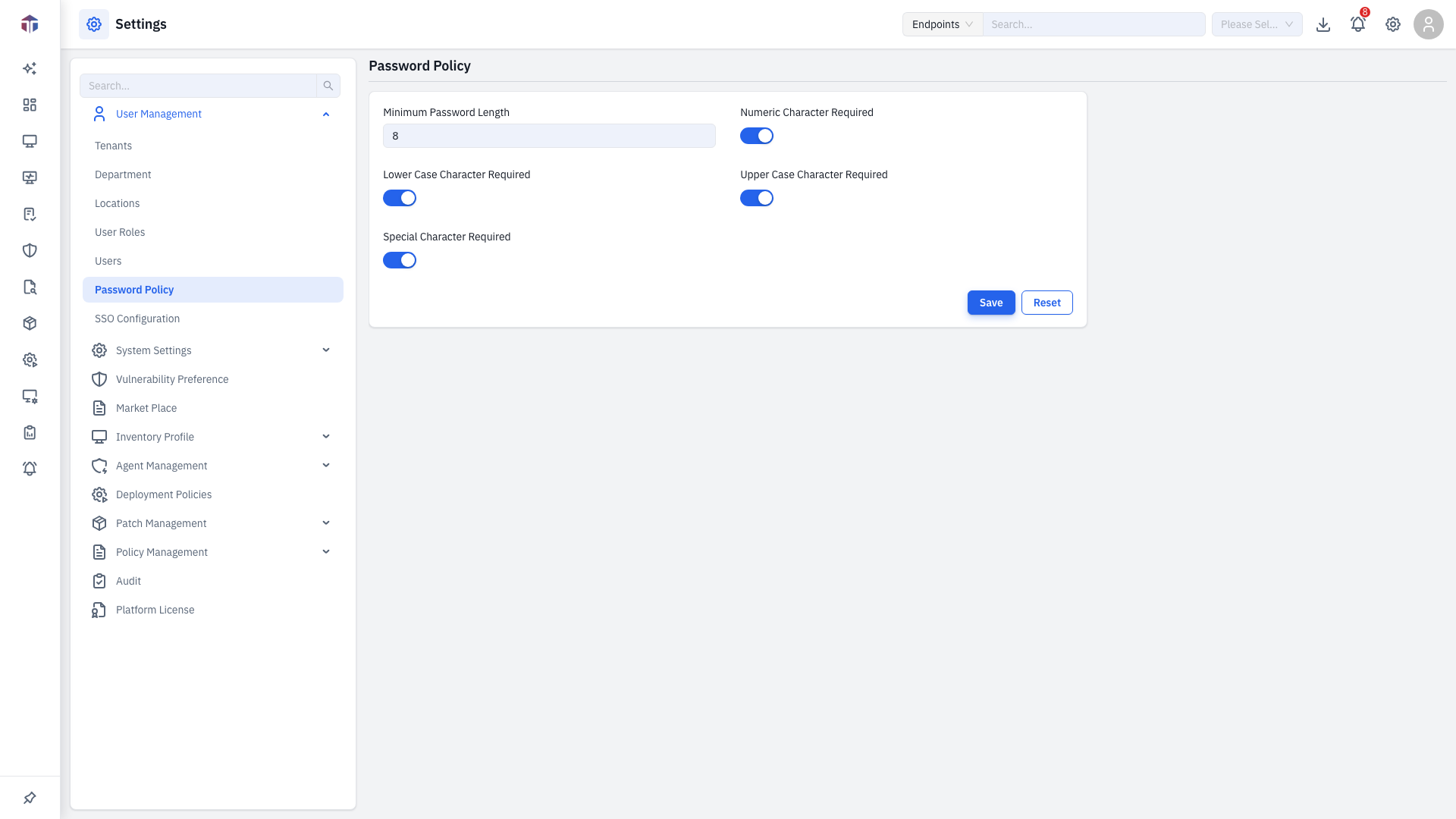
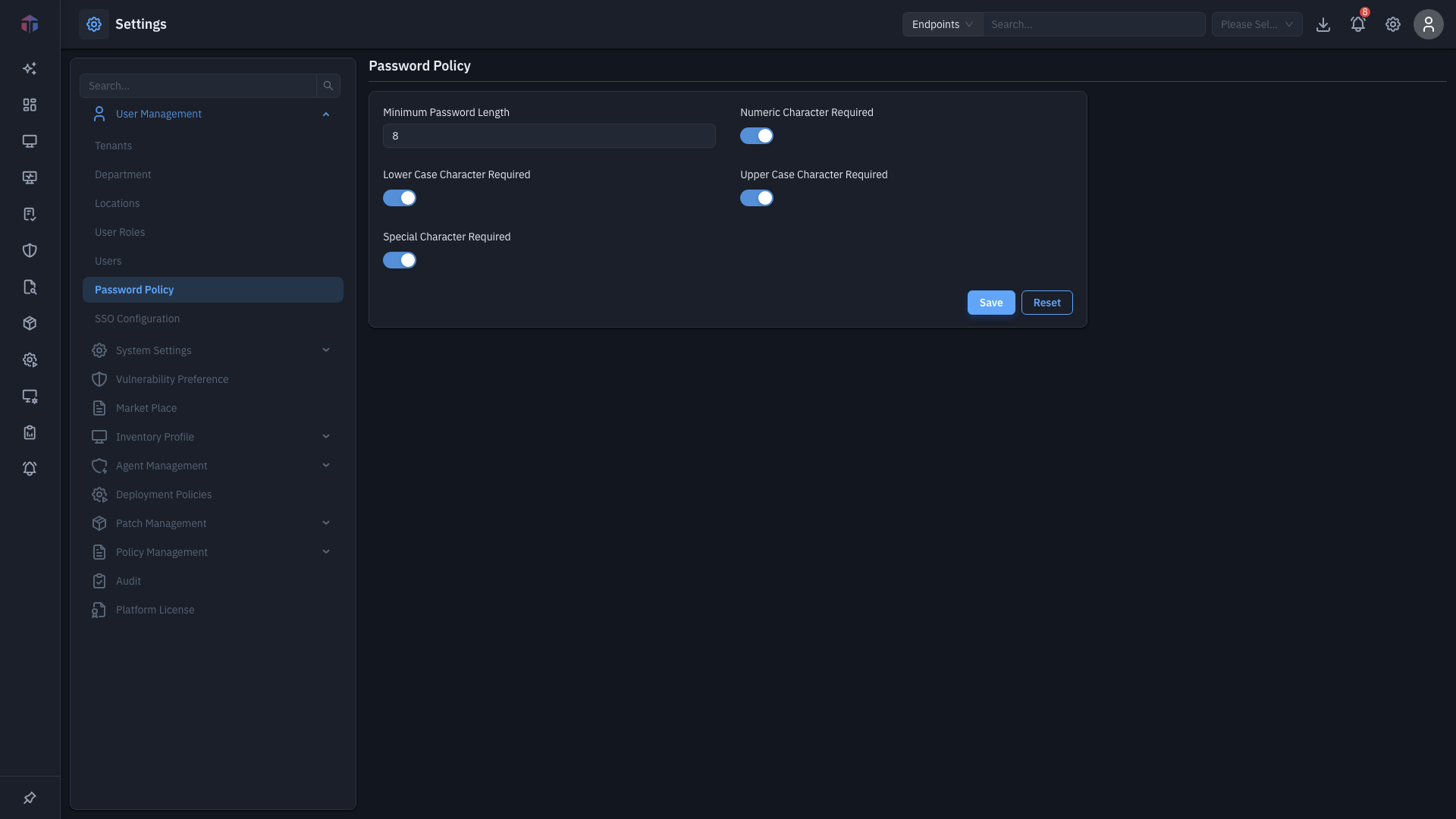
This is a settings form, not a list. The Save and Reset buttons are highlighted below.
| Setting | Type | What it does |
|---|---|---|
| Minimum Password Length | Number | The shortest allowed password (for example 8). |
| Numeric Character Required | Toggle | Require at least one digit (0–9). |
| Lower Case Character Required | Toggle | Require at least one lowercase letter. |
| Upper Case Character Required | Toggle | Require at least one uppercase letter. |
| Special Character Required | Toggle | Require at least one symbol (for example !@#). |
How do I change the policy?
- Set the Minimum Password Length.
- Turn the character requirements on or off with their toggles.
- Click Save. Use Reset to restore the previous values.
When new rules take effect
New rules apply the next time a password is set or changed — they don't invalidate existing passwords immediately.
Tips
- Stricter rules (longer length, all character types) make passwords harder to guess. Balance security with what your users can remember.
- These rules are enforced wherever a password is entered, including the Create User form.
Related
- Users — where the policy is enforced when a password is set.
- SSO Configuration — single sign-on bypasses local passwords.