Manage Exceptions
Manage Exceptions lists the CVEs you've chosen to exclude from your vulnerability posture — either accepted as risk or marked not applicable — so they stop cluttering the Vulnerabilities list.
How to get here
You need View Manage Exceptions permission (ZiroPatchPlus edition).
- In the left sidebar, click Vulnerability to expand it, then click Manage Exceptions.
Navigate to: Vulnerability → Manage Exceptions
URL path: /vulnerability/manage-exceptions
The Manage Exceptions screen
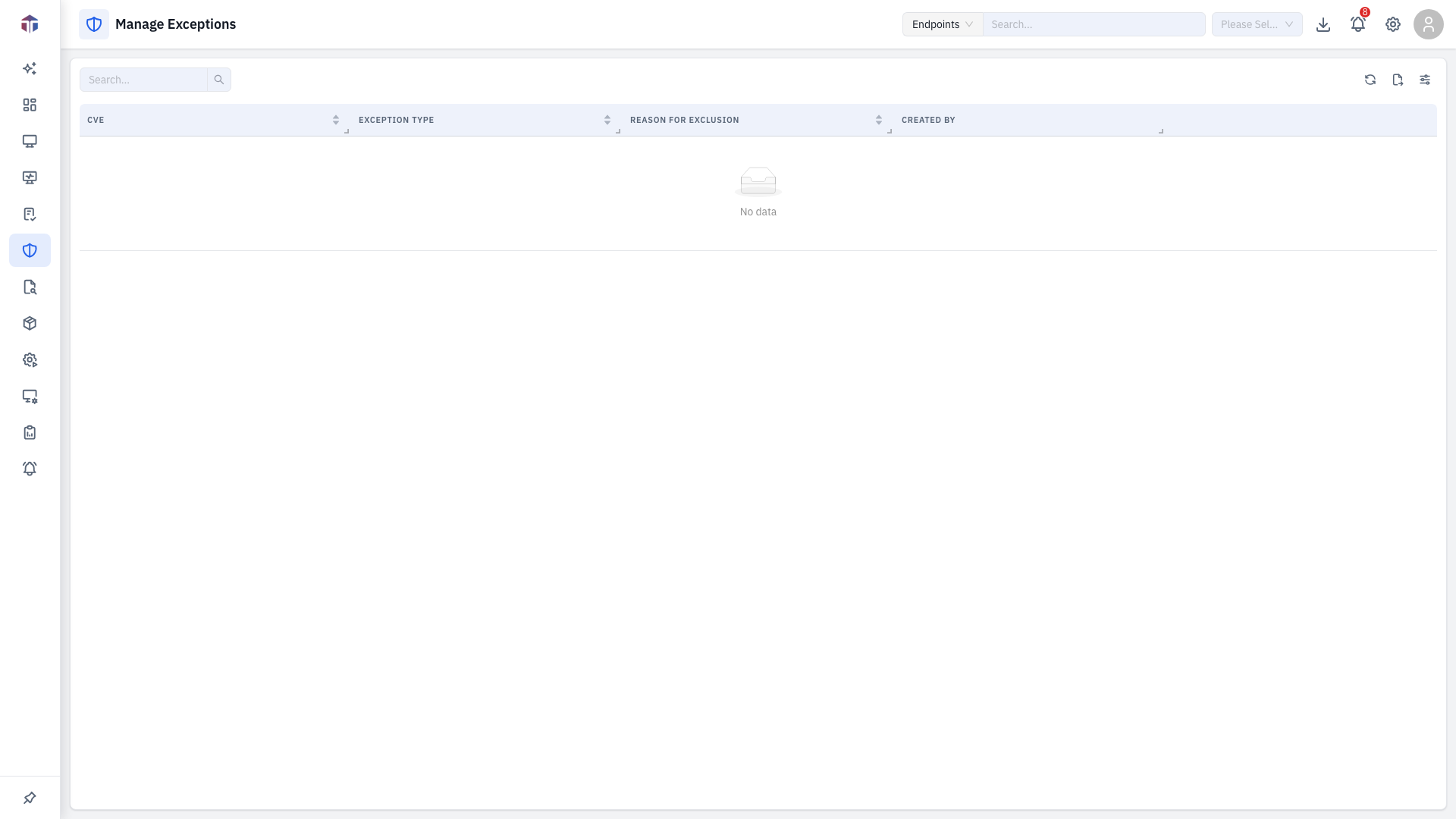
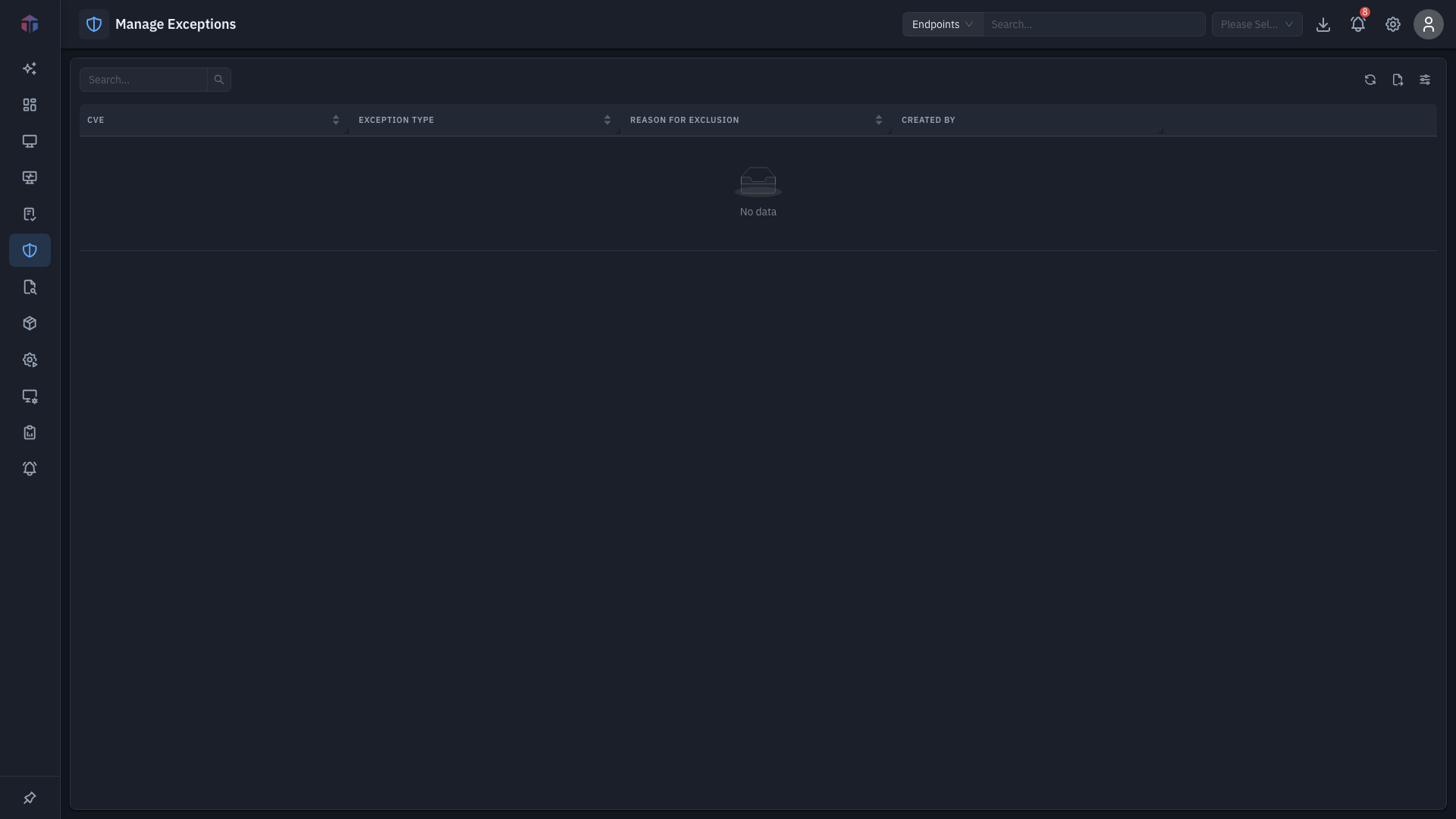
| Column | What it shows |
|---|---|
| CVE | The excepted CVE — click for its full detail (read-only). |
| Exception Type | Acceptable Risk or Not Applicable. |
| Reason For Exclusion | Why it was excepted. |
| Created By | Who added the exception. |
| Created On | When (hidden by default). |
Row actions: the eye icon opens the CVE's detail (view-only); delete removes the exception, putting the CVE back into the active list.
How do I add an exception?
You add exceptions from the Vulnerabilities list: select one or more CVEs and click Add Exceptions.
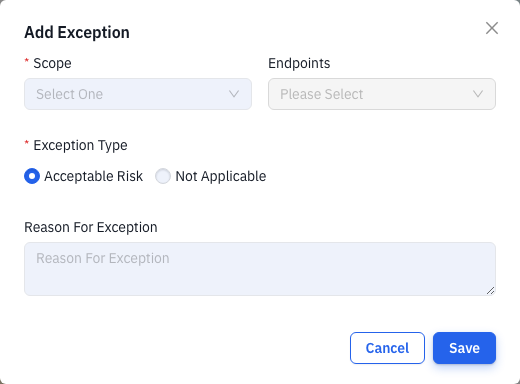
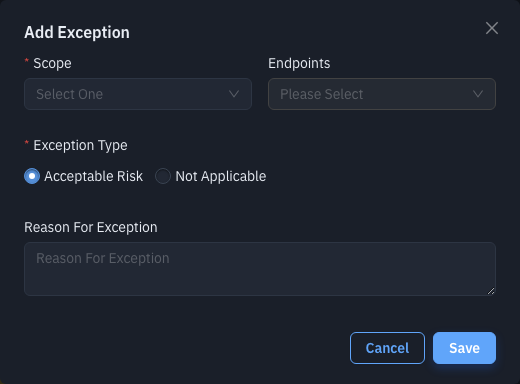
| Field | Required | Notes |
|---|---|---|
| Scope | Yes | Which endpoints the exception applies to. |
| Exception Type | Yes | Acceptable Risk (you accept it) or Not Applicable (a false positive). Defaults to Acceptable Risk. |
| Reason For Exception | No | A note explaining the decision. |
Click Save. The CVE then appears here and drops off the active Vulnerabilities list for the scoped machines.
Tips & troubleshooting
- An excepted CVE reappeared. Its exception may have been scoped to specific machines, or deleted here — check the Scope and re-add if needed.
Related
- Vulnerabilities — where you select CVEs and add exceptions.